
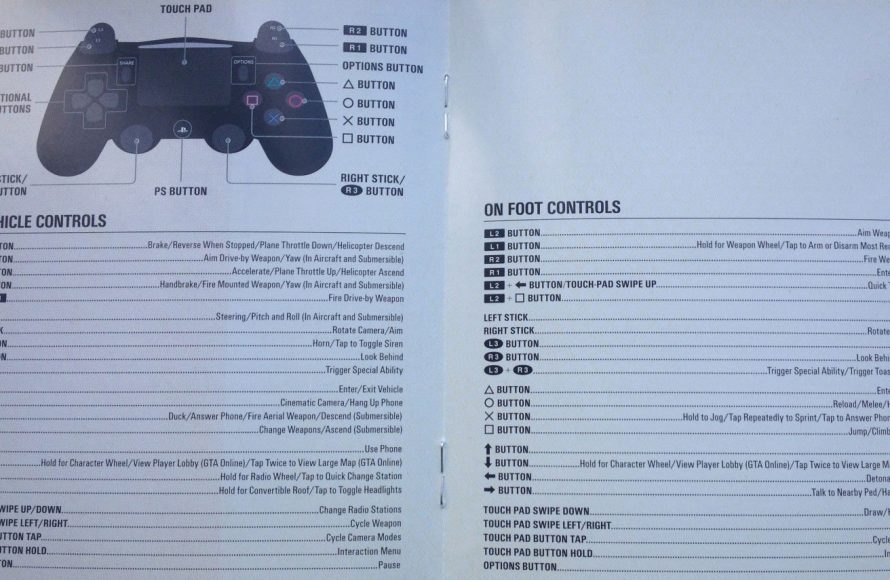
The full list of GTA 5 Online controls encompasses movement (WASD/left stick), camera (mouse/right stick), combat (mouse clicks/triggers), vehicle operation (WASD/triggers), and interaction keys (E/X).
Navigating the chaotic world of Los Santos requires a solid grasp of the game’s mechanics, specifically how to control your character. Knowing all of the gta 5 online controls is absolutely crucial for effective gameplay, whether you are exploring the city or engaging in intense firefights. Without a clear understanding of these controls, you’ll struggle in even the simplest tasks.
From driving getaway vehicles to participating in heists with your crew, precise movement and action inputs dictate success. We’ll provide you with a comprehensive overview, so you can quickly get up to speed. This will make your online experience smooth and enjoyable.

GTA 5 Online All Controls: Your Complete Guide
Hey there, fellow gamers! Ready to dive deep into the world of Los Santos and become a true GTA Online pro? Well, knowing your controls is like having a secret weapon. It’s what separates the newbies from the legends. Whether you’re cruising in a super car, battling it out in a heist, or just chilling with friends, having a firm grasp on the controls is super important. So, let’s break it all down and make sure you’re ready for anything this crazy game throws at you!
Basic Movement and Camera Controls
First things first, let’s get you moving around! Think of these controls as your bread and butter. They’re the ones you’ll use almost constantly, so knowing them inside and out is key. They’re very intuitive, but let’s go through them step by step:
Walking, Running, and Sprinting
- Left Analog Stick (or W, A, S, D keys on PC): This is how you move your character. Push it forward to walk, push it harder to run, and even harder for a full-on sprint.
Camera Control
- Right Analog Stick (or Mouse on PC): Use this to look around. It’s how you see where you’re going and what’s happening around you. You can also use it to aim when you’re using weapons.
Jumping
- X button on PlayStation, A button on Xbox, Space Bar on PC: Tap this to make your character jump. Super helpful for hopping over low obstacles or getting a little boost during a chase.
Crouching and Stealth
- Circle button on PlayStation, B button on Xbox, Ctrl key on PC: This makes you crouch, which can be good for sneaking around. It also makes you a smaller target.
Vehicle Controls
Now, let’s get behind the wheel! Vehicles are a huge part of GTA Online, and mastering the driving controls is essential for getting around quickly and effectively. Here’s how you control your rides:
Driving and Steering
- Left Analog Stick (or W, A, S, D keys on PC): Steer your vehicle with this. Push it forward to accelerate, back to brake, and left/right to turn.
Accelerating and Braking
- R2 button on PlayStation, RT button on Xbox, Right Mouse Button on PC: Accelerate by pressing these.
- L2 button on PlayStation, LT button on Xbox, Left Mouse Button on PC: Use these to brake, or to go in reverse if you’re already stopped.
Handbrake/Emergency Brake
- Square button on PlayStation, X button on Xbox, Space Bar on PC: Use the handbrake to make sharp turns or stop quickly.
Changing Camera Views in Vehicles
- R3 Button (Press Right Analogue Stick) on PlayStation, Right Analogue Button on Xbox, V key on PC: Toggles between different camera views.
Horn
- L3 button (Press Left Analogue Stick) on PlayStation, Left Analogue Button on Xbox, E key on PC: To honk your horn, for friendly beeping or to get someone’s attention.
Weapon Controls
Alright, it’s time to talk about weapons! In GTA Online, knowing how to handle your arsenal is key to surviving, and sometimes even winning, battles.
Equipping and Switching Weapons
- L1 button on PlayStation, LB button on Xbox, Tab key on PC: This opens the weapon wheel. Use the Right Analog stick (or mouse) to select the weapon you want and press the corresponding button to switch to it.
Aiming and Firing
- L2 button on PlayStation, LT button on Xbox, Right Mouse Button on PC: Aim your weapon by holding down this button.
- R2 button on PlayStation, RT button on Xbox, Left Mouse Button on PC: Fire your weapon by pressing this button.
Reloading
- Square button on PlayStation, X button on Xbox, R key on PC: Press this to reload your weapon when your magazine is empty.
Melee Attacks
- R3 button on PlayStation, Right Analog Stick on Xbox, Left Mouse Button on PC when not aiming: Perform melee attacks when not holding the aim button.
Throwing Grenades and other throwable weapons
- L1 button on PlayStation, LB button on Xbox, Tab key on PC: Opens the weapon wheel, select throwable weapon and hold down L2/LT/Right Mouse Button to aim and press R2/RT/Left Mouse Button to throw.
Interaction and Action Controls
GTA Online is more than just driving and shooting. There are many other actions and interactions you’ll need to know. These controls will help you get things done in Los Santos!
Entering and Exiting Vehicles
- Triangle button on PlayStation, Y button on Xbox, F key on PC: Use this button to enter or exit a vehicle when you’re near the car door.
Using Your Phone
- Up on the D-pad on PlayStation or Xbox, Up Arrow Key on PC: Opens up your phone. You can call friends, access the internet, and much more.
The Interaction Menu
- Touchpad on PlayStation, View button on Xbox, M key on PC: This menu lets you do a bunch of different things like change your outfits, request vehicles, and even manage your business.
Activating Special Abilities
- L3+R3 buttons on PlayStation, Left and Right Analogue stick button on Xbox, Capslock key on PC : Activate special abilities (such as Franklin’s special driving ability).
Taking Cover
- Move near cover Use the left analog stick or W,A,S,D keys to move near a wall, object or corner to take cover.
Talking to people
- Circle button on PlayStation, B button on Xbox, Ctrl key on PC when close to people: talk to peoples or NPC in the world of GTA Online.
Advanced Controls and Techniques
Ready to take your gameplay to the next level? These advanced controls and techniques will help you fine-tune your skills and outmaneuver your rivals!
Combat Rolls
- Square button on PlayStation, X button on Xbox, Space bar on PC while aiming : Roll in the direction of movement while aiming to avoid incoming attacks.
Quick Reload
- Square button on PlayStation, X button on Xbox, R key on PC at the moment when your character reload his weapon: Reloading animation can be skipped.
Advanced Driving Techniques
- Use Handbrake, brakes and acceleration for faster and more smooth driving in the world.
Using Cover Effectively
- Aim out from cover, use combat roll, move from cover to cover in order to make your survivability higher.
Aiming techniques
- Learn to aim while moving, practice flick shots, and keep the crosshair in the right position.
Platform-Specific Controls
While the controls are largely the same across platforms, there are some subtle differences. Let’s take a quick look at the key differences between console and PC controls.
PlayStation Controls
PlayStation uses the DualShock controller. The main differences are its unique touchpad and the placement of buttons like L1/L2 and R1/R2 which are pressure sensitive.
Xbox Controls
Xbox uses its standard Xbox controller. You can identify these by using Lb, LT, RB, RT, and A, B, X, Y buttons.
PC Controls
PC controls use keyboard and mouse. Movement is done with W, A, S, D, and camera control with the mouse. The game does allow customization of key bindings which is a great option.
Control Customization
Want to make the controls feel just right for you? GTA Online lets you customize your controls, especially on PC. This means you can set up buttons to fit your play style. In settings, you can find the control options to remap the buttons as you please.
Tips for Mastering the Controls
Okay, you’ve learned all the controls, now what? Here are some quick tips to help you become a control master:
- Practice: The more you play, the more natural the controls will feel.
- Experiment: Don’t be afraid to try out different combinations and techniques.
- Watch Others: See how more experienced players use the controls. You can learn a lot by watching gameplay.
- Customize: Change the control layout if it suits you better.
- Start Simple: Begin with the basics and then build your way up to the advanced stuff.
Understanding all these controls can seem like a lot at first, but with a little practice, they will become second nature. You will be driving like a pro, shooting accurately, and using the interaction menus like a veteran in no time! This guide will help you navigate the world of GTA Online much easier, and increase your chances for success. So, go have fun in Los Santos, and become the best player you can be!
101 Tips Every GTA Online Player Should Know
Final Thoughts
Ultimately, understanding gta 5 online all controls is essential for thriving in Los Santos. Knowing movement, weapon handling, and vehicle operation directly impacts your success. These commands provide the foundation for every online activity.
Players need to practice and familiarize themselves with each control. Efficient navigation and skillful combat greatly benefit from this knowledge. This makes online gameplay much more enjoyable.
Successfully navigating the complex world requires familiarity with these controls. So, dedicate some time to learn gta 5 online all controls to improve your experience.

