
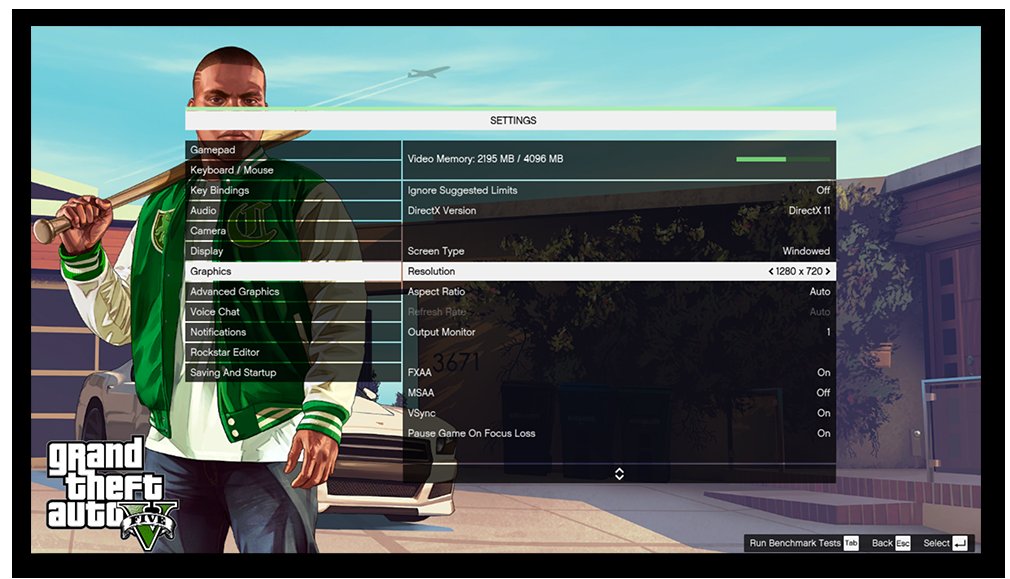
The graphics options in GTA 5 Online allow players to adjust settings like texture quality, shadows, and resolution to optimize performance and visual fidelity.
Want to make Los Santos look its absolute best, or perhaps you need to squeeze out a few extra frames per second? Getting the most from your gaming experience means understanding the gta 5 online all graphics options. Navigating these settings can be a little confusing, but they offer powerful ways to customize the game to your hardware.
Finding the right balance between visual quality and smooth gameplay is key. The numerous settings let you fine-tune everything from reflections to population density. Experimentation is often the best way to find the ideal configuration for your setup.

GTA 5 Online: Diving Deep into All Graphics Options
Hey there, fellow Los Santos thrill-seekers! Ever wondered how to make your GTA 5 Online look super awesome? Or maybe your game is running a little slow and you want to fix it? Well, you’ve come to the right place! We’re going to explore all the different graphics options in GTA 5 Online, so you can get the best-looking and smoothest game possible. It might seem like a lot at first, but don’t worry; we’ll break it down nice and easy, just like cruising down the highway in your favorite car. Whether you’re playing on a super-powered gaming PC or an older machine, understanding these settings can make a huge difference. So, buckle up, and let’s get started!
Understanding the Basics: Why Graphics Settings Matter
Before we jump into the nitty-gritty, let’s talk about why these graphics options are so important. Think of it like this: the graphics settings control how detailed and beautiful the game looks. A higher detail setting means sharper images, more realistic shadows, and cooler effects. But, like adding more toppings to a pizza, it can also make your game run slower if your computer can’t handle it. Finding the right balance between looks and performance is key to having a great time in GTA Online. This is where understanding each of the options comes in.
The Relationship Between Graphics and Performance
It’s important to understand that every setting you tweak has a direct impact on your game’s performance. If you have a high-powered gaming PC, you might be able to max out almost every setting and still enjoy a smooth gaming experience with high frames per second (FPS). However, if you have an older or less powerful machine, turning every setting up to the highest could cause your game to stutter, freeze, or even crash. That’s why we need to learn how to find the perfect balance between beautiful visuals and smooth performance. By adjusting these settings wisely, you can make the most of your current setup.
The Different Components That Affect GTA 5
The performance of your game depends on a few key components inside your computer. Let’s take a quick look at what each one does:
- CPU (Central Processing Unit): This is like the brain of your computer. It handles all the calculations, including game logic and AI. A more powerful CPU generally helps prevent bottlenecks, and allows smoother gameplay in busy areas of GTA Online.
- GPU (Graphics Processing Unit): This is responsible for rendering the images you see on your screen. A better GPU allows you to play the game with higher resolutions, better detail, and smoother frame rates.
- RAM (Random Access Memory): This is where your computer stores temporary data while the game is running. More RAM means more data can be quickly accessed which helps with loading times and preventing stuttering.
- Storage Device (SSD or HDD): This is where the game is installed. An SSD (Solid State Drive) generally loads much faster than an HDD (Hard Disk Drive). While it doesn’t directly affect graphics quality, it does affect load times and can improve performance in some instances.
Graphics Settings Breakdown: A Deep Dive
Now that we understand the basics, let’s get into the actual graphics settings in GTA 5 Online. We will go through each one, explaining what they do and how they impact the game, so you can adjust them to find your perfect look and feel. We will start with settings that have a bigger impact, and then move to some of the smaller ones that make less of a difference, or some of the advanced ones.
Resolution
The resolution setting determines how many pixels make up the image on your screen. Higher resolution means more detail and clearer images. It also requires more power from your GPU. Common resolutions include:
- 1920×1080 (1080p): A standard for most monitors and a good starting point.
- 2560×1440 (1440p): Provides a sharper image than 1080p and is a great option for those with more powerful GPUs.
- 3840×2160 (4K): Offers incredibly crisp and detailed visuals but is very demanding on your system.
For most players, 1080p is a solid starting point. If you have a good graphics card, give 1440p a try. If you have a very powerful GPU, 4k is great, but be prepared that it might cause a slight performance impact.
Refresh Rate
The refresh rate, measured in Hertz (Hz), indicates how many times per second your monitor updates the image on the screen. Most monitors have a refresh rate of 60Hz, which is sufficient for regular gaming. However, if your monitor has a higher refresh rate (like 120Hz, 144Hz, or even 240Hz), you’ll enjoy much smoother gameplay. To see higher refresh rates in action you must have higher framerates and a monitor that matches the refresh rate you have selected in the GTA 5 graphics settings.
Screen Type
This setting allows you to choose between “Fullscreen,” “Windowed,” and “Borderless Windowed” display modes. Fullscreen typically offers slightly better performance, as it has exclusive control over the display. Windowed mode allows you to easily switch between the game and other applications, while borderless windowed runs the game in a window that covers the entire screen.
Generally, the default “Fullscreen” option is the best choice for performance, while “Borderless Windowed” is the most convenient.
Graphics Card
Here, the game lets you select which graphics card it uses. If you only have one GPU, select that one. If you have multiple GPUs, be sure to select the most powerful one that you want to play with.
FXAA & MSAA
These settings are related to anti-aliasing. Anti-aliasing smooths out the jagged edges of objects in the game, making everything look much cleaner. FXAA (Fast Approximate Anti-Aliasing) is less demanding but also less effective than MSAA (Multi-Sample Anti-Aliasing).
- FXAA: A quick and lighter anti-aliasing method that makes a difference but can sometimes blur the image slightly. Good for players with weaker systems.
- MSAA: More effective but more demanding than FXAA. This option comes with different levels (2x, 4x, 8x), with higher levels creating sharper, smoother images at the cost of performance.
You can experiment with both. If you see jagged lines (like stairs look jagged), use anti-aliasing. If your game is very slow, try turning them off first or only use FXAA.
Vsync (Vertical Sync)
Vsync synchronizes your game’s frame rate with your monitor’s refresh rate, which prevents screen tearing (when the top and bottom parts of the screen don’t line up properly). Turning this option on can make your game smoother by avoiding screen tearing issues, but it can also limit your frame rate to the monitor’s refresh rate and might introduce some input lag.
If your game isn’t running smoothly and you see lines across your screen turn it on. If your game is smooth but you feel some input lag, turn it off and see if it makes your gameplay better.
Population Density
This setting controls how many pedestrians and vehicles are on the streets of Los Santos. Higher density means more people and cars, making the city feel more alive. But it also puts a bigger strain on your CPU. If your game is running slow, lower this setting.
Population Variety
This option affects how varied the characters and vehicles are. With higher variety, you will see a greater diversity in the models and cars. This helps make the city feel more dynamic and less repetitive but it also uses more CPU power. Lower it if you have CPU issues.
Distance Scaling
This setting determines how far into the distance objects are rendered in the game. A higher value means you can see further and with more detail. You’ll notice that cars, trees, buildings and all sorts of other objects render further away. It makes the game look beautiful but also puts a strain on your graphics card. If you have a slower GPU, lower this setting.
Texture Quality
Texture quality affects the detail of surfaces, such as walls, roads, and characters. The higher the setting, the sharper and more detailed these objects will appear. This setting is also very important to image quality, but can use up a lot of graphics card memory (VRAM). If you have a good graphics card, max this. If your game is crashing or stuttering try lowering it a little.
Shader Quality
Shaders are used to create lighting, shadows, and other visual effects. A higher shader quality means more realistic lighting and better shadows. It is a very important setting for making your game look good but also can impact the performance, so experiment with it and find the best settings for your PC.
Shadow Quality
The shadow quality setting controls the detail and accuracy of shadows in the game. Higher settings make shadows look more realistic but also require more processing power. There are different quality settings for this option, and depending on what your graphics card is, test them one by one to see which works best for your PC. Shadow settings are one of the biggest hits on the performance, so this setting could be the difference between a smooth and a choppy experience.
Reflection Quality
This setting controls the quality of reflections on surfaces like cars and windows. Higher quality reflections make the game more visually impressive but can put a strain on your GPU. If your game is running slow, start with lowering the reflections.
Reflection MSAA
Just like the normal MSAA setting, this one applies anti-aliasing only to the reflections in the game. If you notice some jaggedness on the reflections, try turning this setting on. But keep in mind that it can impact performance.
Water Quality
This setting determines the visual fidelity of water. Higher quality settings make water look much more realistic, with detailed reflections and wave effects. But they can be quite demanding on your system. If you have low FPS try lowering it or turning it off completely.
Particle Quality
This setting impacts the quality of particle effects, like smoke, fire, and explosions. Higher particle quality means more detailed and realistic effects. This can look very impressive, especially during action sequences in GTA 5 Online but can also slow down the game.
Grass Quality
Grass Quality controls the density and detail of grass in the game world. Higher quality means more detailed grass which can look pretty but also impacts the performance quite a lot in some scenarios. If your game is slow, try turning this off first before any other graphics settings.
Soft Shadows
This setting controls the sharpness of shadows in the game. If you turn this on it will make the edges of the shadows softer and less harsh, creating a more realistic look but it also requires more processing power.
Post FX
Post processing effects are applied after the game renders the scene. These include things like motion blur, depth of field, and color grading. Post-processing can improve the visuals quite a lot but can also impact the game performance.
Motion Blur
Motion blur is a visual effect that blurs the image when the camera or objects move quickly. This can make the game feel smoother but can also be annoying to some people. If you don’t like the blurry look, it is safe to turn this setting off.
Depth of Field
Depth of field blurs objects in the background when you are focused on something in the foreground. It makes the game look more like a photograph or movie. It’s a matter of personal preference if you want to keep it on or off.
Anisotropic Filtering
Anisotropic filtering helps make textures look clearer, especially when viewed at an angle. Higher filtering values increase the texture clarity but also use more resources from your computer. Keep this setting at the highest level possible if you have the resources.
Ambient Occlusion
Ambient occlusion adds soft shadows where objects meet, creating a more realistic look. It can make the game more immersive but has a higher performance cost. If you feel your performance drops when looking at objects that are close to each other, turn this off or lower the quality of it.
Tessellation
Tessellation adds extra detail to object surfaces, making them look more rounded and three-dimensional. While it improves the visual quality it also uses more processing power. If you have an older graphics card, turn this setting off.
Advanced Graphics Settings
Beyond the regular graphics settings, GTA 5 Online also offers a few advanced options that allow you to further customize your visual experience. These include things like long shadows, high resolution shadows, and extended distance scaling. Messing around with these settings can make the game look even more beautiful, but you have to test them and see if your system can handle them.
Finding the Right Balance: Tips and Tricks
Finding the perfect settings for your machine takes some experimentation. Start by turning most of the settings to normal or medium. Then, start increasing them one by one, until you see your game slowing down or stuttering. Once you start experiencing performance issues, slowly start decreasing them one at a time until you get a perfect balance between performance and graphics.
Here are some additional tips for you:
- Monitor your FPS: The in-game benchmark tool helps you test your current graphics settings and monitor your average frame rate (FPS). Aim for a consistent 60 FPS for smooth gameplay. You can also use third party programs like MSI Afterburner to track your performance while playing.
- Start low: If you’re unsure, start with lower settings and increase them slowly.
- Test changes individually: Change one setting at a time and see how it affects performance before changing another.
- Consider your preferences: Some people prefer a smoother experience with slightly lower detail, while others prefer better visuals, even with slightly lower frame rate.
By taking the time to explore and adjust these options, you can make GTA 5 Online look and play its absolute best on your system. And the best thing about having so many options, is that you have full control of how your game looks and performs. So, go ahead, experiment with them and see which settings fit your needs the best.
17 GTA Online Settings You Need to Change NOW! (Console & PC Optimization)
Final Thoughts
Ultimately, finding the perfect balance with ‘gta 5 online all graphics options’ is key. Experiment with settings like textures, shadows and post-processing to improve performance. Tailoring visuals to your specific system will make the game run smoothly.
Adjusting these graphics settings can dramatically impact the experience. Lowering demanding options allows for higher framerates. Conversely, pushing everything to maximum improves visual fidelity. So, play with different combinations for your PC.

