
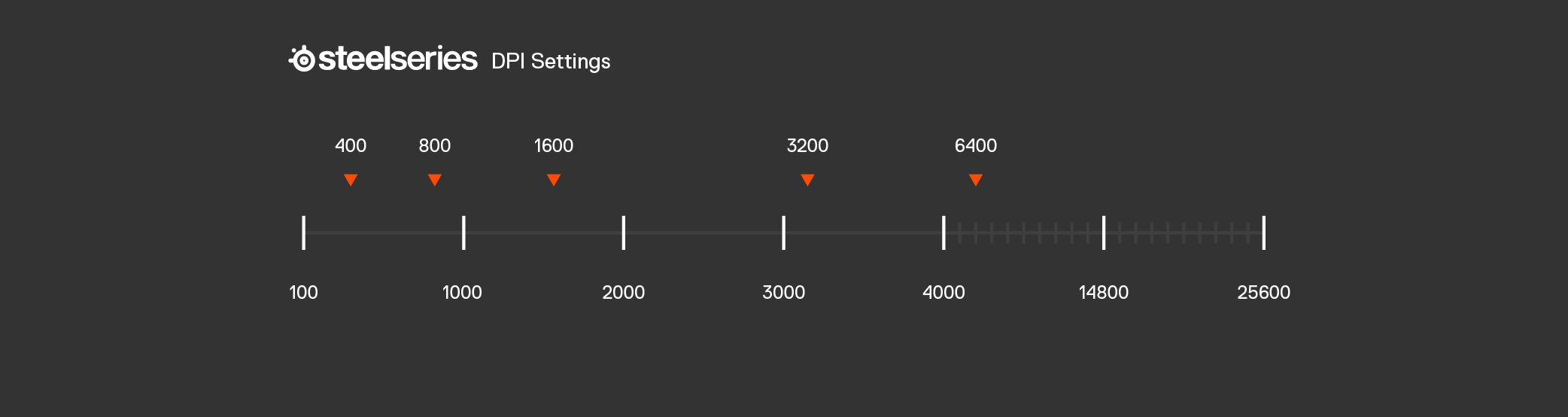
The complete list of GTA 5 Online mouse settings includes options for sensitivity, aiming mode, and various input configurations, affecting how your mouse controls gameplay.
Want to fine-tune your GTA 5 Online experience? Many players search for the perfect configurations to gain a competitive edge. Understanding the impact of each setting is key.
Specifically, exploring the gta 5 online all mouse settings list helps improve aiming and control in the game. From basic sensitivity to advanced features, optimizing these options can significantly affect your gameplay. So, let’s dive in and look at some changes you can make.

GTA 5 Online All Mouse Settings List
Alright, gamers! Let’s talk about something super important if you play GTA 5 Online on your computer: your mouse settings! Getting these just right can mean the difference between smoothly cruising through Los Santos and constantly crashing into walls. This guide will break down every mouse setting you can tweak in GTA 5 Online, explaining what each one does and how to set them up for the best experience. It might seem a bit confusing at first, but don’t worry – we’ll go through it all step-by-step. We want to help you make your gameplay much better!
Understanding Mouse Sensitivity
The first thing we need to talk about is mouse sensitivity. Imagine your mouse is like the steering wheel of a car. If the wheel is too sensitive, even a tiny nudge will make the car swerve all over the road. If it’s not sensitive enough, you’ll have to turn the wheel a lot to make the car change direction. It’s the same with your mouse and how your character moves in the game. This setting controls how much your in-game view moves when you move your mouse. You will see several options for this, so it’s a key factor to find your perfect balance.
Mouse Sensitivity – The General Setting
This is your overall mouse sensitivity. It impacts almost everything you do, from aiming your gun to looking around while walking or driving. If you are having issues moving around, you will want to adjust this setting. Start with the default and make small changes at a time. Go into the game, move your mouse around a bit, and see if it feels too fast or too slow. Many players find that a slightly lower sensitivity helps them aim better. When it feels better, then move to the more specific settings.
How to adjust: The slider in the GTA 5 settings lets you change the sensitivity. Move the slider to the left to make it slower, and to the right to make it faster. Try different positions of the slider until you feel comfortable.
Aim Sensitivity
Aim sensitivity, also sometimes called ‘Scoped Sensitivity’, controls how fast your view moves when you are aiming down the sights of your weapon (using first person view). This setting is incredibly important for aiming, which is key for firefights and completing missions. You can think of this sensitivity as separate from the general sensitivity. You may prefer a different speed for aiming compared to just looking around. Many players like having a lower aiming sensitivity for better accuracy, especially with rifles and sniper weapons.
How to adjust: This setting is also controlled using a slider, very similar to the general sensitivity. Move it to the left to slow down the aiming sensitivity and to the right to speed it up.
Vehicle Sensitivity
This is the setting that controls how quickly your character turns while you are driving a vehicle (car, bike, helicopter, etc.). Like the other sensitivities, you want to find a comfortable level. Some players like quick turns, while others want a smoother turning experience. For example, if you make fast turns that you didn’t intend to, then you should reduce the vehicle sensitivity slider. This slider allows you to control how reactive the vehicles are to your mouse movements.
How to adjust: Once again, you’ll find another slider for the Vehicle sensitivity. Move it around and find a good balance.
Mouse Smoothing and Acceleration
Now let’s get into some of the trickier, but still important settings: mouse smoothing and mouse acceleration.
Mouse Smoothing
Mouse smoothing is a type of setting that tries to make your mouse movements look smoother in the game by adjusting the movements of your cursor. It can help with making your mouse movements look cleaner and less jerky. However, this can also create some input lag and feel like it’s fighting against you at times. Many gamers who prefer direct control will prefer to turn this setting OFF. Some players do prefer a smoother movement, which is why this setting is available. Give both a try and find what is comfortable for you. If you want to aim more precisely, you will likely want to turn this setting off.
- On: Your mouse movements will be smoothed out, which can reduce jerky motions.
- Off: Your mouse movements will be more directly translated to the game, giving you a more responsive feeling.
Mouse Acceleration
Mouse acceleration makes your cursor move faster when you move your mouse faster. This setting is a bit controversial and many gamers don’t prefer mouse acceleration. It can feel unpredictable. Imagine you move your mouse a little fast, and the character moves a lot faster than you expected. This can feel very awkward and make it more difficult to aim. If you want consistent mouse control, you should turn this setting OFF.
- On: The faster you move your mouse, the faster the in-game cursor will move.
- Off: The cursor will move consistently with how much you move the mouse, no matter how fast or slow.
Inversion Settings
Next up, we have inversion settings. These change the direction in which your camera moves.
Look Inversion
Look inversion controls how your camera moves when you move your mouse. If you have look inversion on, when you move your mouse up, the camera will move down, and vice versa. Some players prefer this, especially those who have used flight simulators in the past or have other preferences. But most players prefer moving the mouse up to look up and moving the mouse down to look down.
- On: Moving the mouse up will make the character look down, and moving the mouse down will make the character look up.
- Off: Moving the mouse up will make the character look up, and moving the mouse down will make the character look down.
Vehicle Look Inversion
This does the exact same thing as the look inversion, but only when you are driving a vehicle. This is handy if you are comfortable with normal mouse movement when you are on foot but want a look inversion when you’re driving.
- On: Moving the mouse up while in a vehicle will make the camera look down, and moving the mouse down will make the camera look up.
- Off: Moving the mouse up while in a vehicle will make the camera look up, and moving the mouse down will make the camera look down.
Other Mouse-Related Settings
There are a few more settings that don’t fit into the above categories, but still impact how your mouse feels.
Raw Input
Raw input sends the mouse movements directly to the game, bypassing the operating system’s processing of the mouse movements. This bypasses the processing from Windows, so the response will be more accurate. This often results in a more responsive and accurate gameplay. If you’re using a quality gaming mouse, you want to set this to ON. This will eliminate the Windows interference that might be causing the mouse to be less responsive. But if you are having issues with the mouse, or having compatibility problems, then you may need to turn this OFF.
- On: Reads mouse input directly and increases accuracy and responsiveness.
- Off: Mouse input goes through the operating system first, which might lead to slightly less responsiveness.
Mouse Wheel Functionality
This setting isn’t directly related to your mouse sensitivity, but it determines what your mouse wheel does in the game. You can choose to use it to switch between your weapons or even just as a way to move your camera or view in the game. Experiment with this option to find what feels right for your play style. If you prefer to switch weapons using the number keys, then the scroll wheel can be used for other options.
Tips for Finding Your Perfect Mouse Settings
Okay, now that we know all the settings, how do you find the perfect setup for you? Here are some things you can try:
- Start with Defaults: Always begin with the default settings. This is what the developers intended and it’s a good base.
- Make Small Changes: Don’t change multiple settings at once. Change only one or two, then try them out for a while.
- Test in Different Situations: Try your settings in different parts of the game, like driving, walking, and fighting.
- Pay attention to Aim: A low aiming sensitivity is recommended for aiming better.
- No Right or Wrong: There’s no “perfect” setting. It is all based on your personal preference and your gaming style. What works for one gamer might not work for another.
- Experiment: Play around with the different options until you find what works best for your style of playing.
- Take Breaks: Don’t make too many changes at once, give it time and breaks in between so you can adjust properly.
Example Setup
Here’s an example of some of the settings that might work well for many players:
- Mouse Sensitivity: Slightly below the default.
- Aim Sensitivity: A bit lower than the mouse sensitivity.
- Vehicle Sensitivity: Default or slightly lower, if needed.
- Mouse Smoothing: Off.
- Mouse Acceleration: Off.
- Look Inversion: Off.
- Vehicle Look Inversion: Off.
- Raw Input: On.
Remember, these are just suggestions and you may have different preferences. Try different options and settings and find what feels comfortable.
Adjusting your mouse settings in GTA 5 Online can make a world of difference to your gameplay. Take some time, play with each setting, and you will surely notice an improvement. Don’t worry if it takes some time to find the perfect settings – that’s perfectly normal! Good luck out there, and have fun!
17 GTA Online Settings You Need to Change NOW! (Console & PC Optimization)
Final Thoughts
Experiment with various sensitivities and acceleration options to find your sweet spot. Adjust these configurations to suit your individual playstyle and improve aiming accuracy. A perfect setup can greatly enhance your overall gaming experience.
Consider tweaking aiming dead zones and input delays for smoother and more responsive controls. Remember, “gta 5 online all mouse settings list” requires careful adjustments to truly benefit from them. Fine-tune until you feel completely in control.

