
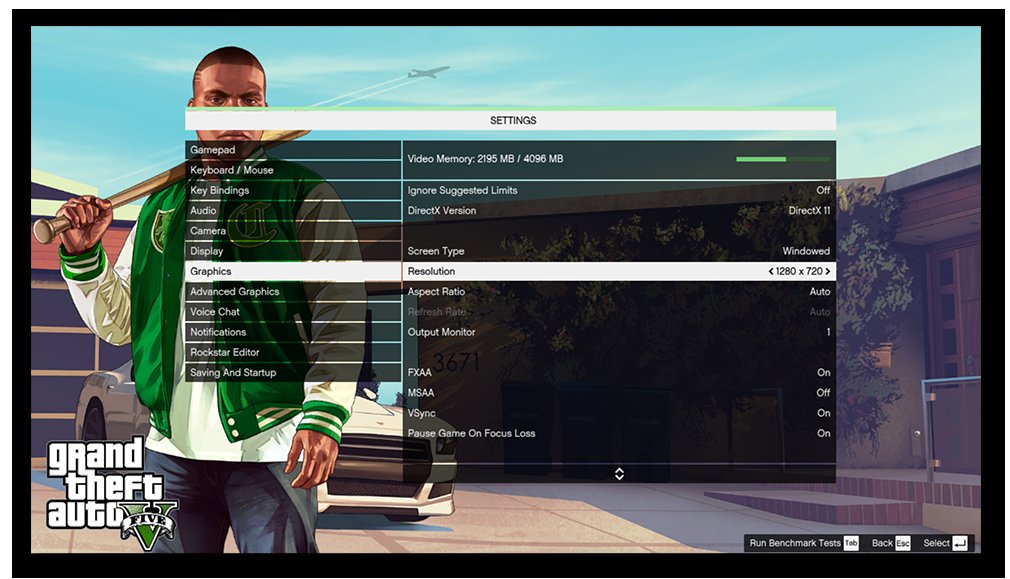
Optimizing GTA 5 Online performance involves adjusting in-game graphics settings, updating drivers, and potentially tweaking system configurations to achieve smoother gameplay.
Lag ruining your Los Santos experience? Many players struggle with frame drops and stuttering in GTA 5 Online. Fortunately, several adjustments can improve your game’s performance. We’ll explore various ways to improve your gameplay, going over the best ways to get a smooth online experience in GTA.
This guide covers a range of simple and effective methods that can help you with GTA 5 Online all performance tweaks. You can make changes directly to your settings for a better gaming session. Get ready to enjoy the chaotic world of GTA with much improved performance.

GTA 5 Online All Performance Tweaks
Okay, let’s talk about making GTA 5 Online run smoother. It can be super frustrating when your game is stuttering, lagging, or just not looking its best, right? This guide is going to show you lots of ways to tweak your game for better performance, no matter what kind of computer you have. We’ll cover everything from the basic graphics settings to some more advanced stuff. Let’s get started!
Understanding Why GTA 5 Online Can Be Slow
Before we dive into tweaks, it’s helpful to know why GTA 5 Online might not be running perfectly. Think of your computer like a busy city. Your CPU (the brain), your GPU (the picture maker), and your RAM (the short-term memory) are all working hard. If any of these parts are having trouble keeping up, you’ll see it in your game.
Common Culprits
- CPU Bottleneck: If your CPU is too old or weak, it can’t keep up with all the things happening in GTA 5 Online.
- GPU Issues: Your graphics card is what creates the pretty pictures you see. If it’s not powerful enough, the game can get choppy.
- Not Enough RAM: RAM is like your computer’s workspace. If you don’t have enough, your computer will start using your hard drive as temporary memory, which is very slow.
- Slow Hard Drive or SSD: Games load faster from an SSD. A regular hard drive might make loading times longer and even cause stutters.
- Internet Connection: Online games require a stable internet connection. A slow or unstable connection can cause lag and disconnects.
- Outdated Drivers: Think of drivers like instructions for your hardware. If they’re old, your components might not work as well.
- Background Programs: Too many programs running in the background can steal resources from your game.
Basic Graphics Settings Adjustments
The first place to start making your game faster is in the game’s settings. These are some of the main graphics options, and how changing them impacts performance.
Resolution
This is how sharp the image on your screen is. Higher resolutions look better, but they require more power. If you are struggling, try turning the resolution down.
- How to adjust: Go to Settings > Graphics and find “Resolution.” Try lowering it to something like 1600×900 or 1280×720.
Texture Quality
This affects how detailed the textures on objects are. High settings use more VRAM (memory on your graphics card). Try reducing this if your game is having issues with performance
- How to adjust: Go to Settings > Graphics and find “Texture Quality.” Try “Normal” or even “Low”.
Shadow Quality
Shadows can make the game look more realistic, but they also use a lot of power. Turning them down can greatly improve speed.
- How to adjust: Go to Settings > Graphics and find “Shadow Quality.” Try “Normal” or “Softest”
Reflection Quality
Reflections in the game, like on cars and puddles, use a lot of power too. Try turning this down.
- How to adjust: Go to Settings > Graphics and find “Reflection Quality.” Try “Normal” or “Low”.
MSAA and FXAA
These are anti-aliasing options which smooth out jagged edges on objects. MSAA is more intensive, so try FXAA or turn them both off.
- How to adjust: Go to Settings > Graphics and look for “MSAA” and “FXAA”. Turn them off if you are struggling. If you can, use only FXAA.
Population Density and Variety
These settings affect how many people and cars are in the game world. Lowering them can make things run faster.
- How to adjust: Go to Settings > Graphics and find “Population Density” and “Population Variety”. Lower these to improve performance.
Shader Quality
This setting affects the quality of the game’s special effects. Lowering this setting can improve performance
- How to adjust: Go to Settings > Graphics and find “Shader Quality”. Try “Normal” or even “Low”.
Grass Quality
Grass quality can be very taxing. Turning this down makes the ground simpler.
- How to adjust: Go to Settings > Graphics and find “Grass Quality”. Try “Normal” or even “Low”.
Advanced Graphics
In the “Advanced Graphics” settings, there are more things you can tweak. Here are a couple of the most performance-affecting ones:
- Long Shadows: Turn these off.
- High Resolution Shadows: Turn these off or down.
Advanced Tweaks for More Performance
If simply turning down the graphics isn’t enough, here are some more tips to get the game running smoother:
Updating Your Graphics Drivers
Outdated drivers can cause all sorts of problems, and can seriously hinder your gameplay. Make sure that you have the latest ones installed. Follow these steps:
- NVIDIA Users: Go to the NVIDIA website and download the latest drivers for your graphics card. You can also use the GeForce Experience app.
- AMD Users: Go to the AMD website and get the newest drivers for your graphics card. You can also use the AMD Radeon Software.
Background Programs
Make sure you close any unnecessary programs when you are playing. These can be programs like browsers, media players, and other games. To do this, try this:
- Close Unneeded Applications: Right-click on the Taskbar and select “Task Manager.” End any programs you don’t need.
Game Mode (Windows)
Windows has a “Game Mode” setting that can help to improve performance when gaming. To make sure you have it turned on do the following:
- Turn On Game Mode: Go to Settings > Gaming > Game Mode and switch it on.
Overclocking Your CPU and GPU
Overclocking can make your CPU and GPU run faster than they are supposed to. But be careful, as this can also make your hardware very hot and it is best to do this if you know what you are doing. You will need special software from the manufacturers, or you can use third party software such as MSI Afterburner.
- Important: Make sure to research how to overclock your specific hardware, and keep an eye on temperature levels
Adjusting the Windows Power Plan
Making sure that your system is using all its power can make it run faster. Sometimes, Windows can be set to “power saving” mode. Here’s how you can change the power plan:
- Change Power Plan: Go to Settings > System > Power & Sleep > Additional power settings. Select “High Performance.”
Running in DirectX 10
If you are using older hardware, try running the game using DirectX 10. This can improve performance
- DirectX Version: Go to the games graphics options. Set the DirectX version to DirectX 10/10.1
Adjusting the Game Priority in Task Manager
You can make the game the priority of your PC. Here is how:
- Game Priority: Press Ctrl+Shift+Esc to open Task Manager. Go to the “Details” tab, find GTAV.exe, right-click, and set the priority to “High.”
Advanced Graphics Options Deep Dive
Let’s get into some of the graphics options more, and see how we can optimize them.
Ambient Occlusion
This setting affects how shadows are formed where different objects meet. For best performance, set this to “Normal” or turn it off.
- Settings: Go to Settings > Graphics and find “Ambient Occlusion”. Try “Normal” or even “Off”.
Anisotropic Filtering
This improves the sharpness of textures in the distance. This will not affect performance too much. You can set this to x16 without a large impact.
- Settings: Go to Settings > Graphics and find “Anisotropic Filtering”. Set this to x16
Tessellation
Tessellation adds more detail to objects, making them look more curved. This can take a lot of processing power. Turn this down to “Normal” or even “Off”.
- Settings: Go to Settings > Graphics and find “Tessellation”. Try “Normal” or even “Off”.
Water Quality
Changing the water quality setting can make a large difference to the game’s performance, turn this down if you need to.
- Settings: Go to Settings > Graphics and find “Water Quality”. Try “Normal” or “Low”.
Particle Quality
Changing this setting will effect how detailed things like smoke and explosions are. Turning it down improves performance
- Settings: Go to Settings > Graphics and find “Particle Quality”. Try “Normal” or “Low”.
Post FX
This option effects post processing effects. Turn down this setting if you need to.
- Settings: Go to Settings > Graphics and find “Post FX”. Try “Normal” or “Low”.
Tweaks for Laptops
If you’re playing GTA 5 Online on a laptop, there are a few extra things you can do.
Power Settings
Make sure your laptop is plugged in and set to “High Performance” mode. This will allow your laptop to use all of its power.
- Power Settings: Click the battery icon on your taskbar and make sure “Best Performance” is selected.
Dedicated GPU
If your laptop has a dedicated GPU, make sure that GTA 5 Online is using it instead of the integrated graphics. Do this by:
- NVIDIA: Right-click on your desktop, select “NVIDIA Control Panel”, then go to “Manage 3D settings”. Under “Program Settings,” find GTA 5 and set the graphics processor to your NVIDIA card.
- AMD: Open the AMD Radeon Software, go to “Gaming” and then “Graphics”. Select GTA 5 and ensure your dedicated GPU is chosen.
Cooling
Laptops can get really hot while gaming. This can lower the performance. Use a cooling pad if you can.
- Cooling: Use an external laptop cooler if you can to help reduce temperatures.
Monitoring Your Game
It is important to see how your game is performing. There are programs that you can use to check performance in real time. MSI Afterburner can monitor your CPU, GPU, and RAM usage, as well as your framerate. This can help you to fine tune settings. You can use the FPS counter provided by the Steam game overlay, if you play the game on Steam.
Important note on Mods
Make sure you avoid any mods that claim to improve performance but are not reputable. Mods can break your game or cause it not to load. Only use trusted and well known mods.
Test Your Changes
After you tweak your settings, make sure to test it. Try playing different parts of the game to see how it is running. If there are any parts where it runs badly, try turning settings down.
Tweaking GTA 5 Online’s performance might seem a little overwhelming at first, but following these tips will help. Remember to change one thing at a time so you can see what is improving performance the most. Experiment and find what works for you and your system. With a little effort, you’ll be cruising through Los Santos without any more lag!
17 GTA Online Settings You Need to Change NOW! (Console & PC Optimization)
Final Thoughts
Applying these performance adjustments will provide a smoother gaming experience. Lowering graphics settings, updating drivers, and managing background applications helps. Remember, consistent performance comes from a combination of small adjustments.
Implementing these tips significantly enhances your gameplay in Los Santos. GTA 5 online all performance tweaks make a considerable difference. These modifications improve your frame rates and overall responsiveness.

