
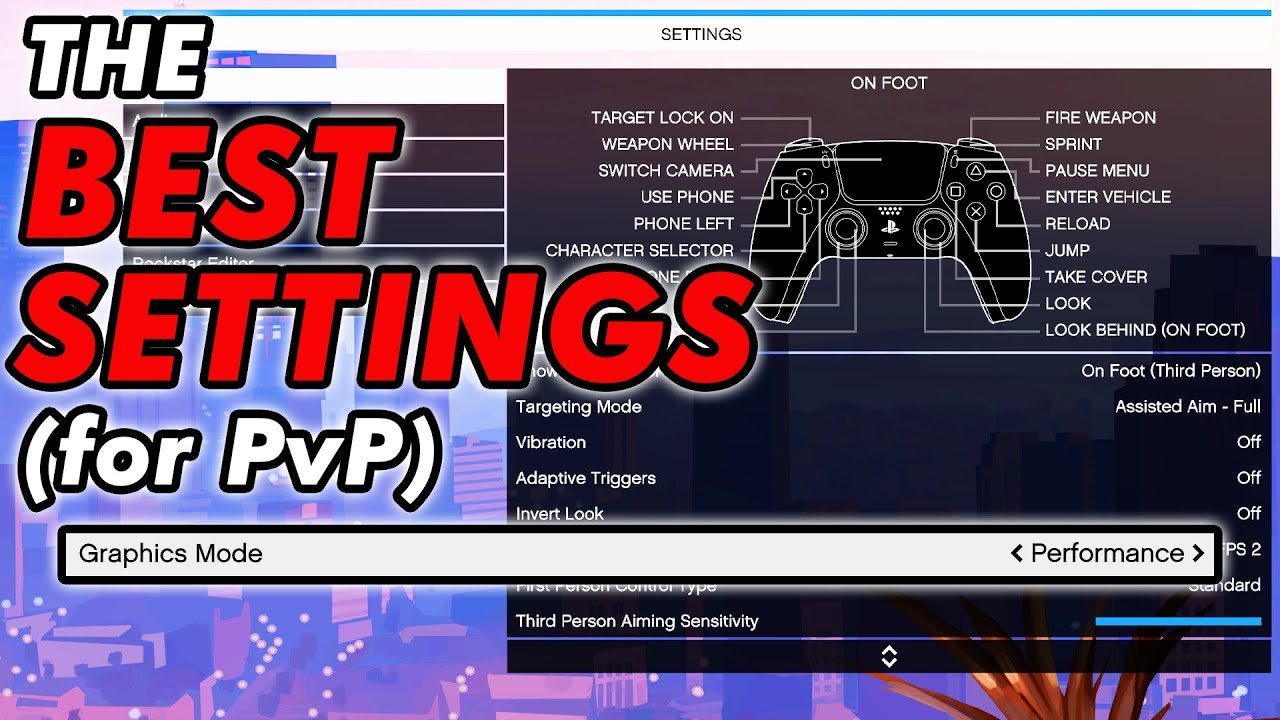
The best performance settings for GTA 5 Online often involve lowering graphics options like shadow quality, reflection quality, and particle effects while maintaining a high resolution. This balances visual appeal with smooth gameplay.
Tired of lag ruining your Los Santos experience? You’re not alone. Many players struggle to find that perfect balance between visual fidelity and smooth gameplay in GTA 5 Online. This is where understanding the best performance settings for GTA 5 Online becomes crucial.
Finding the correct settings allows you to have enjoyable and competitive online sessions without constant stuttering or frame drops. Experimentation with various graphics options is key to achieving your preferred balance.

GTA 5 Online Best Performance Settings
Okay, let’s talk about making GTA 5 Online run super smooth. Nobody likes a laggy game, right? Especially when you’re trying to pull off a heist or race through Los Santos. The good news is, even if you don’t have the newest, most powerful computer, there are tons of things you can change in the game settings to get a much better frame rate and make the game feel way more responsive. We’ll go through each setting, explaining what it does and how adjusting it can help, so you can enjoy the crazy fun of GTA 5 Online without the frustration of choppiness.
Understanding the Basics: What Impacts Performance?
Before diving into the specific settings, it’s good to know what makes a game run well (or not so well). There are a few key parts of your computer that affect how GTA 5 Online plays. Think of it like a team working together:
- CPU (Central Processing Unit): This is like the brain of your computer. It does a lot of the calculations needed to run the game. A faster CPU generally means better performance.
- GPU (Graphics Processing Unit): This is like the artist of the team. It draws all the pretty pictures and action on your screen. A powerful GPU is vital for good graphics and high frame rates.
- RAM (Random Access Memory): Think of this as the short-term memory of your computer. It holds the data the game needs right now. More RAM lets the game handle more things at once.
- Storage (Hard Drive or SSD): This is where the game is installed. A faster drive (like an SSD) can make the game load faster.
Knowing these basic parts and their roles helps when we start making changes in the game settings. We’ll want to tweak things that make it easier for these parts to do their job.
Graphics Settings: The Big Performance Boosters
Okay, let’s get into the nitty-gritty. The graphics settings are where you can usually make the biggest difference in performance. We’ll break them down one by one.
Screen Settings
These are the first things you’ll see in the graphics menu and they’re important for getting the best performance:
- DirectX Version: DirectX is like a language that your game and graphics card use to talk. If your computer is a bit older, try using DirectX 10 or 10.1 instead of DirectX 11. This might make things run a bit smoother. If you have a newer machine, stick with DirectX 11, or even consider trying DirectX 12 if it’s available, although, GTA 5 does not fully support DirectX 12.
- Screen Type: Set this to Fullscreen. This way, the game has all your computer power to itself, which can help with performance.
- Resolution: This is about how many details you see on the screen. A higher resolution looks prettier, but it makes your computer work harder. If you’re having trouble with lag, try lowering the resolution a bit. Start by going down one step and see how it looks and how much performance improves. For example, if you are on a 1080p (1920 x 1080) display, try moving down to 720p(1280 x 720) resolution to see the improved performance.
- Refresh Rate: This is how many times your screen updates each second. Match this to your monitor’s refresh rate (usually 60Hz). If you have a gaming monitor, it might support higher rates like 144Hz or 240Hz.
- Aspect Ratio: Usually, this should be set to “Auto” or matched to your screen’s native ratio (like 16:9 for most widescreen monitors).
Graphics Quality
These settings are all about how good the game looks and how hard your computer has to work.
- FXAA (Fast Approximate Anti-Aliasing): This setting smoothes out jagged edges on objects, which makes the game look better. It’s not too demanding. You can turn it on, especially if you turned off the MSAA setting below.
- MSAA (Multi-Sample Anti-Aliasing): This is another anti-aliasing setting, but it uses a more powerful way to smooth out edges than FXAA and is more demanding. It looks better than FXAA, but it can also lower your frame rate. If you are having trouble, turn this one off.
- NVIDIA TXAA: This is another anti-aliasing tech, but only available for NVIDIA GPUs. Its is more demanding than FXAA and even MSAA. If you don’t have an NVIDIA card, you won’t see this option.
- Vsync: This matches your game’s frame rate to your monitor’s refresh rate. It can stop screen tearing (when the image looks like it’s split), but it can also lower your frame rate if your game can’t keep up. Turn it off if you’re looking for better performance, but keep it on if screen tearing bothers you.
- Population Density: This setting changes how many people and cars you see in the game. The more there are, the harder your CPU has to work. Lower this setting if your CPU isn’t very strong. If you are experiencing stuttering, try reducing this setting.
- Population Variety: Similar to Population Density, this setting controls how different the people in the game look. If you’re lowering Population Density, you could also lower this.
- Distance Scaling: This controls how far away you can see details. Lowering this can help a lot with performance without making the game look terrible.
- Texture Quality: This is about how detailed the surfaces in the game look. A higher setting makes textures look sharper, but it uses more VRAM (video memory). if you have a good amount of VRAM, set this at High or Normal. Try to keep this High for the overall look and experience. If you are experiencing a sudden frame rate drop, try to set this at Normal.
- Shader Quality: This controls how good the lighting and shadows look. A lower setting can help performance a lot, especially if your GPU is not powerful.
- Shadow Quality: Shadows make the game look more realistic, but they use quite a bit of power from your GPU. If your performance is poor, lower this setting or turn it off completely.
- Reflection Quality: This is about how good the reflections in things like car windows and puddles look. If your performance isn’t great, lowering this setting will make things run smoother.
- Reflection MSAA: This anti-aliasing setting applies to reflections, making them look smoother. This is quite heavy on performance. If you are using MSAA for general graphics quality, then consider using this for reflection as well. However, if you are using FXAA, consider turning this off.
- Water Quality: This controls how realistic the water looks. The lower you set this, the better your performance. If you need a good boost, set it to Low.
- Particles Quality: This setting controls how detailed particle effects (like smoke, sparks, and explosions) look. Lowering this can help a lot, especially during big shootouts.
- Grass Quality: This setting affects how detailed the grass looks. For a big performance boost, set this at Normal or lower.
- Soft Shadows: This setting makes the shadows look softer and more natural, but it can also make the game a little harder on your computer. For the performance boost, try setting this to softest.
- Post FX: This adds some post processing effects, try to keep the setting Normal, if you are having trouble try to set it to Low.
- Motion Blur Strength: This can make the game look smoother, but many find it distracting and it can lower performance. Turn it off if you don’t like it or if you need more FPS.
- In-game Depth of Field Effects: This is a visual effect that blurs out background object. This setting is purely aesthetic, so keep it off for performance boost.
- Anisotropic Filtering: This makes textures at an angle look sharper. It does not have a large impact on performance, so you can keep this at the maximum setting if you like.
- Ambient Occlusion: This creates more realistic shadows in corners and where objects meet. It can be quite demanding. You can set this to Normal to get the best balance between performance and looks, but you can also set it to off, if you need the extra FPS.
- Tessellation: This adds extra details to 3D models, it does not impact the performance that much. So, you can keep it at the Normal or High.
Advanced Graphics
In Advanced Graphics, there are a few more settings that can improve performance.
- Long Shadows: This feature makes shadows look more natural. Turn it off, if you are looking for performance.
- High Resolution Shadows: This setting makes the shadows look clearer and sharper. Turn it off if your PC is struggling.
- High Detail Streaming While Flying: This makes the environment look detailed when you fly. You can turn this off for more fps.
- Extended Distance Scaling: This is like distance scaling but more powerful. This feature is very heavy on your PC. Set this at the minimum value if you are looking for more performance.
- Extended Shadows Distance: This makes the shadows more visible at a greater distance. Turning this off will help the performance.
- Frame Scaling Mode: This setting changes the resolution of the game internally. If you are looking for better performance, this can be a big help. It works by rendering the game at a lower resolution and then stretching it to your screen’s resolution. Set this at 0.5 to render the game at half the resolution which can give a big performance boost, but the overall image will look blurry. However, it does help to get that high performance on low-end machines.
Sound Settings
Sound settings may not have a big impact on the framerate. However, if your PC is old and has an old sound card, these settings might affect your performance.
- Master Volume: This sets the overall volume for the game.
- Music Volume: Sets the music volume for the game.
- Effects Volume: Controls the volume for the in game sound effects.
- Chat Volume: Controls the chat volume.
- Radio Volume: Sets the radio volume for the game.
- Voice Chat: If you use voice chat in the game, turn this on.
- Voice Chat Recording Mode: Set this to Push to Talk, to reduce any unnecessary background noise.
- Voice Chat Playback Mode: Make sure to keep the default option here.
Other Things to Keep in Mind
Besides the in-game settings, there are a few other things that can help your game run better:
- Update Your Drivers: Make sure your graphics card drivers are up to date. Driver updates often have performance improvements.
- Close Unnecessary Programs: Before playing, close any programs you don’t need running. Things like web browsers or other apps can take up your computer’s power.
- Check your computer’s temperature: If your computer is running too hot, this can cause performance issues.
- Run the Game as Administrator: Sometimes, running the game as administrator can fix some issues with permissions.
- Clean Your PC: Make sure your computer is clean. Dust can block air vents causing your PC to run hot.
- Check Your Internet: A bad internet connection can cause lags and glitches in the game. Make sure your internet is stable for the best experience.
- Overclocking: This can help increase the performance of your CPU, GPU or RAM, but it can also damage your components if not done properly.
Finding the best settings can be a bit like experimenting. Try different combinations to see what works best for your computer. You might not need to lower all settings to get a good framerate. For example, if your GPU is powerful, then you can keep the texture, shader, and shadow quality at high and get the performance boost by adjusting other settings.
Remember to test each setting to find the best balance between performance and visuals, and you’ll be back to causing mayhem in Los Santos in no time.
17 GTA Online Settings You Need to Change NOW! (Console & PC Optimization)
Final Thoughts
Achieving smooth gameplay in GTA 5 Online requires careful adjustments. Experiment with settings like population density and grass quality. Lowering these, alongside reflection quality, often boosts frame rates.
Prioritizing frame rate over visual fidelity allows for a more enjoyable experience. Test different combinations to find your ideal balance.
Ultimately, the ideal setup depends on your hardware. Tailoring your configuration to find the ‘gta 5 online best performance settings’ improves gameplay significantly.

