
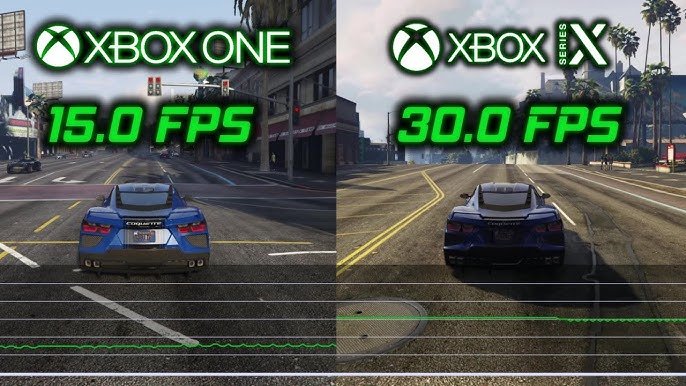
GTA 5 online game performance can vary based on your PC hardware, internet connection, and the game’s server load.
Experiencing stutters or lag in Los Santos? You’re not alone. Many players grapple with gta 5 online game performance issues. Factors like outdated graphics drivers or a slow internet connection often contribute to these problems.
Optimizing your game settings and ensuring your PC meets the recommended requirements can significantly improve your gameplay. A stable connection to Rockstar’s servers is also essential for smoother sessions online.

GTA 5 Online Game Performance
Okay, let’s dive deep into the world of GTA 5 Online performance. We all love cruising around Los Santos, causing a little chaos, or maybe even trying to make some serious in-game cash. But what happens when our game starts stuttering, lagging, or just plain looks bad? That’s where understanding game performance comes in. It’s like trying to drive a super cool car with flat tires—it just doesn’t work very well. This guide will help you understand what affects your GTA Online experience and how to make things run smoother. We’ll cover everything from basic settings to more advanced tweaks that can make a huge difference.
Understanding the Basics: What Impacts Performance?
Before we start tweaking things, let’s talk about what makes GTA Online run well (or not so well). Several things play a role in how smoothly the game performs. Think of it like a team working together—if one player is weak, the whole team suffers.
Your Computer’s Hardware
First up is your computer itself. The main components that affect game performance include:
- CPU (Central Processing Unit): This is like the brain of your computer. It handles all the calculations needed to run the game. A faster CPU means your game can process information quicker.
- GPU (Graphics Processing Unit): This handles all the visuals you see on screen. A more powerful GPU will give you prettier graphics and smoother movement.
- RAM (Random Access Memory): This is like your computer’s short-term memory. More RAM allows your computer to quickly access data the game needs, preventing slowdowns.
- Storage (Hard Drive or SSD): This is where your game is stored. An SSD (Solid State Drive) is much faster than a traditional hard drive, which means the game will load faster and can reduce stutters.
Think of it like a car. The CPU is the engine, the GPU is the body paint and design, the RAM is the gas tank, and the storage is the garage. If any one of these is weak, the car isn’t going to perform well.
Internet Connection
Your internet connection is super important for online play. If your connection is slow or unstable, you might experience:
- Lag: This is when the game appears to freeze or jump around, making it hard to play.
- High Ping: This refers to the time it takes for your computer to communicate with the game server. A high ping means longer delays.
- Disconnects: Sometimes, a bad connection can cause you to lose connection to the game.
A fast, stable internet connection is like having a smooth, well-paved road for your car to travel on. Without it, your car will be bumping and jumping all over the place.
Game Settings
The settings you choose within the game also make a big difference. Things like:
- Graphics Quality: This includes things like texture detail, shadows, and reflections. High settings look amazing but need more power.
- Resolution: This is the size of the image on your screen. A higher resolution looks sharper but is more demanding.
- Frame Rate (FPS): This is how many pictures your computer draws per second. A higher FPS looks smoother. 30 FPS is generally playable, but 60 FPS is much better.
Adjusting these settings can help you find the right balance between good looks and good performance. It’s like finding the right speed and comfort level for your car, so it’s both enjoyable and manageable.
Optimizing Your Computer for GTA Online
Now that we know what affects performance, let’s talk about what you can do to improve it. Here are some tips to make your game run better.
Updating Your Drivers
Drivers are like the translator for your hardware. They let your computer know how to talk to your graphics card. Outdated drivers can cause problems, so keep them updated.
How to Update: Go to the website of your graphics card manufacturer (Nvidia, AMD, or Intel) and download the latest drivers for your card.
Why it Helps: Updated drivers often include fixes for bugs and performance improvements. This helps your game run smoother.
Cleaning Up Your Computer
Just like a messy room can slow you down, a messy computer can slow down your game.
Uninstall Programs You Don’t Use: Remove any programs that you no longer need. This frees up space and can prevent slowdowns.
Delete Temporary Files: Temporary files can take up space and slow things down. Use a tool or your operating system’s settings to clear these out.
Run Disk Cleanup: This tool can help free up hard drive space by deleting unnecessary files.
A clean computer is like a well-organized room, making it easier for you and your game to work.
Closing Unnecessary Programs
When you play GTA Online, you want your computer to focus all its power on the game.
Close Background Programs: Close any programs you aren’t using, like web browsers, music players, or extra programs that might be running.
Use Task Manager: Use the Task Manager (Ctrl+Shift+Esc) to see what’s running and close anything you don’t need.
Why it helps: Closing these programs frees up computer resources for your game, resulting in better performance.
Upgrading Your Hardware
Sometimes, the best way to improve performance is to upgrade your computer’s parts.
Upgrade Your Graphics Card: A more powerful graphics card can handle the game’s graphics better.
Add More RAM: If you don’t have much RAM, adding more can help. 16GB is a good amount for GTA Online.
Use an SSD: If your game is on a hard drive, moving it to an SSD can greatly improve loading times.
Think of upgrading your computer like upgrading your car’s engine, suspension, and tires—it will all work better together.
In-Game Settings for Optimal Performance
Now let’s look at settings inside the game itself.
Graphics Settings
These settings control how the game looks. Changing these can have a big impact on performance.
Texture Quality: This affects how detailed things like buildings and roads look. Start with “Normal” or “High.”
Shader Quality: This controls lighting and shadows. Set it to “Normal” or “High” to start, and experiment.
Shadow Quality: Shadows can be demanding. Set it to “Normal” or “High.”
Reflection Quality: Reflections look cool, but can slow things down. Set to “Normal” or “High” to see how it works on your PC.
Grass Quality: Grass can be very demanding. Set this to “Normal” or “High.”
Water Quality: Higher settings look better but impact the game, start with “Normal” and test.
MSAA (Multisample Anti-Aliasing): This makes lines smoother, but can impact performance, turn it off if you are looking for more FPS. FXAA can be used to slightly soften edges with lower impact.
Population Density/Variety: High population settings cause more NPCs and vehicles to show up in the game. This can cause significant performance problems.
Distance Scaling: This impacts how far into the distance objects are rendered. Set to around 50% and experiment.
It’s best to start with lower settings and then turn them up one by one to see how your game performs. It’s like testing different types of paint on your car, to find what looks good and works the best.
Resolution Settings
The resolution is the size of the picture you see on your screen.
Resolution: The higher the resolution, the more detailed the image, but the more work your computer has to do. 1920×1080 is a popular and good balance, but you can try lower if you are having performance issues.
Advanced Graphics Settings
These settings can really fine-tune your game’s appearance and performance.
Long Shadows: These can look great, but also take up power. Turn them off if you need more performance.
High Resolution Shadows: These are very detailed and very demanding, turn them off.
Extended Distance Scaling: This makes objects appear farther away. Try to keep this off or at a low level.
Extended Shadow Distance: Makes shadows more visible farther in the distance, turn this off for a boost in FPS.
Start by turning off settings one by one and see how it impacts your FPS.
Troubleshooting Common Performance Issues
Even with the best settings, you might still run into issues. Here are some common problems and what you can do about them.
Stuttering
Stuttering is when the game freezes for a split second. This can be really annoying.
Check Your CPU and GPU Usage: Use the Task Manager to check if your CPU or GPU is running at 100%. If they are, try lowering the game settings.
Update Drivers: Make sure your graphics card drivers are up to date.
Close Background Programs: Close programs that are running in the background.
Lag Spikes
Lag spikes are sudden jumps in ping or delays.
Test Your Internet Connection: Use an online speed test to check your internet speed.
Restart Your Router: Sometimes, restarting your router can fix connection problems.
Use a Wired Connection: If possible, use an Ethernet cable instead of Wi-Fi.
Low Frame Rates (FPS)
Low FPS can make the game feel choppy and unresponsive.
Lower Graphics Settings: Start by lowering the texture, shadow, and reflection settings.
Lower Resolution: Try playing at a lower resolution.
Check Hardware Temperatures: Make sure your CPU and GPU aren’t overheating.
Game Crashes
Game crashes can be very frustrating.
Verify Game Files: Use the game launcher to verify game files, which can fix corrupted data.
Check for System Errors: Look for error messages on your computer. These can sometimes give hints about the problem.
Reinstall the Game: If nothing else works, try uninstalling and reinstalling the game.
Advanced Tips and Tweaks
If you’ve tried everything else, here are some more advanced things you can try.
Game Mode in Windows
Windows Game Mode can help to optimize your system for gaming.
Turn on Game Mode: Go to your Windows settings and turn on Game Mode. This will prioritize resources for your game.
Overclocking Your Hardware
Overclocking can make your CPU or GPU run faster, but you need to be careful and it may also void the warranty of the component.
Research How to Overclock: Be sure you know what you’re doing, because you can damage your parts if you’re not careful. There are also guides available online to overclock your parts.
Test for Stability: Use stress test software to check if your system is stable after overclocking.
Using Third-Party Performance Tools
Some third-party tools can help monitor and optimize game performance.
MSI Afterburner: This tool can monitor your hardware’s performance and also overclock your GPU.
Rivatuner Statistics Server (RTSS): This tool can limit your game’s FPS to prevent stuttering and screen tearing.
Why they help: These tools give you more information and control over your system, allowing you to fine-tune performance.
By working through each of these ideas, you should be able to find better performance in GTA Online. Remember that no one fix will work for everyone because our computers are all so different. Take your time, test, and tweak to find what runs best for you. It might take a bit of work, but getting smoother gameplay is worth it. Good luck out there in Los Santos!
Fine-tuning your GTA Online experience is a journey, and it’s worth spending the time to find the best balance between visual quality and performance. By understanding the factors that influence the game’s performance and following the tips and tricks, you can enjoy a much smoother and more immersive time in the streets of Los Santos. Always remember to experiment with different settings to find the ideal setup for your specific system. Happy gaming!
Which Graphics Mode Is BEST In GTA 5? Fidelity VS Performance VS Performance RT! (PS5/Xbox Series X)
Final Thoughts
Overall, GTA 5 Online game performance varies greatly depending on your setup. Players with older hardware often experience lag and lower frame rates. Upgrading components or tweaking graphics settings can help.
Connection quality also significantly impacts the online experience. Stable internet is necessary for smooth gameplay. Optimizing network settings can improve connection related issues.
Ultimately, achieving optimal GTA 5 Online game performance requires a balance. This includes capable hardware, good internet, and careful graphics configuration. Players should experiment to find their best setup.

