
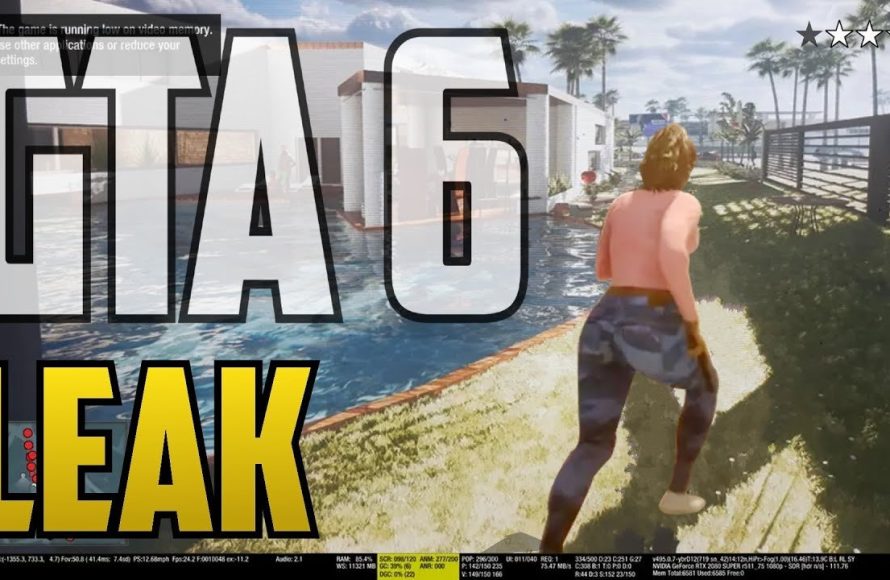
Analyzing GTA 6 graphics settings reveals that players will likely have options to adjust texture quality, shadows, reflections, and anti-aliasing, impacting visual fidelity and performance.
Anticipation buzzes around the corner for the next Grand Theft Auto installment, and questions about how to make the game perform at its best are already swirling. A deep dive into a hypothetical GTA 6 Graphics Settings Analysis is crucial for players eager to get optimal performance. Understanding these expected settings enables players to balance visual quality with smooth gameplay on their systems.
We explore how key settings, such as texture detail and draw distance, might shape the visual experience in the upcoming title. This will give gamers a first look into what they can adjust to personalize their gameplay. We’ll keep an eye on leaks and official information to get you the best tips.

GTA 6 Graphics Settings Analysis
Okay, everyone, let’s talk about something super important for making GTA 6 look its absolute best: the graphics settings! When you play a big game like Grand Theft Auto, you want it to look amazing, right? Well, the settings are what control how pretty (or sometimes, how not-so-pretty) the game looks. It’s like having a bunch of knobs and switches that change everything from how shiny the cars are to how far you can see into the distance. So, let’s dive into what we can expect and what these settings might do.
Understanding Basic Graphics Concepts
Before we jump into specific settings, let’s quickly talk about some basic ideas that are important when talking about game graphics. Think of it like learning the basics of drawing before you try to make a masterpiece. Knowing these will help you understand why you might want to turn one setting up and another down.
Resolution
Resolution is all about how many tiny dots, or pixels, make up the picture on your screen. More pixels mean a clearer, sharper image. It’s kind of like having a really high-definition TV versus an older one. Common resolutions you might see are:
- 1080p (Full HD): This is a good, solid resolution for most people. It’s clear and detailed.
- 1440p (Quad HD or 2K): This is sharper than 1080p and looks even better, but it needs a bit more power from your computer.
- 2160p (4K): This is the sharpest and most detailed. It needs a powerful computer or console to work smoothly.
Higher resolutions make the world seem more realistic and immersive.
Refresh Rate
The refresh rate is how many times your screen updates the picture every second. It’s measured in Hertz (Hz). A higher refresh rate makes the action on the screen look smoother. Imagine flipping through a flipbook: the faster you flip, the smoother the animation. Common refresh rates are 60Hz, 120Hz, and 144Hz. Gamers often like higher refresh rates because they make the game feel more responsive.
Frame Rate (FPS)
Frame rate is different from refresh rate. Frame rate is the number of times the computer sends a picture to your screen per second, also measured in frames per second (FPS). Higher frame rates make the game look smoother and feel more responsive. 60 FPS is usually considered the target for smooth gameplay, and if the frame rate is low, the game will feel choppy and laggy. If you notice the game is ‘jerky’ it means your frame rate is low.
Expected GTA 6 Graphics Settings
Now that we understand the basics, let’s look at what kind of graphics settings we might see in GTA 6. While we can’t know for sure until the game comes out, we can make some good guesses based on previous Grand Theft Auto games and other modern titles.
Texture Quality
This setting controls the detail of surfaces in the game, like the roads, buildings, and character clothes. Higher texture quality means things look sharper and more detailed. Think of it as the difference between a blurry picture and a really crisp photograph. Lower texture qualities, might make some of these surfaces look more like flat images. This can use up a lot of graphics power so if the game doesn’t run very well, this setting might be the first one to turn down.
Shadow Quality
Shadows help to create a sense of depth and realism. This setting controls how detailed and realistic shadows look. Higher shadow quality means shadows will be sharper and smoother, but it also requires more processing power. Low shadows may look like very basic dark blobs on the ground. Medium shadows may be a bit more defined and high settings might show really soft shadows, and all the small details in the shadows, for example, the shadow of a fence on the ground, will be much sharper.
Ambient Occlusion
Ambient Occlusion (AO) adds more realistic shading, especially in corners and crevices, giving depth to scenes. It basically creates soft shadows where objects touch and makes the environment look more natural. It’s a small detail but a setting that can create more depth. If turned off, the game may look a bit flat.
Anti-Aliasing
Anti-aliasing makes lines and edges smoother, so they don’t look jagged. It removes jagged edges. If you’ve ever seen a line in a game that looks like a staircase, that is aliasing. Anti-aliasing helps to make those lines look nice and smooth. There are different kinds of anti-aliasing, like MSAA, FXAA, and TAA. Each has its pros and cons, but the goal is always the same: to get rid of those jagged lines.
View Distance
View distance setting controls how far away you can see objects. A higher setting means you can see more of the game world in the distance, which is great for spotting far-away landmarks. However, it can also be very demanding on your computer. A lower view distance means you see less in the distance and will notice more “pop-in” where objects just appear as you get closer to them.
Reflection Quality
This setting controls how realistic reflections look, especially on cars, puddles, and windows. Higher reflection quality can really make the game look much more realistic, but it can use up a lot of processing power. If you turn this setting down, you might notice that those reflective surfaces look quite flat.
Motion Blur
Motion blur makes fast-moving objects look blurry, like they do in real life. Some people like it because it makes the game feel more dynamic. Others find it annoying, so they turn it off. It is totally a personal preference.
Post-Processing Effects
These effects are applied after the main scene is rendered, and can include things like depth of field (blurring the background when you focus on something close) or color correction. These help make the game look better, but can also be demanding.
Population Density
This setting controls how many characters are walking around in the world. A higher density makes the game world feel more alive and busy, but it can also be very taxing on your system, especially in a game like GTA where you have cars and other vehicles running around at the same time.
Grass Detail
If you like to see a lot of blades of grass, this setting is for you. More grass detail can make the world look more real, but it does use processing power.
Water Quality
This setting will control how the water looks in the game. Reflections on the water and movement of the water will look different based on this setting. Again higher settings make the game more realistic.
Ray Tracing
Ray tracing is a newer technology that makes lights and shadows look incredibly realistic. It uses some of the newest hardware technology on computers and modern gaming consoles. While there is no guarantee that this will be in GTA 6, it is likely given other modern games are using it. If it’s there, turning it on will make the game look very good, but it will need really good hardware to run well.
How to Adjust Your Settings for Best Performance
Okay, so now we know what the settings are. But how do you actually make the game look good and run smoothly? It’s all about finding the right balance between visual quality and performance. No one likes a game that looks great but runs like a snail. Here’s a basic guide:
Start with the Recommended Settings
Most games have a default, recommended setting when you first start the game. This is a good place to start, as it will usually be a pretty good balance. Play for a while with these settings and see how it goes.
Test Different Presets
Sometimes games will have ‘preset’ graphics settings. These are like different packages of settings. You might see presets like “Low,” “Medium,” “High,” or “Ultra.” Try changing between these and see how it impacts the game. You might find a preset you like and then just adjust a few settings on top of that.
Adjust Individual Settings
After trying the presets, you can start tweaking individual settings. Start by lowering the most demanding ones:
- Shadow Quality: Lowering this can often give a big boost in performance without making the game look too bad.
- Anti-aliasing: Try turning this down and see if you can live with a few more jagged lines.
- View Distance: Reducing how far you can see can help with performance.
- Reflection Quality: Turning this down can also free up a lot of resources.
If you want to try to turn things up, go slowly and test after each change:
- Texture Quality: If you have a good video card, try turning this up first, as it makes the most difference in visual quality.
- Ambient Occlusion: Turning this on will improve the image slightly, but might hurt performance.
- Motion Blur: If you like the effect, feel free to turn it on.
Monitor Performance
While adjusting settings, keep an eye on your frame rate (FPS). You want to keep it consistently above 30 FPS, but ideally above 60 for a very smooth experience. Most games have a way to display this information.
Don’t be afraid to change things a lot. It’s all about finding what settings work best for your computer, without making the game look too bad. Once you play around with settings for a little bit, you will quickly figure out which ones have a big impact on your computer. You might see that the game runs fine, until you turn on shadows on high, then you start to get a lot of slowdown. Once you’ve done that a few times, you’ll easily find a balance between good performance and good visuals.
Advanced Graphics Settings
GTA 6 might have some more advanced graphics options for players who really want to tweak things. Here are a few things we might see:
Dynamic Resolution Scaling
This setting automatically changes the game’s resolution based on the performance. If the game starts to slow down, it will lower the resolution to try to keep the frame rate smooth. This can be useful if you are trying to play on lower-powered hardware.
Upscaling Technologies
Technologies like Nvidia’s DLSS and AMD’s FSR can upscale the image to make the game look better at higher resolutions while running faster. This is a great way to get a sharper image and have a good frame rate at the same time. It is like a ‘trick’ to get the game to look better, without using up a lot of computer power.
V-Sync
V-Sync helps to stop screen tearing (where the image looks like it’s cut into pieces) by synchronizing your monitor’s refresh rate with the game’s frame rate. It can cause some input lag, so you might choose to turn this off if you are a competitive gamer.
Console vs. PC Settings
It’s worth noting that console settings will usually be more limited than PC settings. On a PC, you have a much wider range of settings that can be adjusted. On a console, the game is optimized for the specific hardware, so you may not get to tweak as many things. This also means that consoles generally just run at the preset settings. The good thing about that is that most of the time the preset settings work well on those console.
In conclusion, understanding graphics settings is essential for getting the best experience out of GTA 6. By knowing what each setting does, you can adjust them to get the right balance between visual quality and performance. It might take a little bit of time to find the perfect settings for you, but it’s worth it to see the game running great. Keep trying and soon you’ll have it running perfect for your setup.
NEW GRAPHICS IN GTA 6?!? HOW THEY ARE DOIN IT! (EXPLAINED)
Final Thoughts
Analyzing GTA 6 Graphics Settings reveals a complex picture. Players will likely have considerable control over visuals. Optimizing these settings will be crucial for smooth gameplay.
Expect options impacting resolution, texture quality, and draw distance. These settings will greatly affect performance. Experimentation is certainly required to find the perfect balance.
Ultimately, understanding these parameters is key for enjoyment. A thorough investigation into GTA 6 Graphics Settings Analysis will aid every gamer.

