
The Unity game engine download size is approximately 1.5GB, but the final project size depends on the assets included.
Have you ever wondered about how big is Unity game engine, the powerhouse behind countless games? It’s a common question for both aspiring and experienced developers. The sheer complexity of a game engine might lead you to believe it’s a massive download, but the reality is a bit more nuanced than that.
While the initial installation isn’t overly large, it’s important to remember that game development involves a lot more than just the engine itself. The projects you build with it significantly increase the final project size.

How Big Is Unity Game Engine?
Figuring out how much space Unity takes up on your computer isn’t a simple, one-size-fits-all answer. It’s like asking how big a toolbox is – it depends on what tools you’re keeping inside! Unity is more than just a single program; it’s a collection of components, and the size you see will change based on what you need for your projects. So, let’s dive into all the different factors that affect the overall “size” of the Unity game engine.
Understanding the Core Unity Editor
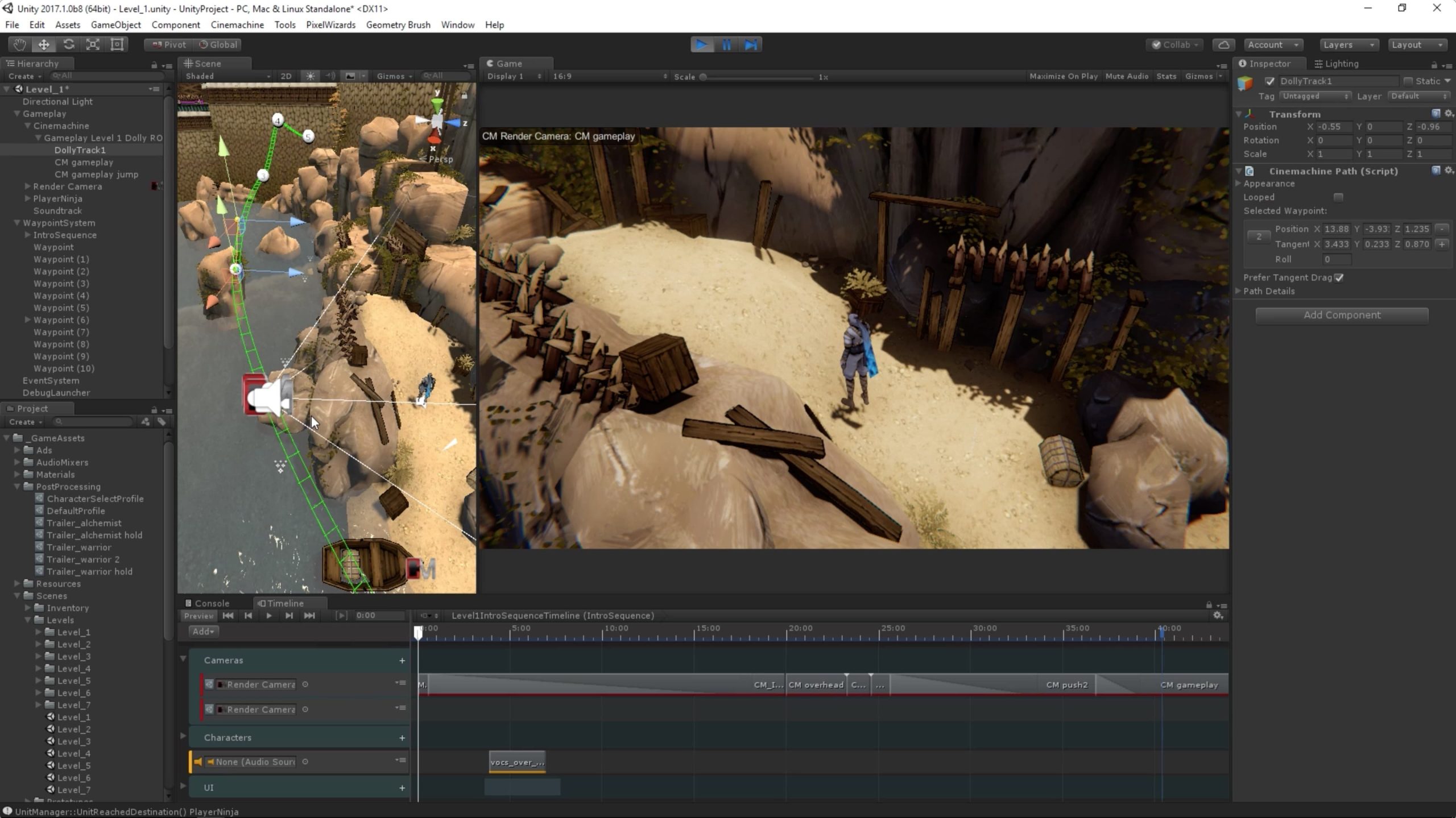
At the heart of it all is the Unity Editor. This is the main program you use to build your games. When you first download Unity Hub and install a version of the Unity Editor, you’re setting the foundation for your game development journey. The initial download size is noticeable, but it’s just the beginning. This part of the installation is what contains the basic functionality – the tools you need to create your game worlds, write your game logic, and manage your assets. Let’s break down what the Core Editor includes:
Essential Components
Here are some of the most important parts of the Unity Editor that contribute to its overall size:
- The Scene View: This is where you visually arrange and build your game levels. It includes tools to move, rotate, and scale objects.
- The Game View: This is where you see what your game looks like when it is running.
- The Inspector: This panel displays all the information about any object you select in your scene, allowing you to change its properties.
- The Project Window: This area shows all the assets you have in your project, like scripts, textures, and models.
- The Console: This is where messages from Unity appear, such as error messages or debugging information.
- Scripting Tools: Unity includes a code editor (usually Visual Studio or Visual Studio Code) that you use to write your game’s logic in languages like C#.
These components, along with others, make up the core Unity Editor and take up a significant portion of the overall storage space. This core installation size will vary slightly between versions, as each new version often adds new tools, features, and improvements. When you select specific platform support, such as iOS, Android or WebGL, the size will increase more due to the added components for these specific platforms.
Platform Support and Module Sizes
One of Unity’s big advantages is that it allows you to make games for different platforms – think computers, phones, and consoles. Each platform that you want to support in your game has an associated module, which adds to the overall size. These modules contain the specific files needed to export your games for each target platform. Let’s look at the commonly used platform modules:
Android Build Support
If you want to make a game for Android phones and tablets, you’ll need to install the Android module. This includes:
- Android SDK and NDK: These are the software development kits that are required to create an Android application.
- Build Tools: These tools compile your game so it can run on Android devices.
- Gradle: This is the build automation tool used by Unity to create Android builds.
This module adds a lot of size because of all the specific tools and libraries for the Android platform. The overall size of this module can change based on the specific Android support you require, such as targeting multiple Android API levels.
iOS Build Support
Creating games for Apple devices like iPhones and iPads requires the iOS module. The iOS module consists of:
- Xcode Support: This integrates with Apple’s Xcode development environment, necessary for building and deploying to iOS devices.
- iOS SDK: This contains all the necessary headers, libraries, and tools to compile your game for iOS.
Like the Android module, the iOS module contributes to the overall installation size due to the specific resources required for building for Apple devices.
WebGL Build Support
For playing your game directly in web browsers, the WebGL module is required. This module includes:
- WebGL Player: This enables your game to run in web browsers that support WebGL.
- JavaScript and WASM Compilers: These tools take your game code and translate them into a format that the browser can understand.
While the WebGL module might be smaller than the mobile ones, it also adds to the total installation size of your Unity setup.
Other Platform Modules
Unity supports even more platforms, each with its own module:
- Standalone: For PC, Mac, and Linux. This is also often included in the initial install, but with more specific platform requirements, you may need to download additional build support to target specific Windows or Linux versions.
- Console Support: These are the most specialized and often larger, modules, which allow building for platforms like PlayStation, Xbox, and Nintendo Switch. Access to these modules is usually dependent on having a developer account with the corresponding console manufacturer.
- VR and AR support: Unity also supports virtual and augmented reality using modules like AR Foundation and XR Interaction Toolkit.
The choice of platform modules is a significant factor in the final size of your Unity installation. Each platform requires unique support tools, which directly affect the storage space needed for each module. The more platforms you want to build for, the larger your installation will be.
The Impact of Added Asset Packages
Beyond the base installation and platform modules, the size of your Unity environment can grow significantly based on the asset packages you decide to include. Assets are the building blocks of your game, such as 3D models, textures, sound effects, and even scripts or tools that you buy from the Asset Store or import from other sources. Each one will affect the overall size of your project on your storage drive. Let’s examine different types of assets and their impact on file sizes:
3D Models and Textures
3D models are the characters, objects, and environments you see in your games. These, alongside textures, often take up the most space within your project. The more complex a model is or the higher the resolution of its textures, the larger the file size:
- High-Polygon Models: These are detailed models with a lot of tiny parts. They look good, but they also take up more storage space.
- Large Textures: Textures that are large, like 4K or even 8K resolution, will greatly increase project size.
- Multiple LODs: Level of detail or LOD, refers to having several versions of the same model but at different complexity. This means lower detail versions of assets can be used when the object is far away in game, helping to maintain performance, but will also increase storage size slightly.
When creating or importing assets, you need to balance quality with storage usage. Optimizing assets, such as reducing polygon counts and compressing textures, helps to reduce file size while keeping decent quality. Unity has some great tools that can do this for you.
Audio Files
Sound effects and background music also add to the overall size of a game project. The size of audio files depends on their:
- Duration: Longer audio clips, like complete songs, take up more space.
- Quality (Bitrate): Higher quality audio files (that sound better) take up more space.
- File Format: Some file formats such as .wav are very high quality but usually come with a larger file size, while compressed formats such as .mp3, .ogg or .m4a will typically result in much smaller audio files, but could result in slightly reduced quality.
It’s important to choose the right balance between audio quality and file size, especially for mobile or web games where file sizes have to be very small.
Scripting Assets
While scripts are generally smaller compared to media assets, they do contribute to a project’s overall size, particularly as complexity and dependencies grow:
- Number of Scripts: Games with a lot of complex systems may have lots of scripts, increasing the total project size.
- Libraries and Dependencies: Using third-party scripts or libraries can add additional files to your project.
When thinking about your project size, it’s not just the individual sizes that matter but the total amount of these types of assets that can add up significantly and increase the overall installation size.
Third-Party Assets and Plugins
The Unity Asset Store provides lots of tools, textures, audio, models, and even complete game systems, which can make developing a game much faster and easier. However, importing third party assets and plugins can greatly increase project size as they often come with high resolution textures, detailed 3d models and a number of complex scripts.
- Large Asset Packages: These assets often include large textures, complex models, and many sound clips.
- Tool Kits: Tool kits for animation, lighting, or visual effects include lots of additional assets, scripts, and other tools that will all add to overall file size.
When using third-party assets, it’s a good idea to review the package contents carefully to be sure they’re needed, and to delete or remove unnecessary files once imported into your project.
Project File Sizes: Beyond the Installation
While understanding the initial installation size is important, remember that your game projects themselves can become very large. As you add more to your game, the overall project size can quickly exceed the original size of the Unity Editor installation. This is because each project folder will contain assets, scenes, and all sorts of files that are specific to the game itself.
Scene Complexity
Scenes are the maps and levels of your game. The more objects you have in a scene, the bigger it will become. Things like:
- Lots of Game Objects: Each building, tree, and character adds to the scene’s file size.
- Detailed Terrain: Complex terrain with lots of features can increase the scene’s size quite a bit.
It’s important to manage your scenes and not have them become unnecessarily complex, since that will increase your project size and potentially cause poor performance when you’re playing your game.
Build Folder Sizes
When you build your game for different platforms, Unity creates a folder containing all the files needed for the final game executable. These build folders can become quite large:
- Packed Textures and Assets: Unity will pack all the assets into a format that is ready for distribution, but will also increase the size of your final build folder.
- Platform-Specific Code: These files needed for the target platform will also add to your build folder size.
The size of the build folder is a key factor for any platform, especially for mobile games or web games, where smaller file sizes are vital. Optimizing your build to reduce file size is a key step during development.
Temporary Files
Unity creates temporary files, caches, and log files during development. These are often not essential to your game, but can take up disk space:
- Library Folder: This is the cache of all your assets and project information and can get very large.
- Build Caches: Unity will also keep copies of recent builds to speed up any new builds.
Regularly cleaning up these temporary files can help keep your hard drive from filling up unnecessarily and can help resolve some project issues.
Managing Unity’s Size
So, we’ve seen that Unity’s size is not just about the editor but also the platform support and assets you choose. Managing storage effectively is an important step in the development process. Let’s discuss some ways to manage the size of your Unity installation and projects:
Modular Installations
With Unity Hub, you can install only the platform modules you need. It’s easy to install additional modules later if needed. Only installing the platform modules that you need will help reduce initial install size.
Asset Optimization
We’ve talked about this a little already, but asset optimization is very important:
- Texture Compression: Reduce file sizes without losing too much quality. You can use many different compression methods to optimize texture sizes for different platforms.
- Model Optimization: Reduce the polygon count of models to lower file size.
- Audio Compression: Use compressed audio file formats like MP3 and Ogg Vorbis.
Optimizing your assets is important to keep both your project and final game build sizes small.
Code Optimization
Well-written code can also play a small role in keeping build sizes smaller and maintain better performance.
- Efficient Scripting: Write efficient code to avoid large scripts that create extra dependencies.
- Code Stripping: Unity will remove unused code during the build process, which can further reduce final build sizes.
Regular Project Cleanup
Regularly removing unused assets and cleaning temporary files will greatly improve project size:
- Remove Unused Assets: Delete assets you are not using in your game.
- Clear the Library Folder: The library folder can get quite large, so regularly clearing this (after backing up your project) can help reduce disk usage.
- Clear the Build Cache: The build caches can be cleared too if you are short on storage.
Understanding how different components and settings impact the size of Unity is vital for efficient development. This also affects how easy it will be to share your projects and the file sizes of the final games that you create. By managing these factors, you can keep your game development setup streamlined and easy to manage.
In short, the size of Unity is not static. It is a flexible platform, and you’re in control of what goes into it and how much space it will take up. By paying attention to the components that you need, how you optimize your assets, and the way you manage your projects, you can ensure that your Unity setup is just the right size for your game development needs.
Is Unity a bad game engine!? 👩💻👾 #technology #programming #software #gamedev #gaming
Final Thoughts
The Unity editor download size varies, typically several gigabytes, depending on selected modules. The project size, including assets and code, grows significantly as development progresses. This means it’s not just the initial install, but the full scope of a project that determines total disk usage.
Considering both editor and project files, the size of Unity game engine and its related content can reach many gigabytes or even tens of gigabytes for complex projects. Therefore, how big is unity game engine, ultimately it depends on the project’s complexity and added assets, making it a dynamically sized beast.

