
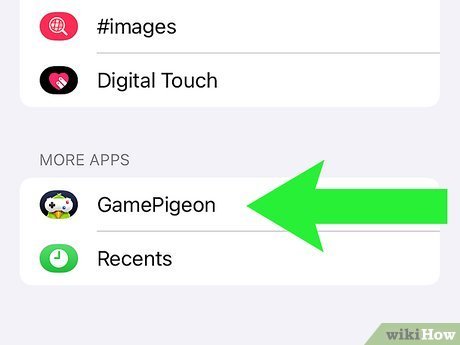
To delete Game Pigeon, open the iMessage app, access a conversation, tap the App Store icon, swipe left on the Game Pigeon app icon, and then tap ‘Delete’.
Ever found yourself bombarded with Game Pigeon requests and wondered, “how can i delete game pigeon?” It’s a common question, and luckily, the process is quite simple. This app, designed for iMessage games, can become a bit much if you’re not actively using it.
Deleting it is surprisingly straightforward. You just need to know where to look within iMessage.
Below, we’ll guide you through the quick steps to remove Game Pigeon from your iMessage apps. You’ll be back to a clutter-free messaging experience in no time!

How Can I Delete Game Pigeon?
Game Pigeon is a popular iMessage extension that allows users to play multiplayer games directly within their text conversations. Sometimes, you might want to remove it from your device. Let’s explore the various methods to delete Game Pigeon and related aspects.
Why Delete Game Pigeon?
There are several reasons why someone might want to remove Game Pigeon. Perhaps you’re no longer interested in playing the games. Maybe you’re freeing up storage space on your iPhone.
Another reason could be reducing distractions. Game Pigeon notifications can sometimes become overwhelming.
Methods for Deleting Game Pigeon
Several methods exist for deleting Game Pigeon. The best approach depends on your specific goal. Are you trying to remove it temporarily or permanently?
Let’s explore each option in detail.
Deleting Game Pigeon from iMessage Apps
This method removes the Game Pigeon app from your iMessage interface. It doesn’t completely uninstall the app from your device.
1. Open Messages: Start by opening the Messages app on your iPhone or iPad.
2. Open a Conversation: Select any existing conversation. Alternatively, you can start a new one.
3. Access iMessage Apps: Look for the app icons at the bottom of the screen above the keyboard. Scroll left until you see the “More” button (three dots). Tap it.
4. Edit iMessage Apps: Tap the “Edit” button in the upper right corner of the screen.
5. Remove Game Pigeon: Find Game Pigeon in the list. You’ll see a minus sign (-) to the left of the app icon. Tap the minus sign next to Game Pigeon.
6. Confirm Removal: Tap “Remove” to confirm.
7. Tap Done: Tap “Done” in the upper right corner to save your changes. Game Pigeon will no longer appear in your iMessage app drawer.
Hiding Game Pigeon from the iMessage App Drawer
You can hide the Game Pigeon app instead of fully removing it. This keeps the app installed but prevents it from appearing in your iMessage apps.
1. Open Messages: Open the Messages app on your device.
2. Open a Conversation: Choose any message thread.
3. Access iMessage Apps: Tap the “More” button (three dots) in the app drawer.
4. Edit iMessage Apps: Tap “Edit” in the top right corner.
5. Toggle off Game Pigeon: Instead of removing, simply toggle the switch next to Game Pigeon to the “off” position. This hides the app.
6. Tap Done: Tap “Done” to save your changes. Game Pigeon will no longer appear.
Completely Uninstalling Game Pigeon from Your Device
This method completely removes the Game Pigeon app from your iPhone or iPad. This will free up storage space. It will also stop any background activity associated with the app.
1. Locate Game Pigeon on Your Home Screen: Find the Game Pigeon app icon on your home screen or app library.
2. Long Press the App Icon: Press and hold the Game Pigeon app icon until a menu appears.
3. Select “Remove App”: In the menu, choose the “Remove App” option. On some older iOS versions, this might say “Delete App.”
4. Confirm Deletion: A confirmation message will appear. Tap “Delete App” to uninstall it. You may need to enter your passcode or use Face ID to confirm.
5. Alternative Method via Settings: You can also uninstall the app through the Settings app. Open the Settings app. Then tap “General”.
6. iPhone Storage: Next, tap “iPhone Storage.”
7. Find Game Pigeon: Scroll through the list of apps until you find Game Pigeon. Tap on it.
8. Delete App: Tap “Delete App”. Confirm the deletion when prompted.
What Happens After Deleting Game Pigeon?
After deleting Game Pigeon, you will no longer be able to access the games through the iMessage app. Any ongoing games will be interrupted. Your game statistics and progress might be lost, depending on how the app is designed.
Deleting the app also stops any notifications related to Game Pigeon. Your friends will no longer be able to challenge you to new games.
Reinstalling Game Pigeon
If you change your mind, you can easily reinstall Game Pigeon. Visit the App Store and search for “Game Pigeon.”
Then tap the “Get” button to download and install it. Once installed, you’ll need to re-add it to your iMessage apps.
Troubleshooting Deletion Problems
Sometimes, you might encounter issues while trying to delete Game Pigeon. Here are some common problems and solutions:
App Not Deleting
If the app isn’t deleting, try restarting your iPhone or iPad. A simple restart can resolve many temporary glitches.
After restarting, try the deletion process again.
Deletion Option Not Appearing
If the “Remove App” or “Delete App” option isn’t appearing when you long-press the icon, make sure you’re pressing firmly enough. Also, ensure that you are not in “jiggle mode” (when apps are already wiggling and ready to be moved). Press and hold the app a bit longer until the menu appears.
Storage Issues
If you’re deleting Game Pigeon to free up storage but the storage space doesn’t seem to increase, try restarting your device. Sometimes, it takes a few minutes for the system to update the storage information.
Managing iMessage App Storage
Deleting apps isn’t the only way to manage iMessage app storage. You can also clear the cache and data of individual iMessage apps. This can free up storage space without completely removing the app.
1. Open Settings: Go to the Settings app on your iPhone or iPad.
2. General: Tap on “General”.
3. iPhone Storage: Tap on “iPhone Storage”.
4. Find Game Pigeon: Scroll down and select Game Pigeon from the list of apps.
5. Offload App: Consider using the “Offload App” option. This removes the app but keeps its data and documents. You can reinstall it later without losing your data.
Privacy Considerations
When using Game Pigeon, consider your privacy settings. The app may collect data about your gameplay and interactions.
Review the app’s privacy policy to understand what data is collected. You can often adjust privacy settings within the app itself.
Alternative iMessage Games
If you’re deleting Game Pigeon but still enjoy playing games in iMessage, there are several alternatives:
Words with Friends: A popular word game.
Checkmate!: Play chess with your friends.
8 Ball Pool: Enjoy a classic pool game.
Cobi Hoops: Play a basketball game within iMessage.
Game Pigeon and Parental Controls
Parents may want to restrict access to Game Pigeon for their children. iOS offers parental control features that can help.
1. Open Settings: Open the Settings app.
2. Screen Time: Tap on “Screen Time.” If you haven’t set up Screen Time yet, follow the prompts to do so.
3. Content & Privacy Restrictions: Tap on “Content & Privacy Restrictions.”
4. Allowed Apps: Tap on “Allowed Apps.”
5. Disable iMessage Apps: You can disable iMessage apps altogether. Alternatively, you can restrict access to specific apps.
Game Pigeon Update Issues
Sometimes, issues with Game Pigeon arise after an update. If you’re experiencing problems after an update, try these steps:
Check for Updates: Ensure you have the latest version of Game Pigeon. Go to the App Store and check for any available updates.
Restart Your Device: Restart your iPhone or iPad.
Reinstall Game Pigeon: Try deleting and reinstalling Game Pigeon.
Clearing Game Pigeon Cache
While iOS doesn’t offer a direct way to clear the cache for individual iMessage apps, offloading and reinstalling the app often achieves a similar result.
1. Go to Settings: Navigate to Settings.
2. General: Tap “General”.
3. iPhone Storage: Then tap “iPhone Storage”.
4. Select Game Pigeon: Find Game Pigeon and select it.
5. Offload App: Tap “Offload App,” then reinstall. This effectively clears cached data.
Reporting Problems with Game Pigeon
If you encounter bugs or other issues with Game Pigeon, you can report them to the developers.
1. Find the App in the App Store: Go to the App Store and search for “Game Pigeon.”
2. App Support: Scroll down to the “Information” section and look for “App Support.” Tap on the link to visit the developer’s support website.
3. Contact Developer: Look for a “Contact Us” or “Support” option on the developer’s website. You can submit a bug report or feedback.
Game Pigeon Subscription Management
Game Pigeon might offer in-app purchases or subscriptions for additional features or content.
1. Open Settings: Go to your iPhone’s Settings app.
2. Tap Your Name: Tap on your name at the top of the screen (Apple ID, iCloud, Media & Purchases).
3. Subscriptions: Tap on “Subscriptions.”
4. Manage Subscriptions: Find the Game Pigeon subscription (if you have one) and manage or cancel it as needed.
Data Usage Considerations
Game Pigeon uses data when playing online games. Be mindful of your data usage, especially if you have a limited data plan.
Connect to Wi-Fi whenever possible to reduce data consumption. You can monitor your data usage in the Settings app. Go to Settings > Cellular to see how much data each app is using.
Game Pigeon on Different Devices
Game Pigeon is primarily designed for iOS devices (iPhones and iPads). It integrates directly with the iMessage app.
It is not available on Android or other platforms.
Game Pigeon and Battery Life
Like any app that involves online activity and graphics, Game Pigeon can impact battery life.
Close the app when you’re not using it to conserve battery power. Adjust screen brightness and disable background app refresh to further extend battery life.
Alternatives to Deleting: Muting Conversations
If you only want to avoid notifications from Game Pigeon challenges, consider muting the specific conversations.
1. Open Messages: Open the Messages app.
2. Find the Conversation: Locate the conversation with the person frequently sending Game Pigeon challenges.
3. Swipe Left: Swipe left on the conversation.
4. Tap the Bell Icon: Tap the bell icon to mute notifications from that conversation. You will no longer receive notifications for new messages in that thread.
Game Pigeon and Accessibility
Consider accessibility features if you or someone you know has visual or other impairments. Check if Game Pigeon supports features like VoiceOver, larger text sizes, or color contrast adjustments. Look for accessibility options within the app’s settings.
How to Delete Game Pigeon on iPhone – Uninstall Game Pigeon in iPhone
Final Thoughts
To remove Game Pigeon, you must first uninstall it from your iMessage apps. This process is simple and will free up space. Removing the app will also stop any notifications you receive from it.
Deleting the application effectively removes it from your device. You can always reinstall it later if you decide to play again. It is a simple process and reversible.
In summary, you uninstall it via iMessage app settings. So, how can i delete game pigeon? You just remove it from your iMessage apps drawer.

