
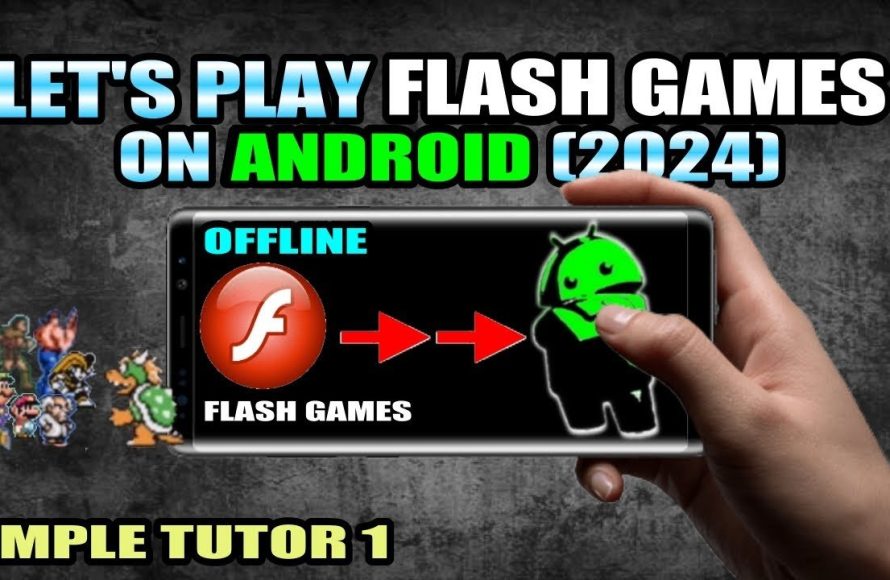
Flash games on Android require a specialized browser like Puffin, which emulates Flash, or using an emulator that supports Flash content.
Remember those countless hours spent enjoying Flash games? The simple yet addictive gameplay is something many want to revisit. The question often arises, how can i play flash games on android? It’s a valid query considering Flash’s official demise.
While Adobe no longer supports Flash, you still have options. You can use certain browsers or applications designed to run these older games. These methods give access to your favorite flash games on your android.

How Can I Play Flash Games on Android?
Okay, so you’re ready to dive back into the world of awesome Flash games on your Android phone or tablet? That’s fantastic! Flash games were a huge part of the internet for many years, and it’s no wonder you miss them. But, as you might know, Adobe Flash Player is no longer supported on most browsers, including those on Android. That doesn’t mean it’s impossible to get your Flash gaming fix! We’re here to explain how you can still enjoy these classic games. It’s not as straightforward as it used to be, but with a few steps and some helpful apps, you can be blasting aliens or solving puzzles in no time. This guide will walk you through everything you need to know, making it easy to play those older Flash gems. Let’s get started!
Why Can’t I Play Flash Games Directly on My Android Anymore?
First, let’s quickly understand why this problem exists. Flash technology, created by Adobe, was how many animations and games worked on the internet. It needed a special player, called the Flash Player. However, this technology became outdated. It had some security issues and was quite heavy, making websites slow. Adobe stopped supporting it at the end of 2020. That means that the standard Android browsers no longer include Flash Player. You can’t just click a Flash game and expect it to work anymore. This change has impacted many people who want to play their beloved Flash games. This is where we need to get a little creative and look at alternative solutions.
The Main Ways to Play Flash Games on Android
Now that we know why it’s a bit tricky, let’s talk about the different ways to play Flash games. There are a few main methods, and each one has its own pros and cons. The most common ways involve using a Flash emulator, or playing through specialized web browsers, or sometimes, using a dedicated app.
Using Flash Emulators
The most popular method for playing Flash games on your Android is using an emulator. An emulator is an app that pretends to be the old Flash Player software. This lets you run the old Flash files (usually ending in .swf) on your device.
What is a Flash Emulator?
A Flash emulator is a piece of software that recreates the Flash player environment. It tricks your phone into thinking it is running an original Flash program, allowing it to play games. Think of it like a translator that makes the computer understand a different language, which in our case is the old Flash game format. There are several Flash emulators available on the Google Play Store or through other sources. Some are better than others, so it’s useful to explore a bit and read reviews.
Popular Flash Emulators for Android
Here are some well-regarded Flash emulators for Android devices:
Puffin Browser: While Puffin Browser is actually a web browser, it includes a cloud-based Flash player. This means the Flash processing is done on their servers, and you see the game streamed to your phone. It’s often a reliable choice because the heavy lifting is done elsewhere, so it can work well on less powerful devices. This can be an effective solution for playing games. Puffin Browser has been a solid choice for many players, offering good compatibility with a lot of games. However, please note that Puffin does have ads.
FlashFox Browser: This browser also features integrated Flash support and tries to provide a smooth gaming experience. It’s another alternative to look at.
Ruffle Emulator (and similar standalone emulators): Ruffle is an open-source Flash emulator that is designed to be more secure and lightweight than the original Flash Player. It’s available in various forms, including as a desktop app and a browser extension, and there are some versions adapted to Android. Standalone emulators allow you to download the emulator separately and run specific .swf files that you have downloaded.
How to Use a Flash Emulator
The exact steps vary slightly from emulator to emulator, but the general process is similar:
1. Download the emulator: Get the emulator from the Google Play Store or a trusted website.
2. Locate your Flash game: You’ll need to have the actual Flash game file (.swf). You might find these files on old websites or download them from reputable archives.
3. Open the file in the emulator: This process can vary, depending on the specific app. Some allow you to open the file within the app, and others might require you to find the file via your phone’s file manager, then ‘open with’ the emulator.
4. Play the game: That’s it! The game should start in the emulator, and you can begin playing.
Playing Flash Games Through Web Browsers With Flash Support
Another way to play is by using a web browser that has built-in Flash support. These browsers are not the standard ones you use every day, but they can be a great method.
Why Use a Browser with Flash Support?
Using a browser that has Flash support avoids the need to download standalone emulators. This means the browser handles all the Flash compatibility for you. It can be more convenient for some users who prefer an all-in-one solution. Also, some of these browsers are more optimized for Flash content than other methods, often leading to better and smoother experiences with games.
Web Browsers That Offer Flash Support
Here are a few browsers with Flash capabilities for Android:
Puffin Browser: (As mentioned above) This is often one of the most recommended browsers for playing Flash games on Android. It’s a reliable solution for both browsers that directly stream the games to your device from their server.
Kiwi Browser: This browser, while it does not have direct Flash support, it allows you to install extensions, you can try to find a Flash player plugin, but this may not provide the best compatibility as a fully integrated browser.
How to Use a Browser with Flash Support
Here’s how you would use such a browser:
1. Download the browser: Find the browser you wish to use on the Google Play Store.
2. Open the browser: Once you install the browser, launch it.
3. Go to the website with the Flash game: Browse to the website containing the Flash game you want to play.
4. Play the game: The browser will handle the Flash content for you, so you should be able to click on the game and begin playing.
Using Dedicated Flash Game Apps
Sometimes, developers package up Flash games into their own apps. While these are not always very common, they can be a nice and easier alternative when available.
What Are Dedicated Flash Game Apps?
These are applications that have already incorporated Flash games and the necessary player tech into their apps. You would not be working with a standalone Flash file or a browser, instead the games are built right into the app. These offer a convenient, ready-to-play experience.
Finding Dedicated Flash Game Apps
Finding them can be a bit tricky because these apps are not always available. Some might be in the Google Play Store, while others may require you to install from a third-party website. It’s a good idea to read user reviews before installing apps from unknown sources.
How to Use Dedicated Flash Game Apps
The process is generally very easy:
1. Download the app: Download the app from Google Play Store or a secure website.
2. Open the app: Find the app on your phone and launch it.
3. Choose a game: The app will likely present a list of built-in Flash games. Select the game you want to play.
4. Start playing: The game should begin, and you can start your game immediately.
Tips For a Better Flash Gaming Experience on Android
Here are some additional points to remember to help you have a smoother gaming session when playing Flash games on Android:
Internet Speed: A good internet connection is important if you are using cloud-based Flash support like the one offered with the Puffin Browser. Slower internet can cause games to lag or be slow.
Device Performance: Older or less powerful phones might struggle a little bit with running Flash games, especially complex ones. So make sure your device is charged enough and not running too many apps in the background.
Battery Life: Playing Flash games can drain your battery relatively quickly. So keep an eye on the battery, and you may want to keep a charger handy if you plan long gaming sessions.
Security: When you’re downloading emulators or .swf files from the internet, always make sure you are using a trustworthy source. There are some places that could contain malware.
Finding Flash Games
Finding flash games may be a challenge these days, but don’t fret! Here’s how you can still discover some of the best gems:
Old Gaming Websites: Many websites that hosted Flash games in the past still exist. You may be able to find old gaming websites by searching for names of specific games you remember playing or by using search terms like “flash game archives”. These sites often contain .swf files of the games, which you can download to play with an emulator.
Internet Archives: The Internet Archive is a wonderful resource for many old things, including games. It has a large collection of archived web pages, and you can often find Flash games there. Just use their search function and find some of your old favorites.
Reddit and Forums: Communities like Reddit have active groups dedicated to old games. You can often find links to Flash game archives, or you can ask for advice and information from other users.
Why is this all so complicated?
It’s understandable why it can be frustrating to play Flash games these days, as it’s not the simple process it used to be. The reason why this is not the same experience as it used to be is due to the original Flash Player being phased out because of security vulnerabilities and other issues. The main browsers stopped supporting it, so you need workarounds. This means there isn’t just a simple way to play like there used to be. These methods may seem like extra steps, but these methods exist for a good reason! These are the current methods to get to enjoy the nostalgia of these past games and they will be constantly improving.
Getting Flash games to run on Android takes a bit of patience, but it’s not impossible. By using emulators, special browsers, or dedicated apps, you can bring those classic games back to life. Just make sure to use reliable sources for your downloads, and with a little effort, you can soon be enjoying your favorite Flash games.
So, if you find yourself wanting to revisit those simpler gaming days, don’t let the lack of direct support deter you. There are various ways to get back into the world of Flash games on Android. Just choose a method and have fun with the great classic games of the internet.
Let's Play Flash Games on Android Device (2024) [Offline]
Final Thoughts
To play Flash games on Android, use a browser that supports Flash or a dedicated emulator application. These solutions enable access to classic games previously unavailable on mobile. Remember, many websites now use HTML5 instead of Flash.
Another option is to find alternative Android ports or remakes of your favorite Flash games. These provide a more native experience. However, some may require purchase.
Ultimately, “how can i play flash games on android” depends on using a browser, emulator, or alternative version, so explore all options. The availability of Flash is limited; thus, adaptation is crucial.

