
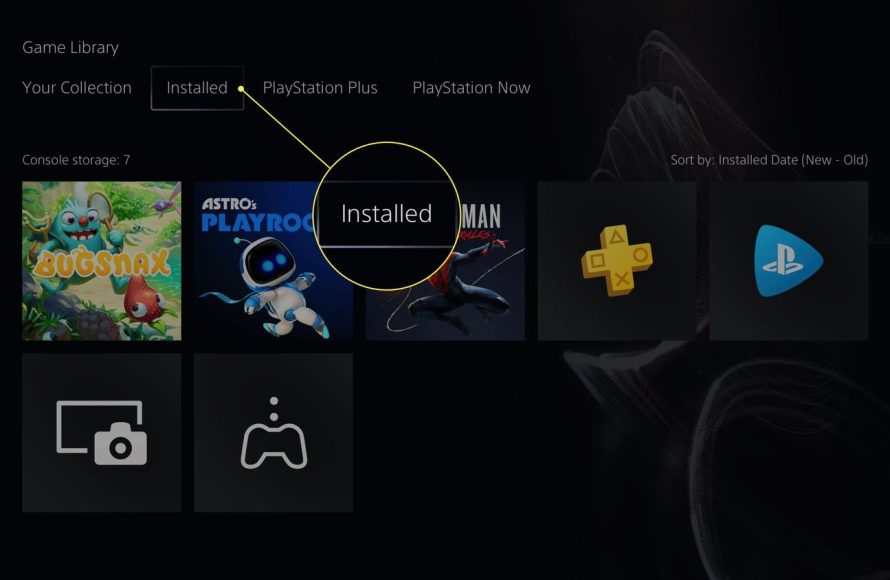
To delete a game off your PS5, navigate to the game from your game library, press the options button on your controller, then select ‘Delete’ from the menu.
Running out of space on your PlayStation 5? It happens! We all get carried away downloading new worlds to explore and adventures to embark on, which begs the question: how do i delete a game off my ps5? The good news is, freeing up precious storage space is a simple process.
This quick guide will walk you through the straightforward steps to remove a game from your console. You’ll be back to making room for new titles in no time.

How Do I Delete a Game Off My PS5?
So, you’ve got your awesome PlayStation 5, and you’ve been having a blast playing all sorts of incredible games. But, just like with toys, sometimes you need to make room for new ones! That means you might need to delete a game or two from your PS5. Don’t worry, it’s super easy to do, and I’m here to show you exactly how. We will explore different methods to delete games and manage your storage, ensuring you’re always ready for your next gaming adventure.
Why Delete Games From Your PS5?
Before we jump into the “how,” let’s quickly talk about the “why.” Deleting games helps for a few reasons. The main one is probably space. Games these days can be very big and take up a lot of space on your PS5’s hard drive. If your storage is full, you might not be able to download new games, updates, or even save your progress! Keeping only the games you play will ensure you have the space you need. Plus, a clean games library makes it easier to find the games you actually want to play quickly.
Different Ways to Delete Games
Now, here are the ways to remove games from your PS5. There are a couple of simple ways you can do this, so let’s take a look at each one step by step.
Deleting Games from the Games Home Screen
This is probably the fastest and easiest method. Here’s how it goes:
- Turn on your PS5: First, make sure your console is powered on and you are at the main home screen.
- Find the Game: Use your controller to navigate through your games. Scroll left or right until you see the game you want to delete.
- Press the Options Button: Once you’ve found the game, highlight it using your controller. Then, press the Options button. This is usually the little button with three horizontal lines on the right side of your controller. A menu will pop up.
- Select Delete: In the menu that appears, you’ll see a “Delete” option. Select it using your controller.
- Confirm: A warning message will appear asking you to confirm if you are really sure about deleting the game. If you are, select “OK.”
- Wait and You’re Done: The PS5 will now delete the game from your console. The time it takes might depend on the game’s size.
Deleting Games From the Storage Section
Another way to delete games is from the storage management area of your PS5. This way can also help you see how much space each game uses and manage your storage more effectively. Let’s walk through the steps:
- Go to Settings: First, from the main screen, go up to the top menu bar, where you’ll find the settings gear icon. Select it.
- Select Storage: From the settings menu, scroll down to find the “Storage” option and select it.
- Choose Console Storage: Inside the storage menu, you’ll see options for “Console Storage” (where games are normally installed) and “Extended Storage.” If you installed the game on console storage, select “Console Storage”. If you installed on an extended storage, you need to chose “Extended Storage”.
- Go to Games and Apps: You’ll see a list of different categories of data. Select “Games and Apps”.
- Find the Game: Now, you’ll see a full list of all games installed on your storage. Select the game you wish to remove.
- Select Delete: Once you’ve selected the game, press the options button on your controller. Choose “Delete” from the menu that pops up.
- Confirm and Delete: Just like before, a confirmation message will show up. Select “Delete” to proceed. The game will now be uninstalled from your console.
What Happens When You Delete a Game?
When you delete a game, it is removed from your PS5’s storage. This frees up the space, but what else happens? Let’s get into that.
Game Data
The game itself is gone. But, here is the main thing: the saved progress, your settings, or any other related data you have to a game, that will stay on your console by default. If you wish, you can remove this saved data, too, if you no longer want it. This data does not take up much space, and it’s good to keep in case you plan to reinstall the game later. It will be good as you can continue where you left off last time.
Redownloading
The good news is that deleting a game does not mean you will lose it forever! If you purchased the game digitally from the PlayStation Store, it’s still yours, and you can download it again anytime you like. All you need to do is go to your game library, find the game, and start downloading it. If the game was on a physical disc, you can simply insert the disc to install it again.
Managing Game Data Separately
As we talked about earlier, game data, like your saves, doesn’t get automatically deleted with the game. Knowing how to handle game save data is important. Here is how to manage this:
Deleting Save Data
If you wish to remove the save data of a game, here’s how:
- Go to Settings: Like before, start by going to Settings from your PS5’s main screen.
- Select Saved Data and Game/App Settings: Scroll down and find “Saved Data and Game/App Settings” and select it.
- Choose Saved Data: From here, choose “Saved Data (PS5)” or “Saved Data (PS4)” based on what kind of game you are working with. Select “Console Storage” if your save data is stored on your PS5. If your data is on a external USB drive, select “USB Drive” instead.
- Select a Game: A list of games with saved data will pop up. Find the game you want to manage.
- Delete Save Data: Once you have found the game, select its save data. Here, you will see different options like “Delete” for every save data. Confirm your selection, and your save data will be deleted.
Moving Save Data
If you want to keep your save data but remove it from the console’s main storage, you can move it to a USB drive. Here’s how:
- Connect a USB Drive: Make sure you have a compatible USB drive plugged into your PS5.
- Go to Settings: Navigate to Settings from the PS5 main menu.
- Go to Saved Data and Game/App Settings: Find and select “Saved Data and Game/App Settings”
. - Select Saved Data: Choose “Saved Data (PS5)” or “Saved Data (PS4)” for save data stored on the console itself.
- Select Console Storage: Choose console storage from the list.
- Choose a Game: Choose the game for which you want to move the save data.
- Copy to USB Drive: Select the game save data, select “Copy to USB Drive”. Your PS5 will copy the game save data to your usb drive.
Organizing Your Game Library
Keeping your games library organized and tidy makes it much easier to find games you love and saves you valuable time from searching. Here are some ways to keep your games library looking good.
Using Folders to Organize
The PlayStation 5 lets you create folders to put your games into them. This can help you organize different types of games. For example, you can make a folder for your favorite games, a folder for games that you play with your friends, or a folder for games you haven’t started playing yet. This is how to create folders:
- Go to Your Game Library: From the PlayStation’s main screen, go to “Game Library”.
- Select “Your Collection”: At the top of the library, find the “Your Collection” tab. Choose this tab.
- Choose “Create Game List”: From your list of games, press the options button, and choose “Create Game List”.
- Give It a Name: Give your list a name. For instance, “Favorites” or “Multiplayer.” Once you’re done, choose “OK”.
- Add Games: Now, you can add games to the list. Select games and then choose “Add to List”.
- Rearrange Your Games: Use the options button to move the folders as you wish.
Hiding Games
Sometimes you might want to hide some of your games instead of deleting them from your library. Maybe you don’t want to see a specific game anymore, but you may want to play it in future. Here’s how to hide a game on your PS5:
- Go to Your Game Library: On the main screen, go to “Game Library”.
- Select “Your Collection”: Select the “Your Collection” tab at the top of your library.
- Choose the Game: Select the game you would like to hide.
- Press Options: Press the Options button on your controller.
- Select Hide: Choose “Hide”. The game will no longer show up in your library by default.
To unhide a game, follow the steps above again and select “Unhide” instead.
Understanding Different Storage Options
Your PS5 has different storage options. Knowing what they are and how they work can help you better manage your games. Let’s check out the options:
Internal Storage
The PS5 comes with internal storage, where all the games and data are installed by default. However, the internal storage has a limit. It may get full quickly if you install many big games.
Extended Storage
To get more space, you can use a compatible external USB drive as “Extended Storage”. This is an easy way to store PS4 games and play them directly from that drive. However, you can’t play PS5 games directly from extended storage. You need to transfer them to the internal storage first.
NVMe SSD Expansion
The PS5 also has an expansion slot for a fast NVMe SSD. This expansion gives you even more storage and allows you to play PS5 games directly from the added storage. This is the best option for maximum performance and more storage for PS5 games. This method requires a bit of technical know-how because you need to install it inside your PS5.
Moving Games Between Storage Options
If you have external storage, here’s how to move your games from internal storage to external storage or vice-versa:
- Go to Settings: Go to “Settings” from the main screen.
- Go to Storage: Choose “Storage” from the settings.
- Choose Console or Extended Storage: Select either “Console Storage” if your game is on the PS5 hard drive or “Extended Storage” if you have the game on an external usb drive.
- Go to Games and Apps: Select “Games and Apps” on the screen.
- Select the Game: Choose the game that you would like to move.
- Select Move: Press the options button, then choose “Move”.
- Choose Destination: Pick whether you want to move the game to console storage or to extended storage.
- Confirm and Wait: Select “Move” to confirm, and wait until the process has completed.
Tips for Managing Storage
Keeping up with your storage space and game library may seem tough. So here are some extra tips to make the job easier.
- Regularly Check Storage: Keep an eye on your PS5 storage. You can check this from the “Storage” section in settings. This will help you plan for removing or moving games in future.
- Delete Unplayed Games: If you haven’t played a game in a long time and don’t plan to, deleting it can be a good idea.
- Move, Don’t Always Delete: If you think you might play a game again, move it to an extended storage instead of deleting it completely.
- Utilize Folders: Use folders to keep your games organized by type or genre. This will make finding games much faster.
- Cloud Saves: If you have PlayStation Plus, always make sure your save data is backed up to the cloud. This keeps your progress safe even if you lose your console or have any storage issues.
With these details, you have a better understanding about handling space on your PS5.
Deleting games on your PS5 is easy and helpful when you need space for new games or updates. Knowing all the methods, from deleting games to handling save data, will help you keep your game library organized. Remember, if you purchased games from the PS Store, you can always download them again! Keep your PS5 space clear, so you can keep on having fun!
How to Delete Games on your PS5 (Must Know Info!)
Final Thoughts
To delete a game, highlight it from your game library or home screen. Press the options button on your controller. Then, select “Delete” from the menu. Confirm your decision and the game will be removed.
This is a must for managing your storage. Knowing ‘how do i delete a game off my ps5’ allows you to free up space. That way you have more room for new titles.

