
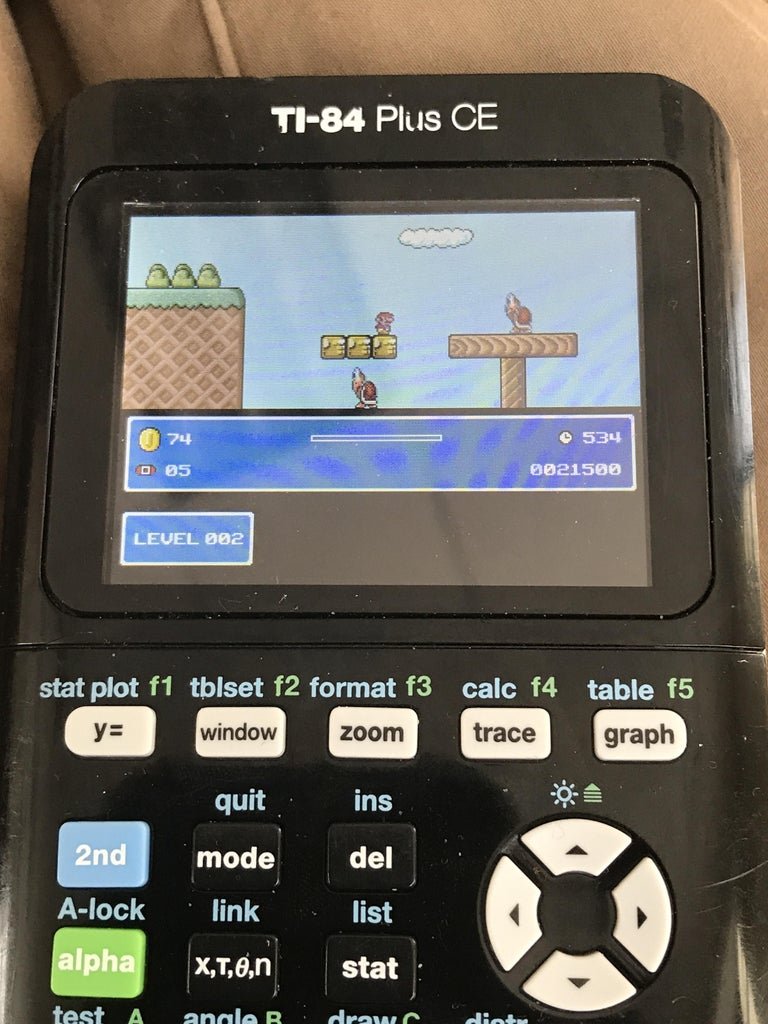
You can get games on your calculator by downloading compatible programs or using web-based emulators.
Ever wondered, “how do i get games on my calculator?” It’s a common question for many, especially when that old school calculator is sitting around. People love to sneak in some fun where they can, and that includes school or work, it’s understandable.
The good news is, it’s often possible to do. There are several routes you can take. This could range from downloading basic programs or even using web based emulators on calculators.

How Do I Get Games on My Calculator?
So, you’re curious about getting games on your calculator? That’s awesome! Many people think of calculators as just tools for math, but they can actually be a lot of fun. It’s like having a mini-computer in your pocket! Getting games onto your calculator is definitely doable, though the steps can vary depending on the type of calculator you have. Don’t worry, we’ll explore everything you need to know to get gaming.
Understanding Your Calculator
Before we dive into getting games, let’s first understand what makes your calculator tick. It’s not the same as your phone or gaming console. Calculators have very basic operating systems, not the fancy ones we’re used to. This means they can’t run all sorts of games. The type of calculator you have really dictates what you can do.
Graphing Calculators: The Gamers’ Choice
Graphing calculators, like those from Texas Instruments (TI), are usually the best for gaming. They have more processing power and memory than basic scientific calculators. These calculators usually have a monochrome (black and white) screen. The most popular calculators for this kind of activity include the TI-83, TI-84, and the TI-Nspire series. These models are often seen in classrooms because of their graphing abilities, and they are also popular with gamers, because of the programming capabilities.
Scientific Calculators: Limited Options
Scientific calculators, the ones you might use for basic math and science classes, usually have very limited capabilities. They have simple screens, little memory, and aren’t really designed for gaming. So, don’t expect to play complex games on these. You may find some basic number-based games, but the experience will not be the same as on a graphing calculator. It might be something like a very basic version of guessing number games or some simple puzzle. Some games made for TI-83 might not work correctly on a scientific calculator.
Basic Calculators: No Games
Standard, basic calculators, the ones you see in stores for very cheap, just aren’t built to handle games. They’re usually just for adding, subtracting, multiplying, and dividing. There is no possibility of adding games on these kinds of calculators.
The Basics of Calculator Games
Calculator games are very different from what you might play on a computer or console. They are often very simple in graphics and gameplay. They usually rely on number-based mechanics and basic shapes. But that’s part of what makes them fun! They tap into the technical possibilities of a calculator and still provide enjoyment.
Types of Games
- Text-Based Adventures: These games rely on text descriptions, with choices that guide the story, you use the number pad to make choices.
- Simple Puzzle Games: Often, these are number-based puzzles, requiring you to manipulate digits to solve a problem.
- Basic Graphics Games: Games with simple drawings using the calculator’s pixel screen, often resembling early video games. This includes games like Snake or Tetris type games.
- Number Games: Such games may include guessing a hidden number or creating number sequences based on given rules.
Finding Games for Your Calculator
Now, the fun part: getting those games! The method you use depends on your calculator and the type of game you want.
Online Resources
The internet is your best friend for finding calculator games. Here are some common places to look:
- Dedicated Calculator Game Websites: Websites host libraries of calculator games made by other enthusiasts. These websites are great because they often have games for various TI models. You’ll find a mix of classics and new projects. Some even have community forums for help and suggestions.
- Forums: Check out forums dedicated to calculator programming or mathematics. You may find threads where people share their games. You might also get help troubleshooting and programming tips.
- YouTube: Many YouTube videos show how to find and install calculator games. Some videos even teach you how to program games yourself! It can be helpful to see a video of someone going through the process, as this can clarify some of the steps.
- GitHub/Code Repositories: Developers often share code for games here. This is a more advanced option but could help you get new and updated games for your calculator.
Specific Platforms for TI Calculators
Because TI calculators are popular for gaming, there are resources tailored to them. If you have a TI-83 or TI-84, start your search there.
- Ticalc.org: This site has a vast library of games and programs for various TI calculators. It’s a great starting point for finding games and software, as it has a comprehensive and updated collection.
- Omnimaga: Omnimaga is a community forum and a resource center. It’s excellent for asking questions and finding games created by forum members. You can also join contests and learn how to create games.
- Cemetech: Another site focusing on TI calculators, it is also great to look for programming resources and download games.
Transferring Games to Your Calculator
Once you find the game you like, you will need to transfer it onto your calculator. Here’s how:
Using a Computer and Link Cable
Most graphing calculators have a port where you can connect them to your computer. You will need a link cable that matches your calculator, usually, it’s a USB cable with a special port on one end. Also, you’ll need specific software on your computer.
Software You May Need
- TI Connect CE (For newer TI Calculators): This software is designed for transferring files to newer TI calculators like the TI-84 Plus CE. You can download it from the TI website.
- TI Connect (For older TI Calculators): This version is for older calculators, like the TI-83 or standard TI-84. TI’s website has this for download as well.
- Transfer Software: Some third-party programs help with the transfer process, such as a program called “TiLP”. You might find these programs on calculator fan websites.
Steps to Transfer
- Install the Correct Software: Download and install the software suitable for your calculator. Make sure you are downloading the correct version for your operating system (Windows, Mac, Linux).
- Connect your calculator to the computer: Use the cable and connect to the appropriate port of your computer.
- Open the Transfer Software: Start the transfer software you just installed.
- Find the Game File: Locate the game file you want to transfer on your computer. Files for TI calculators usually end with the extension .8xp or .8xg.
- Transfer the File: Use the transfer software to send the game file to your calculator. The software will guide you through the process, and you may need to select your calculator type and the target location on the calculator.
- Disconnect the Calculator: Once the transfer is complete, disconnect the cable.
Direct Entry on the Calculator
Some very simple calculator games may be entered manually on the calculator, especially games using basic programs. This is not common but is something to consider.
How to Do It
- Enter Program Mode: Go to the program menu (usually found by pressing “PRGM”) and select the option to create a new program.
- Copy the Code: Carefully type each line of code, exactly as shown by the source. Make sure all variables, commands, and numbers are correct.
- Save the program: When done, save the program.
Using a USB Drive
Some newer models, particularly the TI-Nspire series, allow you to use a USB flash drive to transfer files. Check your calculator’s manual to see if it supports this.
How to Use a USB Drive
- Format the USB Drive: Use the format option on your computer and set the drive to a FAT32 format.
- Copy Files: Copy the calculator program files to the drive.
- Plug the USB Drive: Plug the drive into your calculator.
- Import Files: On your calculator, look for the file menu, and select the option to import files from your USB.
- Move Files: Select the files to move into the calculator memory.
Troubleshooting
Things sometimes don’t go as planned. Here are some common issues and how to fix them.
Game Doesn’t Run
- Calculator Model Compatibility: Is the game made for your specific calculator model? A game for a TI-84 might not work on a TI-83, and vice-versa. Double-check the file description and ensure the game is compatible.
- Wrong File Type: Are you sure you’ve downloaded the correct file (.8xp or .8xg) and not a text file or similar? Make sure the file extensions are correct.
- Software Issue: There may be some problem with the software transfer. Try reinstalling it or using another transfer software.
- Memory Capacity: Make sure you have enough free memory to hold the game. Delete some files from your calculator if needed to make room.
Connection Problems
- Cable Issue: Check your link cable for any damage and make sure both ends are connected firmly. Try another USB cable.
- Software/Driver Problems: Make sure you have the correct software and drivers for your calculator. Try restarting your computer.
- Port Issue: Try another port on your computer.
Problems Running Games
- Screen Glitches: It can happen sometimes when running a program. If the game is buggy, then you can try deleting and re-downloading from a different source.
- Game Freezes: If the game freezes often, then try to exit the program and restart it again. Sometimes the game file is corrupted, so try getting a new copy.
Playing the Game
After transferring and troubleshooting, it’s time to play. Most games can be found in the program (PRGM) menu of your calculator. Navigate to the desired game and press enter to start. The keys used in the game depend on the program. You might use arrow keys for movements and other numeric keys for other actions. Some games have help menus that show you which keys to use. Have fun!
Programming Your Own Games
If you are really ambitious, you can also try to program your own games. Many programming languages such as TI-BASIC, Assembly, and Axe are used to make programs for TI calculators.
TI-BASIC
TI-BASIC is the built-in programming language in TI calculators, and it’s easy to start using. You can write very basic programs using the commands available in the calculator. There are several guides online, including on TI’s website and on programming forums, if you are interested in learning more. This is a great way to start learning programming and creating your own mini-games.
Assembly
Assembly language is more difficult to learn than TI-BASIC but allows for creating much faster and more efficient programs and games. If you want to create a much more advanced game for your calculator, then this may be for you. Many online tutorials are available for Assembly.
Axe
Axe is a programming language that combines the ease of use of TI-Basic and the speed of Assembly. It’s a popular choice for calculator game development because it’s relatively easy to learn, while still offering enough power and freedom to create something complex. You can find many resources and tutorials online and on calculator forums.
So, that’s how you get games on your calculator! It can seem complex but it can be fun. Remember to be patient, use the correct resources, and double-check each step. Have fun playing games on your calculator and keep on exploring the many possibilities!
Turning my calculator into a gaming PC
Final Thoughts
To get calculator games, you must first check if your calculator model allows for programming or app installation. Most graphing calculators support this, often through a USB connection to a computer.
You’ll need to download the games (usually files with specific extensions) from online sources. Then you use a computer program from the calculator’s manufacturer to transfer the game files.
Finally, you can usually access the game directly from your calculator’s program or application menus. Therefore, ‘how do i get games on my calculator’ depends on your specific model and its capabilities.

