
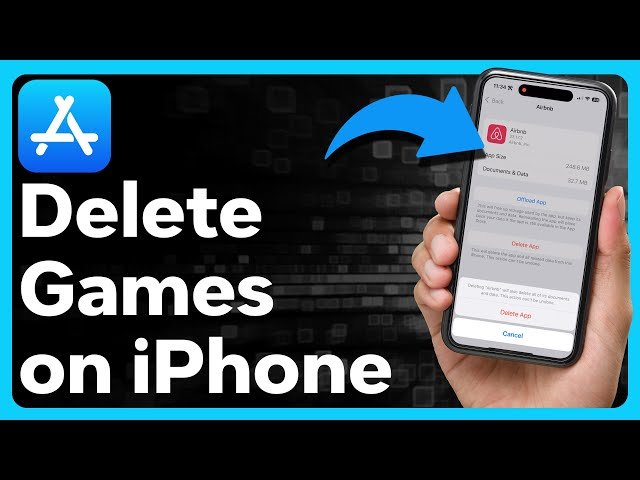
To remove games from your phone, you can either long-press the game icon and select ‘uninstall,’ or go through your phone’s settings, find ‘apps,’ and choose the game to uninstall it.
Ever felt your phone’s storage shrinking fast and wondered, “how do i remove games from my phone?” It’s a common struggle, especially with all the captivating titles out there.
We all enjoy a bit of gaming but sometimes we need to declutter. This simple guide will show you how to clear out those space-hogging apps. Learn the quickest methods to regain control of your device.

How Do I Remove Games From My Phone?
Okay, so you’ve got a phone that’s starting to feel more like a game console than a communication device? Maybe those cute puzzle games or intense racing adventures are taking up too much space, or maybe you’re just ready for a digital detox. Whatever the reason, you’re probably wondering, “How do I remove games from my phone?”. Don’t worry, it’s a super common question, and thankfully, it’s quite simple to do. We’re going to walk you through all the different ways to get rid of those games and reclaim your phone’s space, and even your time!
Understanding Different Removal Methods
There are a few different ways to remove games, and the right method depends on your phone and how you downloaded the game. Let’s explore these different approaches:
Uninstalling Directly From the App Icon
This is the easiest way to remove most apps, including games. Think of it as the “quick delete” method. Here’s how it works on most smartphones:
- Locate the Game Icon: Find the game you want to remove on your home screen or in your app drawer (the place where you see all your apps).
- Long Press the Icon: Tap and hold your finger on the game icon for a moment. You’ll see a small menu or options appear.
- Select Uninstall or Delete: In the menu, you will see “Uninstall,” “Delete,” or sometimes an “X” symbol. Tap on this option.
- Confirm the Uninstallation: Your phone may ask you to confirm that you want to remove the game. Just tap “OK” or “Uninstall” again.
Why This Works: This method directly tells your phone to remove the game and all of its data. It’s the most straightforward way to make sure the game is completely gone.
Uninstalling Through the Settings Menu
Sometimes, you need to go a bit deeper to remove an app. This method works especially well if you are having issues with the first method or want to manage your apps from one place. Here’s how to do this:
- Open Settings: Find the settings app on your phone (it usually has a gear icon).
- Find Apps (or Applications): Scroll through the settings menu until you see “Apps,” “Applications,” or “App Management.” Tap on it.
- Find the Game App: You’ll see a list of all the apps installed on your phone. Scroll until you find the game you want to remove. Tap on it.
- Tap Uninstall: On the game’s app information page, you’ll see an “Uninstall” button. Tap this.
- Confirm the Uninstallation: Again, your phone will likely ask you to confirm the removal. Tap “OK” or “Uninstall.”
Why this Works: The settings menu is like the command center for your phone. Using it ensures that the removal process happens properly, especially if you have some strange app behaviour.
Managing Games Downloaded from App Stores
Most games are downloaded from app stores, such as the Google Play Store (for Android phones) or the Apple App Store (for iPhones). Removing them from these stores is often handled differently. Let’s break it down:
For Android Devices (Google Play Store)
- Open Google Play Store: Launch the Google Play Store app on your Android device.
- Tap Your Profile Icon: Look for your profile picture or initial in the top right corner of the screen and tap it.
- Tap Manage apps & device: From the menu, select “Manage apps & device”.
- Go to Manage Tab: select “Manage” option to view the installed apps.
- Select the Game: Find the game that you want to remove and tap on the check box which is next to game icon.
- Tap the Uninstall icon: You will see uninstall icon on the top corner of the screen, just tap on that, and the game will get uninstalled.
For Apple Devices (App Store)
- Open App Store: Open the App Store on your iPhone or iPad.
- Tap your Profile Icon: Tap on your profile picture or initials in the top right corner.
- Find Purchased or Installed Apps: Scroll through the profile page to see your list of apps. Alternatively, you can access the list from the settings page of the device.
- Find the Game: Locate the game you want to remove from your device.
- Delete from Home Screen: Once you have found the game you can tap and hold on the app icon from your home screen, and when a pop-up appears, select the “Remove app” option to remove it from your device. You can also choose the option to delete the app.
Why this Matters: Although removing an app from your device gets rid of it, it doesn’t remove it from your purchased or downloaded history in your app store profile. You can still redownload if you have removed it from your device but if you have deleted it from the app store then you won’t see it on your downloaded history.
Dealing with Pre-Installed Games (Bloatware)
Sometimes, your phone comes with games already installed, and these can be tricky to remove, sometimes those are termed as “bloatware.” Typically, these apps are part of the system software, and standard uninstall might not be available. Here’s what you can usually do:
- Disable Instead of Uninstall: If you can’t uninstall, you might be able to “disable” the app. This hides it from your app list, and it won’t use up phone resources. Go to Settings -> Apps -> Select the App -> Look for “Disable”.
- Use a Third-Party App: For some phones, you might be able to remove these apps with special tools. However, be careful when using these and make sure to do some research on the app before installing it.
Important Note: Be very careful when using third-party apps to remove pre-installed apps. These actions can have issues with the normal operations of your phone. It’s usually best to just disable the app.
Managing Game Data After Removal
It’s good to know what happens to your game data after you delete the game. Generally, here’s what happens:
- Locally Stored Data is Deleted: If the game saves its data directly on your phone, it usually gets removed when you uninstall. This includes things like game progress, saved settings, and in-game purchases (if they are stored locally).
- Cloud-Saved Data May Remain: Some games use cloud services to save your progress. Even if you remove the game from your phone, your game data might still be there. You might need to log into your account on the game website or another device to manage this data.
- App Store Data May Persist: Even if you remove the app, your purchase history in the app store may still contain record that you have installed this game in the past.
Tip: Before you remove a game, check if it saves its data in the cloud and consider if you want to keep it. Some games have an option to log out or delete all data. If you are sure that you will never want the progress data, then you can delete it.
Why You Might Want to Remove Games
There are many reasons why someone might want to remove games from their phones. Here are a few common reasons:
Freeing Up Storage Space
Games, especially the ones that have high graphic and features, can take up a lot of space on your phone. Deleting these games can help in making more space for the things you really need like photos, videos, or other useful apps.
Improving Phone Performance
Having many apps on your phone can slow down the performance of your phone, especially if some of those apps are games that require lot of the phone’s resources. Removing these apps can speed up your phone and make it more responsive.
Reducing Distractions
Games can be very addicting, and it’s easy to spend more time than you planned. Removing games can help reduce distraction so that you can be productive and focus on the work you need to do or other things you like doing more.
Promoting Digital Well-being
Too much time on games or any electronic devices isn’t good for you. Taking a break from games can help you relax your eyes, and be present more in your actual life rather than being on the phone all the time. Removing games can be a good step toward a healthy digital well-being.
Additional Tips for Managing Apps
Here are some extra tips that can help you manage the apps on your phone, along with your game apps:
- Use Folders: Organize your apps into folders on your phone’s home screen. This helps keep things tidy and makes it easier to find the apps you need. Create a “Games” folder if you want to keep some games but don’t want them taking over your home screen.
- Regularly Review Apps: Take some time every few weeks or month to review the apps on your phone. Think about the apps you haven’t used and delete them.
- Turn Off Notifications: If you don’t want to be disturbed by game notifications, then simply go to the notification settings and turn them off. This way you don’t get constantly prompted to play the games.
Remember, your phone should work for you, not the other way around. Removing games is a way to keep your phone (and your life) in better balance.
Removing games from your phone is a simple but sometimes very needed task. By following the steps we have explained above, you can take control of your phone storage, improve its performance, and minimize distractions. So, if you feel like it is time to remove the games, just follow the above tips and clear the games from your phone. Happy decluttering!
how to remove or hide games in Android phone (remove instant apps)
Final Thoughts
To remove games, long-press the game icon and select “uninstall”. Alternatively, go to settings, find “apps”, choose the game, and tap “uninstall”. These actions efficiently remove the game and its data.
This process also helps free up phone storage. Some games require you to clear cache and data before uninstalling. These steps show you how do I remove games from my phone.

