
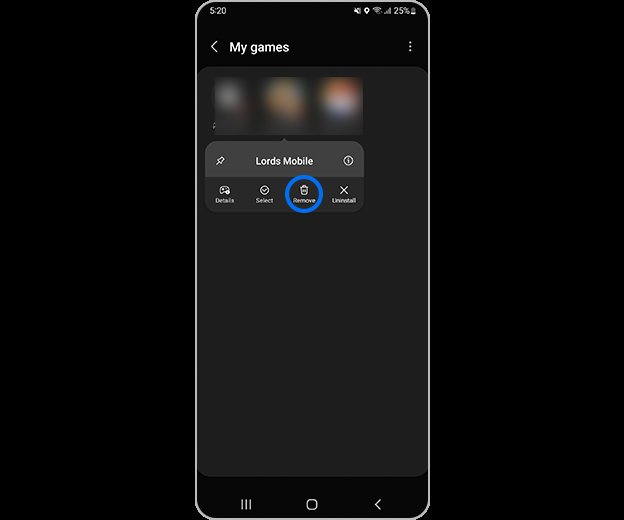
To uninstall a game on your phone, long-press the game’s icon and then select the ‘Uninstall’ or similar option that appears.
Ever felt the need to declutter your phone, making room for new experiences? Sometimes that means saying goodbye to games that no longer spark joy. If you’re wondering, “how do i uninstall a game on my phone?”, it’s simpler than you might think.
The process is usually quite similar across different phone brands. You just need to locate the game icon and a simple long press does the trick.
A small prompt will appear, asking you to confirm the removal and that’s all, the game will be gone.

How Do I Uninstall a Game on My Phone?
So, you’re ready to say goodbye to a game on your phone? Maybe it’s taking up too much space, or maybe you’ve just finished playing and want to make room for something new. Whatever the reason, uninstalling a game is usually a pretty simple process, whether you have an Android or an iPhone. Let’s walk through the different ways you can do it.
Uninstalling Games on Android Phones
Android phones offer several easy methods to remove games. The way you do it might vary a tiny bit depending on your phone’s maker (like Samsung, Google, or Xiaomi), but the main steps are very similar.
Uninstalling from the Home Screen or App Drawer
This is probably the quickest and easiest way to delete a game on your Android. Here’s how:
- Find the Game Icon: Look for the game’s icon on your home screen or in your app drawer (where all your apps live). The app drawer is usually accessed by swiping up from the bottom of your screen.
- Long Press the Icon: Tap and hold your finger on the game’s icon for a second or two. You’ll see a little menu pop up.
- Select Uninstall: In the menu, you should see an “Uninstall” option (sometimes it looks like a trash can). Tap on that.
- Confirm Uninstall: Your phone will probably ask you one more time if you’re sure you want to uninstall the game. Tap “OK” or “Uninstall” to confirm.
That’s it! The game should now be gone from your phone.
Uninstalling from the Google Play Store
Another common method is to uninstall directly through the Google Play Store. Here’s how it works:
- Open the Google Play Store: Find and tap on the Google Play Store app icon. It usually looks like a colorful triangle.
- Search for the Game: Tap on the search bar at the top and type in the name of the game you want to uninstall.
- Go to the Game’s Page: Tap on the game’s icon in the search results. This will take you to the game’s page in the Play Store.
- Tap the Uninstall Button: On the game’s page, you will see a button labeled “Uninstall”. Tap this button.
- Confirm: A pop up will appear, asking you to confirm your action. Select uninstall and the process will begin.
Once completed, the game will be removed from your Android device.
Uninstalling Games from Settings
You can also uninstall games through your phone’s settings menu. This method can be useful for managing all your apps in one place.
- Open Settings: Find and tap the Settings app icon (it often looks like a gear).
- Go to Apps or Applications: In the Settings menu, look for an option called “Apps,” “Applications,” or something similar. Tap on it.
- Find the Game: You’ll see a list of all the apps installed on your phone. Scroll through the list or use the search bar to find the game you want to uninstall. Tap on the game.
- Select Uninstall: On the game’s page, tap the “Uninstall” button.
- Confirm: Your phone will ask you if you are sure. Tap “Ok” or confirm to remove the game.
The game is now uninstalled using the Settings menu.
Understanding Data and Cache
Before you uninstall a game, it’s good to know a bit about data and cache. When you play a game, it sometimes saves information so that it can load faster. This information includes files like your game progress, settings, and any temporary files it needs to work.
- Data: The data the game saves is important, including your game saves and configurations. Uninstalling a game through any of the above methods should remove most or all of this data.
- Cache: The cache consists of temporary files. Sometimes, even after uninstalling, a little bit of cached data might remain. If you are facing issues even after uninstall, you may want to clear cache. You will find clear cache option in settings/applications menu.
It is usually fine if you dont clear the cache, but clearing cache can help if your device is having issues, like storage space or any problem with loading the game again, or in general performance issues.
Uninstalling Games on iPhones
Uninstalling a game on an iPhone is similar to doing it on Android, with a few minor differences. There are a couple of ways you can do it:
Uninstalling from the Home Screen
This method is pretty straightforward and is often the easiest.
- Find the Game Icon: Locate the game icon on your iPhone’s home screen.
- Long Press the Icon: Tap and hold your finger on the icon for a second or two. A little menu will appear.
- Select “Remove App”: In the menu, you’ll see an option that says “Remove App.” Tap it.
- Confirm Uninstall: A pop-up menu will show. Tap “Delete App” to completely remove the game from your phone. If you choose “Remove from Home Screen,” the game will remain in your App Library.
The game should now be removed from your home screen and device.
Uninstalling from Settings
Similar to Android, you can also uninstall games through your iPhone’s settings.
- Open Settings: Find and tap the Settings app icon (it looks like a gray gear).
- Go to General: In the Settings menu, tap on “General.”
- Go to iPhone Storage: Next, tap on “iPhone Storage”. You will see a list of apps and their storage usage.
- Find the Game: Scroll through the list to locate the game you want to uninstall, or search at the top for the game. Tap on the game’s name.
- Select “Delete App”: On the game’s page, tap on the “Delete App” option.
- Confirm: A pop-up will appear, asking if you are sure. Tap “Delete App” again to confirm.
The game will be completely uninstalled from the device using the Settings menu.
Offloading an App
iPhones also offer an option called “Offload App”. This is a little different than uninstalling. Offloading removes the app from your device but keeps its data. This means, the application icon will still be visible and the game is still installed in some sense. However, the app is much smaller and does not take much space.
- Follow the Steps Above: Follow the steps for uninstalling through settings, up until getting to the game’s page inside “iPhone Storage”.
- Select “Offload App”: Instead of “Delete App”, tap the “Offload App” button.
If you reinstall the app, all your saved game data will still be there. This is helpful if you need to make space but don’t want to lose your game progress. The app will appear with a small download icon next to it indicating that the app is not completely installed. Once you click on the icon, the app will start downloading again.
Managing Storage
Before deleting any games, it’s a good idea to check your phone’s storage. Sometimes, games take up a lot of space, and knowing which games use the most storage can help you decide which ones to uninstall.
- Android: Go to Settings > Storage. You will see a breakdown of all the storage on your device, including how much is being used by apps.
- iPhone: Go to Settings > General > iPhone Storage. You will see a breakdown of the storage used by the apps.
Checking storage is helpful to decide which apps to uninstall first. This can greatly help in improving your phone’s performance.
Important Considerations When Uninstalling
Here are a few more important points to keep in mind when deleting games:
Game Data and Progress
Most games store progress in your account, especially online games. If you are signed into an account (such as Google Play Games for Android or Game Center for Apple), or the game uses a cloud save system, your progress is probably saved online.
- Cloud Saves: If your game uses cloud saves, uninstalling the game won’t erase your progress. When you reinstall, you can usually pick up where you left off, after signing back into your account.
- Local Saves: However, some older or offline games save data only on your phone. Uninstalling these games will likely erase your progress. Be sure of this before uninstalling games that may not have online saves.
Keep these points in mind before uninstalling, as your data might be lost if they only save locally on the phone.
In-App Purchases
Uninstalling a game doesn’t automatically get you a refund for any in-app purchases you’ve made. If you have purchased something within a game, you will not lose that by uninstalling a game. It will stay attached to your account in app store. When you reinstall and log back in, you will have those things.
- Refunds: Usually you can refund an accidental purchase within limited time from the app store if you have not used the purchase. You have to go to the app store and go to the purchase history to request a refund.
- Purchases remain attached: You will not lose any purchases when you uninstall the game. Your purchases are associated with your accounts in app stores, such as Google play store or Apple App store.
Knowing this is important when uninstalling games. Be sure you understand all the implications before uninstalling the games, and losing your progress.
Pre-installed Games
Sometimes, some games are pre-installed on your phone by your phone’s manufacturer. These apps are normally difficult to completely uninstall. You may find that some of those apps can be only disabled and not completely removed.
- Uninstall: For some apps, you can uninstall them as normal, using the methods described above.
- Disable: Other apps may only offer you the option to “Disable” them. Disabling means the app won’t show up on your home screen and will not run in the background, but it’s still on your phone.
- Rooting or Jailbreaking: Sometimes, the only way to remove those apps is by “rooting” (Android) or “jailbreaking” (iPhone) your phone, which is more technical and can void your warranty. It is not usually a recommended approach, unless you have technical skills and really know what you are doing.
When you are dealing with a pre-installed game or any application, understanding that you may or may not have the option to completely remove the app is necessary.
Reinstalling Games
If you change your mind and want to play a game again, it is fairly easy to reinstall it. Simply go to the app store, search for the game, and install it again.
- Google Play Store: If it was an android device, search for the game in the Google Play Store, and press the Install button to download the game again.
- Apple App Store: Similarly if it was an iPhone, search for the game in the Apple App Store, and press the download button.
If the game uses cloud saves, your old progress should be available if you sign into the right account again, as discussed earlier in the data and progress section.
So there you have it! Uninstalling games on your phone is generally pretty simple. Whether you use an Android or an iPhone, the steps are straightforward. Just remember to check if your game progress is saved online and that in-app purchases remain with your app store accounts. With a little knowledge, you can now easily manage space on your phone.
How to Uninstall and Delete Apps on Android in 5 Quick Steps
Final Thoughts
To remove a game, usually, you can press and hold the app icon. Then, a menu will appear, giving you the option to uninstall. Alternatively, access your phone’s settings and find the applications section.
Inside the app list, locate the game and tap on it. You will see an option to uninstall. The process might slightly vary based on your phone’s brand and operating system version.
So, how do I uninstall a game on my phone? You can achieve this with a long press on the app icon or through the phone’s application management settings. Remember these methods for easy game removal.

