
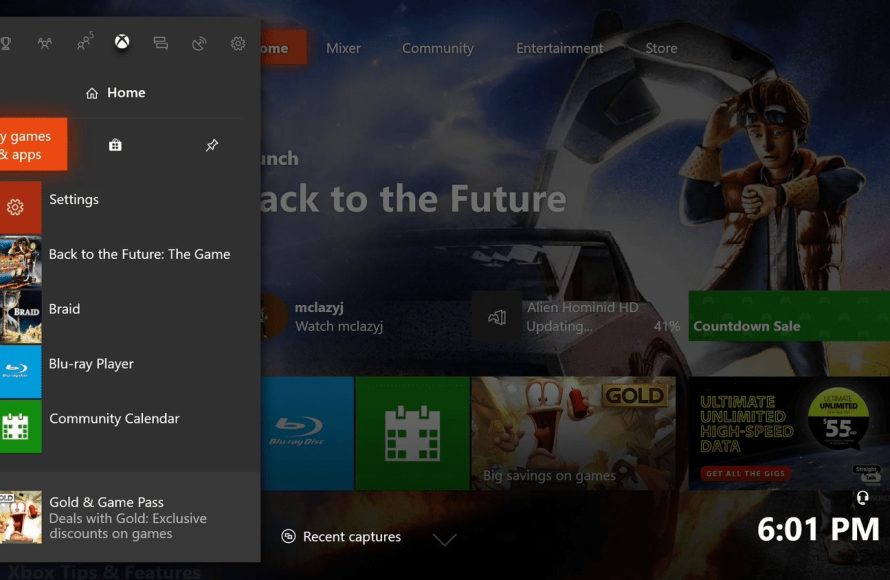
To uninstall a game on Xbox One, highlight the game, press the menu button on your controller, select “Manage game & add-ons,” then choose “Uninstall.”
Do you find your Xbox One storage filling up quickly? Many players face the same issue, often needing to remove games to make space. If you’re wondering, ‘how do i uninstall a game on xbox one’, you’re not alone! It’s a very common question amongst console users.
This short guide will walk you through the process. It’s simpler than you think, and you will be clearing space in just a few steps. We will show you just how quickly it can be done.

How Do I Uninstall a Game on Xbox One?
Okay, so you’ve got your Xbox One, and maybe you’ve downloaded a bunch of games. It’s super fun until your hard drive starts saying, “Hey, I’m full!”. Or maybe you just don’t play a certain game anymore and it’s time for it to go. Don’t worry, uninstalling games on your Xbox One is easy peasy. We’re going to walk through all the ways to do it, so you can get your Xbox tidied up in no time.
Understanding Storage on Xbox One
Before we jump into removing games, let’s talk a little about where games live on your Xbox One. Think of it like a closet for your digital stuff. You have an internal hard drive inside the Xbox itself, like a built-in closet. And you can also use external hard drives, which are like extra closets you can plug in. Games can be stored in either place. Knowing where your game is stored matters because the steps to uninstall are a little different depending on that.
Checking Where Your Games are Stored
To see where your games live, follow these steps:
- Press the Xbox button on your controller to open the guide.
- Go to “My games & apps”.
- Select “See all”.
- Move to the “Games” tab.
- Press the “View” button (the one with two little squares) to sort. Choose “Storage” in the filter. This will show you where each game is stored. You’ll see either “Internal” (meaning the Xbox hard drive) or the name of your external drive (if you have one plugged in).
Keep this info in mind, as we go forward.
Uninstalling Games from the Xbox One Internal Hard Drive
This is the most common scenario. Most games start out living on your console’s built-in storage. Let’s get to it!
The Main Way to Remove a Game
Here’s how you remove a game from your Xbox One’s internal drive:
- Press the Xbox button on your controller to open the guide.
- Go to “My games & apps”.
- Select “See all”.
- Move to the “Games” tab.
- Find the game you want to uninstall, and highlight it.
- Press the Menu button on your controller (the one with three horizontal lines).
- Select “Uninstall”.
- A message will appear asking, “Are you sure you want to uninstall?” Select “Uninstall” again.
And that’s it! The game is now uninstalled from your internal drive. You’ve just made some space.
What if the Game has Add-ons?
Sometimes games come with extra content, called add-ons. These might be extra levels, characters, or other cool things. When you uninstall a game, it often asks if you also want to remove these add-ons. Here’s what usually happens:
- When you pick “Uninstall” a game with add-ons, a little extra message might show up.
- It’ll ask if you just want to uninstall the game, or also the game and its add-ons.
- If you think you might want to play the game again soon, maybe keep the add-ons. But if you are sure, select “Uninstall All” to remove everything.
Choose what works best for you. You can always re-download the add-ons if you install the game later.
Uninstalling Games from an External Hard Drive
Many gamers have an external hard drive. It’s a great way to have lots of games ready to play. The steps to uninstall from an external drive are very similar to the ones from the internal drive, but let’s go through them:
Removing Games from an External Drive
Here are the steps for removing games stored on an external hard drive:
- Press the Xbox button on your controller to open the guide.
- Go to “My games & apps”.
- Select “See all”.
- Move to the “Games” tab.
- Find the game you want to uninstall. Check the storage info under the game name, to be sure you selected the correct one, as sometimes you might have the same game in internal and external drive.
- Press the Menu button on your controller.
- Select “Uninstall”.
- A message will appear asking, “Are you sure you want to uninstall?” Select “Uninstall” again.
Just like with the internal drive, the game and its add-ons will be removed. You will see the space free on your storage.
What Happens to the Game’s Save Data?
Good news! Uninstalling a game does not remove your game saves. Your progress is saved on the cloud. That means that the next time you reinstall the game, your progress will be there waiting for you. This is really handy because you can get rid of a game to make space without worrying about starting over from scratch.
However, it’s always a good idea to double-check that your Xbox is connected to the internet and that your saves are synced. Most times this happens automatically in the background, but it’s a good practice to ensure you have saved data backed up.
Managing Your Xbox One Storage
Here are some extra tips on how to manage your storage and keep things tidy.
Moving Games to a Different Storage
Instead of uninstalling, sometimes you might want to move games from one drive to another. For example, if you are using an external drive, you can move your game from internal drive to the external one, to free space on your internal storage. Here’s how you do that:
- Press the Xbox button on your controller to open the guide.
- Go to “My games & apps”.
- Select “See all”.
- Move to the “Games” tab.
- Find the game you want to move, and highlight it.
- Press the Menu button on your controller.
- Select “Manage game & add-ons”.
- Select “Move or copy” on the left side menu.
- Choose the location where you want to move your game, and then select “Move”.
This is really helpful if you want to use a better storage device for your main games.
Using the Filter Options
When you have many games, it can be difficult to find the one you want to uninstall. The Xbox One has filter options that can help you find specific games. Here’s how to use them:
- When you are on “My games & apps”, move to “Games” tab and press the “View” button (two little squares).
- You will see different options for filters and sorting. You can filter by storage, alphabet or size, so it’s easier to find games to uninstall, move, etc.
Checking How Much Space You Have Left
Knowing how much space you have left is important so you don’t run out of room when downloading new games. Here is how to check that:
- Press the Xbox button on your controller to open the guide.
- Go to “System”.
- Select “Settings”.
- Select “System”.
- Choose “Storage”.
Here you will see how much space is used on your internal hard drive and on each external drive (if you have one). This page also gives you options to uninstall, move or manage the devices.
Why Uninstall Games?
There are several reasons why you might want to uninstall a game. Here are a few common ones:
Freeing Up Storage Space
This is the number one reason. Games these days can be very big. Some can be 50 GB, 100 GB or even bigger. If you like to try many games you might find that your hard drive can become full very quickly. Uninstalling games is the best way to make room for new ones.
Making Room for New Games
Just like with the previous reason, if you are a frequent gamer, you probably want to play the new releases, and need space for them.
Cleaning Up Your Games Library
Sometimes you may not play a game anymore. If you don’t have any intention to play a game again, it’s a good practice to uninstall it. This will help your games library to look clean and organised.
Troubleshooting Game Issues
In some rare cases, a game might have problems. Uninstalling and then reinstalling it could fix some bugs or glitches, making the game work properly again.
Reinstalling a Game
What if you remove a game and decide you want to play it again? No problem, reinstalling a game is very straightforward.
How to Reinstall a Previously Removed Game
Here’s what to do to get your game back:
- Go to “My games & apps”.
- Select “See all”.
- Move to the “Games” tab.
- Select “Ready to install”.
- Find the game you want to reinstall.
- Select the game, and then choose “Install”.
The game will begin downloading. Once it’s installed, it will be ready to play! Since your save data is in the cloud, you will continue where you left off.
Installing Games from Discs
If your game is on a disc, simply insert the disc in the console. Follow the instructions that will appear on your screen to install the game.
Important Tips to Remember
Before we wrap up, here are a few extra things to keep in mind:
- Game Saves: Your game saves are usually safe in the cloud, even if you uninstall the game.
- External Drives: If your external drive is disconnected from the console, the games stored there won’t be accessible.
- Slow Internet: If your internet is slow, downloading or reinstalling games might take some time. Be patient.
And there you have it. Uninstalling games on your Xbox One is a simple process. You can now free up space, manage your storage, and keep your games library in good shape. Don’t be afraid to try out new things and keep things running smoothly.
How to DELETE GAMES on XBOX ONE & Uninstall APPS (Easy Method!)
Final Thoughts
To uninstall a game on your Xbox One, you must navigate to ‘My games & apps.’ Select the game you wish to remove.
Press the menu button on your controller and then choose ‘Uninstall.’ The game will then be removed from your console.
So that’s how you uninstall a game on xbox one.

