
To uninstall Game Pigeon, simply open the iMessage app, find any conversation, tap the App Store icon, manage your iMessage apps, and delete Game Pigeon from the list.
Frustrated with Game Pigeon taking up space? Wondering how to get rid of it and free up your iMessage screen? You’re not alone. Many users find themselves needing to remove apps from iMessage.
This article provides a simple, straightforward guide to answer your question: “how do i uninstall game pigeon?” It’s a quick process, and we’ll walk you through each step, so you can remove Game Pigeon and reclaim your iMessage space.

How Do I Uninstall Game Pigeon?
Uninstalling Game Pigeon is a straightforward process. You can remove it directly from your iMessage apps or through your iPhone settings.
Let’s explore the different methods to uninstall Game Pigeon effectively. These methods will ensure that the app and its associated data are completely removed from your device.
Uninstalling Game Pigeon Directly from iMessage
This is perhaps the quickest way to get rid of the app. It’s a simple procedure right within the Messages app.
Steps to Uninstall from iMessage
- Open Messages App: Launch the Messages app on your iPhone or iPad.
- Start a Conversation: Open any existing conversation or start a new one.
- Access iMessage Apps: Tap on the App Store icon located next to the text input field. It might be hidden in the app drawer.
- Open the App Drawer: If the app drawer isn’t already open, swipe left or tap the four grey ovals icon to reveal your iMessage apps.
- Edit iMessage Apps: Scroll to the far right of the app drawer and tap the “More” button (three dots icon).
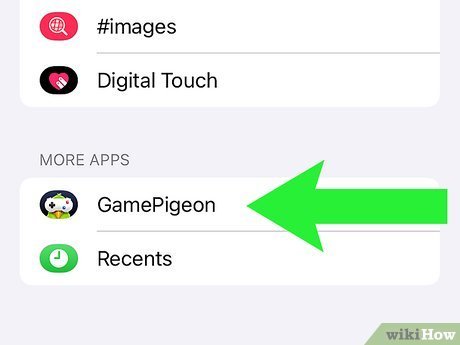
- Manage Apps: This will open the “Manage” screen where you can see a list of your iMessage apps.
- Find Game Pigeon: Locate Game Pigeon in the list of installed apps.
- Uninstall Game Pigeon: Toggle the switch next to Game Pigeon to the “off” position (greyed out). Alternatively, you might see a minus sign. Tapping this sign will allow you to delete the app.
- Confirm Uninstall: A prompt might appear asking you to confirm the uninstallation. Confirm your choice to proceed.
- Done: Tap “Done” in the top right corner to save your changes. Game Pigeon should now be uninstalled from your iMessage.
This process effectively removes Game Pigeon from your iMessage interface. You’ll no longer see it in your app drawer when you’re messaging.
Uninstalling Game Pigeon Through iPhone Settings
Another reliable method to uninstall Game Pigeon involves using the iPhone settings. This method gives you more control over app removal.
Steps to Uninstall via Settings
- Open Settings App: Launch the Settings app on your iPhone or iPad.
- Navigate to General: Scroll down and tap on “General”.
- Select iPhone Storage: In the General settings, tap on “iPhone Storage”. This may take a moment to load as it calculates storage usage.
- Find Game Pigeon: Scroll through the list of apps to find Game Pigeon. The apps are usually listed in alphabetical order.
- Select Game Pigeon: Tap on “Game Pigeon” to view its details.
- Uninstall App: Tap the “Delete App” button (or “Uninstall App” on some iOS versions).
- Confirm Uninstall: A confirmation prompt will appear. Tap “Delete App” again to confirm your decision.
- Wait for Uninstallation: The app will be uninstalled, and its icon will disappear from the list.
This method provides a more thorough uninstallation process. It also helps you manage your device’s storage efficiently.
Verifying Successful Uninstallation
After uninstalling Game Pigeon using either method, it’s a good idea to verify that the app has indeed been removed.
How to Verify
- Check iMessage App Drawer: Open the Messages app and check the iMessage app drawer. Game Pigeon should no longer be present.
- Search on Home Screen: Use the Spotlight search feature (swipe down from the middle of the home screen) and type “Game Pigeon”. If the app is uninstalled, it shouldn’t appear in the search results.
- Check App Library: Swipe left past your last home screen to access the App Library. Search for “Game Pigeon”. If it’s not installed, it won’t be found.
- Review iPhone Storage: Go back to Settings > General > iPhone Storage and ensure that Game Pigeon is no longer listed among the installed apps.
These checks will confirm that you have successfully uninstalled the app. They will also ensure that no residual files are left on your device.
Troubleshooting Uninstallation Problems
Sometimes, you might encounter issues while uninstalling Game Pigeon. Here are some common problems and their solutions.
App Not Uninstalling
If the app seems stuck or won’t uninstall, try these steps:
- Restart Your iPhone: A simple restart can often resolve minor software glitches. Turn off your iPhone completely, wait a few seconds, and then turn it back on.
- Check for Updates: Ensure that your iPhone is running the latest version of iOS. Go to Settings > General > Software Update to check for and install any available updates.
- Free Up Storage Space: If your iPhone is running low on storage space, it might not be able to uninstall apps properly. Delete any unnecessary files, photos, or apps to free up space.
- Reset All Settings: As a last resort, you can try resetting all settings on your iPhone (Settings > General > Transfer or Reset iPhone > Reset > Reset All Settings). Note that this will reset your preferences, but it won’t delete your data.
Game Pigeon Icon Still Visible
Even after uninstalling, the Game Pigeon icon might sometimes remain visible on your home screen.
- Restart Your iPhone: This is the first step to try. A restart can refresh the home screen and remove the ghost icon.
- Check App Library: The icon might be present only in the App Library. If it is, try deleting it from there.
- Wait for Automatic Removal: Sometimes, the icon will disappear automatically after a few hours or days. This is usually due to a caching issue.
- Reset Home Screen Layout: If the icon persists, you can try resetting your home screen layout (Settings > General > Transfer or Reset iPhone > Reset > Reset Home Screen Layout). This will restore your home screen to its default arrangement.
Reasons to Uninstall Game Pigeon
There could be various reasons why you might want to uninstall Game Pigeon.
Lack of Interest
Perhaps you no longer find the games enjoyable. Your gaming preferences might have changed.
Storage Space
Game Pigeon, along with its associated data, can take up valuable storage space on your iPhone. Uninstalling it can free up space for other apps and files.
Notification Overload
If you receive too many notifications from Game Pigeon, it can become distracting. Uninstalling the app will stop these notifications.
Battery Drain
Frequent usage of Game Pigeon can drain your iPhone’s battery. If you’re looking to conserve battery life, uninstalling the app might be a good option.
Privacy Concerns
Some users might have concerns about the app’s privacy policies or data collection practices. Uninstalling the app can address these concerns.
Data Considerations Before Uninstalling
Before you uninstall Game Pigeon, it’s important to consider the data associated with the app.
In-App Purchases
If you’ve made any in-app purchases in Game Pigeon, be aware that you might lose access to them after uninstalling the app. Check the app’s policies regarding restoring purchases.
Game Progress
Uninstalling the app will likely delete your game progress. If you want to save your progress, check if the app offers cloud saving or account linking features.
Account Information
If you’ve linked your Game Pigeon account to other services, you might want to unlink them before uninstalling the app. This can prevent any potential issues.
Alternative iMessage Games
If you’re uninstalling Game Pigeon because you’re looking for other iMessage games, here are some alternatives to consider.
Pencil Wars
Pencil Wars is a fun and competitive drawing game for iMessage. It’s a great alternative if you enjoy drawing-based games.
Checkmate!
Checkmate! allows you to play chess with your friends directly within iMessage. It’s a classic game that’s perfect for strategic thinkers.
Truth Truth Lie
This is a fun party game where players share two truths and one lie. Other players have to guess which statement is the lie.
8-Ball Pool
This iMessage game offers a simple but fun 8-ball pool experience. It’s a great option for quick and casual games with friends.
Reinstalling Game Pigeon
If you change your mind after uninstalling Game Pigeon, you can easily reinstall it.
Steps to Reinstall
- Open App Store: Launch the App Store app on your iPhone or iPad.
- Search for Game Pigeon: Tap the search icon and type “Game Pigeon” in the search bar.
- Download Game Pigeon: Locate Game Pigeon in the search results and tap the “Get” button (or the cloud icon if you’ve previously downloaded it).
- Install App: The app will download and install automatically. You might be prompted to enter your Apple ID password or use Face ID/Touch ID to authorize the installation.
- Open Game Pigeon: Once the installation is complete, tap the “Open” button to launch the app.
- Access Through iMessage: Open the Messages app, and Game Pigeon should now be available in your iMessage app drawer.
Restoring Purchases and Progress
After reinstalling Game Pigeon, you might be able to restore your previous in-app purchases and game progress, depending on the app’s features. Look for options to “Restore Purchases” or “Sign In” to your account within the app’s settings.
Keeping Your iPhone Organized
Uninstalling apps like Game Pigeon is just one part of keeping your iPhone organized. Here are some additional tips.
Regularly Review Apps
Periodically review the apps installed on your iPhone and uninstall any that you no longer use. This helps free up storage space and reduces clutter.
Use Folders
Organize your apps into folders based on category (e.g., Games, Social Media, Utilities). This makes it easier to find the apps you need.
Utilize App Library
The App Library is a great way to keep your home screen clean. You can move apps from your home screen to the App Library without uninstalling them.
Delete Unnecessary Files
Delete old photos, videos, and documents that you no longer need. These files can take up a significant amount of storage space.
By following these tips, you can keep your iPhone organized and running smoothly.
How to Delete Game Pigeon on iPhone – Uninstall Game Pigeon in iPhone
Final Thoughts
To summarize, removing Game Pigeon is straightforward. You can either delete the iMessage app directly or disable it within the iMessage app settings. This ensures the app is no longer accessible through your messages.
The process is quick and easy, helping declutter your iMessage interface. You must ensure you follow these instructions correctly to successfully remove it. If you have any problems, review the steps again.
So, how do I uninstall Game Pigeon? Simply delete the iMessage app or disable it in settings. You’ve now successfully removed Game Pigeon.

