
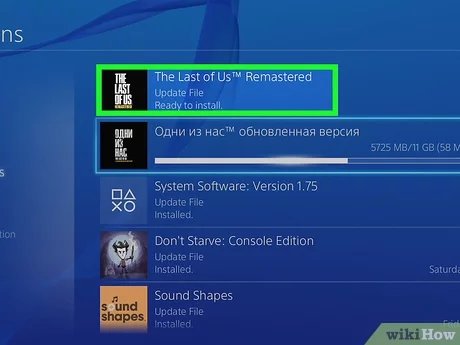
To update a game on PS4, select the game on the home screen, press the Options button on your controller, and choose “Check for Update.” If an update is available, it will download and install automatically.
Having trouble keeping your favorite PS4 games current? You’re not alone, figuring out how do i update a game on ps4 can be a small hurdle for some players. It’s actually a simple process once you know the steps.
Luckily, the console usually does the updates automatically. But sometimes you want to check for them yourself or maybe you’ve turned off the auto download feature.

How Do I Update a Game on PS4?
Keeping your PlayStation 4 games up-to-date is super important! Updates often include new features, fix problems (called bugs), and make the game run smoother. Think of it like giving your game a fresh coat of paint and some new toys! So, how do you actually do it? Let’s dive into all the ways you can make sure your games are current and ready to play.
Automatic Game Updates: Your PS4’s Helping Hand
The easiest way to keep your games updated is by letting your PS4 handle it automatically. This is like having a little helper that works while you’re not even playing. Here’s how it usually goes:
How to Enable Automatic Updates
- First, go to your PS4’s settings. You can find this by moving your controller to the top of the screen and going all the way to the right. It looks like a toolbox.
- Next, go to the section that says “System”. It often has a little picture of a PlayStation console.
- Now, look for the “Automatic Downloads” settings and select it.
- Finally, make sure the box that says “Application Update Files” is checked. If it’s not, go ahead and click it to put a checkmark there.
With this setting on, your PS4 will automatically look for updates for your games and download them when your console is on or in rest mode. Rest mode is when your PS4 is off, but the light is still glowing orange. Think of it like a nap, it is still connected to the internet. It will work hard to update your games while you are away, so when you come back, you can jump right in!
Things to Remember About Automatic Updates
- Internet Connection Required: Your PS4 needs to be connected to the internet for automatic updates to work.
- Sufficient Storage Space: You’ll need enough space on your PS4 hard drive for the updates to download.
- Rest Mode: Using Rest Mode is the best way to make sure your updates download when you’re not playing.
Manually Checking for Game Updates: Taking Charge
Sometimes you might want to check for updates yourself, just to be sure you have the latest version. Maybe you’re planning a big game night with friends, or you just want to make sure there aren’t any cool new features you are missing. Here’s how to check manually:
Steps to Manually Check for Updates
- Find the game you want to update on your PS4 home screen.
- Highlight the game with your controller.
- Press the “Options” button on your controller. It’s the button that looks like three horizontal lines, usually on the right side of the controller next to the touchpad.
- A menu will pop up. Select “Check for Update.”
- Your PS4 will now look to see if there’s a new version of the game available.
If an update is found, your PS4 will begin to download it automatically. You may see a progress bar on the game’s icon on the home screen. Once the download is finished, the update will install, and your game will be ready to go!
Reasons You Might Need to Update Manually
- You just got a new game and you’re excited to play it.
- Your automatic updates didn’t work for some reason.
- You want to be 100% sure that you have the very latest update before playing.
Troubleshooting Game Update Issues: When Things Go Wrong
Sometimes, game updates don’t go as smoothly as we’d like. Maybe the download is stuck, or you’re getting an error message. Let’s look at some common problems and how to fix them:
Common Update Problems and Fixes
Slow Download Speeds
Sometimes, updates can take a long time to download. This could be because your internet connection is slow, or there are a lot of people using the internet at the same time. Here are some things you can try:
- Check Your Internet Speed: You can run a speed test on your PS4 or another device to see if your internet is working correctly.
- Restart Your Router: Sometimes turning your modem and router off and then back on can make your internet work better.
- Use a Wired Connection: If you usually use Wi-Fi, try connecting your PS4 to your router with an ethernet cable. This can make your internet connection stronger.
- Wait: Sometimes, servers are busy. Try to update the game later.
Download Errors
Sometimes your PS4 might give you a message that says there was a problem downloading the update. This can be frustrating! Try these solutions:
- Restart Your PS4: Turning your PS4 off completely and then back on again can sometimes fix errors.
- Make Sure You Have Enough Space: If your PS4 is full of games, you might not have enough room for the update. You may need to delete some games or other items to make space.
- Try Again Later: It might be that the PS4 servers are having some issues. Waiting a while and then trying to update again might help.
- Check for PlayStation Network Issues: Sometimes, the PlayStation Network itself might be having problems. You can check the PlayStation Network status on their website to see if there’s an issue.
Installation Issues
If the update downloaded but doesn’t seem to install correctly, here’s what you can try:
- Restart Your PS4: Restarting the console can often resolve these types of problems.
- Make Sure the Game Isn’t Running: If the game is open, close it completely. Then, try installing the update again.
- Check Your Storage Space: Sometimes the update might need extra space during the installation process.
Understanding Game Update Types: What Are They All About?
Game updates come in different forms. Knowing what kind of update you are getting can help you understand what to expect.
Types of Game Updates
- Patches: These updates are like little bandages that fix problems or bugs in the game. They are usually smaller and don’t add new features, but they make the game work better.
- Content Updates: These updates add new things to the game, like new levels, characters, items, or modes. They are often bigger and more exciting. Think of them as new toys for your game!
- System Updates: Sometimes your PS4 itself needs an update. These updates aren’t for games specifically but they make sure your console and its games work well together.
Managing Multiple Game Updates: Staying Organized
If you have a lot of games, it can be a little tricky to keep track of all the updates. Here are some tips for managing them:
Tips for Managing Multiple Game Updates
- Check Regularly: Even if you have automatic updates on, it’s a good idea to occasionally check manually to see if there are any updates you might have missed.
- Prioritize Updates: If you don’t have a lot of time, focus on updating the games you play most often first.
- Manage Storage: Regularly clear out games or game data you no longer need to make sure your PS4 has enough space for updates.
- Use Folders: You can create folders on your PS4 home screen to organize your games. You can put games that you play often in one folder, and those that you don’t play much in another folder to make it easier to manage updates.
Game Updates and PS Plus: How They Relate
If you have a PlayStation Plus subscription, there are a couple of things you should know about game updates.
PlayStation Plus and Game Updates
- Automatic Updates While In Rest Mode: PS Plus subscribers can download updates while their console is in rest mode. This is very helpful because you do not have to keep your console on while updates download.
- Game Downloads: PS Plus often gives you access to free games every month. It can be good to keep these games up to date as well even if you are not currently playing them.
Updating your PS4 games is an easy but super important part of playing on your PlayStation 4. Whether you prefer automatic updates or like to do things yourself, making sure your games are current is the key to a smooth and fun experience. By knowing how to update, when to check for updates and what to do when things go wrong, you can make the most of your games.
How to UPDATE GAMES on your PS4 & Keep them UPDATED (Easy Method)
Final Thoughts
To update a game on PS4, first ensure your console has an internet connection. Most updates download and install automatically if you have the setting enabled.
If automatic updates are off, select the game on the dashboard and press the options button. Choose ‘Check for Update’ and the system will search for available updates. You must confirm the download to begin.
So, essentially, that’s how you update a game on PS4. If you face any issues, make sure your internet is working and you have enough storage.

