
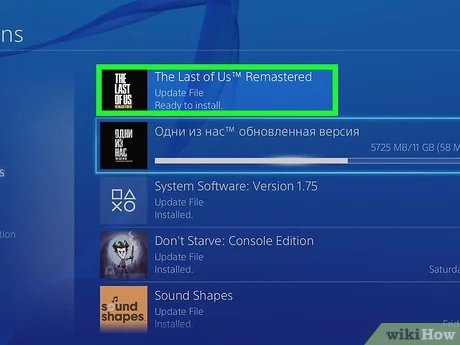
To update a game, typically you need to check within the game itself for an update prompt, or visit the game’s platform store (like Steam, PlayStation Store, or the App Store) and initiate the update there.
Ever found yourself itching to play your favorite game, only to be met with a message about an update? It can be frustrating, but keeping your games current is vital for smooth gameplay. You might wonder, “how do I update a game?” It’s a common question.
Updating ensures you get the latest features, bug fixes, and performance improvements the developers have implemented. Doing so keeps your experience fresh and enjoyable. Each platform handles updates slightly differently.

How Do I Update a Game?
So, you’re ready to dive back into your favorite game, but wait! There’s a little notification, a blinking icon, or maybe you’ve heard your friends talking about new stuff. It looks like there’s an update! Updating a game might seem tricky, but it’s usually pretty simple. It’s like getting a fresh coat of paint on your house, or new toys for your pets – it makes things better and more fun. This big guide will walk you through everything you need to know about updating your games, no matter what device you’re using. Whether it’s on a computer, a phone, or a game console, we’ve got you covered.
Why Do Games Need Updates?
Before we jump into how to update, let’s talk about why updates are even needed. Games are like giant, complex puzzles made of code. Sometimes, there are little mistakes or glitches (bugs) that the developers didn’t find before the game came out. Updates fix those bugs, making the game run smoother. Think of it like fixing a wobbly chair – it makes the whole experience more comfortable and less likely to cause problems.
But updates aren’t just about fixing things. They also add exciting new features, like new characters, levels, and game modes. This keeps the game fresh and exciting. For example, a game might add a cool new car, a new map to play on, or maybe even a brand new story. These changes keep players coming back for more, and make sure the game stays fun for a long time.
How to Update Games on Different Devices
The way you update a game can be different depending on where you play it. Let’s explore how to update on the most common platforms:
Updating Games on a Computer (PC)
Most games on a computer get updated through a special program called a game launcher or a store. These are like central hubs for your games. The most common launchers include:
- Steam: If your game is on Steam, here’s how you do it:
- Open the Steam program.
- Go to your “Library” where you can see all the games you have.
- If a game has an update, you’ll usually see a download arrow next to it.
- Click that arrow or click on the game, and Steam will download and install the update for you.
- Epic Games Launcher: For games on the Epic Games Launcher:
- Open the Epic Games Launcher.
- Go to the “Library” section.
- Games with updates will usually say “Update” next to them.
- Click “Update” and the launcher will take care of the rest.
- Other Launchers (like Battle.net, GOG Galaxy): The process is similar to Steam and Epic. You open the launcher, go to your game library, and look for update notifications.
Important Tip: Make sure you have a good internet connection to download updates. Larger updates can take a bit longer. Also, sometimes your computer needs to restart after a big update, so save your work before updating!
Automatic Updates: Many launchers let you enable automatic updates. This is a really handy feature where the games update automatically when they are available, without you needing to do anything. Look in the settings of your launcher to turn this on!
Updating Games on Smartphones (Android & iOS)
Smartphones make updating games very simple. The process is mostly handled by the app store:
- Android Devices (Google Play Store):
- Open the Google Play Store app.
- Tap your profile icon at the top right.
- Tap “Manage apps & device”.
- If there are updates available, you’ll see a “Updates Available” section.
- Tap “Update All” or click “Update” on the game you want to update.
- iOS Devices (Apple App Store):
- Open the App Store app.
- Tap your profile picture in the top right corner.
- Scroll down to see a list of apps with updates.
- Tap “Update All” or click “Update” next to the game you want.
Automatic Updates on Smartphones:
Both Android and iOS devices allow you to turn on automatic app updates. This is super helpful to make sure your games are always the latest versions. To enable this:
- Android: In the Google Play Store settings, tap “Network preferences” and then “Auto-update apps”. You can pick over Wi-Fi only or over any network.
- iOS: In the Settings app, go to “App Store,” and toggle on the “App Updates” option.
Note: Make sure your phone has enough battery and is connected to a good Wi-Fi connection to do the updates without any problems.
Updating Games on Game Consoles (PlayStation, Xbox, Nintendo Switch)
Updating games on consoles is usually straightforward and similar across the major brands. Here’s the usual process:
- PlayStation (PS4 & PS5):
- Turn on your PlayStation console.
- Go to the game library.
- If an update is available, it’ll usually start downloading automatically.
- If it doesn’t, select the game and press the Options button on your controller, then select “Check for Update.”
- Xbox (Xbox One & Xbox Series X/S):
- Turn on your Xbox console.
- Go to “My games & apps.”
- If an update is available, it’ll show up in the “Updates” section.
- If not, select the game, press the Menu button on your controller and then select “Manage game & add-ons” and then select “Updates”
- Nintendo Switch:
- Turn on your Nintendo Switch.
- Go to the HOME menu and select the game you want to update.
- Press the + or – button on your controller, then select “Software Update”, then select “Via the Internet”.
Automatic Updates on Consoles: Consoles typically download updates in the background when your console is turned on and connected to the internet. Make sure your consoles have enough space in their storage and are connected to internet to make these updates.
Troubleshooting Common Update Issues
Even with these simple steps, sometimes things don’t go as planned. Here are some common issues you might run into and how to fix them:
Slow Downloads
Sometimes, downloads can be slow. This could be due to:
- Your Internet Connection: Make sure your Wi-Fi or internet connection is strong. Try restarting your modem or router.
- Too Many Devices: If many people are using the internet at the same time, it can slow things down. Try doing updates when fewer devices are connected.
- Server Issues: Sometimes, the game servers themselves can be slow due to heavy traffic. This usually fixes itself over time.
Not Enough Storage Space
Updates, especially for big games, require space on your device. If you do not have enough space, it won’t be able to download the update. You can clear space by:
- Deleting games or apps you don’t play anymore.
- Moving photos and videos to cloud storage or an external drive.
- Clearing your device’s temporary files or cache (look in your device’s settings).
Update Won’t Install
If an update starts but doesn’t finish, try these steps:
- Restart Your Device: Sometimes, simply restarting your computer, phone, or console can help fix this.
- Check For Game Updates Again: After restarting, try downloading the update again.
- Check Game Launcher: See if any updates are available in the game launcher itself (like Steam, Epic, etc)
- Contact Support: If nothing works, the best step is to get in touch with customer support for your game or console, they can give you specific instructions.
Game Crashes After Updating
If your game starts crashing after an update, it may be due to the update or another issue with your device, try these steps :
- Restart your device: This can help with any temporary problems.
- Make sure your device meets the games system requirements: You can check this in the games description in your app store or website.
- Uninstall and reinstall the game: In many cases this can solve the problem.
- Update your devices software: If you are behind on your devices software update, this could cause the problem.
Understanding Update Types
Sometimes you might see different types of updates mentioned. Here’s what they usually mean:
- Patches: These are small updates that primarily fix bugs or glitches. They are like quick fixes to keep the game running smoothly.
- Minor Updates: These updates include patches but may also add smaller new features or content, like a new item or a minor gameplay change.
- Major Updates or DLCs (Downloadable Content): These are big updates that add significant new content, like new characters, levels, or game modes. These updates can be very exciting as they change the game a lot.
Keeping Your Games Updated Regularly
It’s important to keep your games updated for a few good reasons:
- Smoother Gameplay: Updates often fix bugs, which makes the game run better and avoids any frustrating crashes.
- New Content: Updates can provide new levels, characters, or game modes. Which keeps the game fresh and interesting.
- Security: Updates can contain vital security fixes that protect your account and device, so it’s important to update them!
- Staying in Sync: If you play online, everyone needs to have the same version to play together. So updating regularly ensures you are always playing with friends and others.
Updating your games is a simple task that makes your gaming experience better and keeps things exciting. By using this guide, you can easily update your favorite games and enjoy all the new features and improvements they have to offer. Now that you know how to update your games, it’s time to jump back in and have some fun!
How to UPDATE GAMES on your PS4 & Keep them UPDATED (Easy Method)
Final Thoughts
Updating a game usually happens automatically on most platforms. You might need to manually check for updates in the game’s menu or your platform’s library. Sometimes a prompt will appear asking you to install a new version.
For mobile devices, app stores often handle updates. Ensure your device connects to Wi-Fi for a smoother process. The process may vary slightly by platform.
Ultimately, you must understand that how do i update a game often involves a simple click or tap within your platform. Game developers release updates to improve performance and add content.

