
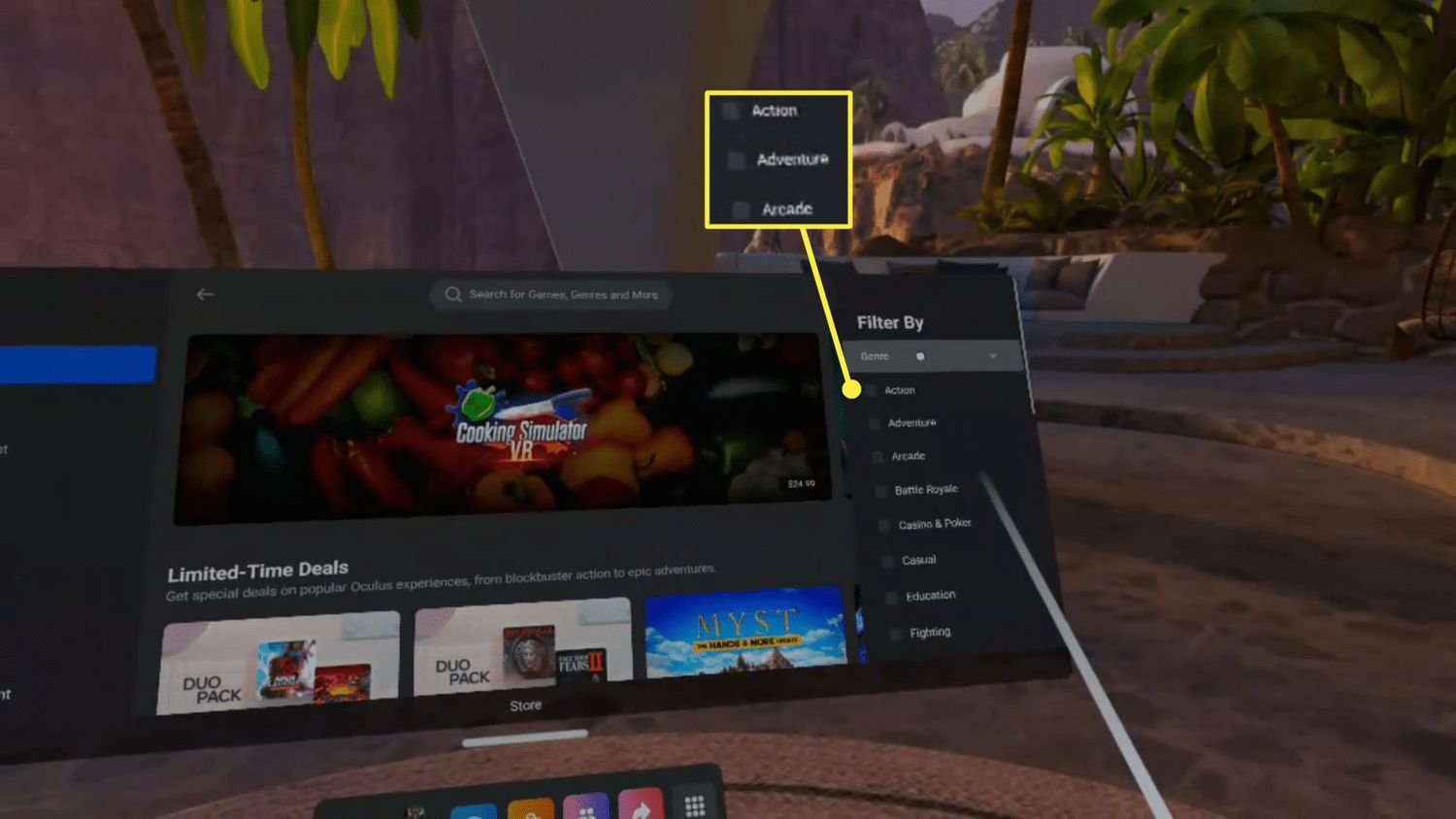
You buy games for Meta Quest 2 through the Meta Quest mobile app or directly within the headset’s store.
Ready to jump into virtual worlds? Many new users ask, “how do you buy games for meta quest 2?” It’s simpler than you might think.
The process is straightforward, whether you’re using your phone or you’re already immersed in VR with your headset. Both options connect to the same library.
The Meta Quest store provides a wide selection of amazing titles. You can explore a growing universe of experiences right at your fingertips.

How Do You Buy Games for Meta Quest 2?
Buying games for your Meta Quest 2 is like going on a fun treasure hunt! You get to explore amazing virtual worlds and have incredible experiences, all from the comfort of your home. But where do you actually find these games, and how do you get them onto your headset? Don’t worry, it’s easier than you might think. This guide will walk you through everything you need to know about purchasing and enjoying new adventures on your Meta Quest 2.
The Meta Quest Store: Your Gateway to VR Fun
The main place to buy games for your Meta Quest 2 is the Meta Quest Store. It’s like the app store on your phone, but specifically for virtual reality games and experiences. You can access the store in a few different ways:
Using the Meta Quest Mobile App
The Meta Quest app is super handy. You can download it on your smartphone or tablet (it works for both Android and Apple devices). Here’s how to use it to buy games:
- Download and Install: If you haven’t already, go to your phone’s app store (Google Play Store for Android or Apple App Store for iPhones) and search for “Meta Quest.” Download and install the app.
- Log In or Create an Account: Open the app and either log in with your existing Meta account or create a new one if you don’t have one yet. This account is what will connect your headset to your purchases.
- Navigate to the Store: Once you’re logged in, you’ll see a menu at the bottom of the app. Tap the “Store” icon. It looks like a little shopping bag.
- Browse Games: You can now browse the games available. You can scroll through different categories, like “New Releases,” “Top Sellers,” and specific genres like action, puzzle, or sports. You can also use the search bar at the top to find a particular game you’re looking for.
- View Game Details: When you see a game that looks interesting, tap on it. This will take you to a page where you can see screenshots, trailers, read descriptions, and customer reviews. This is super important, so you know what you’re getting!
- Add to Cart and Purchase: If you like the game, tap the button that says “Add to Cart” or the price button. It’s usually a blue or green button. Then, follow the instructions to complete your purchase. You may need to enter your payment details the first time.
Using Your Meta Quest 2 Headset
You can also buy games directly using your headset. This is great if you want to make a quick purchase while you’re already in VR. Here’s how to do it:
- Put on Your Headset: Start by putting on your Meta Quest 2 headset and make sure it’s turned on and ready to go.
- Open the Store: Look at the bottom of your view for the Universal Menu. It has an icon that’s usually nine small dots. Select this. You’ll see a panel come up with various options like “Library,” “Explore,” and “Store.” Choose the “Store” option (the shopping bag icon).
- Explore Games: Just like on the mobile app, you can browse games by category, check out what’s new, or use the search function. Use the hand controllers to move around the store.
- View Details: Select a game to see more information, screenshots, and ratings. Read all about it before you decide.
- Make Your Purchase: Once you are ready to buy, select the price button. You will be prompted to confirm your purchase and may need to enter your payment details if you haven’t already.
Understanding Game Pricing and Deals
When you’re looking for games, you’ll notice they come with different price tags. Here’s what to keep in mind:
Full-Priced Games
These are the newest and most popular games that sell for their full price. Think of it as buying a new video game when it first comes out on a console.
Sales and Discounts
Just like other app stores, the Meta Quest Store has sales regularly. You might see games on sale for a limited time, or special bundles where you get multiple games at a lower price. Keep an eye out for these deals! They’re great for saving some money while building up your game library. You can find deals on:
- Weekend Sales: Often, there are sales every weekend.
- Holiday Sales: Major holidays often bring bigger discounts.
- Flash Sales: These are quick, short sales. You need to be fast!
Free Games and Demos
Sometimes, you’ll find free games or demos (short playable versions of a game). These are great ways to try out different types of games without spending money. They help you decide if you would like to invest in a full game or not. Some free experiences are also available, which could be things like short films or social spaces.
Bundle Offers
Meta may offer bundles, which combine multiple games together at a lower price than if you were to buy them separately. It’s like getting a package deal. These offers can vary. It is a good way to build your library quickly.
Payment Options
To buy games, you need to have a payment method set up. Here are the options you can use:
- Credit/Debit Cards: Most major credit and debit cards are accepted.
- PayPal: You can also link your PayPal account for a quick and easy payment.
- Gift Cards: If you have a Meta Quest gift card, you can use that to buy games. It’s also a great gift idea for your VR buddies!
You can manage your payment information in the Meta Quest app under settings. It’s good to check to make sure your payment info is up to date.
Navigating the Store and Finding Games You’ll Love
The Meta Quest Store has a lot to offer. Here are a few tips to help you find the best games for you:
Use the Search Bar
If you know exactly what game you are looking for, type the game’s name in the search bar. It is on top of the Store. This will take you right to the game you’re interested in.
Explore Categories
The store is divided into categories. These are really useful for finding new games in genres you enjoy. For example:
- Action: For fast-paced games with lots of movement and excitement.
- Adventure: For games that take you on a journey, with stories and puzzles.
- Puzzle: For games that challenge your brain.
- Sports: For realistic simulations of sports like boxing or golf.
- Multiplayer: For playing with friends or other people online.
- Fitness: For games that help you work out while playing.
- Relaxation: For games and experiences that are meant to be calming and stress relieving.
Read Reviews
Before you buy a game, check the reviews and ratings. They are written by other people who have played the game, so you will get a real idea if it is a good game to buy. This can help you find some hidden gems that are not as popular, but that you may enjoy.
Watch Game Trailers
Most games have trailers that show you what the gameplay is like. This helps you get a feeling of the game before buying it.
Check Recommended Specs
Some games require a more powerful headset or specific software. Make sure your Meta Quest 2 meets the recommended requirements for a game before buying it. It is better to check than be disappointed if it does not work properly.
Installing and Playing Your Purchased Games
Once you have bought a game, it is very easy to get it onto your headset and start playing! Here’s how:
Downloading Games
After you have purchased a game, it should start downloading automatically. You can see its progress in your library in the app or in your headset. The time it takes to download depends on the size of the game and your internet speed.
Finding Games in Your Library
Once the download is complete, the game will show up in your library. In the mobile app, this is usually in the “Library” tab in the bottom menu. In your headset, you can access your library from the Universal Menu, and then select “Library”.
Launching and Enjoying
Select the game from your library, and then select ‘Play’ to launch it. Put on your headset and get ready to enjoy your new adventure in virtual reality! Some games have tutorials at the beginning to help you learn how to play them.
Keeping Your Games Up-To-Date
Just like apps on your phone, games for the Meta Quest 2 sometimes need to be updated. Here’s how you keep them up to date:
Automatic Updates
Usually, games will update automatically when you’re not using your headset. The updates will download in the background. This is the easiest option.
Manual Updates
If a game is not updating automatically, you can update it yourself. Here’s how:
- Go to Your Library: Open your library either in the mobile app or in your headset.
- Check for Updates: If there’s an update available for a game, you’ll usually see an arrow or a “Update” button next to it.
- Select Update: Select the “Update” button and the game will download and install the update.
Why Updates Are Important?
Updates are important for several reasons:
- Bug Fixes: Updates fix any problems or glitches in the game.
- New Features: Updates can add new features, content, and characters to the game.
- Performance Improvements: Updates can also help the game run more smoothly.
Beyond the Meta Quest Store
While the Meta Quest Store is the primary place to buy games, there are a few other things you might encounter:
App Lab
App Lab is a place where developers can share their games before they are ready to be in the main store. The quality of App Lab games can vary, but some great experiences can be found there. You need to search for specific games in App Lab or use links to find them. These games can be fun to explore new ideas.
SideQuest
SideQuest is a third-party platform that allows you to install apps and games that aren’t officially available on the Meta Quest Store. SideQuest is for more tech-savvy users, but if you are comfortable with tech, you may enjoy exploring this option. Be careful with installing from SideQuest, though. It is important to make sure that the app or game you are downloading is safe.
PC VR Games
If you have a gaming PC, you can use your Meta Quest 2 to play PC VR games through a cable or wirelessly. These games are bought on platforms like Steam or the Oculus PC app. This can allow you to play more advanced games.
Keeping Your Account Secure
Remember that it is important to keep your account secure. Here are some security tips:
- Strong Password: Use a strong, unique password for your Meta account. Try to use letters, numbers, and symbols.
- Two-Factor Authentication: Enable two-factor authentication. This will require you to confirm your login using another device like your phone.
- Payment Security: Never share your payment details with others. Always purchase games through the official store.
- Be Careful of Scams: Be cautious of messages that ask for your account details. Meta will never ask for your password directly.
Buying games for your Meta Quest 2 can be a fun and easy experience. You get to explore new and exciting virtual worlds. By using the Meta Quest store, keeping your payment methods safe, and reading reviews, you will surely find a lot of games you like and enjoy. So go ahead, jump in, and have a good time in VR!
How to Buy Games on Meta Quest 2
Final Thoughts
Buying games for your Meta Quest 2 is straightforward. You can purchase games directly through the Meta Quest mobile app or from within your headset. The Meta Quest store offers a variety of titles.
The store accepts multiple payment methods. After buying a game, it automatically downloads to your headset. Remember to check storage space for successful installation.
So, how do you buy games for meta quest 2? Simply browse the store, select a title, and complete the purchase. You are now ready to enjoy your new virtual reality experience.

