
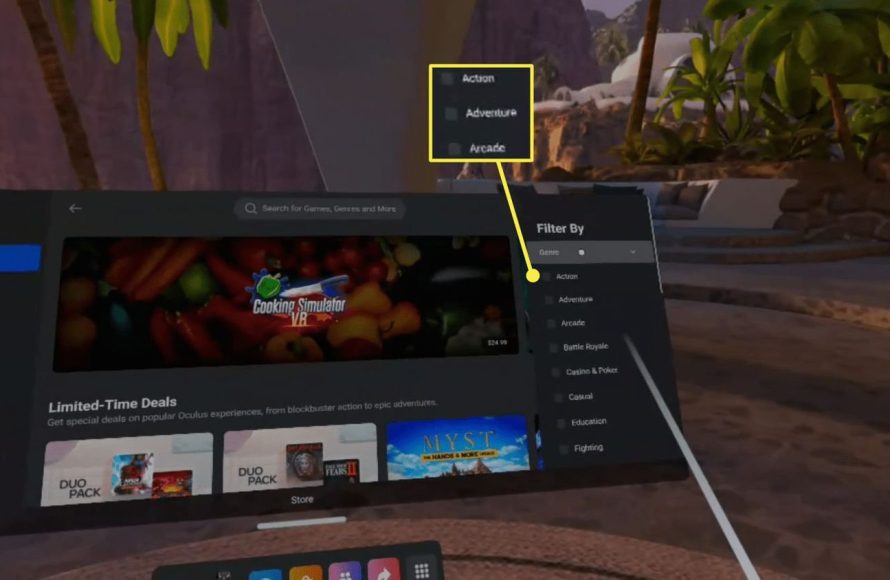
To buy games on Meta Quest 2, you can purchase them directly through the headset’s store or via the Meta Quest mobile app, using a linked payment method.
So, you’ve got your Meta Quest 2 headset ready for some virtual adventures. The big question now is, how do you buy games on Meta Quest 2? It’s a pretty simple process once you know where to look, and it’s all designed to get you playing as quickly as possible.
You can find a diverse selection of games right there in the Meta Quest store, accessible either directly through the headset’s user interface. Additionally, the handy Meta Quest mobile application is available, providing another way to browse and buy. This makes the whole game acquisition process quite easy.

How Do You Buy Games on Meta Quest 2
Getting new games for your Meta Quest 2 is like getting new toys! It’s super fun and pretty easy once you know how. There are different ways to do it, and we’ll go through all of them step-by-step. Think of this as your guide to becoming a pro at finding and buying cool VR games.
Understanding the Meta Quest Store
The main place to get your games is the Meta Quest Store. It’s like the app store on your phone, but just for VR games and experiences. You can get to it in a few different ways, and each one is handy depending on where you are and what you’re doing.
Accessing the Store Through Your Headset
The most direct way is right from your Meta Quest 2 headset. Put on your headset, and you’ll find the store in the main menu. It’s usually shown by a little icon that looks like a shopping bag or a game controller. Here’s how it works:
- Put on your headset: Make sure your Quest 2 is charged and ready to go.
- Go to the main menu: Look at your wrist, and you should see the menu button. Tap it.
- Find the store icon: Look for the shopping bag or controller icon and click on it.
- Start browsing: You’re in! You can now see all the cool games available.
Once you’re inside the store, it’s easy to move around. You can search for a specific game using the search bar, browse by different categories like action, adventure or puzzle or take a peek at what’s new and popular. When you see a game you like, clicking on it will show you more information like the price, pictures and videos and reviews from other people who have played it. This helps you decide if it’s the right game for you.
Using the Meta Quest Mobile App
You don’t always have to be wearing your headset to look for new games. The Meta Quest app on your phone is another way to find and buy games. This is useful if you’re out and about, or if your headset is charging but you still want to browse. The app is available for both iPhone and Android phones.
Here’s how you can buy games using the mobile app:
- Download the app: If you haven’t already, download the “Meta Quest” app from your app store on your phone.
- Log in: Open the app and log in using the same Meta account you use on your Quest 2 headset.
- Go to the store: Look for the store icon (usually looks like a shopping bag) at the bottom of the screen, and tap it.
- Browse and select: You can browse or search for games just like you do on the headset. When you find one you like, tap on it to see more information.
- Buy your game: When you decide to buy, click the button and follow the instructions. The game will be waiting for you on your headset.
The mobile app also makes it easy to send your favorite games to your friends or even add them to your wishlist. It’s a very handy way to stay connected to the VR world.
Exploring the Meta Website on a Computer
Finally, you can also access the Meta Quest Store through your computer browser. This is great if you’re doing other stuff on your computer and want to see what’s new. The website works just like the app and store on your headset.
Here’s a quick guide on how to use the website:
- Open a browser: Go to your computer and open your favorite browser.
- Go to the Meta Store: In your search bar, type “Meta Quest Store” and go to the official Meta website.
- Log in: Log in with your Meta account, the same one you use on your headset and app.
- Browse and select: You can browse for games and check out their prices.
- Buy your game: Once you decide to buy a game, simply click the purchase button and follow the checkout steps. The game will be ready to play on your headset.
Using a computer can be helpful if you want to see everything on a bigger screen. It can make it easier to read game descriptions and reviews. Also, you can quickly share links to games you find with your friends.
How to Actually Buy a Game
Now that we know the different ways to get to the store, let’s talk about the actual buying part. The steps are mostly the same no matter where you are, but here’s a complete walk through.
The Buying Process
Once you have found a game you want to buy, here are the steps you need to take:
- Select the game: Click on the game’s image, title or the “Details” option to see more information.
- Look at the details: You will see the price, game description, reviews, pictures and videos of the game. Take a look at these to make sure the game is right for you.
- Add to cart or buy now: If you are sure that you want to buy the game, click on the “Buy Now” button or “Add to Cart” button. If you choose “Add to Cart”, you can continue browsing and buy more games later.
- Checkout: If you selected the “Buy Now” button, you will be directed to the checkout. If you added items to your cart, you should go to the cart and then the checkout page.
- Confirm your purchase: Follow the instructions to finalize your purchase. You might need to choose a payment method if you haven’t set one up yet. This could be a credit card or PayPal.
- Download the game: After the purchase is complete, the game will start downloading to your Quest 2. You can check the download progress.
- Play!: Once the download is finished, go to the library on your headset and launch your new game!
Understanding Payment Options
Meta provides a few ways to pay for your games. The common options include:
- Credit cards: Most major credit cards and debit cards are accepted.
- PayPal: If you have a PayPal account, you can use it to make purchases.
- Meta Quest Store credit: If you’ve received a gift card or code, you can apply this credit to your purchases.
You can add and manage your payment methods in your Meta account settings. This means you don’t have to enter your payment information every single time you want to buy a game.
Navigating Game Categories and Genres
The Meta Quest store has many different types of games. It’s important to know how to find games you like. Games are sorted into different categories like:
- Action: Think fast-paced games with lots of movement and excitement.
- Adventure: Games that take you on a journey through different worlds.
- Puzzle: Games where you need to solve brain teasers and riddles.
- Sports: Games that let you play different sports in virtual reality.
- Multiplayer: Games you can play online with other people.
- Fitness: Games that will get you moving and help you with your exercise.
Knowing these categories can help you find games that you might be interested in faster. You can also use the search bar to look for a specific game or a genre that you are into.
Free Games and Demos
The Meta Quest Store has some free games and demos that you can try out. Demos are like samples of games, letting you play a small part to see if you like it. This is a great way to explore new games without spending money.
Here is how to find them:
- Browse the store: Look for sections like “Free Games” or “Demos.”
- Filter search results: You can also use the filters while searching, there should be an option to view “Free” games.
Free games are full games that you can play without paying any money. They are a great way to start your VR gaming library and try out different kinds of experiences. Don’t be shy about exploring these options to get more out of your headset. Sometimes there are really good free games that everyone likes!
Game Ratings and Reviews
Before buying a game, it’s a good idea to look at what other people think about it. Meta includes user ratings and reviews on each game’s page. These can help you decide if a game is worth your money. Here’s how to make the best use of reviews:
- Look at the star rating: This tells you the average score the game has received.
- Read the comments: Pay attention to what other users have to say. This gives you a sense of what they liked or didn’t like about the game.
- Consider different opinions: Some people like different types of games, so it’s important to consider what the reviewers say about things that matter to you.
Reviews can be super helpful in making good choices. If many people have said the same thing, there is a good chance that the comment will apply to you too. This helps you choose games that you will enjoy the most.
Wish Lists
Sometimes you want a game, but you can’t get it right away. The Meta Quest store allows you to create wish lists. Think of it like creating a list of your favorite things. You can add games to this list and they will be waiting for you when you are ready to buy. This can also be useful if you are waiting for a game to go on sale.
- Add to wish list: When you see a game you like, look for the “Add to Wishlist” or similar button.
- Access your list: You can find your wishlist in your account section on the store on the headset, app or website.
Wish lists can be very useful for organizing your thoughts on different games. You can use this list to buy your games later when you are ready.
Understanding Refunds
Sometimes, you might buy a game and find out that you don’t like it very much. Meta has a refund policy, which means you might be able to get your money back in certain situations. Here are a few points to know:
- Time limits: There is usually a time limit to ask for a refund. Usually, you need to apply for a refund within 14 days.
- Playtime limits: You should have played the game for less than two hours.
- No big downloads: Some games that have big downloads might not be eligible for refunds.
- How to ask for a refund: You can go to your purchase history in the store, app or website and request a refund if the game meets the rules mentioned above.
It is good to read the exact details of Meta’s refund policies. If you have any questions, you can go to the customer service page or ask the Meta support staff.
Tips for a Smooth Purchase
Here are a few tips to make sure buying your games is easy and worry-free.
- Check your internet connection: Make sure your Meta Quest 2 is connected to a stable Wi-Fi connection before making a purchase.
- Keep your Meta account secure: Use a strong password and never share your login information with anyone else.
- Update your headset: Keep your Meta Quest 2 updated with the latest software to avoid any technical issues.
- Be patient with downloads: Large games can take time to download, so be patient and don’t rush it.
Following these tips can help you avoid some common problems that people have when buying games.
Gift Cards and Codes
Sometimes, instead of paying with your credit card or PayPal, you might get gift cards or codes that you can use to buy games. These are great for special days like birthdays or holidays, and they help you save money.
Here’s how to use them:
- Find the gift card: Look for the code on the gift card or email.
- Go to your account: In your Meta account settings, look for the “Redeem Code” option.
- Enter the code: Carefully type in the code and follow the instructions.
Once you have redeemed the code, your account will be credited and you can use that credit to buy your game or other VR experiences.
Troubleshooting Common Issues
Even when everything is done correctly, sometimes things might go wrong. Here are some common issues and what you can do:
- Payment fails: If your payment doesn’t go through, check your credit card or PayPal information and make sure everything is correct. You might also need to try a different payment method.
- Games don’t download: If your game doesn’t download, check your internet connection and make sure there is enough storage space on your headset.
- Games don’t show up: If a game doesn’t show up in your library after purchase, try restarting your Meta Quest 2.
If you have any issues you can’t fix, contact Meta support. They can give you advice on how to fix the problems and get your games working.
Stay Informed about Sales and Deals
The Meta Quest Store often has sales and special deals. These are times when you can get games for a cheaper price. These sales can be a very good way to build your game library at a lower price. Here are some ways to stay up to date on sales:
- Check the store: Visit the store on your headset, the app, or the website regularly to check out the sales section.
- Sign up for emails: Subscribe to Meta’s newsletter to be informed of new offers and deals.
- Follow social media: Many websites will show special offers as they come up.
Taking advantage of these sales can help you save a lot of money and still get all the games you want.
Buying games on your Meta Quest 2 should be a fun and easy experience. By understanding the different methods to access the store, knowing the steps of how to buy a game, and using the tips and tricks we talked about, you can make the process as smooth as possible. Keep exploring, trying new things and have fun in the world of VR gaming!
How to Buy Games on Meta Quest 2
Final Thoughts
Buying games on Meta Quest 2 is straightforward. You can purchase them directly through the headset’s store. Use the Meta Quest app on your phone for browsing and buying too.
Once you find a game you like, select it and complete the purchase. The game then downloads and installs. So, that is how you buy games on meta quest 2.

