
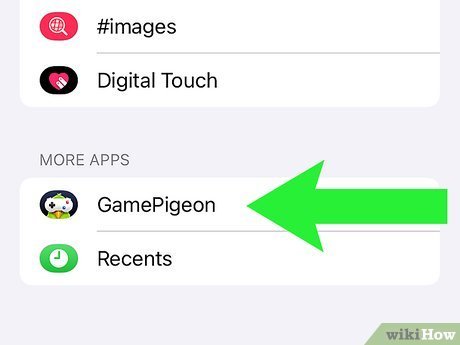
To delete Game Pigeon, you’ll need to remove the iMessage app through the iMessage app drawer, similar to removing any other iMessage app.
Want to get rid of Game Pigeon? Maybe you’re tired of losing or just want to declutter your iMessage apps. Understanding how do you delete Game Pigeon can be simple.
The process is not too different than removing other iMessage apps. Let’s quickly go through how to remove it. This guide will help you clear it from your phone.

How Do You Delete Game Pigeon?
Deleting Game Pigeon can be surprisingly tricky, depending on what you actually want to achieve. Do you want to remove the app entirely, or just the games within the iMessage app?
These are two different processes. Let’s explore both to clear up any confusion.
Removing Game Pigeon from iMessage
Many users want to remove Game Pigeon from their iMessage app drawer, without deleting the app itself. This is the most common scenario.
Here’s how you can do it.
Steps to Remove Game Pigeon from iMessage
Here’s a step-by-step guide to remove Game Pigeon from your iMessage apps. Follow these instructions carefully.
1. Open Messages: Launch the Messages app on your iPhone or iPad.
2. Start a Conversation: Open any existing conversation or start a new one.
3. Access the App Drawer: Look for the App Store icon (a blue “A”) located above the keyboard. Tap it.
4. Scroll Through Apps: Swipe left or right to browse through your iMessage apps until you find Game Pigeon.
5. Edit App List: Swipe all the way to the right until you see the “More” icon (three dots). Tap on it.
6. Manage Apps: You’ll see a list of your iMessage apps. In the “More Apps” section, find Game Pigeon.
7. Toggle to Remove: Toggle the switch next to Game Pigeon to the “Off” position (greyed out). This disables it from showing in your app drawer.
8. Confirm Changes: Tap “Done” in the upper right corner to save your changes.
Game Pigeon should now be removed from your iMessage app drawer. You will no longer see it when browsing your iMessage apps.
What Happens When You Remove from iMessage?
Removing Game Pigeon from the iMessage app drawer does not uninstall the Game Pigeon app itself. The app remains on your phone.
It simply hides it from appearing within your iMessage conversations. You can still access it directly from your home screen.
Uninstalling the Game Pigeon App
If you want to completely remove Game Pigeon from your device, you’ll need to uninstall the app. This will delete all the app data.
This means scores and settings related to Game Pigeon will be removed from your phone. There are several ways to uninstall an app on iOS.
Uninstalling Methods
Here are a few methods for uninstalling Game Pigeon from your iPhone or iPad. Choose the method that works best for you.
From the Home Screen: This is the most common and straightforward method.
From Settings: This method allows you to see all installed apps and manage their storage.
From the App Store: You can also uninstall apps directly from the App Store.
Uninstalling from the Home Screen
This is the quickest and easiest method to uninstall Game Pigeon. It only takes a few seconds.
1. Locate the App: Find the Game Pigeon icon on your home screen.
2. Long Press the Icon: Tap and hold down on the Game Pigeon icon until a menu appears or the icons start to jiggle.
3. Tap the Delete Icon: If the icons are jiggling, tap the “x” or minus icon that appears in the corner of the Game Pigeon icon. If a menu appeared, select “Remove App.”
4. Confirm Deletion: A confirmation message will appear asking if you want to delete Game Pigeon. Tap “Delete” to confirm.
The app will be uninstalled from your device. The icon will disappear from your home screen.
Uninstalling from Settings
This method gives you more control over managing your app storage. It also lets you see the amount of storage space an app is taking up.
1. Open Settings: Launch the Settings app on your iPhone or iPad.
2. General Settings: Scroll down and tap on “General.”
3. iPhone Storage: Tap on “iPhone Storage” (or “iPad Storage”).
4. Find Game Pigeon: Wait for the list of apps to load, and then scroll down until you find Game Pigeon.
5. Uninstall App: Tap on Game Pigeon. You will see options to “Offload App” or “Delete App.” Choose “Delete App.”
6. Confirm Deletion: A confirmation message will appear. Tap “Delete App” to confirm.
The app and all its associated data will be removed from your device. This frees up storage space.
Uninstalling from the App Store
This method can be useful if you recently updated the app, or if you just want to check if you have the latest version.
1. Open the App Store: Launch the App Store app on your iPhone or iPad.
2. Search for Game Pigeon: Tap the “Search” tab at the bottom of the screen and type “Game Pigeon” in the search bar.
3. Find the App: Locate Game Pigeon in the search results.
4. Uninstall: If the app is already installed, the button will say “Open” or “Update”. Tap and hold on the “Open” button, a menu will appear, then select “Delete”.
The app will now be uninstalled from your device. You can reinstall it later if you want.
What Happens After Uninstalling?
After uninstalling Game Pigeon, the app and all its data will be removed from your device. This includes your game scores and settings.
If you reinstall the app later, you may need to start over. Some games might save progress to Game Center, but this depends on the game itself.
Reinstalling Game Pigeon
If you decide you want to play Game Pigeon again, you can easily reinstall it from the App Store. The process is simple and straightforward.
Here’s how to reinstall Game Pigeon.
1. Open the App Store: Launch the App Store app on your iPhone or iPad.
2. Search for Game Pigeon: Tap the “Search” tab and type “Game Pigeon” in the search bar.
3. Find the App: Locate Game Pigeon in the search results.
4. Install: Tap the “Get” button (or the cloud icon if you’ve installed it before).
5. Authenticate: You may be prompted to authenticate with your Apple ID using Face ID, Touch ID, or your password.
The app will be downloaded and installed on your device. You can then launch it from your home screen.
Troubleshooting: Game Pigeon Still Appears
Sometimes, even after following the steps above, Game Pigeon might still appear in your iMessage app drawer. This can be frustrating, but there are a few things you can try.
Let’s look at some troubleshooting steps.
Restarting Your Device
Restarting your iPhone or iPad can often resolve minor software glitches. This is a simple and effective solution.
1. Turn Off Your Device: Press and hold the power button (and volume button on some models) until the power-off slider appears.
2. Slide to Power Off: Drag the slider to turn off your device.
3. Turn On Your Device: Wait a few seconds, and then press and hold the power button again until the Apple logo appears.
Once your device restarts, check if Game Pigeon is still in your iMessage app drawer. Restarting often resolves these issues.
Checking iMessage Settings
Sometimes, iMessage itself might be causing the problem. Make sure iMessage is enabled in your settings.
Follow these steps to check.
1. Open Settings: Launch the Settings app.
2. Messages: Scroll down and tap on “Messages.”
3. iMessage: Make sure the “iMessage” toggle is turned on (green).
If iMessage is turned off, turn it on. This might help resolve the issue with Game Pigeon appearing in the app drawer.
Updating iOS
An outdated version of iOS can sometimes cause compatibility issues with apps. Make sure your device is running the latest version of iOS.
Here’s how to update your iOS.
1. Open Settings: Launch the Settings app.
2. General: Tap on “General.”
3. Software Update: Tap on “Software Update.”
4. Download and Install: If an update is available, tap “Download and Install.” Follow the on-screen instructions.
Updating to the latest version of iOS can resolve many compatibility issues. Always back up your device before updating.
Resetting Keyboard Dictionary
Sometimes, the keyboard dictionary can cause unexpected behavior with iMessage apps. Resetting the keyboard dictionary can help.
Here’s how to reset the keyboard dictionary.
1. Open Settings: Launch the Settings app.
2. General: Tap on “General.”
3. Transfer or Reset iPhone: Scroll down and tap “Transfer or Reset iPhone.”
4. Reset: Tap “Reset.”
5. Reset Keyboard Dictionary: Tap “Reset Keyboard Dictionary.” You may be prompted to enter your passcode.
This will reset your keyboard dictionary to its default settings. This might help resolve issues with iMessage apps.
Data Privacy and Game Pigeon
It’s important to consider data privacy when using any app, including Game Pigeon. Be mindful of the permissions you grant to the app.
Read the app’s privacy policy to understand how your data is being used. Be cautious about sharing personal information within the app.
Alternatives to Deleting Game Pigeon
Perhaps you don’t want to fully delete Game Pigeon, but you’re looking for alternatives. There are other iMessage game apps available.
Consider exploring other options if you’re looking for a different gaming experience. You can find many other games in the App Store.
Managing Game Pigeon Notifications
Are you being bombarded with Game Pigeon notifications? You can manage these notifications in your iPhone settings.
Controlling notifications can improve your overall user experience. You can customize the type of notifications you receive.
How to Manage Notifications
Here’s how to customize Game Pigeon notifications.
1. Open Settings: Launch the Settings app.
2. Notifications: Scroll down and tap on “Notifications.”
3. Find Game Pigeon: Scroll down until you find Game Pigeon in the list of apps.
4. Customize Notifications: Tap on Game Pigeon. You can then customize the type of notifications you receive, such as turning off sounds or banners.
You can also choose to turn off notifications completely. Experiment with different settings to find what works best for you.
How to Delete Game Pigeon on iPhone – Uninstall Game Pigeon in iPhone
Final Thoughts
To delete Game Pigeon, you must first access your iMessage apps. Find the Game Pigeon icon within the app drawer.
Then, you have two main options. You can either swipe left on the Game Pigeon icon and tap “Delete,” or you can press and hold the icon until it wiggles and then tap the “x” to remove it.
In short, to directly answer ‘how do you delete game pigeon’, you swipe and delete or tap the “x”. Either method effectively removes the app. Remember, doing this removes it from your iMessage, but does not affect any data in your Game Pigeon account.

