
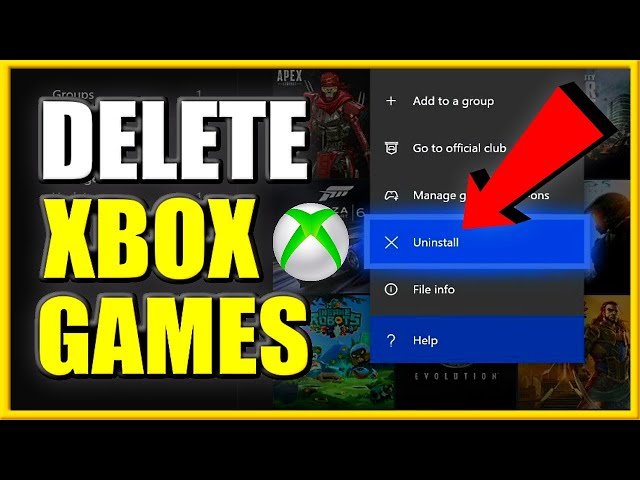
To delete games from your Xbox One, navigate to ‘My games & apps,’ select the game, press the menu button, and choose ‘Uninstall.’
Is your Xbox One’s storage feeling a bit cramped? You might be wondering, how do you delete games from xbox one to make space for new ones. It’s a common question, and the good news is, it’s a very simple process to do.
We’ll walk you through the straightforward steps needed to remove any unwanted games from your console. You will quickly free up some space with these simple steps, and get back to playing your favorite games on your console.

How Do You Delete Games from Xbox One?
Okay, so you’ve got your Xbox One, and it’s probably filled with awesome games. But what happens when your hard drive starts yelling “I’m full!”? That’s when you need to learn how to say goodbye to some games, at least for a while. Don’t worry; deleting games on your Xbox One is not complicated at all. It’s like cleaning up your toys; you just need to know the right way to put them back in the box. This guide will show you the different ways you can remove games from your console to free up some space for new gaming adventures.
Why Delete Games?
Before we jump into the ‘how,’ let’s chat about the ‘why.’ You might think, “Why would I ever want to delete a game?” Well, there are lots of good reasons.
- Free Up Space: This is the big one. Game files can be HUGE! As new games come out, your storage can get used up really fast. Deleting games you’re not playing makes room for new ones.
- Console Performance: An overly full hard drive can actually make your Xbox run a little slower. Giving it some breathing room can help it run faster.
- Organizing your Library: Sometimes you just want to tidy up! Removing games you’ve completed or know you aren’t going to play keeps your library looking clean and easy to browse.
- Avoiding Confusions: Multiple downloads or versions can sometimes clash with one another. Deleting old versions of games can make sure you are not accidently loading the wrong one.
Different Ways to Delete Games
Alright, let’s get to the actual game removal part. There are multiple paths you can take to delete games on your Xbox One. We’ll cover the main methods so you can choose the one that works best for you.
Deleting Games from “My Games & Apps”
This is the most common and straightforward method, and it’s very easy to learn. Here’s how it goes:
- Go to “My Games & Apps”: First, make sure your Xbox One is turned on and you are at the home screen. Then, press the Xbox button on your controller, then navigate to “My games & apps.” You’ll see it on the right side of your screen.
- Select “See all”: Once you’re in “My games & apps”, select “See all” to view your complete games library.
- Find the Game: Now, scroll through your list of games and find the one you want to delete. The games are usually listed alphabetically, which helps find your game quicker.
- Highlight and Press Menu: Once you locate your game, highlight it using your controller’s directional pad or analog stick. Now, press the “Menu” button on your controller. This is the button with three horizontal lines, typically located near the start and select buttons.
- Select “Manage game”: After pressing the menu button, a menu will appear. Select “Manage game” from the options available.
- Select “Uninstall All”: In the ‘manage game’ menu you can find the option for “Uninstall All”. select this option to start deleting.
- Confirm: Xbox One will ask you if you’re absolutely sure about uninstalling the game. Select “Uninstall” to confirm your choice and proceed.
- Wait: The game will now begin to uninstall, and the process may take a few minutes. The process time depends on the size of the game. Be patient. Once it’s done, the game is gone.
Deleting Games from the Storage Settings
Another way to manage your games is through the Storage settings menu. This can be very helpful if you want to see exactly how much space you’re using. It’s also a good place to manage where your games are saved.
- Go to Settings: First, navigate to the Xbox home screen. Press the Xbox button on your controller. Then, scroll over to the right and select “Settings.”
- Go to System: In Settings, look for the option that says “System.” select “System”.
- Select Storage: Under the System tab, Select “Storage”.
- Choose your Storage device: Now, you will see a list of your storage devices. You will either see “Internal” or another device if you are using a external storage device for game storage. Select the device from which you want to delete the game.
- Select Games and Apps: After selecting the storage device, you will find a list of “Games & apps”. Select “Games & Apps”.
- Choose Game to Delete: Now, you will be presented with a list of all your games installed in the specified storage device. Scroll through and find the game you wish to delete.
- Press the Menu button and select Uninstall: Highlight the game and press the menu button on your controller. Select “Uninstall” from the options.
- Confirm: Select “Uninstall” again to confirm the deletion process. Wait for the process to complete.
Managing Games on External Hard Drives
Many Xbox gamers use external hard drives to store their games. If you have games on an external drive, here is how you handle deleting them.
- Make Sure It’s Connected: Before you start, make sure that your external hard drive is properly connected to your Xbox One.
- Go to Storage Settings: Follow the same steps you would when removing from your internal drive to access the storage settings. (Settings > System > Storage)
- Select your External Drive: In storage settings, select the name of your external hard drive. It will be listed among the available storage devices.
- Manage Games as usual: Once you select your external drive, you will follow the similar steps of selecting ‘Games & Apps’ from the options to view your games in the storage. Now, you can uninstall the games from your external storage in a similar method to how you removed games from the internal drive.
Deleting Game Add-ons
Games often have extra content called add-ons. If you’re trying to save space, you can delete these too! Add-ons are things like map packs, character skins, or extra levels. They can also take up a lot of space.
Here’s how to do it:
- Go to “My games & apps”: Follow the initial steps as before to reach the ‘My games & apps’ menu.
- Select Game: Locate and choose the game that contains the add-ons you want to remove.
- Manage Game: Press the “Menu” button on your controller and select “Manage game.”
- Manage Add-ons: In the ‘Manage game’ menu, you will find an option to view the add-ons that are available for the specific game.
- Choose Add-ons: A list of all add-ons will appear. Choose the add-ons you want to remove.
- Uninstall: Select the add-ons and press the ‘Uninstall’ button to delete them from your storage device.
Understanding Game Installations
When you get a new game, it usually installs in two parts: the game itself and save data. The game data is the main bulk of the game, while the save data stores how you’re doing in the game. You need to know these, as deleting games only deletes the game data and leaves the save data. Save data is important because it saves all your progress in the game.
Here’s the thing: When you uninstall a game, the main game data gets deleted, but your saved games (your progress, settings, etc.) are usually kept in the cloud. When you reinstall the game, you will be able to continue where you left off. If you need to delete those, here is how you do that.
Deleting Save data: Xbox One automatically backs up save data to the cloud, but you can also delete save data if required, but be careful when doing this, as deleting your saves means you lose your game progress. Here’s how you do it:
- Go to “My games & apps”: As always, access the ‘My games & apps’ menu.
- Select Game: Locate and choose the game from which you want to delete the save data.
- Manage Game: Press the “Menu” button and select “Manage game”.
- Select Saved data: In the ‘Manage game’ menu, look for “Saved data” in the options and select it.
- Delete: After selecting “Saved data”, you will get the options to delete save data. Select ‘Delete from console’ to delete local data or you can also select to delete from ‘everywhere’ if you do not want to save the data in the cloud.
- Confirm: Confirm your decision to delete the data.
Important: When you delete local save data, it will not affect cloud saves. If you want to remove all game progress, select the option to remove ‘everywhere’. Cloud saves are linked with your Microsoft account so remember this before deleting the cloud data.
Reinstalling Games
What if you delete a game and then decide you want to play it again? Don’t worry, you can reinstall it. This is a great way to make room for something new without losing the ability to play old favorites. Here’s how:
- Go to “My games & apps”: On your Xbox home screen, access ‘My games & apps’ as always.
- Ready to install: You will find a section labeled “Ready to install.” Select that. You’ll see a list of all the games you’ve purchased but aren’t currently installed.
- Select the Game: Find the game you want to reinstall and select it.
- Install: Choose “Install,” and your Xbox One will begin downloading the game. The download speed depends on your internet connection.
After the installation process, you can launch and play your game. If you’ve backed up the saved data, your game progress should automatically sync and you can start playing from where you left it.
Tips for Managing Storage
Now you know how to delete games, but here are some extra tips to keep your storage in tip-top shape.
- Use an External Hard Drive: An external hard drive can add a huge amount of extra space. It’s easy to set up, and you can move games to and from it.
- Check your Storage Regularly: Take a peek at your storage settings every now and then to see what’s using the most space. That way you can remove games or add-ons as needed.
- Prioritize What You Play: Ask yourself: “Am I really going to play this?” If the answer is “no,” consider deleting it to make room for something you’ll enjoy more.
- Cloud Save is your friend: Your saved data is usually stored in the cloud. This means that even after deleting a game, you can easily pick up where you left off if you re-install it later. This gives you peace of mind when deleting games from your Xbox.
By following these detailed steps and tips, you’ll be able to easily manage game storage on your Xbox One and keep your console running smoothly. The process is simple, and it ensures that your console is always ready to handle new games without problems.
Deleting games on your Xbox One is not something you have to feel scared or concerned about. Once you learn the methods, you’ll be deleting your games and managing the storage in no time.
How to DELETE GAMES on XBOX ONE & Uninstall APPS (Easy Method!)
Final Thoughts
To delete games, navigate to ‘My games & apps’ then select ‘See all’. Highlight the game you want to remove. Press the menu button on your controller.
Choose ‘Manage game and add-ons’. Then, select the game tile again and choose ‘Uninstall’. This action removes the game from your console.
Confirm your selection. Knowing how do you delete games from xbox one is vital for managing storage. The process is quite simple and straightforward.

