
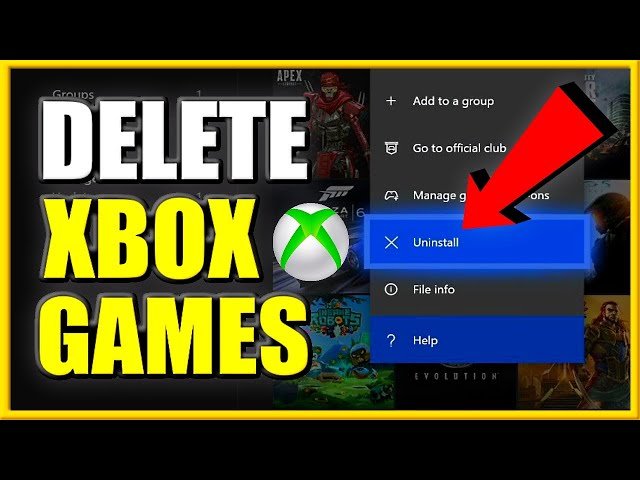
To delete Xbox One games, navigate to ‘My games & apps,’ select the game, press the Menu button, choose ‘Manage game & add-ons,’ and then select ‘Uninstall.’
Running out of space on your Xbox One? It happens to the best of us. You might be wondering, how do you delete Xbox One games to make room for new adventures? The process is actually quite simple, and it only takes a few steps.
We will walk you through each stage to free up that much-needed storage. This will get your console ready for some new games.

How Do You Delete Xbox One Games?
Let’s dive right in! Sometimes, your Xbox One might feel a little crowded. All those amazing games you’ve played can take up a lot of space. That’s where knowing how to delete games comes in handy. It’s like tidying up your room, but for your console. Don’t worry, it’s super easy to do, and we’ll walk you through it step-by-step. Whether you need to make room for a new game or just want to clear out some old ones, this guide has you covered. We’ll explore different methods for deleting games, discuss what happens when you do, and even touch on managing your game saves. Let’s get started!
Deleting Games from the “My Games & Apps” Section
This is the most common way people remove games from their Xbox One. It’s straightforward, and you can delete multiple games if needed. Here’s how you do it:
Step 1: Go to “My Games & Apps”
First, turn on your Xbox One. Press the big glowing Xbox button on your controller. This will bring up the guide menu. Now, use your left thumbstick or the directional pad to go all the way to the right, where you will see the “My games & apps” option. Select it using the A button on your controller.
Step 2: Find the Game You Want to Delete
You’ll see two tabs at the top: “Games” and “Apps”. Make sure you’re on the “Games” tab. You’ll see a list of all the games you have installed on your Xbox One. Scroll through using the thumbstick or D-pad until you find the game you wish to remove.
Step 3: Select the Game and Choose “Manage Game”
Once you’ve found the game, hover over it with the cursor. Now press the Menu button (it looks like three horizontal lines) on your controller. A menu will pop up. Select the option that says “Manage game” using the A button.
Step 4: Uninstall the Game
You’ll now be on the “Manage” page for the game. On the left side, you’ll see various options, like “Installation” or “Saved data”. Look for the game’s name, below which you will see the option “Uninstall all” or “Uninstall”. Select the Uninstall option using the A button. The Xbox will ask you if you are sure you want to uninstall this game, and select “Uninstall” again with the A button. Now the uninstalling process will start.
Step 5: Wait for the Uninstall to Complete
A progress bar will appear, showing you how much of the game is left to remove. The time it takes to complete will depend on the size of the game. Once it’s done, the game will no longer be on your console. That game is removed, you have successfully deleted the game from Xbox One. Congratulations!
Using the Storage Management Section to Delete Games
Another method involves using the storage settings, which is helpful if you want a clearer view of how much space different games are using. It also lets you check how much space your hard drive has available.
Step 1: Open Settings
Go back to the main dashboard by pressing the Xbox button. Move to the right to find “Settings”. Choose it using the A button.
Step 2: Navigate to Storage
In the Settings menu, go to “System”, you will see “Storage” option, select it.
Step 3: Select Your Storage Device
You’ll now see a list of all storage devices that you are using to install games. This includes the Xbox’s internal hard drive and any external drives you may have plugged in. Select the storage device where the game you want to delete is installed by selecting it with A button.
Step 4: View Games and Apps
After selecting the storage, you’ll see how much space is used by different types of data, such as games and apps. Click on “View Contents”. Now select “Games” to see the list of games that are installed in selected storage.
Step 5: Select the Game and Uninstall
Find the game you wish to delete by scrolling through the list. Then, highlight the game and press the Menu button on your controller. Choose the option “Uninstall”, you’ll see a confirmation page. Again, select “Uninstall” to delete the game.
Step 6: Confirm the Uninstallation
The system will ask you to confirm that you want to remove the game. Select “Uninstall” again, and the process will begin. After the uninstallation is complete, the game will be gone.
Managing Saved Game Data
Deleting a game does not automatically delete your saved game data. This data is usually stored on the cloud or sometimes on your console. It’s important to understand that saved game progress is handled separately. So, even if you delete a game, your progress isn’t lost, you can pick up where you left off, if you reinstall the game.
Cloud Saves
Xbox automatically backs up most of your game saves to the cloud. This is a great feature that keeps your progress safe and available on any Xbox console you sign into. So if you uninstall your game from one xbox one console and later install in another xbox one, then you will get your save data from cloud in that another console.
Deleting Local Saves
Sometimes, you might want to delete your local saves, especially if you want to start a game over fresh. Here’s how you do that:
Step 1: Go to “My Games & Apps” and Find the Game
Follow the same steps as earlier, go to “My Games & Apps” and find the game whose saves you want to remove.
Step 2: Select “Manage Game”
Once you’ve found the game, press the Menu button on your controller, select “Manage game”.
Step 3: Navigate to “Saved Data”
On the game management page, scroll down and select “Saved Data”.
Step 4: Select the Save Data to Delete
You’ll see a list of the save files. Sometimes, you might have multiple files if different players used different accounts on your console. Choose which save files you want to remove. Select the save you want to remove using the A button, and after that you will see the option of removing save. Now, you can select “Delete from console” to delete this specific save from your local console only. Or, you can choose “Delete everywhere” to remove this save from cloud and from the console also.
Deleting Games from Xbox Game Pass
If you have Xbox Game Pass, you might have a lot of games you’ve downloaded. Removing these games is almost the same as deleting any other game.
Uninstalling Games downloaded from Game Pass
You can follow the same steps as mentioned above under the section “Deleting Games from the “My Games & Apps” Section”, the same steps are applicable for the games installed through Game Pass. The uninstalling process of the game downloaded through Game Pass and game bought from the store are same.
What Happens to Game Pass Games When You Cancel Your Subscription?
If you cancel your Xbox Game Pass subscription, the games you downloaded with that subscription will stop working. You won’t be able to play them until you either renew your Game Pass subscription or purchase those games. The games will remain on your console after canceling your subscription but you can’t play them. You can delete them to free up space.
Tips for Managing Your Xbox One Storage
Keeping your console organized is very important for optimum performance and more space for new games. Here are few tips to help you in managing your Xbox One storage effectively.
- Check your storage frequently: Sometimes its very necessary to check your available space so that you will get to know which game is taking more storage than other.
- Use an External Hard Drive: If you often run out of space, consider buying an external hard drive. You can easily move games from your internal to external drive and vice versa.
- Uninstall games you are not playing: If a game is collecting dust, you can remove it. You can always download it again later if you want to play it in future.
- Organize Your Games: Use groups to organize your games into different categories, like sports, action, or adventure.
- Move your games, rather than deleting them: Instead of uninstalling, if you have external hard drive attached, then you can move that game into external hard drive, by doing this the game will remain available with you, when you want to play that game.
Troubleshooting Common Deletion Issues
Sometimes, you might face problems during deletion. Here are a few troubleshooting tips that can help you.
Game Doesn’t Uninstall
If the game doesn’t uninstall, then firstly try to restart the console. After that, try to uninstall the game again. Another thing that can be done is, check the storage section to see if the game is stuck. Sometimes, downloads might get stuck, and those downloads might be showing that a game is being installed, you can select that download and cancel it, and after that try to uninstall the game.
Game Showing it’s still installed
If the game is still showing on your games and app list after uninstalling it, then you can try to restart the console. After restarting your console, If the game is still visible on games and app list, then select the game, and then try to uninstall it from there again.
Game not showing for deletion
If you are not seeing your game in the “My Games & Apps” section, then the game might be installed in the external hard drive. So you need to check that external drive in the Storage section of the Settings. You can also try to search for that game in the “Ready to install” section in the “My Games & Apps”.
Deleting games on your Xbox One is not hard. With a bit of practice, it becomes very easy and quick. By understanding different methods of deletion, managing game save data, and using some storage management tips, you can easily keep your Xbox clean and organized. So, enjoy playing your favorite games, and don’t worry about the space!
How to DELETE GAMES on XBOX ONE & Uninstall APPS (Easy Method!)
Final Thoughts
Deleting Xbox One games is straightforward. You can do it from the “My games & apps” section. Select the game, press the menu button, and choose “Manage game & add-ons.”
Next, select the game again on the following screen. This action will reveal the “Uninstall” option. Click on it to remove the game from your console. That’s how do you delete xbox one games.
The process is quick and easy, freeing up valuable storage space on your system.

