
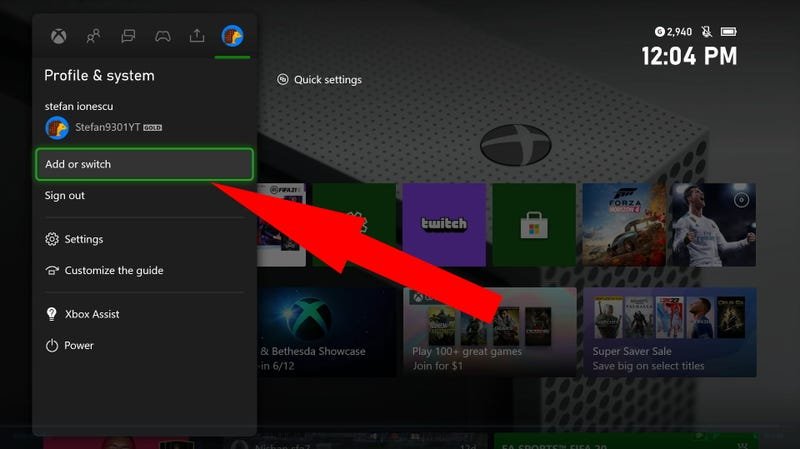
To game share on Xbox, you must designate your console as the ‘Home’ Xbox for the account you want to share with, and they must also log in to your ‘Home’ Xbox with their account.
Want to share your amazing game library with a friend or family member but not sure how? It can seem confusing at first, but it is pretty simple once you know the steps involved. This article guides you through the process of how do you game share on xbox.
Setting up game sharing allows you both to enjoy each other’s digital games, giving you access to a broader range of titles. It is a clever way to play more games without buying them twice. Let’s jump into the details of this great feature!

How Do You Game Share on Xbox?
Okay, so you want to share your awesome Xbox games with a friend or family member? That’s totally doable! It’s called “game sharing,” and it’s a great way to play together and save some money. Think of it like sharing your toys, but digitally. Instead of passing a disc, you’re sharing your digital game library. This way, both you and your friend can play the same games without buying them twice. Pretty cool, right? Let’s get into how you actually set this up!
Understanding the Basics of Xbox Game Sharing
Before we jump into the steps, let’s break down what game sharing actually means. Essentially, you are making one Xbox console your “Home” Xbox. When you do this, anyone who uses that console can access your digital game library and Xbox Live Gold (or Game Pass Ultimate) benefits, even if you aren’t logged in. This is key – the “Home” Xbox is where the magic happens. It’s important to understand this concept, as it forms the backbone of game sharing on Xbox. It’s not about sending copies of your games to another console; it’s about allowing access to your library on a specific device. Knowing this will make understanding the setup process much easier.
Think about it like this: if you own a bunch of board games at your house, anyone who comes to your house can play them. Making your console the “Home” console is like opening your house to your digital games library. Now, let’s get into the specifics.
Setting Up Your Home Xbox
The first step is setting your “Home” Xbox. This is crucial, so pay close attention! Here’s how it’s done:
The steps involved in setting up your Home Xbox:
- Sign In to Your Account: On the Xbox console you want to be the “Home” Xbox, sign in with the Microsoft account that owns the games you want to share. This is super important, as you’re sharing access to this account’s games.
- Go to Settings: Press the Xbox button on your controller to open the guide. Then, go to the “Profile & system” tab (it’s usually the one all the way to the left). Select “Settings”.
- Navigate to Personalization: In the settings menu, choose “General,” then select “Personalization”.
- Select “My home Xbox”: Find and choose the “My home Xbox” option.
- Make this my home Xbox: You’ll see a button that says “Make this my home Xbox.” Select it! The console you’re currently using will then become your “Home” Xbox.
- Confirm the Change: You may see a confirmation message. Accept it, and you’re all set!
Important Tip: You can only have one “Home” Xbox at a time. If you make a new console your “Home” Xbox, the previous console will no longer have access to your shared games and benefits unless you are signed in.
How the Other Person Accesses Your Shared Games
Now that you’ve set your “Home” Xbox, how does the other person get to play your games? It’s easier than you might think!
Steps for accessing shared games:
- Log in With Their Account: On a different Xbox console (not your Home console), the person who wants to play your shared games must log in with their own Microsoft account. This is vital; they aren’t using your account; they’re using theirs.
- Start Playing: That’s it! As long as your “Home” Xbox is set up correctly and you own the game, they can now go to the store or their games and play games from your library. They can install and play the games as if they owned them, because your “Home” console essentially gives them that permission.
A quick reminder: The person playing on the non-“Home” Xbox must be online and connected to Xbox Live to access the shared games and benefits. This is a necessity for this method of game sharing.
Things to Keep in Mind When Game Sharing
Game sharing is awesome, but there are a few important things you should know to avoid any hiccups:
Key considerations for successful game sharing:
- One “Home” Xbox at a Time: You can only set one Xbox console as your “Home” Xbox. If you change it, the previous console will lose access to your shared games and benefits. This is a critical limitation to keep in mind when deciding on your “Home” console.
- Online Connectivity: The person playing on a non-“Home” Xbox needs to be connected to the internet. This is how the Xbox verifies that they have permission to play your shared games.
- Xbox Live Gold/Game Pass Ultimate: You only need one Xbox Live Gold or Game Pass Ultimate subscription to enable online multiplayer with game sharing. The primary account holder’s subscription benefits are passed on to users on the “Home” console, so if one person has ultimate, and their console is set as the home console, then the other user can access all the benefits. This is great for saving money on two separate subscriptions.
- Game Pass Games: If you share with your home console, your library will be available to play by that user, even the games from your game pass.
- Switching “Home” Xboxes: You can switch your “Home” Xbox, but there’s a limit on how often you can do this. You should keep this in mind and plan accordingly. It is recommended to stick with one home console, so that you do not need to worry about this.
- Downloadable Content (DLC): DLC is also shared with the “Home” Xbox.
- Play Anywhere Titles: Xbox Play Anywhere games work seamlessly with game sharing. Once you purchase the game on one platform (Xbox or Windows 10/11), you can play it on any linked device. Game sharing expands this by letting the linked devices on the home console also have access.
- Who You Share With: Because you’re giving someone access to your digital games, it’s a good idea to share with someone you know and trust, like a close friend or family member.
Real-Life Scenarios for Game Sharing
Let’s explore some common ways people use game sharing:
How people use game sharing:
- Two Xbox Consoles at Home: If you have two Xbox consoles in your house, say one in the living room and one in a bedroom, you can use game sharing so everyone can play the same games without purchasing multiple copies.
- Sharing with a Friend: If you have a friend who has an Xbox, you can set their console as your “Home” Xbox and they can access your digital game library. It makes playing games together much easier.
- Saving Money as a Family: For families with multiple Xboxes, game sharing can significantly cut down the cost of buying multiple copies of each game. Instead of buying two or more copies, families can share digital libraries and cut back on expenses.
Troubleshooting Common Game Sharing Issues
Sometimes, things might not go as planned. Here are some common issues and how to fix them:
Troubleshooting tips:
- Check Home Xbox Settings: Make sure the correct console is set as your “Home” Xbox. If you recently changed it, it can take some time to refresh. Double check you are not making the error with your “Home” console.
- Internet Connection Problems: If the non-“Home” console isn’t online, it won’t be able to access the shared games. Ensure they have an active internet connection. Ensure that both parties have stable internet connections to access the games properly.
- Check Your Account: Ensure that the account you are sharing with is an active account. If the shared account is inactive, it may cause errors with the sharing process.
- Restart the Consoles: If something isn’t working right, try restarting both Xbox consoles. This can often fix minor glitches. Turning the consoles off, then turning them back on, is usually a good first step with troubleshooting.
- Contact Xbox Support: If you’re still having trouble, you can reach out to Xbox support for help. They can provide expert guidance to help resolve any particular error.
Game Sharing with Xbox Game Pass
If you have an Xbox Game Pass subscription, game sharing becomes even more attractive. With Xbox Game Pass, the users on the Home Xbox get access to the huge library, just like the account holder.
How Game Pass and game sharing work together:
- Access the Library: The Home Xbox gets access to the user’s complete game pass library.
- Day One Titles: With Game Pass Ultimate you can even download day one titles. This can be accessed by both account holders with game sharing.
- Multiple Devices: With Game Pass Ultimate, you can play games on PC and Xbox. As long as your accounts are linked to the same Microsoft account, they can be accessed on multiple devices.
Game sharing with Game Pass allows you and a partner to have the complete library of hundreds of games. This is a great way to access multiple games without needing to buy them all separately.
Limitations of Game Sharing
While game sharing is an amazing feature, it’s good to know its limits:
Understanding the limitations:
- Simultaneous Play: You can’t play a game on two consoles with the same account at the same time. If you’re playing on your account, and the other person tries to, one person will get booted from the game.
- Account Ownership: The games are still tied to the account that purchased them. If that account ever loses access to the games, so will the shared account, so ensure you trust the user who is sharing with you.
- Frequent Switching: Changing your “Home” Xbox too often can cause issues. Xbox has a limit on how often you can switch, so do not frequently switch between consoles, unless you are ready to encounter issues with your settings.
- Digital Games Only: Game sharing only works for digital games bought from the Xbox Store. Disc games are not shareable. This is a great incentive to switch to digital purchases.
Understanding these limitations is very important to avoid unnecessary headaches. As long as you plan ahead, and you are mindful about the system, game sharing will be a seamless process.
Game sharing on Xbox is a fantastic way to share games with friends and family while saving money. It’s easy to set up once you understand how the “Home” Xbox system works. By following the steps outlined above, you and your friend/family member will be gaming together in no time. Remember the key tips, and you’ll be able to easily game share on Xbox.
How to Game Share on Xbox ~The Easy Way~
Final Thoughts
To game share on Xbox, you must designate your friend’s console as your home Xbox and vice versa on your console. This allows both of you to access each other’s digital game libraries. This setup enables you to play titles you own, and they can play the titles you own.
Ensure you and your friend are using the correct Microsoft accounts on the respective consoles. Remember to double-check the settings to confirm you have completed the steps. ‘how do you game share on xbox’ requires these setting adjustments.

