
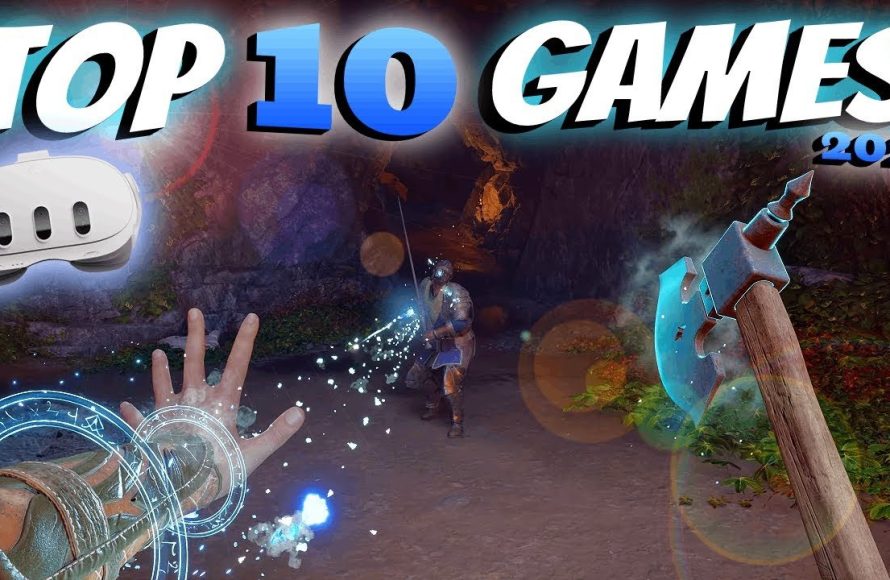
You get games on Meta Quest primarily through the Meta Quest Store, either directly on the headset or via the Meta app on your phone. You can also use App Lab for experimental titles and SideQuest for sideloading content.
Want to dive into the exciting world of virtual reality on your Meta Quest? A common question arises: how do you get games on Meta Quest? It’s easier than you might think.
This guide will quickly walk you through the methods to find and download incredible VR experiences. From the official store to alternative platforms, you’ll be gaming in no time. Let’s get started!

How Do You Get Games on Meta Quest?
Getting games onto your Meta Quest (formerly Oculus Quest) headset is a straightforward process, but it involves several different methods. The best approach depends on where you’re getting the game from and your technical comfort level.
Let’s explore the main avenues for acquiring and playing games on your Meta Quest.
The Meta Quest Store: Your Primary Source
The Meta Quest Store is the official marketplace for games and apps designed specifically for the Meta Quest platform. It is the simplest and safest way to get games on your headset.
Games purchased through the store are automatically downloaded and installed on your Quest.
The store is accessible directly from your headset or through the Meta Quest mobile app.
Buying Games Directly on Your Meta Quest Headset
The most convenient method is browsing and purchasing games directly within your headset. This ensures compatibility and a seamless experience.
- Power On: Turn on your Meta Quest headset.
- Navigate to Store: Use the controllers to navigate to the “Store” icon in the main menu.
- Browse and Search: Browse the available games or use the search function to find specific titles.
- View Game Details: Select a game to view its description, reviews, and price.
- Purchase: Click the “Buy” button. You may need to enter your PIN or payment information.
- Download and Install: After purchase, the game will automatically download and install. You can track the progress in the “Notifications” panel.
Using the Meta Quest Mobile App
The Meta Quest mobile app (available for iOS and Android) provides a convenient way to browse the store, purchase games, and manage your headset. This is useful when you’re away from your headset or prefer using your phone.
- Download and Install: Download the Meta Quest app from the App Store (iOS) or Google Play Store (Android).
- Log In: Log in with your Meta account (the same account you use on your headset).
- Navigate to Store: Tap the “Store” icon in the app’s navigation bar.
- Browse and Search: Browse the available games or use the search function.
- View Game Details: Select a game to view its description, reviews, and price.
- Purchase: Tap the “Buy” button.
- Remote Installation: If your headset is connected to Wi-Fi and logged in, the game will automatically download and install on your headset.
Sideloading: Expanding Your Gaming Options
Sideloading refers to installing apps and games that are not available on the official Meta Quest Store. This opens up possibilities for installing experimental games, indie projects, or custom content. However, it requires a bit more technical know-how and carries some risks.
Sideloading is not officially supported by Meta, so proceed with caution.
Ensure that you are only sideloading content from trusted sources to avoid malware or other issues.
Enabling Developer Mode on Your Meta Quest
Before you can sideload apps, you need to enable Developer Mode on your Meta Quest. This requires a Meta developer account.
- Create a Meta Developer Account: Go to the Meta Developer website and create an account. You may need to verify your identity.
- Create an Organization: Within your developer account, create an “organization”. This is a required step even if you are developing for personal use.
- Open the Meta Quest Mobile App: Open the Meta Quest app on your phone.
- Connect to Your Headset: Ensure your headset is paired with the app.
- Enable Developer Mode: In the app, go to “Menu” > “Devices”, select your headset, then go to “Developer Mode” and toggle it on.
- Reboot Your Headset: Reboot your Meta Quest for the changes to take effect.
Installing ADB (Android Debug Bridge)
ADB is a command-line tool used to communicate with Android devices, including the Meta Quest. It’s essential for sideloading.
- Download ADB: Download the ADB platform tools from the official Android Developers website.
- Extract the Files: Extract the contents of the downloaded ZIP file to a folder on your computer (e.g., `C:\adb`).
- Add ADB to Your System Path (Optional but Recommended): This allows you to run ADB commands from any directory in your command prompt.
- Open System Properties: Search for “Environment Variables” in the Windows search bar and open “Edit the system environment variables”.
- Click “Environment Variables”: Click the “Environment Variables” button.
- Edit the “Path” Variable: In the “System variables” section, find the “Path” variable and click “Edit”.
- Add the ADB Directory: Click “New” and add the path to the directory where you extracted the ADB files (e.g., `C:\adb`).
- Confirm Changes: Click “OK” on all windows to save the changes.
Using SideQuest for Sideloading
SideQuest is a popular third-party app that simplifies the sideloading process. It provides a user-friendly interface for installing apps and games onto your Meta Quest.
- Download SideQuest: Download SideQuest from the official SideQuest website.
- Install SideQuest: Install SideQuest on your computer.
- Connect Your Headset: Connect your Meta Quest to your computer using a USB cable.
- Allow USB Debugging: Put on your headset. A prompt will appear asking you to allow USB debugging. Check the “Always allow from this computer” box and click “OK”.
- Install Games: In SideQuest, browse or search for the APK file of the game you want to install. Click the “Install APK” button (or drag and drop the APK file onto the SideQuest window).
SideQuest also provides a curated library of sideloadable games and apps.
Sideloading Using ADB Commands (Advanced)
If you prefer using the command line, you can sideload apps directly using ADB commands. This requires a good understanding of command-line interfaces.
- Connect Your Headset: Connect your Meta Quest to your computer using a USB cable.
- Open Command Prompt: Open a command prompt or terminal window.
- Navigate to ADB Directory: If you didn’t add ADB to your system path, navigate to the directory where you extracted the ADB files (e.g., `cd C:\adb`).
- Install APK: Use the following command to install the APK file: `adb install
`. Replace ` ` with the actual path to the APK file you want to install (e.g., `adb install C:\Downloads\mygame.apk`).
App Lab: A Middle Ground
App Lab provides a platform for developers to distribute their games and apps without going through the full Meta Quest Store curation process. These apps are still vetted by Meta to some extent but are more readily available than those in the main store.
App Lab games are not listed in the main Meta Quest Store, but you can find them through direct links or by searching for them by name.
Finding App Lab Games
There are various websites and communities that curate lists of App Lab games. Searching online for “Meta Quest App Lab games” will reveal many resources.
Once you find an App Lab game, you will typically be provided with a direct link to its App Lab page.
Installing App Lab Games
Installing an App Lab game is similar to installing a game from the main store.
- Click the App Lab Link: Click the direct link to the App Lab game’s page.
- Purchase (if applicable): If the game is not free, you will need to purchase it.
- Install: Click the “Install” button. The game will download and install on your headset.
PC VR: Playing Games from Your Computer
The Meta Quest can also be used as a PC VR headset, allowing you to play games from your computer on your Quest. This requires a compatible gaming PC and either a wired (USB) or wireless (Air Link) connection.
This does not install games on your Quest itself, but streams them from your PC.
Oculus Link (Wired Connection)
Oculus Link allows you to connect your Quest to your PC using a USB cable. This provides a stable and high-bandwidth connection for playing PC VR games.
- Install Oculus Software: Download and install the Oculus PC software from the Oculus website.
- Connect Your Headset: Connect your Quest to your PC using a high-quality USB cable.
- Enable Oculus Link: Put on your headset. A prompt will appear asking if you want to enable Oculus Link. Click “Enable”.
- Launch PC VR Games: You can now launch PC VR games from the Oculus PC software or from other platforms like SteamVR.
Air Link (Wireless Connection)
Air Link allows you to connect your Quest to your PC wirelessly. This provides more freedom of movement, but requires a strong and stable Wi-Fi connection.
- Enable Air Link in Oculus Software: In the Oculus PC software, go to “Settings” > “Beta” and enable “Air Link”.
- Enable Air Link on Your Headset: On your headset, go to “Settings” > “Experimental” and enable “Air Link”.
- Pair with Your PC: In the “Quick Settings” panel on your headset, select “Air Link” and choose your PC from the list.
- Launch PC VR Games: You can now launch PC VR games from the Oculus PC software or from other platforms like SteamVR.
SteamVR: Accessing a Vast Library of VR Games
SteamVR is a platform for playing VR games on your PC. It supports a wide range of VR headsets, including the Meta Quest (when connected via Oculus Link or Air Link).
- Install Steam and SteamVR: Download and install Steam from the Steam website. Then, install SteamVR from the Steam store.
- Connect Your Headset: Connect your Meta Quest to your PC using Oculus Link or Air Link.
- Launch SteamVR: Launch SteamVR from the Steam client.
- Play SteamVR Games: You can now browse and play SteamVR games from the Steam store.
Considerations for Choosing a Method
The best method for getting games on your Meta Quest depends on several factors, including your technical skill level, your desired level of access to different types of games, and your willingness to accept potential risks.
The Meta Quest Store is the safest and easiest option for most users.
Sideloading provides access to a wider range of games and apps but requires more technical knowledge.
PC VR allows you to play high-fidelity VR games from your computer, but requires a compatible PC and a wired or wireless connection.
Meta Quest 3: How to Download & Install Games & Apps
Final Thoughts
To summarize, getting games on your Meta Quest is straightforward. You can purchase and download games directly from the Meta Quest Store using your headset. This is the must seamless method.
Alternatively, you can buy games through the Meta website or mobile app and have them remotely installed on your headset. Make sure your headset is connected to Wi-Fi.
Finally, sideloading is also an option, but requires more technical knowledge. So, how do you get games on meta quest? Primarily through the official Meta Quest Store, making the process simple and efficient.

