
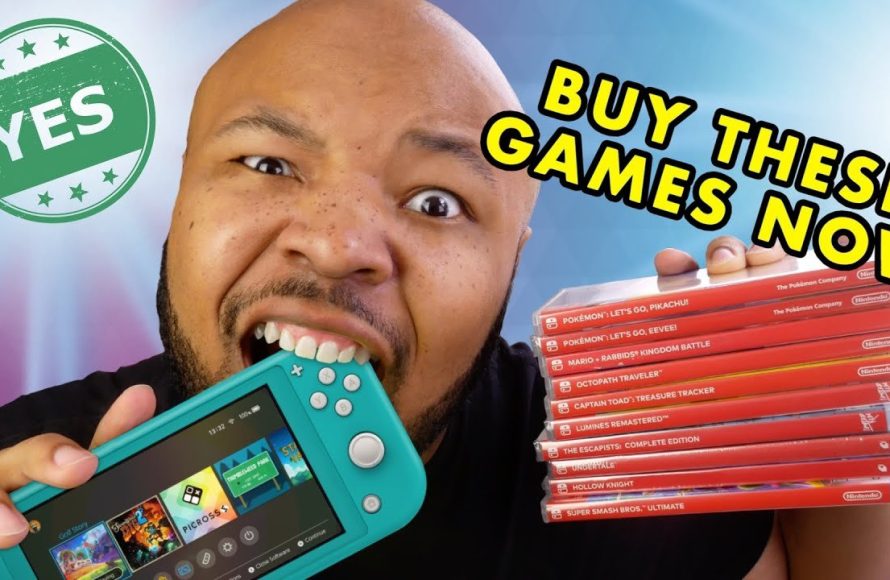
To get games on a Nintendo Switch Lite, you purchase and download them digitally from the Nintendo eShop, or you buy physical game cartridges.
Wondering how do you get games on nintendo switch lite? It’s a common question for new owners, since the system only plays in handheld mode. The process is quite simple, thankfully. You have a couple of options, both digital and physical.
You can visit the Nintendo eShop directly on your device,browse, and purchase the game. Alternatively, you can buy physical game cards from retailers and insert them into the console’s game slot.

How Do You Get Games on Nintendo Switch Lite?
So, you’ve got your hands on a cool Nintendo Switch Lite! It’s perfect for gaming on the go. But how do you actually get those awesome games onto it? It’s not like the old days where you just popped a cartridge in. Don’t worry, it’s simpler than you might think! This guide will show you all the different ways you can fill your Switch Lite with fun adventures.
Understanding the Nintendo eShop
The main way you’ll get games for your Switch Lite is through the Nintendo eShop. Think of it like a digital store for games. It’s built right into your system. You don’t need to visit a physical store or insert anything physical into your Switch Lite to buy, download and play digital games.
How to Access the Nintendo eShop
Getting to the eShop is easy:
- Make sure your Switch Lite is connected to the internet. You’ll need a Wi-Fi connection for this.
- From the HOME Menu, which is where you see all your game icons, find the orange shopping bag icon labeled “Nintendo eShop”.
- Tap on it. You’ll likely be asked to choose the user profile you’d like to use. If you have more than one player on your Switch. Choose your profile and press “ok”.
- And Boom! You’re in! The Nintendo eShop will open up, ready for you to browse through tons of different games.
This is where the magic happens. You can explore new releases, check out popular titles, and search for specific games you’re looking for. It’s designed to be easy to navigate so kids and adults can find what they want.
Digital Game Downloads
Once you’re in the eShop, you can buy and download games directly to your Nintendo Switch Lite. This is probably the most common way to get games nowadays. It means you don’t have to worry about physical game cartridges, and you can have a ton of games stored right on your system. These are called digital games.
Searching for Games
There are several ways to find the games you want:
- Browse: The eShop has different categories like “New Releases,” “Coming Soon,” “Great Deals,” and genres like “Action,” “Adventure,” or “Puzzle.” You can simply scroll through these sections to see what catches your eye.
- Search: If you know the name of a specific game, use the search bar at the top of the eShop. Just type in the name, and the eShop will quickly find it for you.
- Use Filters: You can filter by price, genre, player mode and so on, if you want to narrow down results.
Purchasing and Downloading
Once you’ve found a game you like, you can click on it to see more information, like screenshots, descriptions, and user reviews. If you decide you want it, here’s what you do:
- Click the “Purchase” button.
- You’ll need to add a payment method to your Nintendo account if you haven’t already. You can use a credit or debit card, PayPal, or a Nintendo eShop prepaid card.
- Follow the on-screen instructions to complete the purchase.
- After buying, the game will automatically start downloading to your Switch Lite. You can see the download progress on your HOME Menu.
The time it takes to download a game depends on the size of the game and the speed of your internet connection. Some games might be small and download quickly, while larger games might take a while. You can do other stuff on your Switch Lite while you wait!
Physical Game Cartridges: A Different Approach
Although the Nintendo Switch Lite was designed to be an all-digital gaming device (meaning it primarily gets games via downloads), it is still compatible with physical game cartridges for Nintendo Switch. That’s right! You can still use those little plastic game cards you might see in stores.
Using Physical Game Cartridges
Unlike the standard Nintendo Switch console, the Nintendo Switch Lite does not have a docking mode. Meaning it can not be connected to the TV, and will only work in handheld mode. There are some Nintendo Switch games that don’t support handheld mode. Therefore, you’ll need to be a little careful when buying physical game cartridges.
- Check the game box! The box of a Nintendo Switch game has a symbol that confirms that a game is playable in handheld mode. If you don’t see the symbol, it means you may not be able to play it on your Nintendo Switch Lite.
- To use a physical game, simply find the cartridge slot at the top of your Nintendo Switch Lite. The slot is where the game card goes in.
- Gently insert the game card into the slot. Be sure it clicks in.
- After inserting the game card, the game icon will show up on your home screen. Select the icon and start playing!
Where to Buy Physical Games
You can buy physical games for your Nintendo Switch Lite at various locations:
- Big Retail Stores: Many big stores, like Walmart, Target, or Best Buy, usually have a video game section where you can find Switch games.
- Game Stores: Stores that focus on video games, like GameStop or local specialty game shops, will have a wide selection.
- Online Retailers: Websites like Amazon, or other online stores sell a lot of physical games.
Before buying a physical game card, be sure to check that it is compatible with the handheld mode, by checking the box for a symbol that confirms that a game is playable in handheld mode.
Nintendo Switch Online
Nintendo Switch Online is a paid service that offers extra features to subscribers, like playing games online with friends, but it also opens up extra ways to get games, particularly older classics.
How Nintendo Switch Online Works
- Nintendo Switch Online has a few different tiers of subscriptions. The main plan lets you play most games online, access cloud saving and some exclusive offers, and play a selection of classic NES and Super NES games. The Nintendo Switch Online + Expansion Pack adds Nintendo 64 and Sega Genesis games, as well as DLC for some games.
- With a Nintendo Switch Online membership, you get a library of classic Nintendo titles that you can play whenever you like. These games are available to download through the Nintendo eShop app once you’ve signed up.
- The list of available games grows over time with new releases that are added frequently.
Getting Nintendo Switch Online
To subscribe to Nintendo Switch Online:
- Go to the Nintendo eShop on your Switch Lite.
- Find the Nintendo Switch Online section, usually listed in the sidebar or at the top.
- Choose the subscription plan that you like. You can choose between individual plans and family plans, as well as a yearly plan or a monthly plan.
- You’ll be asked to enter your payment details. Once that is done, you will gain access to the service.
With an active Nintendo Switch Online membership, you will be able to download and play the selection of classic games offered with the service. It’s a fun way to enjoy some retro gaming goodness.
Free-to-Play Games
Did you know that there are a bunch of great games on the Nintendo eShop that you can download and play for free? These are called free-to-play games, and you can access these games the same way as you would access paid digital games.
Finding Free-to-Play Games
To find free-to-play games:
- Go to the Nintendo eShop on your Switch Lite.
- Look for the “Free-to-Start” section, which often features a collection of free games.
- You can also use the search bar and enter “free” to find games that are available for free.
- Browse through the selection to see what looks interesting to you.
Downloading Free Games
Downloading these free games works just the same as downloading paid ones:
- Click on the free game you want.
- Click the download button.
- The game will download to your Switch Lite.
While these games are free to download and play, many of them include in-game purchases. This means you can use real money to buy extra content or make the game easier, but this is not a requirement to play and enjoy these free games.
Game Trials and Demos
Sometimes, Nintendo or game publishers offer trials or demos for games on the eShop. These allow you to try a game before buying it, which is a great way to see if you will like the game before committing to buy it.
Finding Game Trials and Demos
- Go to the Nintendo eShop.
- Look for a “Demos” or “Trials” section. Or use the search bar and enter “Demo” to find all available game trials and demos.
- Select the demo or trial that you would like to play, and then select download.
Demos or Trials are free to download and usually offer a small section of the game for you to experience before purchasing. Sometimes they are limited time periods.
Managing Game Storage
With all these ways to get games, you might wonder about storage. The Nintendo Switch Lite has a limited amount of storage space built-in, but you can expand it with a microSD card.
Understanding Internal Storage
Your Nintendo Switch Lite comes with a certain amount of built-in storage. This is where games you download and saved game data will be stored. You may eventually run out of space, especially if you’re downloading a lot of bigger games.
Using a microSD Card
A microSD card is a small memory card that you can insert into your Switch Lite to add more storage space.
- You can purchase microSD cards at many electronics stores and online retailers.
- To use one, open the small stand on the back of your Switch Lite. There you will see the slot for the microSD card.
- Gently insert the microSD card into the slot.
- Your Switch Lite will be able to access the extra storage space once it recognizes the new card.
When buying a microSD card, be sure to choose a reputable brand and enough storage for your needs. It’s a good idea to get a card with a faster read/write speed for best performance.
Managing Your Games
You can manage which games are stored on your Switch Lite’s internal storage and which are on your microSD card.
- Go to “System Settings” on your HOME Menu.
- Scroll down to “Data Management.”
- Here you can move data between internal storage and the microSD card.
- You can also delete games that you no longer play from here.
Regularly checking your storage and managing game data can ensure your Switch Lite runs smoothly and you have enough space for new games!
Getting games on your Nintendo Switch Lite is easy and fun! Whether you prefer downloading digital games from the eShop, using physical game cartridges, enjoying classic games with Nintendo Switch Online, or checking out free-to-play options and demos, there’s something for everyone. Remember to manage your storage space and keep exploring to find new gaming experiences. With these tips, you will have a great time playing on your Switch Lite!
How to Download Any Free Games on Nintendo Switch Lite
Final Thoughts
You can obtain games on your Nintendo Switch Lite primarily through the Nintendo eShop. This digital store allows direct downloads of games using your console’s internet connection. You can also purchase physical game cartridges from retailers, inserting them into the device.
These are the two main methods. How do you get games on nintendo switch lite, then? Either by purchasing and downloading them digitally through the eShop, or buying physical cartridges. This makes getting new games pretty straightforward.

