
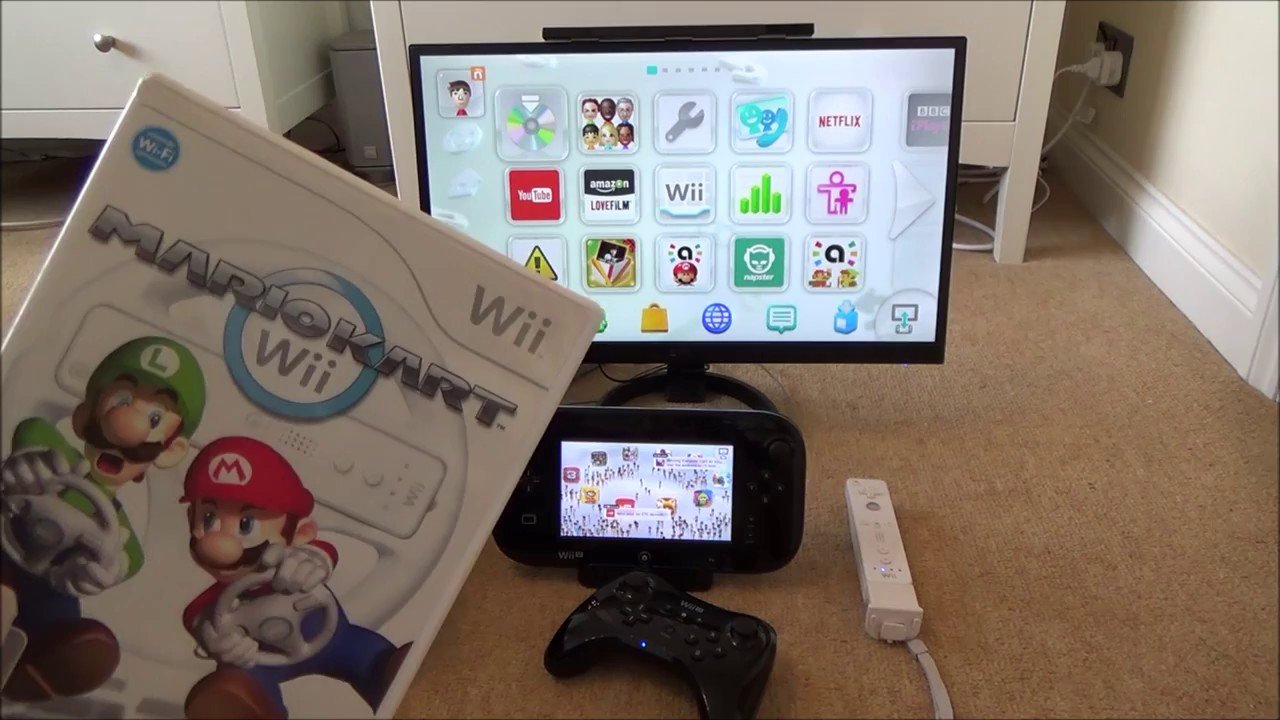
To play Wii games on the Wii U, simply insert the Wii game disc into the Wii U console. Then, navigate to the Wii Menu from the Wii U main menu.
Ever wondered how do you play wii games on the wii u? It’s simpler than you might think! The Wii U has a hidden gem – its ability to play original Wii games.
It acts much like a backwards compatible system. This allows you to revisit your old favorites. You can use your Wii controllers too.

How Do You Play Wii Games on the Wii U?
So, you’ve got a cool Wii U, and you’re itching to play some of those classic Wii games you remember and love? Good news! The Wii U is backward compatible, which means it can play almost all of your old Wii games. It’s like having two consoles in one! Let’s dive into how you can get your Wii games up and running on your Wii U.
Understanding the Wii Mode
The Wii U isn’t just one console; it’s like two consoles living together in the same box. It has its own Wii U side, which plays games made specifically for the Wii U. Then, it has a special “Wii Mode,” which lets you play your old Wii games. Think of it as a secret portal to the past! When you want to play a Wii game, you actually need to switch the console over to Wii Mode. It doesn’t happen automatically; you’ll need to make the switch yourself.
Accessing Wii Mode
How do you get into this Wii Mode? It’s pretty easy.
- First, turn on your Wii U.
- You’ll see the main Wii U menu, which has all your Wii U games and apps.
- Look for the “Wii Menu” icon. It looks like the original Wii logo – a white rectangle with the word “Wii” inside in blue. It is typically found on the Wii U’s home screen.
- Select this icon using your Wii U GamePad or a Wii Remote.
- When you press it for the first time, the system will go through a short set up process, which we cover in the next section. This only occurs once, though.
Once you tap that “Wii Menu” button, the Wii U will act like a regular Wii. Your TV screen will change, and you’ll see the familiar Wii menu screen. It’s like your Wii U is putting on a costume of a regular Wii!
The Initial Wii Mode Setup Process
The first time you enter Wii Mode on your Wii U, you’ll be guided through a quick setup process. It’s a one-time thing and it will get you ready to start playing Wii Games. Here’s what to expect:
- Language Selection: You’ll pick the language you want to use for the Wii menu.
- Screen Size Adjustment: You’ll adjust the screen settings so that the picture fits well on your TV.
- Confirmation Screen: The screen will show you what the settings you have selected and you will simply have to click to confirm to continue.
- Connecting Wii Remotes: The system will prompt you to sync your Wii Remote. You need to press the red sync button on the remote, and the matching button on the console.
After that initial set up, your console should remember your settings for future play. You don’t have to do this every single time you want to play Wii games.
Wii Controllers on the Wii U
Here’s a key difference: The Wii U GamePad won’t work in Wii Mode. You can’t control Wii games with it. You have to use original Wii Remotes and Nunchuks. So, you will need to keep these around in order to play. You also might need some other controllers.
Required Wii Controllers
For most Wii games, you will need at least one of the following items:
- Wii Remote: This is the main controller. It looks like a TV remote and moves the on-screen cursor. It is required for pretty much every single Wii game.
- Nunchuk: The Nunchuk attaches to the bottom of the Wii Remote. It has an analog stick and a couple of buttons. It’s used in a lot of games for movement and additional actions.
Other Optional Controllers
Some games may also utilize other controllers that you may own. Here are some examples:
- Classic Controller: This controller looks like a regular gamepad. It has an analog stick, D-pad, and buttons. Some Wii games that did not have motion controls often made use of this.
- Classic Controller Pro: This is a modified version of the Classic Controller, that is more similar to the PlayStation controller.
- Wii Balance Board: Some games, like Wii Fit and Wii Fit Plus, use this to simulate balancing exercises.
Playing Wii Games – A Step-by-Step Guide
Now let’s talk about actually playing the games. It’s pretty straightforward, but here is the breakdown:
Inserting the Game Disc
First, you’ll need your Wii game disc. Here’s how to insert it:
- Make sure the Wii U is in Wii Mode.
- Open the disc drive on the front of your Wii U console.
- Insert the Wii game disc with the label facing up, the same way you did with the original Wii.
- Gently push it in, and you’ll hear a little click.
The Wii game menu should then appear on your TV. If you are in the Wii home screen, you should see the game disc icon in the lower-left corner of the screen.
Starting the Game
Once the game disc icon is on the screen, use your Wii Remote to select the disc, and then press the “Start” button on the Wii Remote, or simply press the ‘A’ button. The game will then load. Once that is complete, you’re all set to have fun.
Saving Games and Loading Saves
Just like on the original Wii, games use the Wii system memory to save your progress. So, whenever you complete a level or collect an item, that will be stored on your system memory, unless the game has a different way to save data. You can save multiple games at once. Your saved games will be stored and you can access them when you go back to the game. You do not need to save your game progress to the cloud.
Navigating the Wii Menu
Once you’re in Wii Mode, it feels just like using a regular Wii. Let’s take a quick look at the Wii Menu, where you navigate your games and settings:
Channels and Icons
On the Wii Menu screen, you’ll see a list of “Channels” that you will use. The “Disc Channel” is usually the most obvious, as it is the way you actually start a game. Some of the other channels include:
- The Disc Channel: This is where your inserted game disc will appear.
- The Wii Shop Channel: If you still want to use this, it has access to many downloadable older Wii games.
- The Mii Channel: This is where you can design and customize your little Mii character.
- The Photo Channel: You can view and edit your photos on this channel.
- The Wii Message Board: This can store old message from other players, but it’s no longer being updated.
- Wii Options: This is where you will go to change your console settings.
Using the Wii Remote
To move between the channels and icons on the screen, use the Wii Remote. Point the remote at the screen, and a small hand cursor will appear. Move the cursor with the remote to highlight and select different icons.
Using the Home Button
The Home button on the Wii Remote is your all-purpose go to for navigating. Pressing the Home button in the middle of a game lets you:
- Pause the game.
- Go back to the Wii Menu.
- Change settings for the remote.
Important Considerations and Limitations
While playing Wii games on the Wii U is fun, there are a few things to keep in mind.
Controller Limitations
Remember, you cannot use the Wii U GamePad to play Wii games. You’ll need to keep all your old Wii Remotes and accessories if you plan on playing the games you have at home.
The Wii Shop Channel is Gone
The Wii Shop Channel, where you could download Wii games digitally, was shut down. You can’t buy any new digital Wii games through the Wii U. However, you can access any games that you purchased in the past.
Online Services
Some older Wii games had online components that are no longer active. These online services have generally been shut down by Nintendo for the older Wii games. This means you won’t be able to play online multiplayer modes, access online leaderboards or any other similar features. Single-player campaigns and couch co-op will still work.
Compatibility Issues
Most Wii games work perfectly fine on the Wii U, but there are a few exceptions. A small handful of Wii games may not be compatible, or they may have some technical issues when played on the Wii U. However, these instances are very rare.
Wii U Gamepad Display
One important thing to note is that, unlike Wii U games, Wii games will not be displayed on the Wii U GamePad’s screen. The game will always play on your television screen only.
Tips for a Smooth Experience
Here are some tips to help you enjoy your Wii games on the Wii U even more:
Keep Your Wii Remotes Charged
Make sure your Wii Remotes are charged or have fresh batteries, especially if you’re planning a long gaming session. This will prevent the dreaded controller disconnection in the middle of a good run.
Organize Your Wii Accessories
It is useful to keep your Wii Remotes, Nunchuks, and other controllers organized so that you can easily find them when it’s time for gameplay. It helps to prevent headaches before you begin playing.
Update Your Wii U
Make sure that your Wii U system software is up-to-date. While it is unlikely to change anything about how Wii games are played, it could help with overall performance.
Cleaning Your Game Discs
Before you play any games, check your discs. It’s a good idea to give your game discs a quick wipe. It helps to make sure they are clean from smudges and dust. This will prevent read errors and ensure the game will load as normal.
Restart Your System
If you have any technical glitches or problems loading the game, restarting your console can help clear any issues that might be occurring in the background.
Enjoy Your Wii Classics!
Playing Wii games on the Wii U is a fantastic way to revisit old favorites or experience them for the first time. It’s super convenient to have all your games in one place. By following these tips, you’ll be able to enjoy your older games on your Wii U with no issues at all.
Remember to keep those Wii Remotes charged, keep an eye on your discs, and make sure your system is running smoothly! Now that you know how to play Wii games on your Wii U, you’re all set for some seriously fun retro gaming!
How to play Wii Games on a Wii U
Final Thoughts
To play Wii games on the Wii U, simply insert the Wii disc into the console. Then, from the Wii U menu, select the Wii Menu icon. This launches the Wii interface, where you can access and play your Wii titles.
Your Wii games work directly on the Wii U through this virtual environment. You do not need any additional hardware or software. The process for ‘how do you play wii games on the wii u’ is quite straightforward and easy.

