
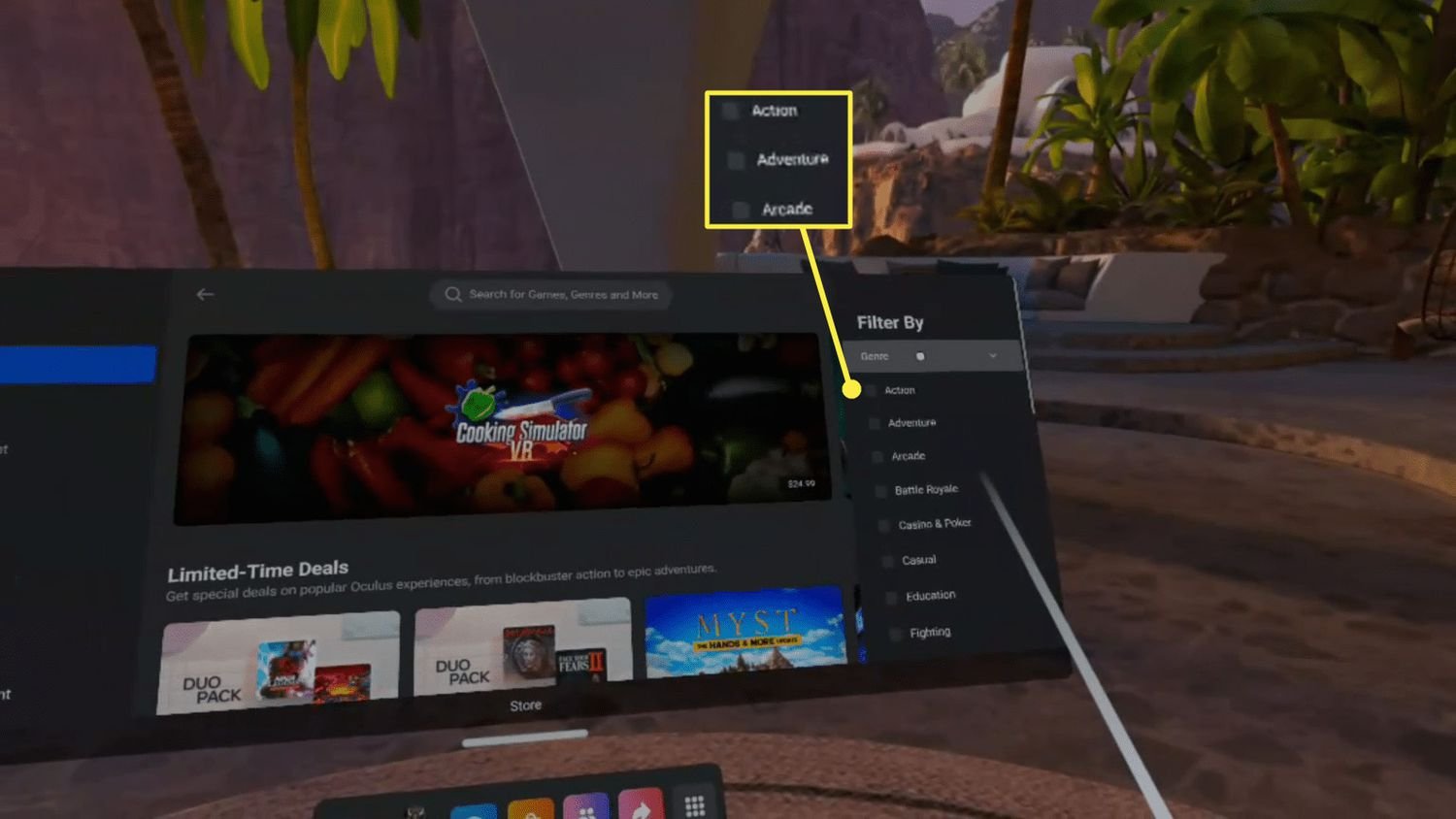
You purchase games for Meta Quest 2 through the Meta Quest app on your phone or directly within the headset itself using the built-in store.
Ready to dive into virtual worlds but wondering, how do you purchase games for Meta Quest 2? It’s simpler than you might think! The process happens mostly within the Meta ecosystem, ensuring smooth access to amazing VR experiences.
You can browse and buy games using the Meta Quest mobile app on your smartphone, or explore the library directly through the headset. Both options connect to your account, making purchases convenient.
Once you find a game you like, the purchase process is quite straightforward. Payment methods you set up are used, so you quickly gain access to your new virtual adventure.

How Do You Purchase Games for Meta Quest 2?
So, you’ve got your Meta Quest 2 all set up, and you’re itching to dive into some amazing virtual reality worlds. Great choice! The Meta Quest 2 has a ton of super fun games, but how do you actually get them? It’s not like popping a disc into a console. Don’t worry; it’s easier than you might think! This guide will walk you through all the ways to buy and enjoy games on your Meta Quest 2.
The Meta Quest Store: Your Main Game Shop
The primary way you’ll get games for your Meta Quest 2 is through the Meta Quest Store. Think of it like the app store on your phone, but for VR games. You can access it directly from your headset or through the Meta Quest app on your phone or tablet. Let’s see how this works.
Accessing the Store from Your Headset
Putting on your headset will take you to your virtual home. Here’s how to get to the store:
- Look around: First, look around your virtual space. You should see a menu bar at the bottom of your view, or sometimes, a menu button on your controller.
- Find the Store Icon: Look for a shopping bag icon, which is the button to access the store. It might say “Store,” “Shop,” or “Oculus Store” depending on the software update.
- Select the store: Use your controller to point and select the store icon. Click the trigger button or A button to select. This will transport you to the game store.
Once inside the store, you’ll find games categorized by genre, popularity, and even new releases. It’s easy to browse and discover new adventures!
Browsing and Finding Games
Navigating the Meta Quest Store is quite simple. Here are some things you’ll find:
- Categories: The store breaks down games by categories such as Action, Adventure, Puzzle, Sports, and more. Browse these to find games you enjoy.
- Featured Games: On the main page, you’ll see highlighted and recommended games.
- Search Bar: If you know what game you’re looking for, use the search bar at the top of the screen to quickly locate it.
- Game Pages: Click on a game you’re curious about to visit its game page. Here you’ll see trailers, screenshots, reviews, and the price.
The Meta Quest Mobile App
Don’t have your headset handy, but want to browse or buy a game? You can use the Meta Quest mobile app on your smartphone or tablet. Download it from your device’s app store (Apple App Store or Google Play Store) and log in with your Meta account.
Within the app, look for the “Store” or “Shop” icon. It usually looks like a shopping bag. You can browse the same catalog as you would in the headset. Here’s how it benefits you:
- Convenient Browsing: Look through games from anywhere you have your mobile device.
- Purchase and Install: Buy games on your device, and they start installing on your Quest 2.
- Wish Lists: Add games you’re interested in to your wish list and keep track of them.
Purchasing Games: Simple Steps
Once you’ve found the perfect game, purchasing it is a breeze. Here’s how:
- Go to the Game Page: Click on the game you want.
- See the Price: You’ll find the game’s price clearly displayed.
- Click the Purchase Button: Look for a button that says “Buy”, “Purchase,” or the price itself. Click or tap this.
- Payment Method: Select your payment method. You’ll need to link a credit card, debit card, or PayPal account to your Meta account. If you’ve purchased before, it may already be saved.
- Confirm the Purchase: Check the order carefully and click “Confirm”. Sometimes, you might be asked to confirm with a security code or password.
- Download Starts: Once the purchase is confirmed, the game starts downloading and installing on your Quest 2. This could take some time, depending on your internet speed.
Understanding Payment Options
Meta makes it easy to pay for games. Here are your common payment methods:
- Credit and Debit Cards: Visa, MasterCard, American Express, and other major cards are usually accepted.
- PayPal: Pay with your PayPal account securely.
- Gift Cards: You can redeem Meta gift cards for store credit. These gift cards can be found online or at stores.
Keep your payment info secure, and be sure to check you’re using the correct card or account before confirming the purchase!
Game Bundles and Deals
One neat thing to watch out for are game bundles and special deals. Meta often offers packages that include multiple games at a discount price. These are a great way to save money, or get multiple games you want. Here’s what to know:
Bundles
- Types of Bundles: Some bundles are organized by game genre, while others are organized by themes. Meta will sometimes create bundles based on game publisher as well.
- Savings: Bundles usually cost less than buying the games individually. It’s a great way to build up your VR game library without spending too much!
Sales and Deals
- Seasonal Sales: Be on the lookout for holiday sales events, which have huge discounts and deals throughout the year.
- Daily or Weekly Deals: Check the store regularly for special offers on individual games or small groups of games.
- Discount Codes: Sometimes, you can find discount codes online or through promotions, which can lower your costs.
Free Games and Demos
Want to test the waters before spending money? Luckily, there are plenty of free games and demos you can get. Here’s how to find them:
Free Games
- The Store: The Meta Quest Store usually has a free games section. Check here for games that cost nothing to download and play.
- App Lab: The App Lab contains a lot of free games that may not be listed in the main store. You must use the search bar to find these titles.
Game Demos
- Try Before You Buy: Many games offer demos or trial versions. These are great for getting a sense of whether you’ll like a game before purchasing it.
- Demo Versions: Look for the “Demo” button on a game page. If you see it, you can try the game for a short time before buying it.
What is the App Lab?
You might hear about the App Lab. It’s a separate place for apps and games that are still in the development phase. Here’s the scoop:
Games in Development
- Not in Main Store: App Lab games are not on the main store. You need to know the game’s name to find it, so make sure you look up games and apps online or talk to friends.
- Smaller Creators: Many indie game developers use the App Lab to show their games.
- How to Find Them: You can find these games by searching their names directly through the search bar in the store. Some websites track App Lab games and you can also follow social media groups for the same information.
Benefits of App Lab
- New Experiences: You get to try creative, new games and apps before they are officially launched in the main store.
- Support Developers: If you want to support a small time creator, App Lab is the best place to do that!
Game Compatibility
Before you purchase a game, it’s crucial to make sure it will work on your Meta Quest 2. Here’s how to check compatibility:
Checking the Game Page
- Device Support: On each game’s store page, check the description or details area. It will list the devices the game supports (e.g., Meta Quest 2, Meta Quest Pro).
- Compatibility Notes: Look for notes that talk about game play and if you have any issues to watch out for with your Meta Quest 2.
System Requirements
Most games on the store run smoothly on the Quest 2. However, if you have any questions, you can search online to see any specific issues.
Managing Your Games
Now that you have bought some games, you might want to know how to manage them. Here’s how:
Uninstalling Games
- Storage Space: If your Meta Quest 2 is getting full, you can uninstall games you aren’t playing. Go to your library, select the game, then select the option to uninstall.
- Reinstall Anytime: You can reinstall games you purchased at any time, as long as you use the same account.
Updating Games
- Automatic Updates: Usually, your Quest 2 will update games automatically when connected to Wi-Fi.
- Manual Check: To check for updates, go to your library and look for the game. There should be an option for “update.”
Tips for Smart Game Buying
Purchasing VR games can be fun, and here are some ways to help you shop smarter:
Research Before Purchasing
- Watch Game Play: Check videos on YouTube to see gameplay. This is a great way to see what the game is like.
- Read Reviews: See what other users are saying about the game.
- Ask Friends: Chat with your friends who own a Meta Quest 2, and ask about their favorite games.
Use Wish Lists
- Keep Track of Games: Save games to your wish list, so you remember them later.
- Sales Notifications: Sometimes, you get notified when a wish list game goes on sale.
Managing Your Budget
- Set Spending Limits: VR games can be addictive, so create a budget for buying games.
- Free Games and Demos: Try free games and demos before buying new titles.
Buying games for your Meta Quest 2 is a fun part of the virtual reality experience. By understanding how to navigate the store, purchase games, and manage your library, you will get the most enjoyment out of VR. Don’t forget to explore bundles, free games, and demos. With these things in mind, you’re well-equipped to build a VR library that brings you tons of joy!
How to Buy Games on Meta Quest 2
Final Thoughts
To purchase games for Meta Quest 2, you primarily use the Meta Quest store. This is accessed directly through the headset or via the Meta mobile app. You can browse, select, and complete your purchases using various payment options.
The process is quite simple. You select your desired game, add it to cart, and checkout. The purchased content will then be available to download and play on your device. So, how do you purchase games for meta quest 2? Through the official store easily.

