
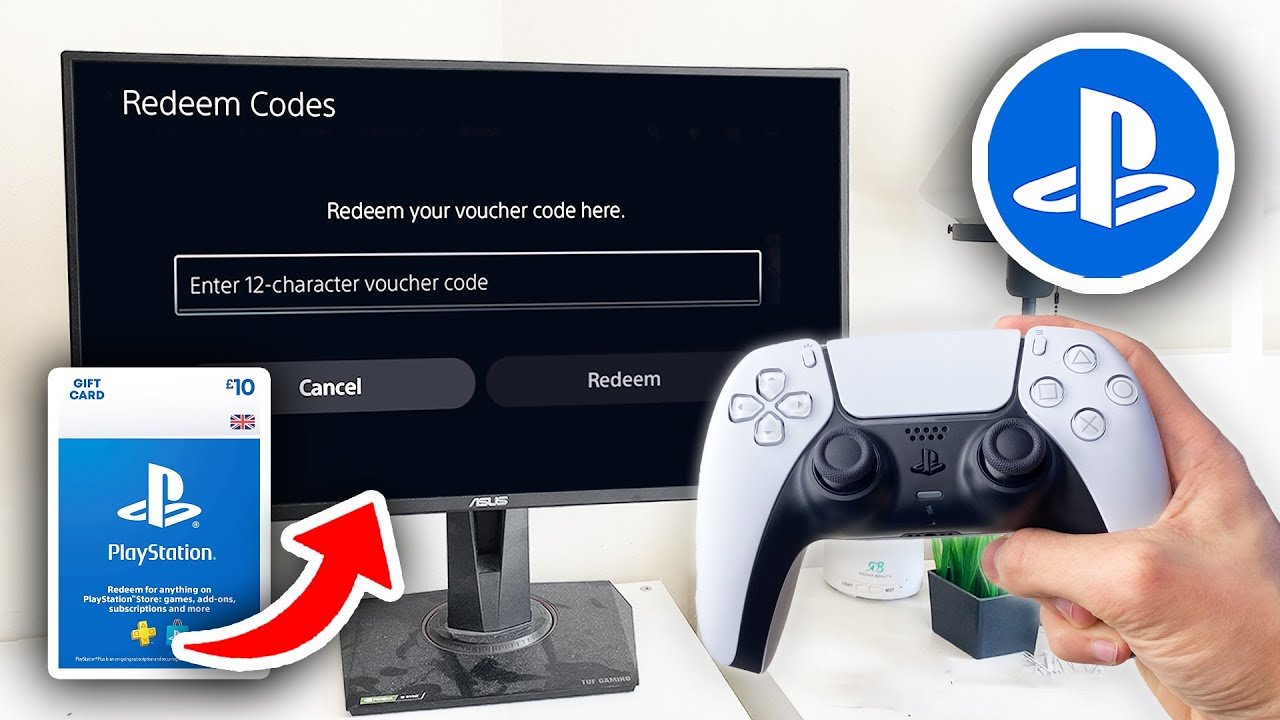
To redeem a game on PS5, go to the PlayStation Store, select “Redeem Codes,” and enter your 12-digit code.
So, you’ve got a shiny new game code and are wondering, how do you redeem a game on PS5? It’s a common question for new users, and fortunately, it’s a very straightforward process. You don’t need to be a tech whiz to get your game downloaded.
The PlayStation 5 makes the process simple. This quick guide will walk you through each step to claim your game quickly, so you can begin playing. Get ready to jump into the action!

How Do You Redeem a Game on PS5?
Getting new games on your PlayStation 5 is super exciting! But sometimes, instead of popping in a disc, you get a special code that you need to use. This code could come from buying a game online, getting a gift card, or even winning a contest! Don’t worry, redeeming a game on your PS5 is actually quite easy, and we’re here to walk you through all the different ways you can do it. This article will cover every angle to help you get playing in no time. Let’s dive in and see how to get your game!
Redeeming a Code from the PlayStation Store
The most common way to redeem a game is by using a code from the PlayStation Store. These codes often come printed on a card, included in the game’s packaging, or sent to you through email after an online purchase. Here’s how to use them:
Step-by-Step Guide to Redeeming a PS5 Game Code
- Turn on your PS5: Make sure your console is powered on and you’re logged into your PlayStation Network (PSN) account. This is the account you use to play games online and access the PlayStation Store.
- Go to the PlayStation Store: On the PS5 home screen, find the PlayStation Store icon. It looks like a shopping bag and is usually located on the top row. Select it to open the store.
- Find the “…” Menu: Once you’re in the PlayStation Store, look for the three dots (“…”) at the top right of the screen. This might be under your profile picture. Select it.
- Select “Redeem Code”: A small menu will pop up. Choose the “Redeem Code” option.
- Enter Your Code: A new screen will appear with a box for you to type in your 12-character code. Be very careful when typing! Make sure you use capital letters and enter each number and letter correctly. Double-check it! Sometimes a mistake as simple as a ‘B’ instead of an ‘8’ will stop the code from working!
- Confirm the Code: After you’ve typed the code, select “Redeem.” The system will now check the code and then show you what you’re going to get – this could be the name of the game, additional content, or virtual currency.
- Confirm Your Selection: Look closely at the game/content listed and, if it’s correct, click on “Confirm” to continue.
- Download the Game: The game will be added to your game library, and most times it will begin downloading automatically. If it doesn’t, head over to your games library and you’ll find it ready for download.
Important Tip: Sometimes, the game may need a few minutes to appear in your download queue. If you don’t see it right away, wait a little while and then check again. Also make sure your internet is working so that it can start downloading!
Using a PlayStation Gift Card
Another common method for getting funds on your PlayStation account is through a gift card. These cards often have a code on the back (that you scratch off). Here’s how to redeem those:
Redeeming a PlayStation Gift Card
- Get Your Gift Card Ready: Just like with a game code, find the 12-digit code on the back of your gift card. Usually, you’ll have to scratch it to reveal the code.
- Turn on Your PS5: Turn on your PlayStation 5 and log in to your PlayStation Network account.
- Go to the PlayStation Store: Navigate to the PlayStation Store, just like you do when redeeming a game code.
- Find the “…” Menu: As before, click on the three dots (“…”) menu, usually at the top right of the screen.
- Select “Redeem Code”: From the dropdown, choose the “Redeem Code” option.
- Enter the Gift Card Code: On the new screen, carefully enter the 12-character code from your gift card.
- Confirm the Code: Click on “Redeem.” The screen will show you how much money was added to your account.
- Confirm Added Funds: Click on “Confirm” to finish the redemption. The funds will be available in your PlayStation Store wallet so you can go and purchase your favorite game.
What to Buy: Once the funds have been added, browse the PlayStation Store for the game that you wish to buy. Then you can purchase your game with the funds you’ve just redeemed.
Redeeming a Game Through the PlayStation App (Mobile)
If you’re not near your PS5 or you prefer using your phone, you can also redeem codes through the PlayStation App. This is convenient for when you want to use a code immediately and don’t have access to the console. The app is available for both iOS (Apple) and Android devices.
How to Redeem a Code Using the PlayStation Mobile App
- Download the PlayStation App: If you don’t already have it, go to the Apple App Store or Google Play Store and download the free PlayStation App.
- Log into Your Account: Launch the app and log in to the same PlayStation Network account you use on your PS5.
- Tap the PS Store Icon: Once logged in, locate the PlayStation Store icon at the bottom of the screen. Tap it to enter the store section.
- Go to the Menu: Find the menu icon. It usually looks like three horizontal lines, or the users avatar (picture). Select the icon to access the menu.
- Choose “Redeem Codes”: In the menu, you should see an option labeled “Redeem Codes”. Click on it.
- Enter your code: A new screen will appear where you can type your code. As always, type it very carefully, being sure to include the correct upper and lowercase letters.
- Confirm and Download: Click on “Redeem”, then look at the content you are about to add and click “Confirm”. The content will be added to your account and be ready for download onto your PlayStation 5 console.
Dealing with Code Problems
Sometimes things don’t go as planned, and you might face issues when redeeming a code. Don’t worry; here are some common problems and how to fix them:
Common Code Issues and Fixes
- Code Already Used: If you see an error that says the code has already been used, it means the code has been redeemed on an account already. Contact the person or store who sold you the code to try and resolve the issue.
- Incorrect Code: If you get an error message saying it is invalid, make sure you’ve typed the code correctly. Double-check every letter and number. Often the letter ‘O’ and the number ‘0’ get confused, so be very precise.
- Region Restrictions: Some codes work only in certain countries. If your code doesn’t match the region of your PlayStation account, you won’t be able to use it. Make sure that the code is valid for your country and that your region on the console is also correct.
- Expired Code: Codes may expire after a certain time. Check the card or the email where you received the code to check the expiry date. If the code has expired, it is no longer usable.
- Server Issues: Sometimes, PlayStation’s servers are down. If you think everything is correct, try again a little later.
Redeeming Games from PlayStation Plus
PlayStation Plus subscribers often get free games each month. These games are automatically added to your library when you “claim” them during the month of their availability, you don’t need a code for this. Here’s how:
Claiming PS Plus Games
- PS Plus Subscription: Make sure you have an active PlayStation Plus subscription.
- PlayStation Store: Go to the PlayStation Store.
- PS Plus Section: Look for the PlayStation Plus section on the store’s homepage. This is usually a prominently featured area.
- Monthly Games: Find the current monthly games that are available to claim.
- Click and Add to Library: Select the game, and if it is free for PlayStation Plus members there should be an option to add it to your library. Select it to add the game to your library, free of charge.
- Download: The game is now ready for you to download.
Keep Up to Date: Make sure you check monthly to see the latest PS Plus games, as these are on rotation and only available to claim for a limited period of time each month.
Managing Your Downloaded Games
After redeeming a game, you’ll usually want to download it and get playing! Here’s how to find and manage your downloaded games:
Finding and Managing your Downloaded PS5 Games
- Games Library: On the PS5 home screen, select ‘Games’.
- Collection: This will bring up your library of games. You will find all of your redeemed games here, and you can select games you own but haven’t downloaded yet.
- Downloads and Installs: Look at the downloads section of the screen. Here you can view download progress, and pause or cancel games that you have set to download.
- Starting the Game: Once downloaded, select your game from the library and click ‘Start’ to begin playing!
- Storage Management: If your PS5 storage is full, head over to Settings, then Storage, then delete games you don’t play as often. This will free up space for new downloads.
Understanding Different Types of Codes
There are various types of codes you might encounter. It helps to know what they each are for:
Types of PlayStation Codes
- Full Game Codes: These codes are for purchasing a complete game. This will add the full game to your library ready for download.
- Add-On Content Codes: This type of code unlocks extra items within a game, like skins or in-game currency. Sometimes, these codes require you to also own the base game, so check the code information carefully.
- Virtual Currency Codes: Codes for in-game virtual currency. Use this currency to buy stuff within a game.
- PlayStation Plus Codes: These are to get a PS Plus subscription, or to extend an existing subscription.
- Theme and Avatar Codes: Sometimes you can get codes for PS5 system themes or new avatars for your profile.
Making Sure Your Account is Set Up Correctly
A correctly set-up PlayStation Network account is essential for redeeming codes. Here are some quick tips:
Ensuring Your PlayStation Account is Set Up Properly
- Correct Region: Double-check that your account region is set up for the country that you live in. This can affect the games you can redeem, and if you have your region wrong it will make it hard to use any codes.
- Email Verification: Make sure your email address is verified on the PlayStation Network. If you don’t verify your address, it may cause issues when making a new account or logging in to an existing one.
- Security Settings: Activate two-factor authentication for extra account security. This will add an extra layer of protection when logging in and will ensure that someone won’t be able to log in to your account without your approval.
- Age Restrictions: Make sure that your age restrictions on your account aren’t affecting what you can play or what content you can access. If you are a parent setting up an account for your child, make sure you set up the restrictions correctly and in line with your child’s age.
Redeeming a game on your PS5, through the console, the app, or through a gift card, doesn’t have to be complicated. Now that we have covered all of the bases, you have all of the information you need. Remember to double check your codes when typing them and that PlayStation Plus games are claimed through the PlayStation Plus area on the store. Now you’re fully set to get the most out of your PlayStation 5 and enjoy playing your new games.
How To Redeem Codes In PS5 – Full Guide
Final Thoughts
To redeem a game on your PS5, navigate to the PlayStation Store. Select the “…” menu, then choose “Redeem Code”. Enter the 12-digit code.
The system will then show you the game or content. Confirm and you’re done! This is the way how do you redeem a game on ps5, and it is a quite straightforward process.

