
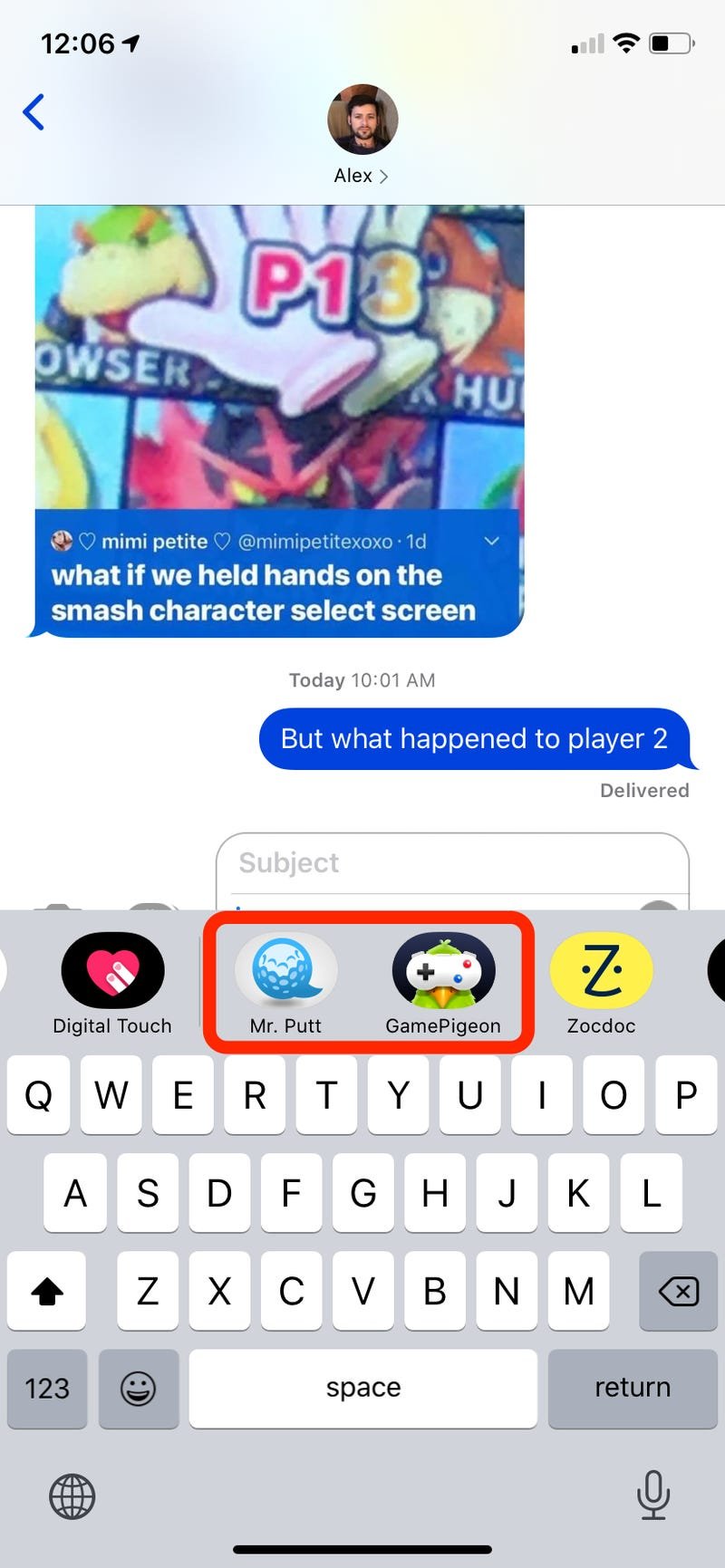
To start an iMessage game, open a conversation, tap the App Store icon, and then choose a game from the selection.
Ever found yourself with a few minutes to kill and a friend to chat with? iMessage games are the perfect way to break the monotony. But how do you start an iMessage game, exactly? It’s easier than you might think! Let’s explore this simple, yet engaging, feature available right at your fingertips.

How Do You Start an iMessage Game?
So, you want to dive into the fun world of iMessage games? That’s awesome! Playing games with your friends and family right within your text messages is super easy and a fantastic way to stay connected and have some laughs. But where do you even begin? Don’t worry, this guide will walk you through everything you need to know to get those iMessage games started!
What are iMessage Games Anyway?
Before we jump into starting a game, let’s talk a little bit about what iMessage games actually are. These aren’t like the big console or computer games you might be used to. Instead, they are smaller, often simple games that you can play directly within your iMessage conversations. Think of them as little fun surprises tucked inside your text threads. You don’t need to download a separate app for many of them; they’re built right into the iMessage platform, ready to be played!
Why Play iMessage Games?
There are many good reasons to start an iMessage game with your contacts. For one, it’s a super convenient way to hang out with friends even when you’re not physically together. Here are few reasons why you should be playing them:
- Easy Access: You don’t need to download separate apps or visit a website, everything is right within your iMessage app.
- Quick Fun: Games are usually short and sweet, perfect for playing during a break or when you have a few minutes to spare.
- Stay Connected: It’s a great way to interact with friends and family and have some shared experiences.
- Variety of Choice: You’ll find all sorts of games, from simple puzzles to quick arcade games and even social party games.
- Free Entertainment: Most of them don’t cost anything, making them great for budget-friendly fun!
Finding Games Within iMessage
Now let’s get to the good part – how to actually find the games. There are a couple of ways to find them. Let’s look at each.
Using the App Drawer
The most common way is using the App Drawer. It sits right there in your message bar. Here’s a step by step guide:
- Open Messages: Start by opening the Messages app on your iPhone or iPad.
- Select a Chat: Choose a conversation with the person you want to play a game with.
- Find the App Drawer: Look for the “A” icon right next to the text input field. This is your app drawer. Tap it!
- Browse Apps: Scroll through the apps shown in the drawer. You’ll see icons for different iMessage apps, and yes, this is also where game apps live!
- Tap a Game App: When you find a game you like, tap its icon to start it. Some game might not be readily installed on your phone. In this case, tap the app store button right next to the app icon to download it on your device.
From the App Store (iMessage)
If you can’t find the game you’re looking for in the app drawer, you can get to the iMessage app store directly. Here’s how:
- Open the App Drawer: Follow steps 1-3 above to open the app drawer in a message conversation.
- Access the Store: In the bottom left corner, you’ll see a button with four ovals, it will also say ‘Store’. tap this button, this opens the iMessage app store.
- Search for Games: You can browse the store or use the search bar to find specific games.
- Install Games: Once you find a game you like, tap ‘Get’ or the cloud with arrow icon to install it on your device.
Popular iMessage Games to Get You Started
Not sure which games to try? Here are some popular options to get you started!
- Game Pigeon: This is a super popular choice. It actually contains many mini games inside like 8-ball pool, chess, mini golf, word games, and much more.
- Words with Friends: A classic word game where you try to create high-scoring words.
- Yahtzee with Buddies: A fun dice rolling game where you score points based on combinations.
- Truth or Dare: A party game that lets you challenge your friends.
- Cobi Hoops: A simple game to pass the time when you are bored, in this game you try to score as many hoops as you can.
- Checkers: A classic strategy board game that is perfect for competing against friends.
These games offer something for everyone. Most of the games are free, however you might need to pay to access in-app items. Try a few and see which ones you and your friends enjoy the most!
Starting the Game
Okay, you’ve found a game you want to play, now the real fun begins! Starting a game varies slightly depending on the app, but here’s a general idea:
Simple, Single-Player Games
These games are often the easiest to start. When you tap a game, it might automatically start or give you a simple start option. You would start by playing a game and sending your results to your friend for them to try and beat it.
Multiplayer Games
For games that you play with a friend, you would usually have the option to start a new game with the person you are in the chat with. Look for buttons like “New Game,” “Start Match,” or something similar. Once you select this, an invite will be sent to your friend to join the game. They will tap on the notification in their chat to join the game and start playing. In many of the multiplayer games, the game will take turns and you’ll receive notification as to when your turn is up.
Navigating Game Settings
Many games will have some settings you can tweak to your liking. These can include things like selecting different game modes, choosing difficulty levels, or even customizing your game piece. Check the game’s menu or setting options to see what is available.
Tips for a Great iMessage Gaming Experience
To make sure you have the best time playing games on iMessage, here are some handy tips:
- Check for Updates: Games are constantly updated with new features or bug fixes. Make sure you keep your game apps up to date for the best experience.
- Battery Check: Playing games can drain battery faster, so keep an eye on it, especially if you’re out and about.
- Network Connection: Some games might need a stable internet connection to work smoothly. Check your connection if you’re having issues.
- Be Patient: If a game isn’t loading, give it a little bit. Sometimes things take a second or two to work properly.
- Don’t Be Afraid to Try New Games: There are tons of games out there, so don’t just stick to the same old ones. Be adventurous!
- Communicate with your Friend: Chat with your friend about which games you want to play and if you are having any problems with the game.
- Be a Good Sport: Remember, the point is to have fun! It’s just a game, so try to keep things friendly and light-hearted.
Troubleshooting Common Issues
Sometimes, you might run into a problem while trying to start or play a game. Here are some common issues and how to deal with them.
Game Not Loading
If a game isn’t loading, try these steps:
- Check Your Network: Ensure you have a stable internet connection (Wi-Fi or cellular).
- Close and Reopen: Close the Messages app and then reopen it. Try launching the game again.
- Restart Your Device: If closing and reopening doesn’t work, restart your iPhone or iPad.
- Update iOS: Sometimes outdated software can cause issues. Make sure your iOS is updated to the latest version.
Game Crashing
If the game keeps crashing, here’s what you can do:
- Update the Game: Make sure the game app is updated to the latest version.
- Free Up Space: Sometimes a lack of storage space can cause crashes. Delete any unnecessary files or apps to free up space.
- Reinstall the Game: Try uninstalling the game and then reinstalling it from the app store.
- Contact Support: If the problem persists, contact the game developers for help or check their website for troubleshooting tips.
Game Not Showing in App Drawer
If you can’t find a game in your App Drawer, follow these steps:
- Verify it’s Installed: Make sure the game app is actually installed on your phone.
- Check App Drawer Settings: Go to the Messages app settings and make sure the app you want is enabled in the app drawer.
- Restart the Phone: Sometimes, simply restarting your phone can refresh the app drawer list.
The Social Aspect of iMessage Games
iMessage games aren’t just about winning. They’re also about connecting with people. Playing these games is a fun way to have a laugh, share some friendly competition, and spend some time with your friends and family. They are small moments of joy that can brighten your day and help you build stronger relationships.
Now that you’re armed with all this knowledge, it’s time to grab your phone, choose a game, and start having some fun! It’s a fantastic way to pass the time, share some laughs, and build bonds with your loved ones.
How To Play Games On iMessage!
Final Thoughts
To begin an iMessage game, you must first open an existing conversation or start a new one with your contact. Then, tap the “App Store” icon located next to the text input field.
After finding a game that you like, simply tap the “Get” button to install it. Once installed, select the game from the app drawer and follow the on-screen instructions to initiate it. That’s it! Now you know how do you start an iMessage game.

