
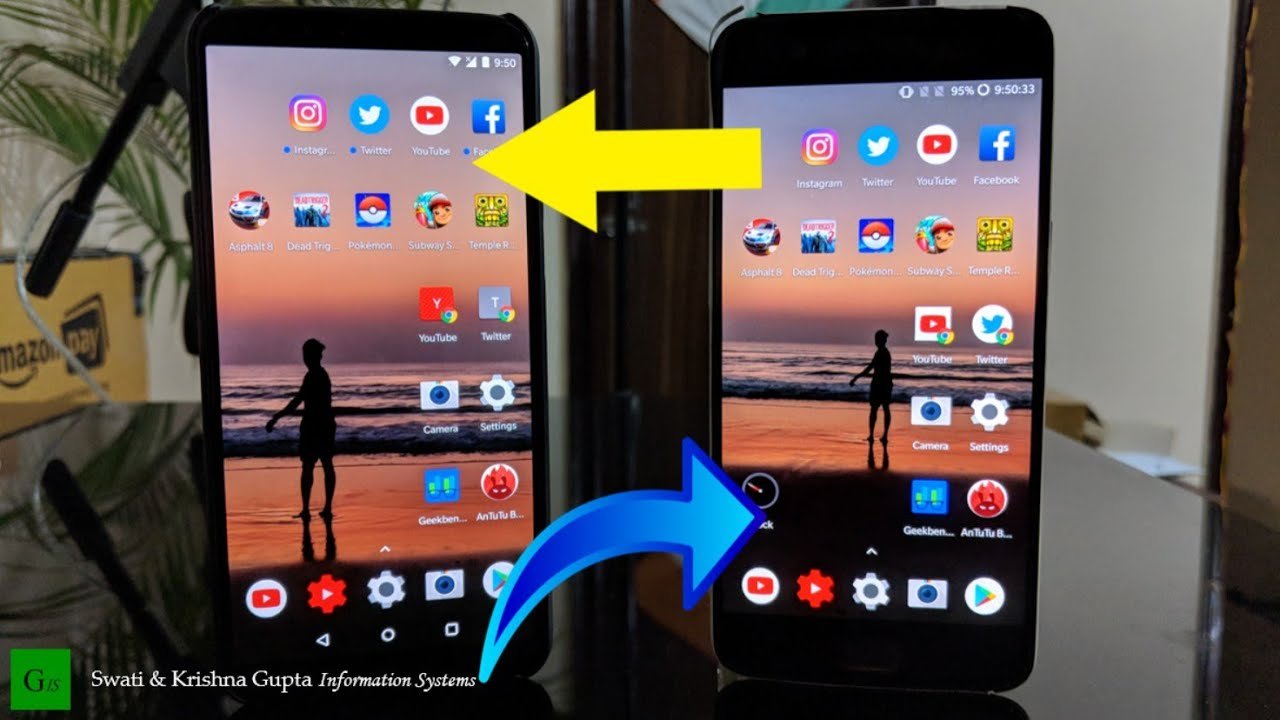
Transferring games between phones often involves using cloud saves, specific game transfer features, or third-party apps that handle game data migration.
Frustration kicks in when you get a new phone, but all your favorite games are stuck on the old one. It begs the question, how do you transfer games from one phone to another? This seemingly simple task can feel complex if you are not aware of the available options.
Thankfully, there are solutions for various types of games and devices. You may need to use cloud saves which are often linked to your gaming account. Also, some games have built in transfer tools and you can find third party apps. Let’s explore these methods in more detail.

How Do You Transfer Games From One Phone to Another?
So, you got a shiny new phone! That’s awesome! But now you’re probably thinking, “How do I get all my cool games onto this thing?” Don’t worry, it’s a common question, and it’s not as tricky as it might seem. Moving your game progress and the games themselves from one phone to another can be done in a few ways, depending on what kind of games you have and what kind of phones we’re talking about. We’ll cover everything you need to know to make this process smooth and easy.
Understanding Game Transfers: The Basics
Before we jump into the ‘how-to’, let’s talk about what we’re actually trying to do when we move games. Games aren’t just simple apps; they often come with saved data, your progress in the game, high scores, character customizations, and other important stuff. You don’t want to start from level one again, right? So, we need to find ways to move both the game app itself and all that extra data. Here’s a quick look at why this can be a bit more complex than just moving a picture or a document:
- Game Data Location: Game data can be stored in different places. It might be saved locally on your phone, or it might be stored in the game developer’s cloud servers.
- Cloud Saves: Many modern games use cloud saving, which makes it much easier to transfer progress because it’s not tied to your specific device.
- Different Operating Systems: Moving from an Android phone to an iPhone (or vice-versa) can add some complexity because they’re using different systems and architectures.
- Game-Specific Methods: Some games have their own built-in methods for transferring progress, which you might need to use in addition to other methods.
Methods for Transferring Games: A Detailed Look
Now, let’s get to the good stuff. Here are several methods you can use to transfer your games. We will talk about each one in detail, so that you can understand the full scope.
Using Google Play Games for Android
If you’re transferring from one Android phone to another and your games support it, the Google Play Games app is your best friend. It keeps track of your game achievements, scores, and – most importantly – your game saves. Here’s how it works:
- Make sure Google Play Games is up-to-date: Go to the Play Store on both your old and new phones, search for “Google Play Games,” and update it if needed.
- Enable Cloud Saves: Open the Google Play Games app on your old phone and go to Settings. Look for a setting related to ‘Automatic sign-in’ or ‘Use Play Games to sign in’. Make sure this is turned on. Do this for every game which you want to transfer.
- Check Game Settings: Open the games that you want to transfer. Look within the game settings for options related to linking your game with Google Play. Enable this, if it is available. Some games will do this automatically, but it’s always good to double check.
- Install the Games on Your New Phone: Go to the Play Store on your new phone and download the games. Make sure you sign in with the same Google account that you used on your old phone.
- Launch the Games: Once you launch a game on your new phone, if everything is set up correctly, the game should automatically retrieve your progress from the cloud. You will usually see a message stating, “Syncing data from Google Play” or similar message.
Why This Method is Good:
- It’s seamless for compatible games.
- You don’t have to worry about manually moving files.
- It’s a built-in feature of Android, so it’s usually reliable.
Things to Keep in Mind:
- Not all Android games use Google Play Games for cloud saves.
- Some games might use their own saving methods, and you will have to check their support information.
Using Game Center for iOS
Just like Google Play Games, Apple has its own game saving service called Game Center. If you’re moving from one iPhone to another, this is likely how your game progress is saved. Here’s how you can make sure the transfer works perfectly:
- Ensure Game Center is Enabled: On both your old and new iPhones, go to Settings, then to Game Center, and ensure it’s turned on. Sign in with the same Apple ID on both devices.
- Check Game Settings: Open the games that you’re wanting to transfer, and look for an option to sign in with Game Center. Make sure that the game is connected to Game Center.
- Install the Games on Your New iPhone: Go to the App Store on your new iPhone and install all of the games you want to move over. Make sure you are using the same Apple ID.
- Launch the Games: Start your games on your new device. If all is well, it should ask you if you wish to resume from previous save state. You’ll typically see a pop-up saying something like “Welcome back! Continue where you left off?”. If not, check if you are connected to the internet.
Why This Method is Great:
- It’s made for Apple devices, so it usually works smoothly.
- It’s easy to turn on, and it works in the background.
- It usually allows game progress to move over with minimal fuss.
Things to Keep in Mind:
- Like Google Play Games, not every iOS game uses Game Center.
- Some games might have their own separate saving systems.
Game-Specific Account Linking
Some games ask you to create an account directly with the game developer. This account can be linked to your game progress and can be very helpful for transfers. Here’s how this works:
- Create or Link an Account: On your old phone, open the game and see if there’s an option to create an account or link an existing account (for example, Facebook, email, or another platform account). If you are already signed-in, just check which account you have used, whether its email, Facebook, google or other account.
- Install the Game on Your New Phone: Download the game from the appropriate app store on your new phone.
- Sign In to Your Account: Launch the game, and sign in using the same account information you used on your old phone.
Why This Method is Helpful:
- It works well for games that don’t use cloud services from the device operating system.
- It’s a reliable backup even if other methods fail.
What to Be Careful Of:
- You have to remember your account credentials.
- You might have to go through the process for each game individually.
Using Phone Backup/Restore Features (Limited for Games)
Both Android and iOS have built-in backup and restore tools which we can use. But here’s the caveat: while they can move some app data, they’re not always perfect for games, especially those with large data files. But they are still worth mentioning and are one way to move some games and their data, depending on the games being used.
Android Backup and Restore
- Back Up Your Old Phone: On your old Android phone, go to Settings, then System, then Backup. Back up to Google Drive. Make sure you select apps data in the backup options.
- Restore on Your New Phone: During the initial setup on your new phone (or in Settings -> System -> Backup), choose to restore from your Google Drive backup.
iOS Backup and Restore
- Back Up Your Old iPhone: On your old iPhone, go to Settings, tap on your name at the top, then iCloud, then iCloud Backup. Make sure it’s on and tap “Back Up Now.” You can also back up through your computer using iTunes or Finder.
- Restore on Your New iPhone: During the initial setup of your new phone, (or in Settings -> General -> Transfer or Reset iPhone) select “Restore from iCloud Backup”, or select the right backup file, if you backed up to your computer.
Why This Can Be Useful:
- It can restore other settings and data along with apps.
- It can save you some time and efforts.
Why It’s Not Always Ideal for Games:
- Many games do not fully backup game progress with this method.
- Large game data may take too long to backup and restore.
- It might not restore all the game data, or the data may be corrupted after the restore.
Using Third-Party Apps and Tools (Use with Caution)
There are many apps and software available for transferring data, including game data. These tools, which you can find in your devices respective stores, claim to be able to transfer all of your data and make the transfer process smoother. While some third-party tools might work for certain games, it’s generally better to stick to the methods above. These third-party apps are not always safe, and you should always proceed with caution. Here are some things to keep in mind:
Why These Can Be Problematic:
- Safety Concerns: Some apps could contain malware, spyware, or unwanted software.
- Data Security: You might be giving sensitive permissions to apps you don’t fully trust.
- Incompatibility: They might not work with all games.
- Reliability Issues: Transfers might not be smooth or successful.
When to Consider These:
- Only if all the other methods have failed, and you are willing to take the risks.
- If you thoroughly vet the software and are sure it’s safe.
- If you are moving very specific data files manually between devices.
Specific Game Solutions: Checking Game Support
Before you try any of the above methods, the best place to start is usually with the game itself. Each game has its own unique data storage and transfer methods. Here’s how to check:
- Look in the Game Settings: Open the game on your old device, and browse through the settings. Look for options like “Account”, “Save,” “Cloud,” or “Transfer”. There are generally tutorials and help menus that can guide you.
- Consult Game Support: Check the game’s website or official forum for support articles related to data transfer.
- Search Online: Look up “How to transfer [Game Name] progress” online, and you may find articles, discussions or videos related to moving the game.
Why Checking Game Support is Always Good:
- You’ll get the most accurate information.
- You can avoid data loss due to incorrect methods.
Tips for a Smooth Transfer
Here are a few extra tips to help make the game transfer process as seamless as possible:
- Check Your Internet Connection: Ensure both your old and new phones have a strong and stable internet connection for the transfers to occur smoothly.
- Charge Your Devices: You don’t want your phone to die in the middle of a transfer. Keep your phones fully charged.
- Sign in to Same Accounts: Make sure you are using the same Google or Apple account. If the game uses another method, make sure you use the same details.
- Patience is Key: Transfers can take some time. Don’t rush or interrupt the process.
- Double-Check Everything: After the transfer, double-check your saved games and make sure everything is as you expected.
Moving Games Between Different Systems (Android to iOS, or vice-versa)
Transferring games between Android and iOS is more complex because of their differences. You can’t just copy and paste, and here’s why:
- Different App Stores: Apps are built differently for iOS and Android. This means that the app files are not interchangeable.
- Cloud Saving Systems: While many games have cross-platform cloud save compatibility, this is not always the case. Game Center and Google Play Games don’t always sync with each other.
Here’s what you can do:
- Check for Cross-Platform Cloud Saves: The game’s settings, or their support info will tell you if cross platform cloud saves are available.
- Use Game-Specific Accounts: if the game has its own account linking system (mentioned earlier), it might work between systems.
What Usually Doesn’t Work:
- Direct file transfers, or copying game data from one device to another with a computer.
- Standard backup and restore functions from Android to iOS (or vice versa).
Moving your games to a new phone doesn’t have to be a headache. By understanding how your games save data and using the correct transfer methods, you can keep playing right where you left off. Always start by checking your game’s support information. If that doesn’t work, follow the methods above, in order of simplicity and reliability. And always be careful with using third-party transfer tools, especially if they have a very high number of poor reviews.
Enjoy your new phone and happy gaming!
How To Manually Transfer A single App from one Android Phone To Another
Final Thoughts
Transferring games between phones involves cloud saves or using dedicated apps. Cloud saves, a must, sync your progress across devices if the game supports it. Some games need a backup to an external source first before the transfer.
You can also use third-party file transfer apps to move game data, but be cautious of permissions. The exact method varies by game and phone type. So, how do you transfer games from one phone to another depends on your specific scenario.

