
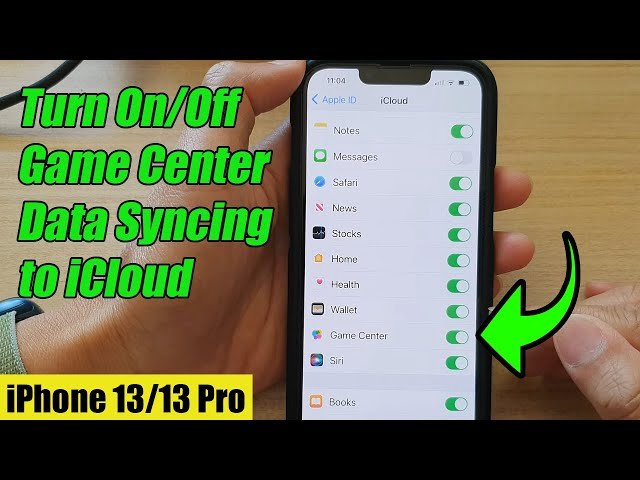
To turn off Game Center, go to Settings, tap on Game Center, and toggle the Game Center switch to the off position.
Annoying notifications and unwanted game invites can really interrupt your focus, right? Sometimes you just want to enjoy your phone without constant interruptions from your gaming activity. That’s why understanding how to do things like how do you turn off game center is quite important.
It’s a simple process, fortunately. This way you can enjoy a quiet period when needed. Let’s dive in and get your phone working how you want.

How Do You Turn Off Game Center?
Game Center is Apple’s social gaming network. It allows you to play games with your friends, track your scores, and see what games others are enjoying. While many people find it fun, sometimes you might prefer to keep your gaming private or avoid notifications. Turning off Game Center can be a useful step, whether you’re trying to save battery, reduce distractions, or simply want a cleaner gaming experience on your Apple device. Let’s explore how you can do this on your iPhone, iPad, and Mac. Remember, turning off Game Center doesn’t delete your game data; it just stops the service from actively running.
Turning off Game Center on iPhone and iPad
The process for turning off Game Center is very similar on both iPhone and iPad. Both devices use the same operating system, so the steps are nearly identical. Let’s go through it step by step.
Accessing the Settings App
First, you’ll need to open the Settings app. It looks like a gray gear icon. Find it on your home screen or in your app library and tap it to open it.
Navigating to Game Center Settings
Once you’re in the Settings app, scroll down until you find “Game Center.” It’s usually located in the list of Apple-related apps, somewhere below “Passwords” and above “Privacy & Security”. Tap on “Game Center” to access its settings.
Turning off the Game Center Toggle
Inside the Game Center settings, you’ll see a green toggle switch at the top, right next to “Game Center”. This switch is likely turned on by default. To turn off Game Center, simply tap this switch. It will turn gray, indicating that Game Center is now disabled. This will effectively stop Game Center from actively being used on your device. You won’t receive Game Center notifications, and your gaming activity won’t be shared through the service anymore.
Important Note About Game Data
It’s important to remember that turning off the Game Center toggle does not delete your game progress, scores, or saved data. Your game data is still linked to your Apple ID. Turning Game Center off just prevents its active use. If you later decide to turn it back on, all your progress will be right where you left it.
Turning off Game Center on Mac
The process of turning off Game Center on a Mac is slightly different from how it is on an iPhone or iPad. Instead of a settings panel, you’ll need to go through the System Preferences. Here’s a detailed walkthrough:
Opening System Preferences
Start by clicking the Apple menu in the top left corner of your screen. It’s the little Apple logo. From the menu that appears, click on “System Preferences.” This will open a new window with your Mac’s system settings.
Locating Internet Accounts
In the System Preferences window, find and click on “Internet Accounts.” It’s the icon that looks like a globe with a person icon on it.
Finding the Game Center Account
In the “Internet Accounts” list on the left side of the window, you’ll likely see a list of all the internet accounts you have signed in to. Scroll down to find “Game Center.” Click on the “Game Center” account entry.
Disabling the Game Center Account
On the right side, you’ll see the details for the Game Center account. You’ll notice a checkbox with “Use with Game Center” next to it. To turn off Game Center, you should uncheck this checkbox. This will effectively disable Game Center. When you deselect this checkbox, it essentially disconnects your Apple ID from Game Center on your Mac.
Alternative: Removing the Account (If Needed)
If you prefer to completely remove the Game Center account from your Mac, you can click the minus (-) button in the bottom left corner of the accounts list. Be aware that doing this might impact some of your saved game data that is stored in your Game Center account. If you just want to prevent Game Center from being active, unchecking the “Use with Game Center” box is sufficient and better if you intend to use it in the future. However, removing the account gives an extra layer of privacy by also disconnecting from Game Center completely.
Why Would You Turn off Game Center?
There are several reasons why someone might choose to turn off Game Center. Here are some common ones:
- Privacy: Some people don’t want their gaming activity to be public or shared with other users. They might prefer to keep their scores and game preferences private.
- Notifications: Game Center can send frequent notifications about game invites, friend requests, or high scores. These notifications can be distracting, especially if you’re trying to focus on other things.
- Battery Life: Although Game Center isn’t a major battery drain, it does use some system resources when active. Disabling it could potentially save a tiny bit of battery life if you’re concerned about your battery level.
- Reducing Distractions: If you’re not actively using Game Center, keeping it turned on can create unnecessary clutter in your gaming experience. Turning it off can help declutter your gaming space and allow you to enjoy games without the added social components.
- Personal Choice: Some people simply don’t like social gaming, so they would prefer to keep the function off.
What Happens When You Turn off Game Center?
Understanding the consequences of turning off Game Center is important. Here’s what you can expect:
- No More Notifications: You won’t get notifications about friend requests, game invites, or high scores from Game Center. This can mean fewer interruptions and a more peaceful experience.
- Private Scores: Your game scores and progress won’t be publicly shared through Game Center. However, they still will be stored in the Apple ID you used to log in to the game.
- Limited Multiplayer Access: You might have limited access to multiplayer gaming features for games that primarily rely on Game Center for connecting with other players. Some games may use their own servers to connect with other people, so this depends on each game.
- Reduced App Data Usage: Game Center requires internet connection to sync data and update information. Turning it off can reduce some amount of internet usage.
- Game Progress Still Saved: Your game progress is saved and associated with your Apple ID, not Game Center itself. Turning it off will not delete any of your progress.
Re-enabling Game Center
If you decide you want to use Game Center again after turning it off, it is very easy to turn it back on. The steps are similar to turning it off, but instead, you’ll be switching the toggle to the ON position. Let’s revisit the process.
Re-enabling Game Center on iPhone or iPad
Follow these steps:
- Open the Settings app.
- Scroll down and tap on Game Center.
- Tap the gray toggle switch next to “Game Center.” It should turn green, indicating that it is now on.
Once you’ve completed these steps, Game Center will be active, and you’ll start receiving notifications and social gaming features again.
Re-enabling Game Center on Mac
Follow these steps:
- Click on the Apple menu and choose System Preferences.
- Click on Internet Accounts.
- In the left panel, select Game Center.
- Check the box next to Use with Game Center.
Now you have re-enabled Game Center and you can use all of the social features of Game Center on your Mac.
Troubleshooting
Sometimes, even after you’ve turned off Game Center, you might experience some issues. Let’s look at some common problems and how to tackle them.
Game Center Notifications Still Appearing
If you are still receiving notifications, even after switching Game Center off, make sure to also go to Settings -> Notifications and find the Game Center entry. From here, you can make sure notifications are disabled from Game Center on your device.
Game Data Not Syncing
If you turn Game Center on and your data is not syncing, ensure that both your device and Apple ID are logged in and that you have a stable internet connection. Try logging out and back in to your Apple ID on your device. Sometimes restarting your device can also resolve issues like this.
Multiplayer Features Not Working
If you are encountering issues with multiplayer, verify that you have Game Center enabled for games that need it. Also, make sure you have an active internet connection. It’s also worth checking the specific game’s settings to make sure that Game Center multiplayer mode is enabled within that game. Finally, ensure the game is updated to the most recent version, which might fix multiplayer problems.
Advanced Tips for Managing Game Center
Here are some further tips to help you manage Game Center.
Customizing Game Center Notifications
If you don’t want to completely turn off Game Center but still want to limit distractions, you can customize the notifications you receive. Go to Settings -> Notifications, find Game Center, and then select which type of notifications you want to receive. You can choose to disable all notifications, or you can receive alerts for game invites only, or select what alerts will appear on your lock screen and notification center.
Managing Game Center Friends
Go to Settings -> Game Center. You will be able to see the list of friends that you have on Game Center, where you can add new friends or remove existing ones. This can be a good method to manage your social gaming experience. Removing friends can also make Game Center less active and therefore, reduce the number of notifications that you might receive from it.
Using Screen Time to Limit Game Time
Use Apple’s Screen Time feature to set limits on your overall game playing time. Go to Settings -> Screen Time. Set app limits for specific games. This is a very useful feature that can help you with self control, especially if you want to use games for a limited time only. If you are a parent, you can also use this function to help manage your kids gaming time.
Turning off Game Center can be a simple yet effective step in managing your gaming experience, whether it’s reducing distractions, conserving battery, or just preferring a more private way to play. Remember, the changes are not permanent, and you can always turn it back on when you want. By using these methods, you can tailor your gaming experience to suit your preferences. You now know how to turn Game Center off on your devices. Enjoy!
How To Turn Off Game Center On iPhone (iOS 18)
Final Thoughts
To disable Game Center, you must go into your device’s settings. Then, find the Game Center option. Finally, you can toggle it off.
Alternatively, you can adjust specific settings within Game Center. This lets you control aspects like friend requests or game data sharing. This gives you more control of this function.
In short, how do you turn off game center? Access settings, then Game Center, and toggle it off. This action will stop Game Center’s functionalities.

