
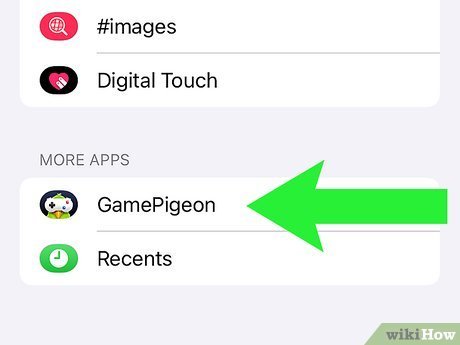
To uninstall Game Pigeon, simply delete the iMessage app from within the Messages app on your iPhone or iPad. Tap and hold the Game Pigeon app icon until it jiggles, then tap the “x” to delete it.
Game Pigeon, that collection of mini-games within iMessage, can be a blast. But what happens when you want to reclaim that space or simply move on? The question then becomes: how do you uninstall Game Pigeon? It’s a pretty straightforward process that will remove the app from your iMessage setup.
Don’t worry, getting rid of it is easy. Just follow the quick steps, and you’ll be Game Pigeon-free in no time, clearing up space for other fun things.

How Do You Uninstall Game Pigeon?
Uninstalling Game Pigeon is straightforward. The process is similar to removing any other iMessage app. We’ll walk you through it step-by-step.
Uninstalling Game Pigeon Directly from iMessage
This method involves removing the app while you’re in the Messages app. It’s usually the quickest way. Let’s get started.
- Open the Messages App: Launch the Messages app on your iPhone or iPad.
- Start a Conversation: Open any existing conversation or start a new one.
- Access the App Drawer: Look for the App Store icon (a blue “A”) next to the text input field and tap it.
- Find the Game Pigeon Icon: Scroll through your iMessage apps until you locate the Game Pigeon icon.
- Edit the App Drawer: Swipe left on the app icons until you see a “More” button (three horizontal dots). Tap it.
- Manage Apps: This will display a list of all your iMessage apps. Locate Game Pigeon in the list.
- Uninstall Game Pigeon: Toggle the switch next to Game Pigeon to the “off” position. This will disable the app. To completely uninstall, tap the “-” button to the left of the Game Pigeon app.
- Confirm Uninstall: A prompt will appear asking if you are sure you want to delete Game Pigeon. Tap “Delete” to confirm.
- Tap “Done”: Tap the “Done” button in the upper right corner to save the changes.
Uninstalling Game Pigeon from the App Store
You can also uninstall Game Pigeon directly from the App Store. This method is useful if you’re already browsing the App Store. Here’s how:
- Open the App Store: Launch the App Store app on your iPhone or iPad.
- Search for Game Pigeon: Tap the “Search” tab at the bottom of the screen and type “Game Pigeon” into the search bar.
- Find Game Pigeon: Locate Game Pigeon in the search results.
- Uninstall the App: If Game Pigeon is installed, you’ll see an “Open” button. Tap and hold on the “Open” button (or the Game Pigeon icon) until a menu appears. Select “Remove App” (or “Delete App”) from the menu.
- Confirm Uninstall: A prompt will appear asking if you want to delete Game Pigeon. Tap “Delete” to confirm.
What Happens After You Uninstall Game Pigeon?
Uninstalling Game Pigeon removes the app from your device. This means you won’t be able to directly access it from within iMessage. Let’s explore what else happens.
- Removed from iMessage App Drawer: The Game Pigeon icon will disappear from your iMessage app drawer.
- Game Data: Generally, your game data is linked to your Game Center account or the Game Pigeon account (if you created one). Uninstalling the app may not immediately erase your game progress.
- Reinstalling the App: If you reinstall Game Pigeon later, your game progress may be restored, provided it was linked to an account. However, some local data may be lost.
- Conversations: Messages containing Game Pigeon games will still be visible in your conversations. However, you won’t be able to play them until you reinstall the app.
Troubleshooting Uninstall Issues
Sometimes, you might encounter issues while trying to uninstall Game Pigeon. Here are some troubleshooting steps.
App Doesn’t Uninstall
If the app doesn’t uninstall, try these steps:
- Restart Your Device: Restarting your iPhone or iPad can often resolve temporary glitches.
- Check Storage: Make sure you have enough free storage space on your device. If your device is full, it might prevent apps from uninstalling.
- Update iOS: Ensure your device is running the latest version of iOS or iPadOS. Outdated software can sometimes cause issues with app management.
- Try Again Later: Sometimes, the App Store might be experiencing temporary issues. Try uninstalling the app again after some time.
App Still Appears in iMessage
Even after uninstalling, the app icon might still linger in the iMessage app drawer. Try these fixes:
- Restart the Messages App: Force quit the Messages app and then reopen it. This can refresh the app drawer.
- Restart Your Device: As mentioned before, restarting your device can often resolve these types of glitches.
- Check App Store Updates: Sometimes, an update to another app can interfere with the iMessage app drawer. Check for any available updates in the App Store and install them.
Managing App Storage and Data
It’s important to manage your app storage effectively. This ensures smooth performance and prevents potential issues. Let’s explore how to do that.
Checking App Storage Usage
You can check how much storage space Game Pigeon (or any app) is using on your device.
- Open Settings: Go to the Settings app on your iPhone or iPad.
- General Settings: Tap on “General”.
- iPhone/iPad Storage: Tap on “iPhone Storage” or “iPad Storage”.
- Find Game Pigeon: Scroll through the list of apps to find Game Pigeon.
- View Storage Details: Tap on Game Pigeon to see how much storage the app itself and its data are using.
Offloading vs. Deleting Apps
iOS offers two options for managing app storage: offloading and deleting.
- Offloading Apps: Offloading an app removes the app itself but keeps its documents and data. This is useful if you want to free up space without losing your progress. You can re-download the app later and your data will be restored.
- Deleting Apps: Deleting an app removes both the app and all of its associated data. This is a more permanent solution for freeing up space.
To offload Game Pigeon (if you choose to do so):
- Navigate to Storage Settings: Follow steps 1-4 above to get to Game Pigeon’s storage details.
- Offload App: Tap on “Offload App”.
- Confirm Offloading: Confirm that you want to offload the app.
Reinstalling Game Pigeon
If you change your mind, reinstalling Game Pigeon is simple. The process is similar to installing any other app.
- Open the App Store: Launch the App Store app on your iPhone or iPad.
- Search for Game Pigeon: Tap the “Search” tab and type “Game Pigeon” into the search bar.
- Find Game Pigeon: Locate Game Pigeon in the search results.
- Install the App: Tap the “Get” button (or the cloud icon if you’ve previously downloaded it) to install the app.
- Authenticate: You may be prompted to enter your Apple ID password or use Face ID/Touch ID to confirm the installation.
Privacy Considerations
When using any app, it’s important to consider privacy implications. This is especially true for apps that integrate with messaging platforms.
- Data Collection: Be aware of the data that Game Pigeon collects. Review the app’s privacy policy to understand what information is being gathered and how it’s being used.
- Permissions: Game Pigeon may request access to certain permissions on your device, such as your contacts or location. Review these permissions and grant them only if necessary.
- Sharing Information: Consider what information you’re sharing within Game Pigeon games. Be mindful of the content you send and who you’re sharing it with.
Alternatives to Game Pigeon
If you’re looking for other ways to play games with friends through iMessage, here are a few alternatives to consider.
- GamePigeon Alternatives: There are other iMessage game apps available that offer similar functionality to Game Pigeon, such as Checkmate! or Pictoword.
- Multiplayer Mobile Games: Many standalone mobile games offer multiplayer modes that allow you to play with friends online.
- Board Game Apps: There are also various digital versions of classic board games that you can play with friends remotely.
Keeping Your Device Secure
Maintaining the security of your iPhone or iPad is crucial. This includes protecting against malware and unauthorized access.
- Update Your Software: Regularly update your iOS or iPadOS to the latest version. These updates often include security patches that protect against vulnerabilities.
- Use a Strong Passcode: Set a strong and unique passcode for your device. Avoid using easily guessable passcodes like “1234” or your birthday.
- Enable Two-Factor Authentication: Enable two-factor authentication for your Apple ID. This adds an extra layer of security to your account.
- Be Cautious of Phishing: Be wary of phishing attempts, which are designed to trick you into revealing your personal information. Avoid clicking on suspicious links or opening attachments from unknown senders.
How to Delete Game Pigeon on iPhone – Uninstall Game Pigeon in iPhone
Final Thoughts
To summarize, uninstalling Game Pigeon involves a few simple steps. You must first access your iMessage apps. Then, locate Game Pigeon and either disable or remove it from your iMessage app drawer.
This effectively removes the app from your iMessage conversations. Keep in mind that these actions do not impact the Game Pigeon account you may have.
Now that you know how to uninstall Game Pigeon, you can manage your iMessage apps with ease.

