
Game updates generally happen automatically through your platform’s store or launcher; you may need to manually initiate them sometimes.
Ever wondered how do you update games on your favorite console or PC? It’s a common question for gamers. Thankfully, the process is usually quite simple and straightforward.
Most games update through the digital store where you purchased them. Usually this occurs in the background with your permission. Sometimes, manual action might be required.

How Do You Update Games?
Ever wondered how your favorite video game gets those cool new features, characters, or fixes for annoying bugs? It’s all thanks to game updates! Updating games is a really important process, kind of like giving your game a checkup and a makeover all at once. Think of it as keeping your toy in tip-top shape so you can have the most fun possible. In this article, we’ll explore all the different ways games get updated, and how you can make sure your games are always ready to play.
Why Do Games Need Updates?
Games, just like everything else, sometimes need a little bit of work. Game developers constantly work hard to improve the game after it is released. Here are some of the main reasons why they push updates out:
Fixing Bugs and Glitches
Imagine playing a game, and suddenly, your character gets stuck inside a wall! That’s a bug, and it happens more often than you think. Game developers test their games a lot, but sometimes, a few sneaky bugs slip through. Updates are crucial for squashing these pesky problems, making sure your game runs smoothly, and that you are not going to lose your game progress. When the bugs are fixed, it gives you a smoother gaming experience.
Adding New Content
Who doesn’t love new stuff? Game updates often come packed with exciting additions like:
- New Characters: Meet awesome new heroes or villains.
- New Levels or Maps: Explore different parts of the game’s world.
- New Items: Find cool tools, weapons, or clothes.
- New Game Modes: Try playing the game in a fresh, different way.
- Seasonal Events: Celebrate holidays with in-game activities and rewards.
This new content keeps the game fresh and exciting, so you won’t get bored of playing the same old thing again and again.
Improving Performance
Sometimes, games might not run as fast or smoothly as they should. This can cause annoying lag, which makes the game hard to play. Updates can help the game run better on your devices by optimizing it, making the game quicker and more responsive.
Balancing Gameplay
Game developers also try to make sure that the game is fair for everyone. If one character is too strong or one weapon is too powerful, it could spoil the fun for everyone. Updates can balance the game, making it more fun and challenging for all players. This can involve tweaks to character attributes, changes in item power, and other adjustments to the game’s mechanics.
Enhancing the User Experience
Game updates aren’t just about adding new things and fixing problems. They can also improve the way players interact with the game. This includes things like:
- Making menus easier to navigate.
- Improving tutorials.
- Changing the way players access information in the game.
These kinds of improvements can make the game more accessible and comfortable to play.
How Do Game Updates Work?
Game updates work a bit differently depending on the type of game and the platform you’re using. Here are some common ways updates are delivered:
Automatic Updates
Many game platforms use automatic updates. This is by far the easiest way to keep your games up-to-date. Here’s how automatic updates usually work:
- Background Downloads: When your device is connected to the internet, the game platform will check if updates are available. If they are, it will start downloading them in the background while you’re not playing the game.
- Install on Launch: Once the download is complete, the update will install when you launch the game. This means the next time you decide to play, the game will have the latest content and fixes.
Automatic updates are great because you don’t have to worry about downloading or installing updates yourself. They happen behind the scenes, letting you jump straight into the game.
Common platforms that often use automatic updates include:
- Steam
- PlayStation Network
- Xbox Live
- Nintendo eShop
- App Store (iOS)
- Google Play Store (Android)
Manual Updates
Sometimes, you might need to update a game manually. This means you have to start the update process yourself. This can happen on older gaming systems or when automatic updates are turned off. Here is how you would manually update a game:
- Check for Updates: You often need to go to the game’s page in your library or store and look for a button that says something like “Check for Updates” or “Download Update”.
- Download: If there is an update available, click on that button. The game will start to download the update.
- Install: After downloading, the game will often install the update, but sometimes, you have to start the install yourself by clicking an ‘install’ button after download is completed.
Although manual updates take a little more effort, they give you more control over when and how your games are updated.
In-Game Updates
Some games, particularly online multiplayer games, handle updates directly within the game itself. When you open the game, it might check for new updates. If there’s a new version, the game will prompt you to update it. This often involves a loading screen while the game downloads and installs any new files. You may sometimes need to restart the game after the in-game update is complete, so that the new update will properly apply. This ensures that everyone on the game servers is using the same version of the game.
Updating Games on Different Platforms
The exact steps for updating games may vary slightly depending on the gaming platform you’re using. Let’s take a look at some popular platforms and their respective update procedures.
Updating Games on PC
On PC, most games are managed through game launchers like Steam, Epic Games Store, or the game’s own launcher. Here’s how it usually works:
- Steam: Steam is one of the biggest PC gaming platforms. To check for updates, go to your library, right-click on a game, and select ‘Properties’. Click on ‘Updates’ to see your settings. In the case of update available, the update will start automatically or give a button to download. In most cases updates are automatically done.
- Epic Games Store: Like Steam, Epic Games Store will automatically download game updates when they are available. You can manage your updates in the settings.
- Game Launchers: Some games use their own custom launchers. These launchers also usually manage updates automatically. When you open the launcher, it will check for updates before the game starts.
It is a good idea to check the settings in your game platform to make sure auto updates are enabled.
Updating Games on PlayStation
PlayStation consoles, whether PS4 or PS5, usually handle updates automatically.
- Automatic Updates: When your PlayStation is connected to the internet, it will download and install game updates automatically.
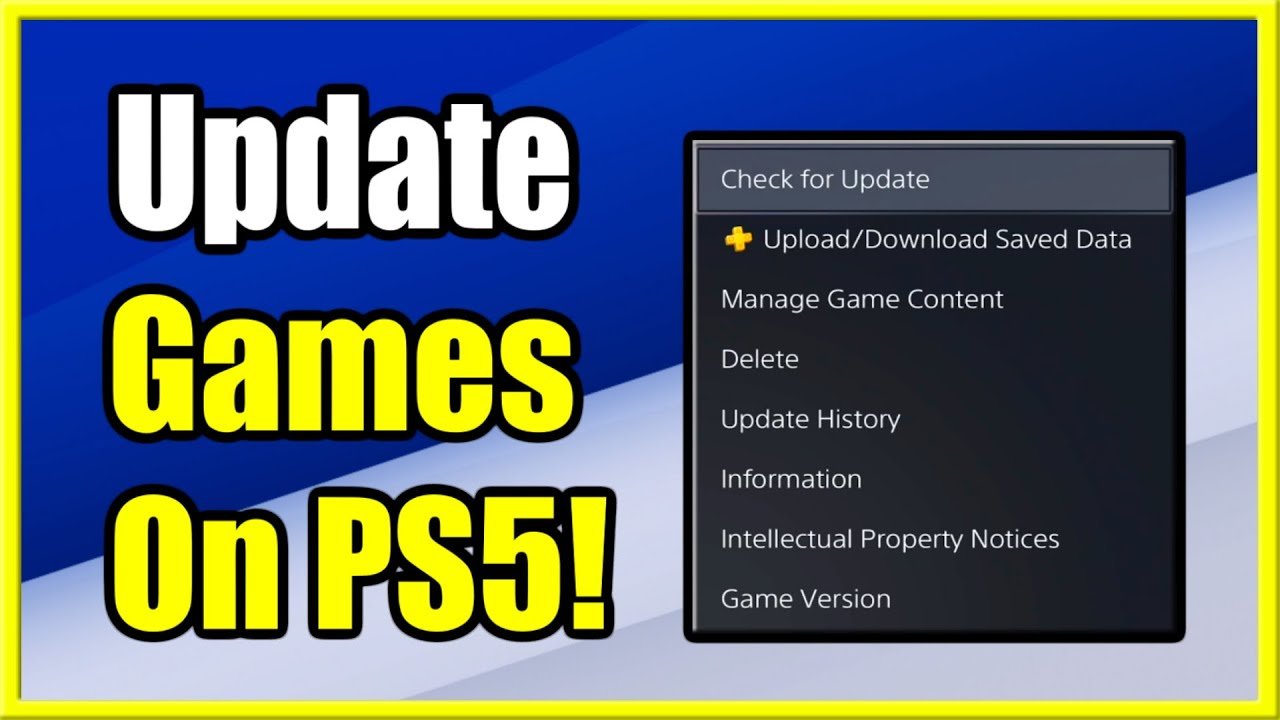
- Manual Check: You can also manually check for updates by going to the game’s icon on your home screen. Press the “Options” button on your controller and select “Check for Update”. If the update is available, it will start downloading.
- Background Downloads: PlayStation consoles often download updates in the background while the system is idle. This is a very handy function, so that you don’t have to wait very long to play the game.
Updating Games on Xbox
Xbox consoles use a similar system to PlayStation for game updates:
- Automatic Updates: Your Xbox will typically download updates when your console is on or in standby mode.
- Manual Check: You can check for game updates manually by going to “My games & apps” and selecting the game. Press the menu button on your controller and choose “Manage game & add-ons”. You can then see if there’s an update available.
Updating Games on Nintendo Switch
The Nintendo Switch has slightly different update methods:
- Automatic Updates: Games will usually update automatically if your console is connected to the internet and you have auto updates enabled in the settings.
- Manual Check: To manually check for updates, select the game icon on your home screen, press the “+” or “-” button on your controller, and select “Software Update”. Then select ‘Via Internet’.
Updating Mobile Games
Mobile games on smartphones and tablets are updated through the app stores:
- App Store (iOS): Open the App Store app, tap your profile picture in the upper-right corner, and scroll down to see if any updates are available. Tap ‘Update All’ to get all your app updates.
- Google Play Store (Android): Open the Google Play Store app, tap your profile picture in the upper-right corner, and select “Manage apps & device.” Then, choose ‘Updates available’.
- Automatic Updates: You can also set your phone to download all app updates automatically. This will ensure your games are updated, with no manual input needed.
Tips for Managing Game Updates
Here are some helpful tips to make sure your game updates go smoothly and you are ready to play:
Make Sure You Have Enough Space
Game updates can be quite large, so it’s a good idea to make sure you have enough storage space on your device. If you do not have enough space, you will have to delete some old games, or clear space by deleting old saved video captures of games. This can prevent your game update from stalling or failing.
Stay Connected to the Internet
A stable internet connection is needed to download game updates. If your internet connection is weak or cut off, the game update may fail. If you are playing online, your connection needs to be constant, so that the other players can see you. If you are offline, your game progress will not be seen by others in your game, and you may get disconnected.
Enable Automatic Updates
If you can, enable automatic updates on your gaming platform. This means that you do not need to keep checking manually for updates. This ensures that your games are always up-to-date, without having to put in any extra effort. This is a great way to make sure you don’t miss out on any new content or bug fixes.
Check for Updates Regularly
Even if you have automatic updates enabled, it’s a good habit to check for updates before you start playing. This is a good way to make sure you are getting the latest features or bug fixes.
Restart Your Device
Sometimes, after an update, you may need to restart your device for all changes to properly take effect. A simple restart can resolve some issues and improve the overall performance.
Be Patient
Game updates may take time to download and install. Large updates for big games may take quite a while. It’s not good to turn off your computer or device in the middle of an update. Be patient and let the process complete before you try to launch the game.
Updating games is a necessary part of the gaming experience. Game developers are continually trying to make their games better, and these updates help to improve the games, fix errors, and add new features. Knowing how to update your games and manage your update process will help you to be ready for the next level, or whatever comes next in your game.
How to UPDATE GAMES on your PS4 & Keep them UPDATED (Easy Method)
Final Thoughts
Game updates usually happen automatically on your devices. Consoles and PCs generally download updates when connected to the internet. Mobile games often update through their respective app stores. ‘How do you update games’ effectively? The process is straightforward: ensure a stable internet connection and allow background downloads. This is how to keep your game experiences fresh with bug fixes and new features.

