
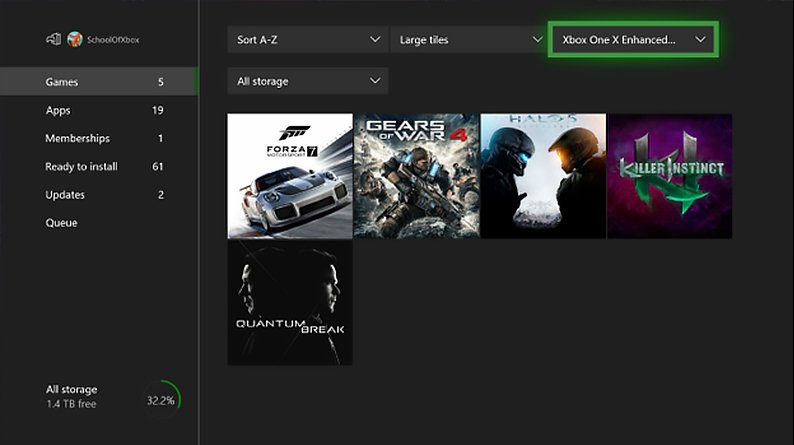
Xbox One games update automatically when your console is connected to the internet. If an update is available, it will download and install in the background.
Ever found yourself ready to jump into your favorite Xbox One game, only to be met with a loading screen? A common question is how do you update Xbox One games, and the good news is, the process is usually quite hands-off.
Your Xbox One automatically checks for updates when connected to the internet, taking care of the downloads in the background without needing intervention most of the time. This means you can usually start playing without hassle.
If you’ve paused updates or have connection issues, the process is explained simply. You will find the updates in My Games & Apps, then proceed to select the game and view available updates.

How Do You Update Xbox One Games?
Keeping your Xbox One games updated is super important for a bunch of reasons. It’s not just about getting the latest cool stuff, but also making sure your games work right and don’t have any annoying problems. Think of game updates like check-ups for your favorite characters and worlds. These updates help fix glitches, make the game run smoother, and sometimes, they even add new features you might have been waiting for! Let’s explore everything you need to know to keep your games current and in tip-top shape.
Why Are Game Updates Necessary?
Before we dive into the “how,” let’s quickly look at “why.” Game updates are not just a way for game developers to keep you spending money; they are actually essential for a good gaming experience. Here’s a simple breakdown:
- Bug Fixes: Sometimes games have little problems, called bugs, that can make the game glitch or crash. Updates fix these issues.
- Performance Improvements: Updates can make the game run faster and smoother. This means less lag and a more enjoyable experience.
- New Content: Developers often add new levels, characters, items, and features through updates. It’s like getting a brand new toy with your game!
- Balancing Changes: Sometimes, game characters or items might be too powerful or too weak. Updates help to make the game fair for everyone.
- Security Patches: These updates protect your game and your console from potential security issues.
Automatic Game Updates on Xbox One
The Xbox One is designed to make updating your games as easy as possible. The good news is that, most of the time, your games will update automatically. This happens when your console is connected to the internet and is on or in Instant-On mode. Let’s take a look at how to make sure the Automatic updates feature is active.
Checking and Enabling Automatic Updates
Here’s a step-by-step guide to make sure your Xbox One is set up for automatic updates:
- Turn on your Xbox One. Use your controller to turn on your console.
- Go to the Settings Menu: Press the Xbox button on your controller. This will open the guide menu. Then, go to the right and select “Settings”. It is the gear icon.
- Select System: Inside the settings menu, find and choose the “System” option.
- Choose Updates & Downloads: Within the System options, you will see “Updates & downloads” option. Click on that.
- Enable Automatic Updates: Inside, you will see different update settings. To automatically update the game, enable “Keep my console up to date”. Also, ensure that “Keep my games & apps up to date” is also enabled. If the boxes have checks next to them, it means that they are enabled.
When these options are enabled, your Xbox One will check for game and system updates whenever it is connected to the internet and turned on or in Instant-On mode. It will download and install updates while your console is not being actively used, so you won’t have to wait for updates when you want to play.
The Instant-On Power Mode
The Instant-On power mode is really helpful for automatic updates. Here’s why:
- Downloads while “Off”: When your console is in Instant-On mode, it is actually in a low-power sleep state and will continue to download updates in the background.
- Ready to Play Faster: Games and apps will usually be updated before you want to play, so you can jump right into the action when you’re ready.
- How to Enable Instant-On: To make sure your Xbox One is in Instant-On, you have to follow these steps: go to the “System” and then “Power & startup” option, then you have to choose the “Power mode” option. Here you can select “Instant-On” mode.
Manual Game Updates on Xbox One
Sometimes, you might want to manually check for updates yourself. This is useful if you know a new update has been released, but your console hasn’t installed it yet, or you may have turned off automatic updates. Here’s how to manually check for game updates:
Steps to Manually Update Games
- Go to My Games & Apps: Press the Xbox button on your controller to open the guide, then go to the “My games & apps” section.
- Select the Game: Find the game you want to update and highlight it. Don’t select the game to start playing; simply choose the game’s tile.
- Press the Menu Button: Press the Menu button on your controller (it’s the one with three horizontal lines). This will open a context menu with different options.
- Manage game & add-ons: In this menu, you’ll see the option called “Manage game & add-ons.” Select it.
- Select Updates: On the left side of the screen, find the option called “Updates”. Click on that.
- Check for Updates: If any updates are available, the system will start downloading it. If there are no pending updates, it will indicate that.
- Wait for the Download: If an update starts downloading, wait until it finishes before trying to play the game. The download progress will be displayed on the screen.
Once the download and installation are complete, your game will be updated to the latest version. You can then start playing your updated game.
Troubleshooting Manual Updates
Sometimes, even when you manually check for updates, you might not see any available updates. Here are some reasons and fixes to consider:
- Check Internet Connection: Make sure your Xbox One is connected to the internet. You can test your connection in the network settings.
- Xbox Live Server Issues: Sometimes, Xbox Live servers might be having issues, which can cause update problems. Check the Xbox Live status page for any reported problems.
- Restart Your Console: A simple restart can sometimes fix update issues. You can restart your Xbox One by holding down the Xbox button on the console and choosing “Restart console.”
- Clear Local Saved Games: In some cases, problems with local saved games can interfere with updates. Try clearing your local saved games. To do this, go to “System,” then “Storage,” then choose “Clear local saved games.” This will not delete your saved games in the cloud, so it’s safe to do.
- Console Update: If your console has an update pending, some game updates may not install until the console itself is updated. Check for console updates in the “System” > “Updates & Downloads” menu.
By checking these things, you can usually solve most problems with manual updates.
Understanding Game Update Sizes
Game updates can vary a lot in size. Some might be small, just a few megabytes, while others could be several gigabytes. Here’s why and what to expect:
Factors That Affect Update Size
- New Content: Updates that include new levels, characters, or items will be larger than those that only fix bugs.
- Quality Improvements: Major updates that improve game graphics or performance tend to be larger in size.
- How much was changed: If the developers make big changes in the game, then the update file will be large.
Managing Large Game Updates
Large updates can take a while to download, especially if you have a slow internet connection. Here’s how to manage them:
- Download Overnight: It’s a good idea to leave your Xbox One on (or in Instant-On mode) overnight to download big updates.
- Pause and Resume: If you need to use your internet for something else, you can pause a download and resume it later. You can do this by going to “My games & apps,” choosing the game that is updating, and then using the menu button, you can choose to pause and later resume.
- Plan Ahead: Check if there are any upcoming game updates. If you are aware of a big update coming, then you can be prepared beforehand.
- Check your internet speed: A slow internet speed will result in the delay in the download. Make sure you have good and reliable internet connection.
What Happens if Updates Fail?
Sometimes, things don’t go as planned and a game update might fail. This can be frustrating, but there are ways to fix it. Let’s discuss some reasons why updates can fail and how to fix them.
Common Reasons for Update Failures
- Internet Connection Problems: A lost connection or unstable internet can interrupt the download.
- Not Enough Storage Space: If your Xbox One’s hard drive is full, it can’t download the update.
- Corrupted Files: Sometimes, game files can get corrupted, and that prevents updates from being properly installed.
- Xbox Live Issues: As mentioned earlier, server problems on Xbox Live can also stop updates.
Steps to Fix Update Failures
If you’re having trouble updating a game, try these steps:
- Check Internet Connection: Make sure your console is properly connected to the internet. You can test this in your console’s network settings.
- Free Up Storage: If your hard drive is full, delete some games or apps to make space.
- Restart Your Console: Restarting the console can often fix minor issues. Press the Xbox button on your console and choose to restart.
- Clear Persistent Storage: Sometimes clearing your console’s persistent storage can fix the problems. To do this, go to “System,” “Settings,” then “Disc & Blu-ray,” and select “Persistent Storage.” Then choose to clear it.
- Uninstall and Reinstall the Game: If all else fails, you can try uninstalling the game and then reinstalling it. This will download the latest version with all of the updates.
- Contact Xbox Support: If none of these solutions work, then reach out to the Microsoft support team. They can provide additional guidance.
Game Updates While Offline
If you don’t have a stable internet connection or you plan to be offline, there are a few things you should know about game updates:
Playing Games Offline
- Updates Required for Play: Some games may require you to install the latest update before playing. This ensures that you have the most recent version and prevent you from running into bugs.
- No Auto-Updates Offline: You can’t automatically download game updates without internet connection.
- Play Without Updates: Many games will still allow you to play offline, but you may be missing new content and bug fixes.
Updating Games With No Internet
If you need to update games but don’t have a home internet connection, you can use these methods:
- Mobile Hotspot: You can use your mobile phone’s internet to create a hotspot. Make sure your mobile data is sufficient for downloading the game updates.
- Friend’s Internet: You can connect to a friend’s internet and download the updates.
- Public Wi-Fi: You can use public wifi to download the updates.
Keep in mind that these methods can be slower and may have data limits. So you should use them carefully.
Tips for Smooth Game Updates
Here are a few tips to help make the game update process smoother and easier:
Best Practices for Game Updates
- Enable Automatic Updates: To make things easy, keep the automatic updates feature turned on.
- Use Instant-On Mode: Enabling Instant-On mode helps updates to happen in the background.
- Check Your Storage: Make sure that you have enough space on your hard drive. You don’t want any problems during the download.
- Stay Informed: Follow the social media pages of the games you play. Developers usually post the information about the new updates on these channels.
- Close Unnecessary Apps: Closing other open apps can help free up resources and ensure the updates complete faster.
Keeping your Xbox One games up to date might seem like a small thing, but it plays a big part in enjoying your gaming experience. Whether you are relying on automatic updates or doing it manually, understanding the process can help you avoid headaches and stay engaged in the game world. By following the tips and guidelines, you can ensure that your favorite games always run their best and you’ll be ready for any new adventure.
How to Auto Update Games & Apps on Xbox One (Easy Tutorial)
Final Thoughts
Xbox One games update automatically when your console is connected to the internet. It checks for available updates regularly. You can also manually start updates in the ‘My games & apps’ section.
Simply select the game, press the menu button, and choose ‘Manage game & add-ons’. Then go to ‘Updates’. If an update is available, you must select to download it.
So, how do you update Xbox One games? It’s mostly automatic. But using the manage game option gives you manual control. This simple process keeps your gaming experience current.

