
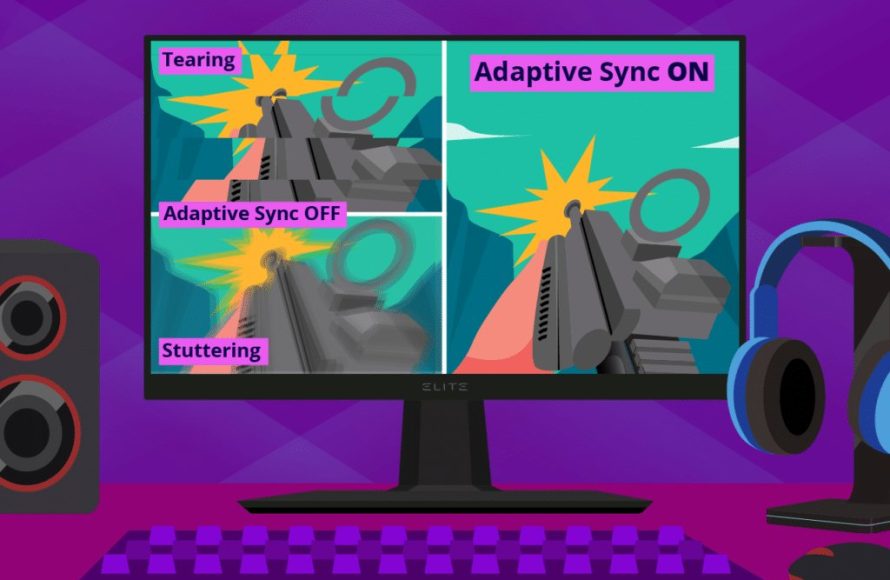
Games feel noticeably smoother with adaptive sync on, often eliminating screen tearing and reducing stuttering, leading to a more fluid and enjoyable experience.
Have you ever wondered how much smoother do games feel with adaptive sync on? The difference can be quite significant, moving from distracting visual artifacts to a beautifully consistent picture. It really is a night and day difference for some games and systems.
Adaptive sync technology works to match your monitor’s refresh rate to your graphics card’s output. This synchronization prevents tearing, which is a visible line that occurs when frames are out of sync. Additionally, it reduces the incidence of stutter, where frames appear unevenly paced.

How Much Smoother Do Games Feel With Adaptive Sync On?
Have you ever played a game where the picture seems to tear apart, or where things look jerky and uneven? That’s likely due to something called screen tearing, and it can really take you out of the gaming experience. Thankfully, there’s a cool technology called adaptive sync that can help make games feel much, much smoother. Let’s dive into how this works and just how big of a difference it makes.
Understanding Screen Tearing
Before we get into how adaptive sync fixes things, let’s talk about what causes that annoying screen tearing. Imagine your computer is drawing pictures really fast – these pictures are called frames. Your monitor is showing these frames at a specific rate, measured in Hertz (Hz). So, a 60Hz monitor displays 60 pictures every second.
Problems arise when the computer sends frames at a different rate than your monitor is refreshing. Sometimes, your computer might be sending frames faster, sometimes slower. This mismatch can cause the monitor to try to show parts of two different frames at the same time. The result? A visible line across your screen, making it look like the picture is split or torn. This is screen tearing, and it’s not good.
The Vicious Cycle of V-Sync
Years ago, gamers used a setting called Vertical Sync, or V-Sync, to try and fix this. V-Sync works by making your computer wait until the monitor is ready before sending a new frame. This prevents screen tearing. But, V-Sync has its own problems. If your computer can’t keep up and doesn’t generate enough frames for your monitor, then V-Sync will force the monitor to repeat the last frame it showed. This causes a stuttering effect, meaning the game will feel jumpy. It’s like trying to watch a smooth movie that keeps freezing and restarting.
Adaptive Sync: The Game Changer
Now, here comes adaptive sync to the rescue. Adaptive sync technology, like AMD FreeSync and NVIDIA G-Sync, works in a much smarter way than V-Sync. Instead of making your computer wait for the monitor, it allows your monitor to dynamically adjust its refresh rate to match the frame rate coming from your computer.
Think of it like this: imagine two dancers trying to keep in sync. One is the computer sending frames, and the other is the monitor displaying them. With V-Sync, the computer has to stop and wait or dance slowly, but with adaptive sync, the monitor dances exactly to the beat of the computer, no matter how fast or slow that might be. This close synchronization eliminates screen tearing and also helps to minimize stuttering, leading to a much smoother gaming experience.
How Adaptive Sync Works its Magic
Let’s break down how this magic works. Adaptive sync relies on a special communication pathway between your computer’s graphics card and your monitor. The graphics card tells the monitor how fast it’s producing frames, and the monitor adjusts its refresh rate to match. This happens in real-time, so the monitor is always in perfect sync with the computer’s output. This leads to a very fluid and responsive gameplay. Here’s what happens in the process:
- The graphics card sends frame data to the monitor.
- The monitor detects the frame rate from the graphics card.
- The monitor adjusts its refresh rate on the fly.
- The result is a tear-free and stutter-free picture.
Key Differences: Adaptive Sync vs. V-Sync
Let’s take a look at the fundamental differences between V-Sync and adaptive sync in a table for clarity.
| Feature | V-Sync | Adaptive Sync |
|---|---|---|
| Screen Tearing Prevention | Prevents tearing by limiting the frame output | Prevents tearing by synchronizing monitor and frame rates |
| Stuttering | Introduces stuttering when frame rates drop below monitor’s refresh rate | Minimizes stuttering by matching monitor’s refresh rate |
| Input Lag | Can increase input lag | Reduces or eliminates input lag |
| Flexibility | Limited by fixed refresh rate | Dynamic refresh rate adjustment, better for frame rate variations |
| Compatibility | Works with virtually all monitors | Requires specific monitor and graphics card support |
The Real-World Impact: Smoother Gameplay
Okay, enough technical details. Let’s talk about what all this means for your actual gaming experience. With adaptive sync on, games simply feel smoother. Here’s why:
- No More Tearing: The most obvious change is the absence of those distracting lines across your screen. The game looks cleaner and more whole.
- Reduced Stuttering: You will not experience as many sudden freezes or hesitations in your games. This makes gameplay feel consistent and more natural.
- More Responsive Controls: With adaptive sync, the game feels more responsive to your input. Actions you take in the game happen more quickly and feel more accurate.
- Better Immersion: When the screen isn’t tearing or stuttering, it’s much easier to get lost in the game. The experience becomes more engaging and less frustrating.
Adaptive Sync Across Different Game Genres
The benefits of adaptive sync are noticeable across various game genres:
- First-Person Shooters (FPS): In fast-paced games, smooth movement and aiming are really important. Adaptive sync allows for a clearer image, which helps you track enemies more effectively and have better responsiveness.
- Racing Games: When you’re speeding down a track, screen tearing can really mess with your perception of speed. Adaptive sync keeps the image smooth and clear, which lets you get much better handling of the vehicles.
- Adventure and RPGs: In these games, you want to get lost in the world. Adaptive sync ensures the experience is enjoyable. Without visual glitches or stuttering you get to enjoy these games much more.
- Strategy Games: Adaptive sync can make camera movements and unit animations look very smooth. This can help make it easier to keep track of all the action on screen.
FreeSync and G-Sync: Understanding the Differences
As we’ve mentioned, there are two main types of adaptive sync technologies: AMD FreeSync and NVIDIA G-Sync. While they both accomplish the same goal, there are a few differences worth noting:
AMD FreeSync
FreeSync is an open standard, meaning monitor manufacturers don’t have to pay extra fees to use it. This has made FreeSync a more affordable option, making it widely available in a variety of monitors. FreeSync works with AMD graphics cards and is typically more budget-friendly.
- Open Standard: This means it’s often cheaper to implement, making FreeSync monitors more affordable.
- Compatibility: Works primarily with AMD graphics cards. However, some FreeSync monitors have been certified by NVIDIA to work with some NVIDIA cards too under the G-Sync Compatible program.
- Versions: FreeSync has several versions, including FreeSync Premium and FreeSync Premium Pro. These offer even better features like low framerate compensation (LFC) and HDR (High Dynamic Range) support.
NVIDIA G-Sync
G-Sync is a proprietary technology from NVIDIA. This means monitor manufacturers need to pay licensing fees to use it. G-Sync monitors often have higher price tag, but they also come with certain features like the “G-Sync Ultimate” designation which ensures excellent performance. G-Sync is generally known for delivering a premium adaptive sync experience.
- Proprietary Technology: Requires a special hardware module in the monitor, increasing costs.
- Compatibility: Primarily for NVIDIA graphics cards, although some FreeSync monitors are ‘G-Sync Compatible.’
- Versions: G-Sync comes in various levels, including “G-Sync” and “G-Sync Ultimate,” with varying performance standards.
Which One Should You Choose?
The choice between FreeSync and G-Sync mostly comes down to the graphics card you own and your budget. If you have an AMD card, FreeSync will generally be a better value. If you have an NVIDIA card, G-Sync might be a good option, but you also have the choice of FreeSync monitors that are certified by NVIDIA. The important thing to remember is that regardless of which technology you choose, adaptive sync is a very big benefit for smoother gameplay.
Is Adaptive Sync Always Needed?
While adaptive sync is great, it’s not always essential for every gaming scenario. If you’re playing less intensive games or games where you’re easily getting very high frame rates, you may not notice a big difference. However, in many cases, it’s a feature that offers a significant improvement. Here are some points to consider:
- Less Impact on High Frame Rates: If your computer is powerful enough to maintain a frame rate that matches or exceeds your monitor’s refresh rate, screen tearing won’t be as noticeable, and the benefit of adaptive sync is lessened.
- Essential for Demanding Games: In demanding games that push your computer’s limits, adaptive sync becomes essential in ensuring smooth and consistent gameplay.
- Benefit Varies: The impact of adaptive sync can vary based on the game, your hardware, and your personal sensitivity to screen tearing.
How to Enable Adaptive Sync
Enabling adaptive sync is usually straightforward, but the steps can vary based on your monitor and graphics card. Here is a general guide for how to enable adaptive sync.
NVIDIA Graphics Cards:
- Right-click on your desktop and select “NVIDIA Control Panel.”
- Navigate to “Display” and select “Set up G-SYNC.”
- Check the box to enable “Enable G-SYNC, G-SYNC Compatible.”
- Apply the settings.
AMD Graphics Cards:
- Right-click on your desktop and select “AMD Radeon Settings.”
- Navigate to “Display” and select your monitor.
- Find the “FreeSync” toggle and turn it on.
- Apply the settings.
Monitor Settings
You may also need to enable adaptive sync on the monitor itself. You can usually find this setting in the monitor’s on-screen display (OSD) menu. Check your monitor’s user manual for exact steps.
So, there you have it. Adaptive sync isn’t just a fancy tech term; it’s a feature that can actually improve the way your games look and feel. It helps you get rid of those pesky visual glitches, so you get a smoother and more enjoyable experience. If you’re a gamer who cares about how your games perform, it is well worth the investment. Whether you go for FreeSync or G-Sync, be sure to enable adaptive sync for noticeably better gameplay.
What is V-SYNC anyway?
Final Thoughts
Adaptive sync greatly reduces screen tearing and stuttering, resulting in a much more fluid visual experience. Games appear significantly more responsive.
The impact is substantial, it’s not a subtle change. How much smoother do games feel with adaptive sync on? The answer is: substantially smoother; the gameplay is a must see improvement.
This technology really enhances visual clarity. You will definitely appreciate the improved consistency during fast-paced action.

