
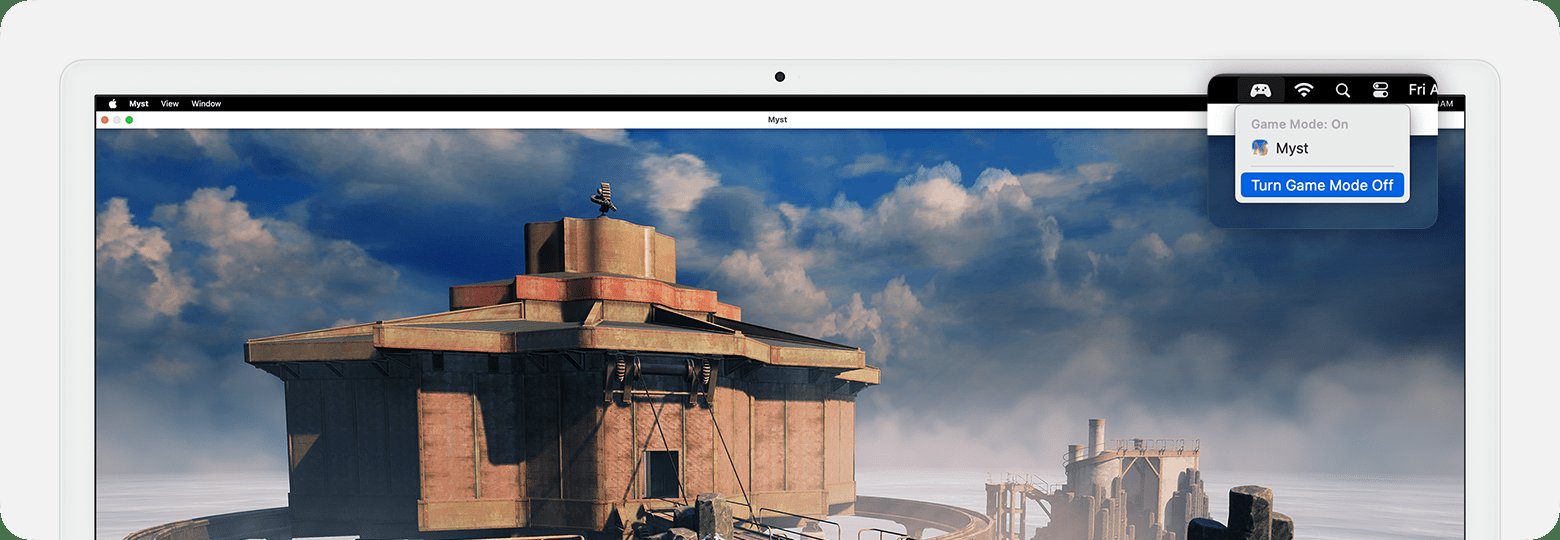
Game Mode on macOS activates automatically when you launch a game. There isn’t a manual switch to turn it on or off.
Are you wondering how to activate game mode macOS to improve your gaming experience? You might be surprised that the system handles this process for you. The feature activates by itself whenever you launch a compatible game.
Apple designed this for seamless integration, meaning you don’t have to fiddle with settings. It intelligently allocates resources to prioritize your game, ensuring optimal performance. So, just launch your game as you normally would.

How to Activate Game Mode macOS
So, you’re ready to take your Mac gaming to the next level? That’s fantastic! macOS has a cool feature called Game Mode that can make your games run smoother and look better. It’s like giving your game a little boost when you need it most. This mode helps your computer focus all its energy on the game you’re playing, instead of getting distracted by other things. Let’s dive in and learn exactly how to activate Game Mode on your Mac.
Understanding Game Mode on macOS
Before we get into the steps, let’s chat a bit about what Game Mode actually does. Imagine your Mac as a very busy person. It’s juggling many tasks at once, like running apps, downloading files, and checking emails. When you play a game, it’s like asking that person to perform a difficult dance while still doing all those other things. Game Mode steps in and says, “Okay, focus on the dance! We’ll take care of everything else later.”
Specifically, here’s how Game Mode helps:
- Prioritizes CPU and GPU: It tells your Mac to give most of its processing power to the game. This means the game runs faster and smoother.
- Reduces Background Activity: It limits other apps from using too many computer resources. This prevents slowdowns and hiccups during gameplay.
- Lowers Latency: It can make your game respond faster to your commands by reducing the delay between your actions and what happens on the screen. This is really important for competitive games!
In short, Game Mode helps your Mac do its very best when you’re playing a game. Now, let’s learn how to turn it on!
Automatic Game Mode Activation
Good news! Most of the time, you don’t even need to manually activate Game Mode. macOS is pretty smart and can usually figure out when you’re playing a game. When you launch a supported game in fullscreen or windowed mode, macOS usually activates Game Mode all by itself.
Here’s how you can tell if it’s working:
- Check the Menu Bar: When Game Mode is active, a small controller icon might appear in the menu bar of your Mac. This is a visual confirmation that macOS is optimizing resources for your gaming session. This icon is usually dark gray in color.
- Performance Improvement: You’ll likely feel the difference in performance right away. The game should run smoother with less stuttering or lagging.
So, most of the time, you just need to launch your game and let macOS handle the rest. It’s pretty easy, right? But what if Game Mode doesn’t activate automatically, or what if you need some additional control?
Manually Activating Game Mode (If Needed)
While automatic activation is the standard, there are instances when you might want to ensure Game Mode is active, or maybe it is not automatically activating for an older game. Here is where manual steps become useful.
Using Game Controller Settings
Sometimes, you can use the settings related to your game controller (if you use one) to help manage Game Mode. Here’s how:
- Connect your Game Controller: Make sure your controller is properly connected to your Mac. You can connect them using a USB cable or Bluetooth.
- Open System Settings: Click on the Apple logo at the top left of your screen, and then select “System Settings”.
- Navigate to Game Controllers: In the System Settings window, find and click on “Game Controllers”.
- Check Controller Options: You might see options related to gaming optimization. Here, you may not be able to directly activate Game Mode, but you can set up your controller and potentially give your Mac the hint that you are about to play a game and encourage Game Mode to activate.
While these settings do not always directly force Game Mode on, they can give your Mac an extra push. This may not be the direct method, but it’s good to review your controller settings in case there are options that can give hints to macOS that you intend to play a game.
Using Third-Party Apps or Utilities
Sometimes, older games or games that are not recognized by macOS might require a helping hand to activate Game Mode. For these scenarios, third party apps or utilities can help.
It’s important to note that using third-party apps to modify system settings can sometimes have unintended consequences, so it’s always a good idea to exercise caution and research any tools you use. Look for apps with good reviews and strong community support.
Example of Third-Party Utility
One example of such utility is “Game Mode Enabler”. It is generally not needed on newer macOS versions but can be useful in specific situations.
Disclaimer: We can’t endorse or guarantee any specific third-party app. Always do your research before using any software not officially from Apple.
- Download and Installation: Download the app or utility of choice from their official website. Always be wary of downloading from unknown sources. Then install them as per the provided instructions.
- Enable Game Mode: If the app has a feature to control Game Mode, use its interface to activate the feature when you run a specific game.
Identifying Games That Benefit from Game Mode
Game Mode is beneficial for a wide array of games, but it might not be equally noticeable in all situations. Here’s a look at the types of games that will benefit the most from the feature:
Games with High Graphics Requirements
Games that demand a lot from your computer’s graphics card will see a bigger difference with Game Mode. This includes:
- AAA Titles: Big-budget, graphically intense games.
- Action and Adventure Games: Games with lots of movement, visual effects, and detailed environments.
- Simulators: Games that simulate real-world activities, often using detailed graphics.
Multiplayer and Competitive Games
In games where quick responses and smooth gameplay matter a lot, Game Mode is especially helpful:
- First-Person Shooters (FPS): Games where you need fast reflexes and precise actions.
- Real-Time Strategy Games (RTS): Games that involve quick decision-making and resource management.
- Esports Titles: Games where you are playing online against other people for competition.
General Gaming Improvements
Even if a game isn’t necessarily high-end, Game Mode can still make it a better experience by generally improving the way it handles performance. You might see reduced lag and smoother framerates, making the game more enjoyable.
Note: If you are playing older or very basic games, Game Mode may not make a huge difference. It’s best suited for more demanding games.
Troubleshooting Common Issues with Game Mode
Sometimes, even with Game Mode, things might not go perfectly. Here are some common problems and how you can try to solve them.
Game Mode Not Activating
If Game Mode isn’t turning on automatically:
- Restart Your Mac: A simple restart can often fix many small software glitches.
- Update macOS: Make sure your macOS is updated to the latest version. Software updates often include improvements for Game Mode.
- Check Game Compatibility: Make sure the game you’re playing is supposed to work with Game Mode. Some very old or independent games might not trigger it automatically.
- Try Windowed or Fullscreen: Sometimes toggling between windowed and fullscreen mode can encourage Game Mode to activate.
Performance Issues Persist
If you’re still having performance problems after Game Mode activates:
- Close Background Apps: Make sure no other big apps are running in the background and consuming system resources. Closing apps like video editing or large file download programs.
- Lower Game Graphics Settings: Even with Game Mode, your computer might struggle if the game’s settings are too high. Try lowering them a bit. Lowering graphic settings like resolution, shadows, textures can help boost performance on almost any machine.
- Check System Resources: Open Activity Monitor (find it in the “Utilities” folder within “Applications”) to see if your CPU, memory, or GPU is being overused. If a particular process is using up too much resources, you can terminate it from this menu.
Controller Issues
If you are using a controller and it’s not working correctly, or if Game Mode seems to be not reacting to controller input:
- Reconnect the Controller: Unplug it from your USB or disconnect Bluetooth, then reconnect it.
- Check Battery Level: If using a wireless controller, ensure it has enough charge.
- Update Controller Drivers: If you are using a third-party controller, check with the manufacturer for latest drivers.
- Test with a Different Game: If you encounter an issue only with a specific game, then the problem might lie in the game itself. Try with other games and check if it’s working.
By addressing these common issues, you can generally get a more positive gaming experience on your Mac.
Advanced Game Mode Features (For Those Who Like to Dig Deeper)
While basic use of Game Mode is generally simple, there are some under-the-hood aspects that some users might find interesting.
Metal API and Game Mode
Apple’s Metal API is very important to the way Game Mode functions. Metal is a low-level graphics API that allows developers to get the maximum performance from a Mac’s graphics hardware. Game Mode is designed to work especially well with Metal-enabled games.
If a game is built using Metal, it can communicate better with Game Mode, enabling more efficient resource management. This usually results in better frame rates and smoother gameplay.
Game Mode and Battery Life
It’s natural to wonder if Game Mode impacts your Mac’s battery life, especially when you’re playing on a MacBook.
Generally, when Game Mode gives more power to your game, it might drain the battery a bit faster than normal, but this depends on the specific game and the graphics settings used. If you are using a very powerful, high-end game at full graphic details, then obviously more energy is being used than if you are doing a less-demanding task, like browsing the web.
When using your Mac with a power source, this is not an issue. However, if you are on the go and playing a long gaming session, then you need to keep this in mind, or you need to lower your graphics settings to save some battery.
Game Mode is a nice addition to macOS, that automatically optimizes your computer for playing games. You don’t have to be a tech expert to make it work, just launch your favorite title, and enjoy the enhanced experience! By understanding its workings, and knowing how to handle any potential problems, you’re all set for a fantastic time gaming on your Mac.
How to Turn On Game Mode on Mac
Final Thoughts
To activate game mode on macOS, simply ensure you have macOS Sonoma or later installed. The feature engages automatically when you launch a game. No manual activation is needed within the settings app.
You will see a game mode notification when it begins. This feature prioritizes system resources. It gives games better performance and lowers latency.
Therefore, how to activate game mode macos is really easy, it activates on its own. Remember, the game you play must be full-screen or in a game window.

