
To add a game to Dolphin, you need to obtain the game’s ISO or other compatible file format and then direct Dolphin to its location using the ‘Open’ option in the software’s file menu.
Want to revisit your favorite GameCube and Wii titles? You can easily enjoy these classics on your PC using the Dolphin emulator. Many people ask how to add a game to dolphin, and the process is quite simple once you get the hang of it.
First, you’ll need the game files themselves, typically in ISO format. Next, open Dolphin and navigate to the ‘File’ menu, choose ‘Open,’ and select the game file. Dolphin will then load and play your game.

How to Add a Game to Dolphin
So, you’ve got Dolphin emulator all set up and ready to go, but now you’re staring at an empty game list, right? Don’t worry, adding games to Dolphin is like adding toys to your toy box – it’s easier than you might think! Let’s walk through the process step-by-step so you can start playing your favorite GameCube and Wii games in no time.
Understanding Game File Formats
Before we get into adding games, it’s important to know what kind of files Dolphin needs. Think of these like different shapes of puzzle pieces. Dolphin doesn’t use regular game discs directly. Instead, it uses digital copies of games called “ROMs” or “ISOs.” These files come in a few main formats:
- ISO (.iso): This is like a perfect copy of the entire game disc. It’s a very common format for GameCube and Wii games.
- GCM (.gcm): This is another common format for GameCube games.
- WBFS (.wbfs): This format is specifically used for Wii games. They tend to be smaller than ISOs because they are compressed.
- NKit (.nkit.iso, .nkit.gcz): NKit is a newer, more efficient format that can compress game files even more. You may encounter these if you are using more advanced game image archives.
Dolphin can handle all of these formats. Usually, you don’t need to worry too much about converting between them, but knowing what you have is important.
Finding Game Files (Legally!)
This is a very important part! You must own the game that you want to play using the Dolphin emulator. Downloading or sharing game files that you don’t own is considered piracy, which is not okay. So, if you want to play a game with Dolphin, it means you must already own a physical copy of the game. You have to make a digital copy of that game from your owned disc. That’s called “dumping.” You can dump your games using your Wii or other hardware, that can read and write from your disc. There are many online tutorials on how to dump your own game discs. We cannot teach you how to download ROMs from the internet because that would violate the copyright law.
Dumping Games: A quick overview
While we cannot provide specific instructions on downloading game ROMs, it’s beneficial to know that there are a few popular ways to make a digital copy of your games. These methods typically involve using your actual Wii console or a computer that is capable of reading the game discs. If you own a Wii and want to copy a game to your SD card or USB drive, there are a number of different homebrew applications that you can download for free. If you own the special disc drive that can read these formats, it’s also possible to use that. For these, there are also tools that you can use to make the copy.
Remember: Only dump games that you personally own. This is the ethical and legal way to enjoy your games on Dolphin.
Adding Game Folders to Dolphin
Alright, now that you have your game files (that you legally obtained, of course!), let’s add them to Dolphin. Dolphin uses a directory system which makes it easy to find and organize your games. Here’s how to do it:
Opening Dolphin Settings
- Start by opening your Dolphin emulator.
- Look for the “Config” button on the top toolbar. It might look like a little gear icon. Click on it.
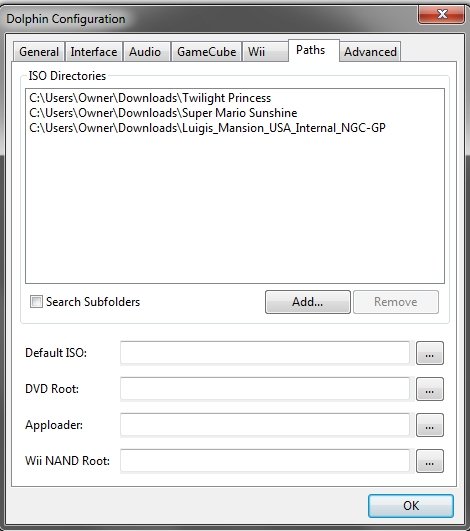
- A new window will open with different options. Click on the “Paths” tab at the top of this window.
Setting Game Directories
- You’ll see a section called “Game Directories”. This is where you tell Dolphin where to find your game files.
- Click on the “Add” button.
- A file explorer window will open. Navigate to the folder where you keep your game files. Choose the folder you want Dolphin to search for games and click on “Select Folder.”
- The folder will appear on the list. You can add multiple folders. Dolphin will scan each of these folders for game files.
- Once you’ve added all of your folders, press the “Close” button.
Dolphin will scan all the folders that you added. You should see your game list populate in the main Dolphin window. If it doesn’t, you can try pressing the refresh button in the main menu of Dolphin.
Dealing with Compressed Game Files
Sometimes, game files come compressed in a special way that makes them take up less space. Dolphin can handle these compressed files without you needing to do anything extra. This is good news because smaller file sizes mean less space used on your computer!
- .zip, .7z, .rar: These are archive formats. Dolphin can usually read the ISO file inside a zip file without the need to extract it. However, sometimes extracting it may help with better reading speed.
- .wbfs: As mentioned before, it’s a Wii-specific compressed format. Dolphin can read these too.
It is always a good idea to keep your games well organized for easier access and quicker load time. Avoid having multiple files in same folder. Each game should be in different folder.
Troubleshooting Common Problems
Sometimes, things don’t go perfectly. Here are a few common problems and how to fix them:
Games Not Showing Up
- Incorrect Folder Path: Double-check that the folder you added to Dolphin is exactly the same folder where your game files are. It’s easy to mix up folders by accident.
- File Format Issues: Make sure your game files are in a format that Dolphin can understand, like ISO, GCM, or WBFS. If the file format is something else, Dolphin will not see them.
- Dolphin Needs to Refresh: Try clicking on the “Refresh” button on the top toolbar of Dolphin or restarting Dolphin.
- Sub-folders: Dolphin might have trouble finding games if they are buried deep inside many sub-folders. Try moving the game files to a more accessible location.
Game Crashes or Runs Slowly
- Dolphin Settings: Dolphin has many settings that can impact how well a game runs. Check the graphics and performance settings. Start with the default setting, and then slowly increase the performance as much as your computer can handle.
- Outdated Dolphin version: Dolphin is constantly updating to improve stability and performance. Make sure you are using the newest version of the emulator.
- Computer Performance: Some games need more computer power than others. If you have an old computer or not enough RAM, games might run slower or crash.
- Game-Specific Issues: Sometimes, a game will have problems that require specific fixes within the Dolphin settings. The Dolphin Wiki can be a great help in finding game-specific solutions.
Managing Your Game Library
Keeping it Organized
Having lots of games is fantastic, but it can become messy if you don’t keep things organized. Here are some tips:
- Folder Structure: Create a folder for each game, or group your games by console (GameCube vs Wii). This makes it much easier to find what you’re looking for.
- Rename Files: You can rename game files to have more readable names, like “The Legend of Zelda – Twilight Princess” instead of some random code.
- Use Dolphin’s built-in filter: You can search or filter games in Dolphin’s game list.
Adding Cover Art
It’s really nice to see the game covers in the Dolphin’s game list. If you want to add cover art, you need to have the image file in the same folder as the game. The name of the image should be same as the name of the game. Dolphin supports .png and .jpg formats. For example, if your game file is “Zelda.iso”, your cover image should be named “Zelda.png” or “Zelda.jpg”.
A Few Extra Tips
- Online Resources: The Dolphin Emulator website and its wiki are gold mines of information. Check there if you have problems.
- Experimental Builds: Dolphin has nightly build versions, which are like beta versions with new updates. Try these out if you want to see all the newest improvements.
- Game Patches: Some games have fan-made patches that fix bugs or add extra features. You can search the internet for these game patches and use them with Dolphin.
- Backups: Always back up your game files. That way, if something goes wrong, you have copies.
Adding games to Dolphin isn’t hard, once you understand the basics. Remember to only use legally-obtained copies of games, keep your library organized, and do not hesitate to look for help if you run into problems. Now, go have fun playing all of those games you have always wanted to revisit!
How to Add Games to Dolphin (Updated)
Final Thoughts
To sum up, adding games to Dolphin involves obtaining game files, typically ISO or WBFS, and placing them in a designated folder. Next, you point the Dolphin emulator to this folder using its settings. Finally, refresh the game list within Dolphin, and your games will appear.
You’ve learned the crucial steps for how to add a game to dolphin. Now, you can begin enjoying your favorite GameCube and Wii titles on your computer. This process is quite straightforward once you grasp the basics.

