
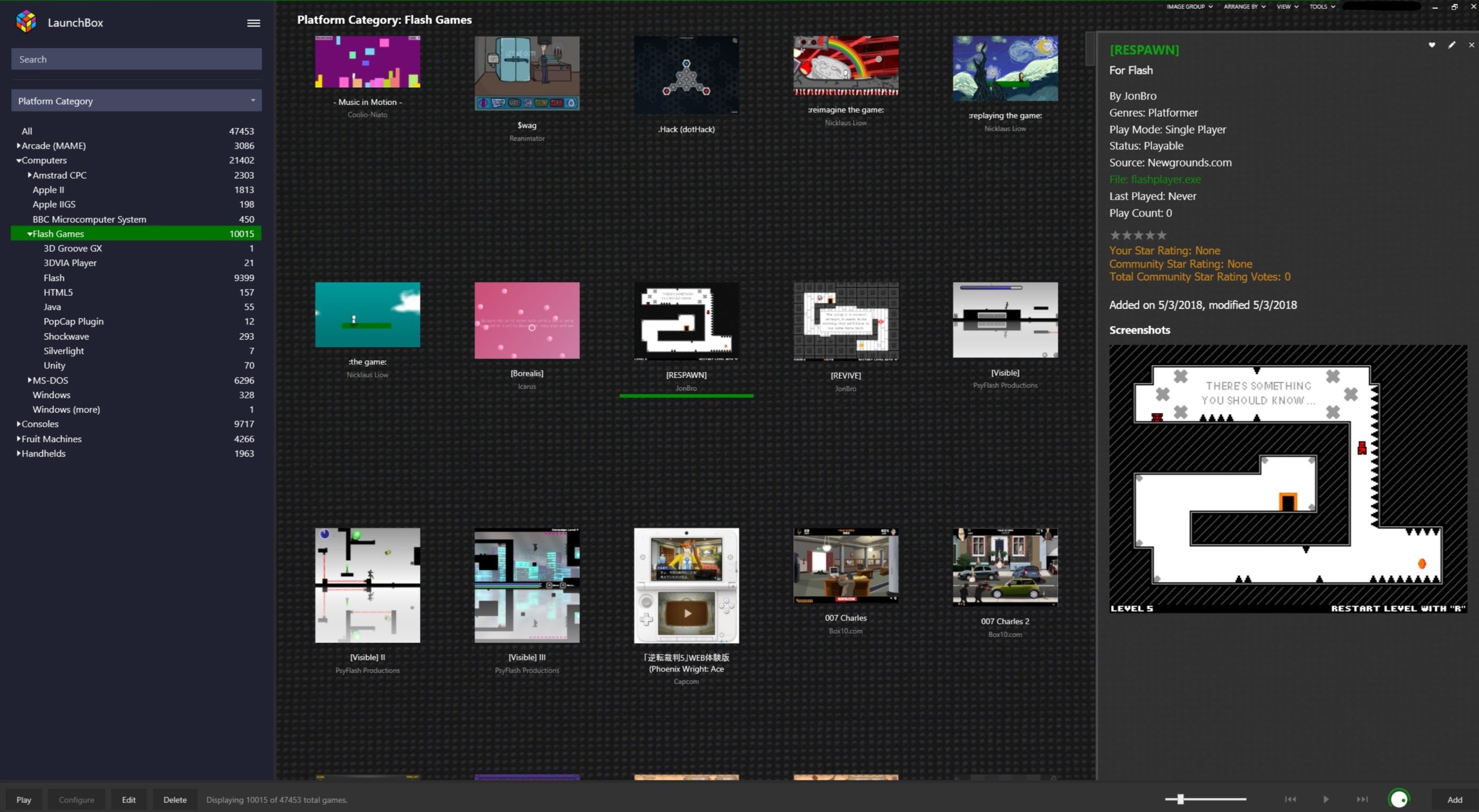
Adding a game to Flashpoint involves creating a game entry in the Flashpoint database, gathering the necessary game files, and configuring the game’s launch parameters.
Ever stumbled upon a forgotten gem of a Flash game and wished you could play it again? Many of us have, and that’s where Flashpoint comes in. It’s a project dedicated to preserving these games. Today, I’ll guide you through the process of how to add a game to Flashpoint, so you can enjoy it forever. It might seem complex, but with a few steps, you’ll see it’s quite manageable.
This process ensures the game becomes part of Flashpoint’s incredible archive. We will focus on the practical steps you can take to contribute to game preservation.

How to Add a Game to Flashpoint
Okay, so you’re excited about preserving video game history and want to add a game to Flashpoint? That’s awesome! It might seem a little tricky at first, but don’t worry; we’ll break it down step-by-step. Think of it like putting together a puzzle – each piece has its place, and when you’re done, you’ll have a working game in Flashpoint! Let’s get started.
Understanding Flashpoint’s Game Structure
Before we dive into adding a game, it’s important to know how Flashpoint organizes things. It’s not just throwing game files in a folder; it needs a little structure so it knows how to play the game properly. Flashpoint uses a system that essentially has two main parts: the game files and a special definition file.
The Game Files
These are the actual files that make up the game itself. They can be SWF files for Flash games, HTML files for web games, Unity files, or even Java applets. Think of it like the building blocks of a game. These could be things like:
- .swf files: These are common for Flash games.
- .html files: These often contain the game code or embed the game.
- images, sounds, and other assets: Games also have images for characters, sounds for effects, and other things that make them fun.
These files need to be in a specific location inside the Flashpoint folder so the program can find them.
The Game Definition File
This is like a set of instructions for Flashpoint on how to run your game. It’s usually a file with a .json extension (a type of text file). This file tells Flashpoint things like:
- The title of the game. What you see in the Flashpoint list.
- Where to find the game’s main file. Which file starts the game.
- Which browser to use for the game. Some games work better with certain browsers.
- Any extra commands or settings that might be needed. Special rules some games need to follow.
Without this definition file, Flashpoint won’t know what to do with your game files. It’s like having all the ingredients for a cake, but without the recipe.
Preparing Your Game Files
Before creating a definition file, you need to get the game files together, and organize them properly. Here’s how:
Finding Game Files
First, you need to get the game files. This can be the trickiest part, but here’s a few ways you might get them:
- Downloading Directly from the Web: Some old websites might still host the game files directly. Look for files that have extensions like .swf, .html, or sometimes .zip files containing a collection of files.
- Using Browser Tools: When playing a game in your browser, your browser actually downloads the game files to your computer. Tools like your browser’s “Developer Tools” (usually accessed by pressing F12) can help you find the URLs where these files are located. You can then download these directly.
- Game Archives: Sometimes online communities or forums dedicated to specific games will have archives where you can download game files.
- Extracting from Installers: If a game comes with an installer, you may be able to extract the game files from the installed location. This is a more advanced method.
Always be careful to only download files from trusted sources, to avoid getting computer viruses or malware.
Organizing Your Files
Once you have the game files, you need to put them into the right folder within Flashpoint. Here’s how:
- Locate your Flashpoint Folder: The main Flashpoint folder can be located anywhere in your computer but by default it is usually named “Flashpoint”. Inside this main folder, look for a folder named “Games”. Inside the “Games” folder, is where you need to create the game folder for the game you are trying to add.
- Create a New Folder: Inside the “Games” folder, create a new folder with a name that describes your game. For example, if you are adding “Cool Game”, name the folder “Cool Game”. Keeping the folder name simple, helps with easier folder management in the future.
- Put the Game Files Inside: Now, place all of the game files that you downloaded earlier inside this new folder. Make sure that the main game file (usually a .swf or .html) is in this folder as well.
It’s important to keep the files organized. Having all your game files for a specific game in a single folder makes sure Flashpoint can find them, and makes it easier to manage your games.
Crafting the Game Definition File
With the game files organized, the next step is creating the crucial game definition file. This file is in JSON format and tells Flashpoint all it needs to know to run the game. Don’t worry if you’ve never seen JSON before, it’s very easy to work with.
Understanding the Structure of a JSON file
JSON files use a basic text structure made of key-value pairs. Think of it as a list where each item has a name and a value. These pairs are enclosed in curly braces {} and separated by commas. Here’s a very simple JSON file example:
{
  "name": "My Cool Game",
  "mainfile": "game.swf",
  "platform": "Flash"
}
In this example:
"name": "My Cool Game"is a key-value pair.nameis the key, andMy Cool Gameis its value. It tells us the name of the game."mainfile": "game.swf"tells us that the game’s main file is namedgame.swf."platform": "Flash"lets Flashpoint know it’s a Flash game, which is the type of game.
Required JSON Elements for a Game Definition File
To work correctly, a game definition file needs to have specific elements. Here’s a breakdown of the most important ones:
"title": The name of the game that you want to appear in Flashpoint. This is the name people see in the game list. (Type: String)"title": "Cool Game Title""developer": The name of the developer or company that made the game. (Type: String)"developer": "Awesome Game Studio""publisher": The name of the publisher that released the game. (Type: String)."publisher": "Fun Games Inc.""platform": The type of game. This is usually one of the values:Flash,HTML5,Java, orUnity. (Type: String)."platform": "Flash""applicationPath": The file path to the game’s main file, relative to the game’s folder. For example, if your main game file is named game.swf and is inside the game folder, then the value for this will be game.swf (Type: String)."applicationPath": "game.swf""launchPath": The specific path or file name that Flashpoint uses to launch the game. This can usually be the same asapplicationPath, but sometimes it’s different based on how the game is constructed. (Type: String)."launchPath": "game.swf""gameId": This can be any unique identifier. You can just give a unique random string. (Type: String)."gameId": "unique-game-id-123""tags": A list of tags to categorize the game. For example, genre, style, and other similar descriptive words. (Type: Array of Strings)"tags": ["Action", "Adventure", "Platformer"]"notes": Any extra notes or information about the game. You can include gameplay tips, known issues, or the game description here. (Type: String)."notes": "This is a really fun game! Remember to use the arrow keys to move."
Creating the JSON File
Now that we know the required elements, let’s create your game’s definition file:
- Open a Text Editor: Open a basic text editor like Notepad (on Windows), TextEdit (on Mac), or any other basic text editor that creates plain text files.
- Write the JSON Data: Carefully write the JSON data, filling in the required fields with information for your specific game. Make sure you keep the syntax accurate and there is no syntax mistakes.
{ "title": "My Awesome Game", "developer": "GameDev Pro", "publisher": "Fantastic Games", "platform": "Flash", "applicationPath": "game.swf", "launchPath": "game.swf", "gameId": "my-awesome-game-id-987", "tags": ["Puzzle", "Adventure", "Cute"], "notes": "An amazing puzzle adventure game. Use the mouse to interact with the game world." } - Save the File: Now it is time to save the file, choose a name that describes your game such as game.json, and make sure it has the .json extension. Now save this file directly inside your game folder that you made earlier. You should also make sure the file is saved as plain text, and not as any other format.
Important: The JSON file must have correct syntax! Even a small error like a missing comma or bracket can cause Flashpoint to not be able to load the game. Double check everything you have written carefully.
Putting It All Together
Now that you have all the components, it’s time to test if your game works in Flashpoint! Follow these steps:
- Make Sure Files are Correctly Located: Go to your Flashpoint games folder, and make sure the game folder that you created has all the game files inside it, including the game.json file.
- Start Flashpoint: Launch Flashpoint.
- Search for your Game: Use the search or browsing features in Flashpoint to find your game title that you set in the game.json file.
- Start the Game: Click on the game to launch it. If everything is set up correctly, the game will run correctly and should play normally. If it doesn’t, then we should move to troubleshooting.
Troubleshooting Common Problems
Sometimes things don’t work perfectly the first time. Here are some common problems you might encounter and how to fix them:
Game Doesn’t Appear in Flashpoint
- Check JSON File Name: Make sure the definition file is named .json and not something else like .json.txt.
- Check JSON Syntax: Carefully look over the .json file and make sure that it has all required data, and is in correct syntax. Make sure all strings have double quotes around them, that colons and commas are used correctly, and so on.
- Check the File Location: Make sure that both the game definition file and the game files are in the correct location within Flashpoint’s “Games” folder.
- Restart Flashpoint: Sometimes, Flashpoint needs to be restarted for it to detect new games. Try to close and re-open the Flashpoint program again.
Game Fails to Launch
- Check
applicationPathandlaunchPath: Make sure these paths in the definition file point to the correct main file and that the file is named correctly inside the game folder. - Try Different Browsers: Some games run better with specific browsers that Flashpoint offers, so try switching between them within the Flashpoint configuration.
- Look for Missing Files: Check if any of the required game files are missing in your game folder. Make sure you have downloaded all required files for the game.
- Check for Error Messages: Flashpoint will sometimes give error messages when it fails to load. See if any of the messages give you clues about the problem, and try to google the messages.
Game Runs Poorly
- Adjust Browser Settings: In the Flashpoint settings, try changing browser settings, such as making sure that hardware acceleration is enabled.
- Close Other Programs: Having many programs running in the background can slow down your computer. Closing other programs can often improve performance of the games.
If none of these solutions fix the problem, then try looking for help from the Flashpoint community or forums. They have a lot of experienced members, and they can provide additional insight into any issues you are having.
Adding a game to Flashpoint takes a bit of work, but it’s worth it to preserve these great classic games. By understanding the structure, preparing files, creating the definition, and knowing how to troubleshoot, you can successfully add your favorite classic games to Flashpoint. You are now one step closer to becoming a master at preserving video games!
fastest way to run swf files with Flashpoint
Final Thoughts
Adding games to Flashpoint involves locating game files and using Flashpoint’s import tools. You must properly organize files for the program to recognize them. Careful adherence to the required structure helps ensure success.
The essential step is identifying the game’s core data, like the SWF or HTML5. You then use Flashpoint’s launcher to import this information. Finally, test the game to confirm it runs correctly.
This process demonstrates how to add a game to flashpoint. Remember to check the documentation for detailed instructions if needed.

