
To add a game to your Steam library, either purchase it through the Steam store, or redeem a game key.
Ever felt the urge to dive into a new game, but it’s missing from your Steam collection? You are not alone. Many users wonder about the process of getting a newly acquired game into their Steam library. It’s a common question: how to add a game to steam library.
The process is quite simple, thankfully. Games can be added to your Steam account directly through the store or by using an activation code. Let’s explore the easy ways you can get your game ready to play.

How to Add a Game to Steam Library
Ready to play a new game but not sure how to get it onto your Steam account? Don’t worry; it’s easier than you might think! This guide will walk you through all the different ways you can add games to your Steam library. We’ll cover everything from buying games directly on Steam to using a game code and even adding non-Steam games. So, let’s get started and get you gaming!
Buying Games Directly from the Steam Store
The most common way to add a game to your Steam library is by purchasing it directly from the Steam Store. It’s like going to a digital game store and picking out what you want. Here’s how you do it:
Navigating the Steam Store
First, you need to open the Steam application on your computer. If you don’t have it yet, you’ll need to download it from the Steam website and install it. After logging in, you’ll see a navigation bar at the top of the application. One of the options is ‘Store’. Click on that to go to the Steam Store.
Finding Your Game
Once you’re in the store, you can browse through different categories, like ‘New Releases,’ ‘Top Sellers,’ or ‘Coming Soon’. You can also search for a specific game using the search bar at the top-right of the screen. Just type in the name of the game you are looking for and press enter.
When you find a game that you want, click on its title or picture. This will take you to the game’s page, where you can learn more about it, view screenshots, and read reviews from other players.
Adding to Cart and Checkout
On the game’s page, you’ll see a button that says something like “Add to Cart” or “Buy Now”. Click this button. If the game is part of a bundle, it might give you the choice to add the whole bundle or just the game you selected. After adding to the cart, another window will pop up. Here, you’ll finalize your purchase.
During this process, you’ll choose a payment method. Steam accepts most major credit cards, PayPal, and even Steam gift cards. Enter your payment details and click the button to finalize the purchase. If everything goes correctly, your game will be added to your Steam library automatically.
Redeeming a Game Code
Sometimes, you might receive a game code from a physical copy of a game, a gift from a friend, or part of a promotion. These codes are like a key to add the game to your Steam library without purchasing it from the store directly. Here’s how to redeem those codes.
Locating the “Add a Game” Option
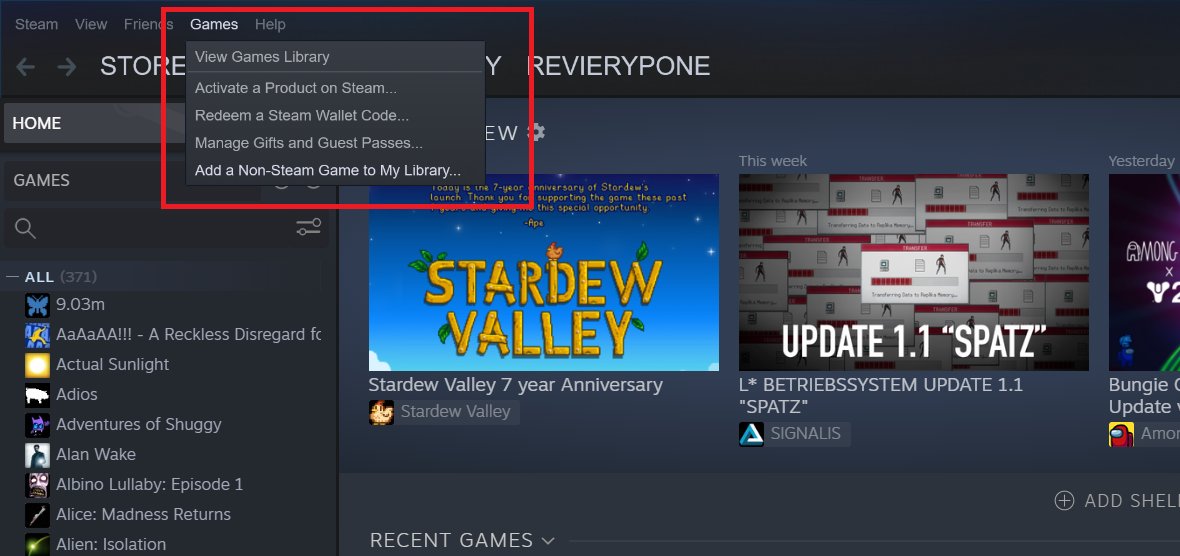
First, open the Steam application on your computer and make sure you’re logged into your account. At the top of the window, you’ll see a navigation menu with options like “Steam,” “View,” “Friends,” and “Games.” Click on the “Games” option.
A dropdown menu will appear. From this menu, you’ll want to select “Activate a Product on Steam…”. This will open up the product activation window where you can enter your code.
Entering and Redeeming Your Game Code
A new window will appear prompting you to enter your product key or code. Carefully type in the code you have. Make sure you enter it exactly as it appears, including any hyphens or special characters.
After entering the code, click the “Next” button. Steam will now verify the code, and if it’s valid, it will add the corresponding game to your library. It might show you the game’s information and ask you to confirm the activation. Once you’ve confirmed, the game will be linked to your account.
Adding Non-Steam Games
Sometimes, you might want to add a game that isn’t purchased or available through the Steam Store. This could be an older game you bought on disk or a game from another online platform. You can still add these games to your Steam library, although you can’t download updates for them through steam. This will let you launch them from Steam and access some Steam features. Here’s how:
Using the “Add a Non-Steam Game” Function
First, open the Steam application and make sure you are logged into your account. Then, locate the “Games” option in the top menu of the Steam application, like when redeeming a game code.
From the dropdown menu, this time click “Add a Non-Steam Game to My Library…”. A new window will appear, showing a list of programs installed on your computer.
Selecting and Adding the Game
In the window that appears, you’ll see a list of applications that Steam has detected on your computer. Look for the game you want to add. If it isn’t listed, you can use the “Browse…” button to locate the game’s executable file (.exe) on your computer. After you’ve found the game and have selected it, click the “Add Selected Programs” button.
The game will then be added to your Steam library as a non-Steam game. You’ll be able to launch the game from Steam and get the overlay while playing. Keep in mind that non-Steam games may not have access to all of the Steam features and achievements.
Managing Your Steam Library
After adding games to your library, you’ll want to keep it organized and easy to navigate. Here are some tips for managing your Steam Library.
Creating and Using Collections
If you have a large number of games, it can be hard to find the one you’re looking for quickly. Steam provides an option to create collections, which allows you to group games together into categories.
To create a collection, go to your library and right-click on any game. Select ‘Add to’ from the menu and then select ‘New Collection’. This will allow you to name the collection and add other games. You can add games to a collection from the game’s library page or by selecting multiple games. You can create collections for anything like ‘Action Games,’ ‘Strategy Games,’ or even games you want to play next.
Sorting and Filtering Your Games
Steam has various sorting and filtering options in your library. You can sort games alphabetically, by play time, date added, and much more. You can find these sorting options at the top of your library. Also, there’s a search bar to find a specific game in your library by entering its name.
Filtering options are also available, allowing you to show only games that are installed, games you’ve never played, or games belonging to a specific genre or category. These tools help a lot to manage a big library of games and find what you’re looking for easily.
Installing and Uninstalling Games
After adding games to your library, you’ll want to install them to play. This is as easy as clicking the install button on the game’s page. The game will begin downloading and then be installed on your PC. You can install or uninstall a game at any time from the game page in the library. Make sure you have enough storage for installation and the latest drivers installed for your PC to run your games properly.
Troubleshooting Common Issues
Sometimes, adding a game might not be completely smooth. Here are some common problems and solutions.
Game Codes Not Working
If you’re having trouble with a game code, double-check that you entered the code correctly and without errors. Sometimes codes can have small mistakes that are hard to spot, like confusing a ‘0’ for an ‘O’ or a ‘1’ for an ‘l’ or ‘I’. Also, make sure that the code hasn’t been used before. If you’re still having problems, contact the retailer you got the code from or Steam Support.
Games Not Appearing in Library
If a game doesn’t appear in your library after purchasing or redeeming it, try restarting the Steam application. This can help it re-sync your account and show the game. If that does not fix it, log out of your steam account and log back in. This will refresh your library.
If you still don’t see the game, reach out to Steam support for additional help. They will be able to resolve any issues on their side to help you gain access to the game you have purchased or activated.
Problems with Non-Steam Games
Sometimes, non-Steam games can have issues when launched through Steam. If a game is crashing or not launching, try launching it outside of Steam to check that the problem is within the game’s files or Steam itself. If the game is crashing when launched through Steam, it might be a compatibility issue. Run the game as an administrator or try running it in compatibility mode, which may resolve the issue.
Adding games to your Steam library is an important part of gaming on Steam, and it is an easy task once you know how. By following the methods detailed above, you can buy games from the store, redeem game codes, and add non-Steam games. Also by using the organization tools provided in Steam’s library, it is simple to maintain and access your games. If you have any trouble with adding games to your Steam library, check common issues to see if you can find a fix. Now it’s time to go have some fun playing the games you’ve just added to your Steam library!
How To Add Game on Steam Library
Final Thoughts
Adding a non-Steam game to your library is simple. First, click “Add a Game” in the bottom left corner. Then, choose “Add a Non-Steam Game”.
A window will pop up, where you select the game’s executable file. Once selected, the game appears in your library. You can now launch it directly from Steam.
In short, that is how to add a game to steam library. The process is quick and useful. It helps manage all games within one platform, improving your experience.

