
To add FFXIV as a non-Steam game, locate the game’s executable file (.exe) and use the ‘Add a Game’ option within the Steam client, selecting ‘Add a Non-Steam Game’.
Want to integrate your Final Fantasy XIV experience with Steam’s features? Many players wonder about how to add FFXIV as a non-steam game, especially to utilize Steam’s overlay or track playtime. This process allows you to access some of Steam’s functionalities without purchasing the game on their platform.
It’s a straightforward process, and you can get it done with only a few clicks. Let’s guide you on how you can achieve this.

How to Add FFXIV as a Non-Steam Game
Okay, so you’re playing Final Fantasy XIV (FFXIV), and maybe you’re tired of using the regular launcher. Or maybe you want to use the Steam overlay, but you didn’t buy the game through Steam. No problem! Adding FFXIV as a non-Steam game is actually quite easy. This allows you to use Steam features like the overlay, taking screenshots, and chatting with your Steam friends while you play. Let’s walk through exactly how to do it.
Why Add FFXIV to Steam?
Before we jump into the “how,” let’s talk about the “why.” There are a few good reasons why you might want to add FFXIV as a non-Steam game:
- Steam Overlay: The Steam overlay lets you chat with your friends, browse the web, take screenshots, and even stream your gameplay, all without leaving the game. This is super handy!
- Centralized Game Library: If you like keeping all your games in one place, adding FFXIV to your Steam library helps organize your gaming collection.
- In-Game Screenshots: Steam’s built-in screenshot tool is easy to use and lets you easily share your epic FFXIV moments.
- Steam Link: If you use Steam Link to stream games to other devices, adding FFXIV to your library means you can stream it too.
These benefits, especially the overlay, make adding FFXIV a great option for many players.
Finding the FFXIV Executable
The first step is to locate the correct FFXIV application file. This file is what we’ll add to Steam. It’s important to find the actual game executable, and not just the launcher. The location of this file can vary depending on your installation. Here are the most common places you will find the FFXIV executable:
Standard Installation Location:
If you didn’t change anything during the install, you’ll likely find it here:
- For the 64-bit version: C:\Program Files (x86)\SquareEnix\FINAL FANTASY XIV Online\game\ffxiv_dx11.exe
- For the 32-bit version (less common nowadays):C:\Program Files (x86)\SquareEnix\FINAL FANTASY XIV Online\game\ffxiv.exe
Note: Most players will use the ffxiv_dx11.exe version as this is the DirectX 11 client, and it offers better performance.
Custom Installation Location:
If you chose a different location during the install, you’ll have to look in the folder you picked. Usually, you would have a ‘SquareEnix’ folder, which then contains ‘FINAL FANTASY XIV Online’, and then the ‘game’ folder, where the executables exist.
Tips for Finding It:
- Check your Desktop Icon: If you have a shortcut on your desktop, right-click it and select “Properties.” In the “Shortcut” tab, you’ll see the file path in the “Target” field. This can point you directly to the file.
- Use File Explorer Search: Open File Explorer (Windows key + E), go to ‘This PC,’ and in the search bar at the top right, type ffxiv_dx11.exe. Windows will search your entire computer for the file, and if it finds it, you will see the file location.
- Look for the “game” Folder: Remember to look within the FINAL FANTASY XIV Online folder for the game folder. This is where the important executables are located.
Once you find the FFXIV executable you plan to use (most likely the dx11 version), make note of its exact file path. You’ll need it in the next step.
Adding FFXIV to Your Steam Library
Now that you know where the FFXIV executable is, let’s add it to Steam. Here’s how:
- Open Steam: Start your Steam client.
- Go to “Add a Game”: At the bottom left of the Steam window, you will see a button that says “Add a Game…” Click it. A small menu will pop up.
- Select “Add a Non-Steam Game…”: From the menu that appeared, select the “Add a Non-Steam Game…” option.
- Browse for the Executable: A new window will open listing programs available for adding. Don’t look for it in the list. Click the “Browse…” button at the bottom of the window.
- Navigate to the FFXIV File: In the file browser, go to the location where your FFXIV executable is saved (e.g., C:\Program Files (x86)\SquareEnix\FINAL FANTASY XIV Online\game).
- Select the FFXIV Executable: Choose the correct executable. This is most likely going to be ffxiv_dx11.exe. Then, click the “Open” button.
- Add it to the List: The file browser window will disappear, and now you will see the FFXIV executable in the window containing a list of programs to add. Check the box next to it, and then click on “Add Selected Programs” button.
That’s it! FFXIV should now be in your Steam library.
Renaming and Customizing the Game Entry
After adding FFXIV to Steam, you might want to give it a better name and customize the icon. Here’s how:
Changing the Name
- Find FFXIV in your Library: Go to your Steam Library, and find the FFXIV entry you just added. Usually, it will be under the name of the file you added. For example, ffxiv_dx11.exe.
- Right-Click the Game: Right-click the entry you want to rename. A menu will pop up.
- Select “Properties…”: From the menu, select the “Properties…” option.
- Change the Name: A window will open, and in the first line you will see a space where you can write the name of the game. Delete the file name, and write Final Fantasy XIV or whatever name you want to call it. Then, click the ‘Close’ button.
Changing the Icon
The default icon for non-Steam games often is a generic icon. You can set a custom icon for FFXIV to make it look nicer.
- Find FFXIV in your Library: Go to your Steam Library, and find the FFXIV entry you just added.
- Right-Click the Game: Right-click the entry you want to change the icon for.
- Select “Properties…”: From the menu, select the “Properties…” option.
- Click the Icon: In the window, you should see a small icon to the left of the game name. Click this icon.
- Browse for a New Icon: A new file browser window will pop up. You can browse and select any .ico file for your icon. If you have an existing FFXIV icon, you can use it. If you do not have an existing icon, you can search for the FFXIV icon on the internet and then save it as a .ico file.
- Finding Icons: You can find plenty of FFXIV icons online. Search for “FFXIV icon .ico” on your preferred search engine. Then, save the icon you want to use to your computer.
- Converting Images: If you find an image you like (like a .png or .jpg), you can use an online converter to change it into a .ico file. Just search for “image to ico converter” online, and you will see many options.
- Select the Icon: Once you have the desired icon, select it in the file browser, and then click “Open.”
- Close: Click the “Close” button in the Properties window.
Your FFXIV game should now have the custom icon you picked!
Troubleshooting Common Issues
Sometimes things might not go perfectly. Here are some common issues you might run into, along with ways to fix them:
Game Doesn’t Launch Through Steam
- Incorrect Executable: Double-check that you added the actual ffxiv_dx11.exe (or ffxiv.exe) and not just the launcher. If you did add the launcher, you will need to remove the entry from Steam, and follow the steps mentioned earlier in this article to add the correct executable.
- Administrator Privileges: Steam and FFXIV might need administrator permissions. Try running both Steam and FFXIV as administrators (right-click each application and select “Run as administrator”).
- Compatibility Mode: Sometimes, you may need to adjust the game’s compatibility settings. Right-click the ffxiv_dx11.exe file, select “Properties,” then the “Compatibility” tab. Try experimenting with different compatibility modes.
Steam Overlay Not Working
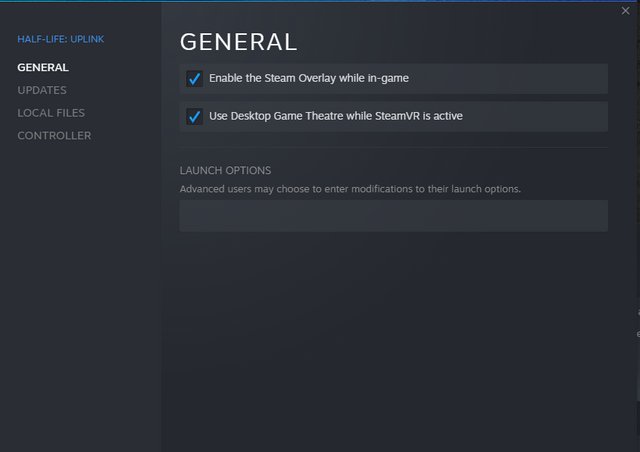
- Steam Overlay Enabled: Make sure that the Steam overlay is enabled in Steam settings. You can find this under “Steam” → “Settings” → “In-Game,” then check the “Enable the Steam Overlay while in-game” option.
- Game Compatibility: Some games might not work perfectly with the Steam overlay. You can try to enable/disable the ‘Use Desktop Game Theatre when launching desktop games’ option.
- Conflicting Overlays: Some other programs you have open might be conflicting with Steam’s overlay. You can try to close programs that use overlays, such as other third-party launchers, and then try again.
- Restart Steam: Sometimes a simple restart of the Steam client can fix issues with the Steam Overlay.
Game Crashing or Poor Performance
- Graphics Drivers: Make sure your graphics drivers are up-to-date. Old graphics drivers can sometimes cause problems with performance and stability.
- Game Settings: If you are experiencing lag/crashing, you can try lowering your game graphics settings to see if it improves.
- Verify Game Files: If you are having issues related to the game files, you can go to the official FFXIV launcher and then try to verify game files.
- Resource Usage: Make sure that your system meets the minimum requirements for FFXIV, especially if you have an older system. Close any other applications or programs running in the background that you are not using, so that FFXIV can utilize the maximum resources available to your computer.
Anti-Virus Interference
In some cases, the anti-virus program might cause issues. Try temporarily disabling your anti-virus to see if it solves the issues. If it does, create an exception for FFXIV in your anti-virus.
Benefits of Using Steam with FFXIV
After you’ve added FFXIV to Steam and got everything running smoothly, you can enjoy many benefits:
- Easy Screenshots and Sharing: Take and share screenshots using Steam’s simple system.
- Chat with Steam Friends: Stay connected with your friends while playing.
- Track Your Playtime: See how many hours you’ve sunk into Eorzea.
- Steam Input: If you use a controller, Steam Input can be a powerful way to map buttons and customize your controller.
Using Steam with FFXIV is a great way to get the most out of your gaming experience.
Adding FFXIV as a non-Steam game can really improve your playing experience. By using the Steam overlay, taking and sharing screenshots, and staying connected with your friends while playing, it adds a layer of comfort and convenience to the game. While there can be occasional problems, these are usually easy to resolve. Just make sure you have the correct executable, enable the Steam Overlay, and you are good to go!
How to Add a Non Steam Game to Game mode on your Steam Deck (Easy Method)
Final Thoughts
Adding Final Fantasy XIV to Steam as a non-Steam game involves locating the game’s executable file. Then, you simply add this to your Steam library via the “Add a Non-Steam Game” option. This lets you use Steam’s overlay while playing.
The key is selecting the correct ffxiv boot file. This process is straightforward. How to add ffxiv as a non-steam game is easier than you think, it’s quite simple to set up your game. Enjoy the convenience it provides.

