
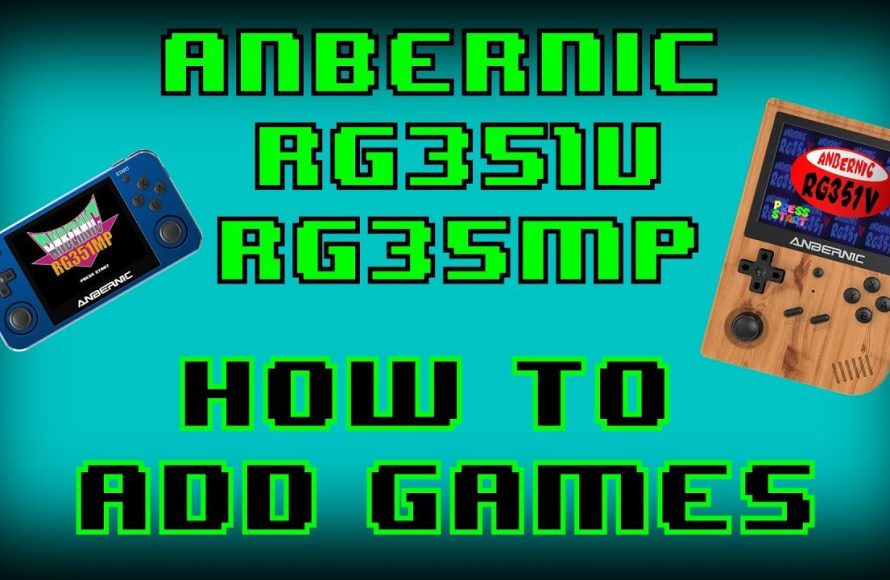
To add games to your Anbernic device, you’ll typically transfer ROM files (game files) to the appropriate folders on the device’s storage via a computer connection or by using a microSD card reader.
Want to dive into a world of retro gaming on your Anbernic handheld? Getting new games onto it is simpler than you might think. This guide quickly explains how to add games to Anbernic devices. You just need your game files and a way to connect your Anbernic to your computer.
Connecting directly or using a microSD card reader does the trick. Now, you can enjoy the magic of classic games on the go!

How to Add Games to Your Anbernic Handheld
So, you’ve got your awesome Anbernic handheld and you’re ready to dive into some gaming fun! But wait, it needs games! Don’t worry; it’s not as tricky as it might seem. Adding games to your Anbernic is like putting toys into a toy box – you just need to know how to do it. This guide will walk you through all the steps, making sure you can start playing your favorite retro titles quickly and easily. We’ll cover everything from where to find games to how to get them onto your device. Let’s get started!
Understanding Anbernic Game Formats
Before you even start looking for games, it’s important to understand what kind of files your Anbernic device can use. Think of it like knowing what shape blocks fit into which holes. Anbernics are designed to play games from different older consoles and computers. Each system uses different kinds of files, and it’s important to get the right kind. Here are some common types you will encounter:
- ROMs: These are like digital copies of game cartridges or discs from classic game consoles such as the Nintendo Entertainment System (NES), Super Nintendo (SNES), Sega Genesis, and Game Boy.
- ISOs: These are disk images used for CD-based systems like the PlayStation 1, Sega Saturn, and some PC games. Imagine it’s like a perfect digital copy of the entire game disc.
- .bin and .cue Files: These often come together for games that were originally on CDs. The .bin file has the actual game data, while the .cue file tells your device where to find that data.
- Game Folders: Some games might come in folders that contain various files needed to make the game work properly.
Knowing which format your game is in is crucial for knowing which emulator to use and where to put the file. You may encounter some of these files compressed in .zip or .7z formats, you will need to extract them using a free archive manager, like 7-Zip. If you don’t extract the files, you will get errors, or the game might not appear in the menu. Always ensure you have the appropriate ROM or disc images for the systems you intend to play.
Finding Games for Your Anbernic
Now that you know about game file types, it’s time to go looking for games! This is the part that many people might find tricky. However, with proper research, you will find the games you are looking for in no time. One of the most important things to understand before you search for games is that distributing copyrighted material is against the law and illegal. So that is something you need to keep in mind. Here are some things you should know:
The Legal Side of Retro Games
It’s really important to talk about this part. Downloading games that you don’t own is like borrowing someone’s toy without asking. It’s not cool and it can lead to problems. You should only download games that you own, or that are considered to be in the public domain. Public domain games are those that have had their copyright expired and can be shared for free. Be a responsible gamer and respect the work that went into creating these games. There are tons of classic games that have been released as public domain or are considered to be abandonware. You can also create your own backup copies if you have the original game cartridges or discs.
Where to Search (Safely)
Okay, so where can you find games safely? While we cannot point you towards illegal download sites, we can give you some tips on where to look:
- Your Own Collection: If you have any old game cartridges or discs, you can make copies of them for use on your Anbernic. This is the most legal and ethical way to build your library.
- Public Domain and Abandonware Sites: Some websites offer games that are no longer protected by copyright. These games are usually very old, but there are still plenty of classics to find.
- Game Bundles: Some sites sell legal bundles of retro games for a small fee. This is a good way to play some classic titles and support game creators.
- Indie Games: There are many fantastic new indie games that have a retro style. Some of these are available for purchase, and can be added to your Anbernic to expand your collection.
Remember, always make sure you are on a reputable website and avoid clicking on any suspicious links or advertisements. A good anti-virus software is always a good tool to have when browsing unfamiliar places.
Preparing Your Anbernic Device
Before transferring your games, it’s a good idea to get your Anbernic device ready. Think of it like cleaning up your toy box before you fill it with new toys.
SD Cards: The Game Storage
Most Anbernic devices use SD cards (micro SD) to store games. Your device will either have one or two SD card slots. Usually, one will be used for the system software, while the other will be used for the games. Make sure you have a good quality SD card that is the appropriate size for your needs.
Here are some recommendations:
- Size: 64GB or 128GB are good sizes for starting out. Larger SD cards, like 256GB or 512GB, let you have a huge library of games. It’s important to check what size SD card is recommended by your Anbernic device’s manufacturer.
- Speed: Look for SD cards with a decent speed rating, usually marked as “Class 10” or “UHS-1” or higher. Faster cards will load your games quicker.
- Formatting: Your SD card needs to be in the correct format. Most Anbernics use FAT32 or exFAT format. You should be able to format your SD cards in Windows, Mac OS, or even your Anbernic device itself.
Emulators: The Game Players
Anbernic devices use emulators to play different types of games. Emulators are like special programs that make your device think it is an old console. Usually these emulators are already installed on your device. If for some reason they are not, they are usually available through the device’s settings or through websites. Here are a few important points:
- Pre-installed: Most Anbernic devices come with several emulators already installed. They are usually ready to go when you get your device, but it is a good idea to be familiar with the names.
- System Folders: Emulators often look for ROMs in specific folders on your SD card. You need to know which folder to place your games in. These are usually named in a way so that they can be easily recognized like, “SNES”, “NES”, “PS”, etc.
- Updating: Sometimes, emulators will get updates, which can improve performance and fix bugs. Keep your system up to date!
Transferring Games to Your Anbernic
Okay, you have your games and your device is all set, it is time to move the game files to your Anbernic! This is a bit like putting the right toys in the right bins. Here are the steps for the most common methods:
Using an SD Card Reader
This is the most common and reliable method. Here’s how it works:
- Turn Off Your Anbernic: Make sure your device is completely turned off before taking out the SD card.
- Remove the SD Card: Carefully remove the SD card from your Anbernic. Usually, you can push the SD card in slightly, and it will pop out.
- Insert into Reader: Place the SD card into an SD card reader and plug the reader into your computer.
- Open File Explorer (Windows) or Finder (Mac): Your computer should recognize the SD card as a removable drive. Open it.
- Find the Right Folders: Locate the folders on the SD card that are for your games. If you are trying to transfer Super Nintendo games, look for the “SNES” folder.
- Copy Games Over: Copy the games from your computer to the corresponding folder on the SD card.
- Safely Eject: Once your games are copied, safely eject the SD card from your computer.
- Reinsert SD Card: Put the SD card back into your Anbernic.
- Turn on Your Device: Start up your Anbernic and you should be able to see your new games in the menu.
Using USB Cable (Sometimes)
Some Anbernic models allow you to transfer files via a USB connection. It’s a bit like plugging in a phone to your computer. Here’s how it might work (check your device’s manual for specific instructions):
- Connect USB Cable: Plug the USB cable into your Anbernic device and then plug the other end to your computer.
- Select USB Mode: Your Anbernic may ask you what you want to do with the USB connection. Select “USB Storage” or similar.
- Open File Explorer (Windows) or Finder (Mac): Like before, your computer should show the Anbernic device as a removable drive.
- Find the Right Folders: Locate the folders for your games.
- Copy Games Over: Copy the games to the correct folders.
- Safely Eject: Safely eject the Anbernic device from your computer.
- Disconnect Cable: Unplug the USB cable.
- Play: Your games should be ready to play!
Important Notes about Transferring
- File Placement is Important: Make sure you put the game files in the correct folders. Otherwise, your device may not recognize them.
- Correct Emulator: Be sure the emulator for the game format is installed on your device. If the games appear, but don’t load, this could be the issue.
- Long File Names: Sometimes, really long file names can cause problems. Keep the game names shorter if you are having issues.
Troubleshooting Common Problems
Sometimes things don’t go perfectly the first time. If your games are not loading correctly or not showing, there is no need to worry. Here are some common issues and how to fix them:
Games Not Appearing in the Menu
- Wrong Folder: Double-check that you placed the games in the correct folder on the SD card.
- File Format Error: Check to be sure you have the correct file type, like ROM or ISO, and that it is not compressed in a .zip or .7z file.
- Refresh Menu: Some Anbernic devices might require you to refresh the game list. Look in the settings for an option to refresh or rescan games.
Games Not Loading or Crashing
- Incorrect Emulator: Make sure you are using the right emulator for your games. Some older games may need particular versions.
- Corrupted File: If a game is crashing, the game file may be corrupt, or not a proper file. Try to download it again from the original source.
- Emulator Settings: Some emulators have settings you can adjust, which can help improve performance and reduce crashing.
Slow Performance
- SD Card Speed: If your games are running slowly, the SD card may be too slow. Upgrade to a faster SD card if this is the problem.
- Emulator Settings: Try to adjust the emulator settings to reduce resource usage.
- Old Device: An older model Anbernic might struggle with very advanced games. Be sure you are choosing game titles within the capabilities of the device.
If you are still having trouble, check online forums and communities dedicated to Anbernic devices, as other users may have had the same problem and discovered a solution. You can usually find a solution online, with a little bit of searching.
Adding games to your Anbernic handheld doesn’t have to be a difficult process. With a little understanding of file types, emulators, and proper storage, you will be enjoying classic titles in no time. Remember to download your game files safely and ethically. There is a whole world of retro gaming just waiting for you! Enjoy!
How To Add Games To Anbernic | Step-by-Step Guide
Final Thoughts
To add games, connect your Anbernic to a computer. Transfer ROM files to the appropriate folder on the device’s storage. You might need to consult specific guides for different emulator systems.
Remember to use compatible ROM file types. This will ensure the games function properly on your Anbernic. After transferring, navigate through the emulator menu on the handheld.
The most crucial part is learning how to add games to Anbernic devices. This process involves finding the right files and the correct file locations on the device itself.

