
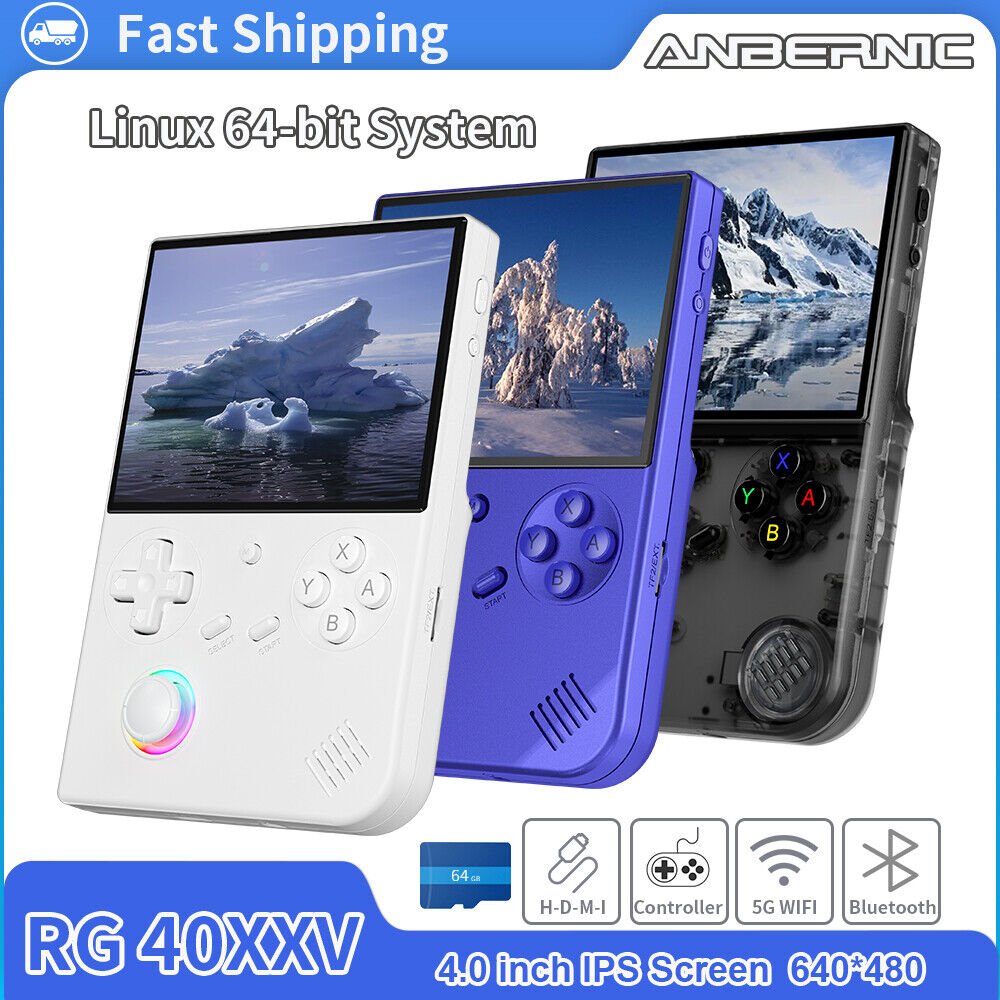
Adding games to your RG405V typically involves transferring game ROM files to the device’s SD card using a computer.
Want to expand your gaming library on the RG405V? This guide will quickly get you up and running. It’s simpler than you might think and we’ll break it down for you. Figuring out how to add games to rg40xv shouldn’t be a headache.
We’ll focus on using your computer to transfer files. This method is common and usually quite efficient. Get ready to load up your RG405V with plenty of exciting new titles.

How to Add Games to Your RG405V: A Simple Guide
Alright, you’ve got your shiny new RG405V, and you’re itching to play some games! That’s totally understandable. But maybe you’re looking at it and wondering, “Okay, how do I actually get games on this thing?” Don’t worry; it’s easier than you might think. This guide will walk you through all the steps, from finding games to getting them running smoothly on your RG405V. We’ll cover everything you need to know, so let’s get started!
Understanding Game Files and Emulators
Before we dive into the “how,” let’s talk about the “what.” The RG405V doesn’t play game cartridges or discs like old consoles. Instead, it uses files called “ROMs” or “ISOs.” These are digital copies of games. To play these game files, you need special programs called “emulators.” Think of them like translators. They allow your RG405V to understand and run games made for different consoles.
Here’s a simple breakdown:
- ROMs: These are files that contain the data of games from consoles like the Nintendo Entertainment System (NES), Super Nintendo Entertainment System (SNES), Game Boy, and many others.
- ISOs: These are similar to ROMs, but they are usually larger and are used for games from consoles that used CDs or DVDs like the PlayStation, PlayStation 2, Dreamcast, or PSP.
- Emulators: These are apps that can run game files from different systems. They’re like special video game players for different consoles.
Finding Game Files (ROMs and ISOs)
Now, where do you find these game files? This is an important part, and it’s important to remember that downloading games you don’t own is illegal and can get you into trouble. We strongly suggest that you only use backups of games you own. There are lots of sources of public domain and freeware roms online which are often very interesting. You can sometimes find legal ROMs and ISOs from:
- Public Domain Games: Some old games have entered the public domain, meaning you can download and play them legally.
- Indie Game Developers: Many independent game developers offer their old games or demos for free, often as downloadable ROM or ISO files.
- Homebrew Games: The community also creates games that are often free and are usually a great way to experience games on retro systems.
A Word of Caution: The internet can be tricky. When searching for game files, be very careful about where you get them from. Some websites may contain viruses or malware that can harm your device. Always use trusted and reputable sources. It’s a good idea to have virus protection on your computer, and be sure to scan files before moving them to your RG405V.
Preparing Your RG405V
Before we move any games over, it’s a good idea to get your RG405V ready. Here are a few steps:
Make Sure You Have Enough Space
Games can take up a lot of space, especially ISOs. Check how much storage space you have available on your RG405V. If you don’t have enough space, you may need to use an external microSD card. Here’s how:
- Open your RG405V: Look for the slot for an external SD card. Usually located on the side or the bottom edge.
- Insert the microSD Card: Place the card into the slot correctly, and you should hear a slight click or feel a firm insertion into the device.
- Format the microSD card (if needed): Most new cards will work straight away, but it is sometimes necessary to format them using your RG405V or a computer. The settings are usually very straightforward.
Understanding Folders
Keeping your games organized is very important. Create folders for each different game system to make things easier.
- Create Folders: On your SD card (either internal or external), make a folder for each system you want to emulate. For example, you could create folders named “NES,” “SNES,” “GameBoy,” “Playstation”, “PSP”, and so on.
- Put Game Files in Folders: Place the ROM files (.rom, .nes, .sfc, etc.) or ISO files (.iso, .img, etc.) into the correct folder. This will make it much easier to find the game you want to play.
Moving Games to Your RG405V
Now for the fun part! You need to transfer the files onto your device. There are a few different ways to do this.
Method 1: Using a USB Cable and Computer
This is the most common and easiest method:
- Connect your RG405V: Connect the device to your computer using a USB cable.
- Find your RG405V on your computer: Your RG405V should show up on your computer as a storage device (like a USB drive or hard drive). You may need to check for new devices in Windows Explorer or Finder if using a Mac.
- Open the storage: Click on the folder of the RG405V in the list of storage locations.
- Copy your games: Copy the game files from your computer and paste them into the correct folders on your RG405V. You will have prepared these in the earlier step.
- Safely Eject: After all files are transferred, make sure to safely eject the RG405V from your computer by using the eject function of your operating system.
Method 2: Using a microSD Card Reader
If you have a microSD card reader, you can use it to directly transfer files. It can be slightly quicker than using a USB connection if your computer has a fast reader:
- Remove the microSD card: Take the microSD card out of your RG405V.
- Insert the microSD card into the card reader: Place the microSD card into the card reader, then insert the card reader into your computer.
- Find your microSD card: Your microSD card should show up on your computer as a storage device.
- Copy your games: Copy the game files from your computer and paste them into the right folders on the microSD card.
- Safely Eject: After the files have transferred, eject the microSD card safely.
- Insert the microSD card back into your RG405V: Put the card back into your device.
Setting Up Emulators on Your RG405V
Your RG405V has most of the commonly used emulators already installed. However, you may need to configure some of them or download specific ones from the Google Play Store if the ones you want to use aren’t included. Here’s how:
Checking for Pre-installed Emulators
Most RG405Vs come with popular emulators like RetroArch (a multi-system emulator), standalone emulators like mGBA or PPSSPP. When you first turn on your device, look through the apps list. You’ll see them on the main screen, or in the apps list of your RG405V.
Installing New Emulators
If the emulators you want aren’t already on your device, they are all easily downloadable from the Google Play Store that is pre-installed on your device.
- Open the Play Store: Go to the main apps menu and find the Play Store app. Open it.
- Search for an emulator: Type the name of the emulator you want to use. There are many different ones to choose from.
- Install the emulator: Select the emulator from the list and click “Install.” The emulator will now be downloaded and installed to your device.
Configuring Emulators
Some emulators might need a little bit of configuration before they work well. This is especially true for the RetroArch application. Check the following:
- Bios Files: Some emulators may need specific bios files to work. You will need to place these in their specific folders. Be sure to check your specific emulator’s requirements before setting up a game.
- Controller Settings: Most of the settings are set up automatically, but sometimes you may want to alter the controls to match your personal preference.
- Screen Size and Ratio: Most emulators allow you to change how the game is displayed. Some gamers prefer to see games in their native resolution, some like them stretched. Find the one that works best for you.
Launching and Playing Games
Once you have your games on your device, and your emulators are set up, it’s time to play! Here is what you need to do:
- Open the correct emulator: Go to your apps list on the device and open the emulator for the system you want to play.
- Browse for the game: Some emulators require you to click on a “Load Game” option, and then you will be presented with a directory. In this menu, navigate to the folder where you placed the game file that you copied over earlier.
- Select and play: Click the game file, and the game should load. Now you’re ready to start playing!
Troubleshooting Common Issues
Sometimes things don’t go exactly as planned. Here are some common problems and what you can do to fix them:
Game Won’t Load
If a game isn’t loading, try the following:
- Check the game file: Make sure the game file isn’t corrupted. Try redownloading it from a trusted source, or check that the file is not a zip file and has been uncompressed correctly.
- Check the emulator: Ensure that you’re using the right emulator for that game. Sometimes there are specific variants of emulators that are better for a particular system.
- Check Bios Files: Certain systems, such as Playstation consoles, will need a Bios file to be correctly placed for them to operate at all.
Games Are Running Slow
If games seem slow or choppy, you can try these solutions:
- Close other apps: Close all the other apps running in the background to free up processing power.
- Lower graphics settings: Some emulators let you change the graphics settings. Try turning down the resolution or details to improve speed.
- Use performance mode: Your RG405V may have a performance mode. Activate this to allow your system to have access to more processing power for improved performance.
Controller Not Working
If the controller is not working try the following:
- Check controller settings: Make sure that controller settings are correctly mapped and check that the correct controller is selected.
Adding games to your RG405V can take a little bit of time to get the hang of, but it is an enjoyable and rewarding way to revisit old classics. Once you understand the process, you will be able to add thousands of games and enjoy them for a long time. There are lots of online sources of information as well, so don’t hesitate to use the internet to find guides and advice for every console that the RG405V can emulate.
How To Add Games To Anbernic | Step-by-Step Guide
Final Thoughts
To add games to rg40xv, you first need to connect it to your computer. Use a USB cable to transfer game files, usually ROMs. Make sure to put them in the correct folders for your chosen emulator.
After transferring, safely disconnect the device. Then, navigate to your emulator on the rg40xv and locate your new game. This process is essential for enjoying the full potential of your device. Remember to only add files legally obtained.

