
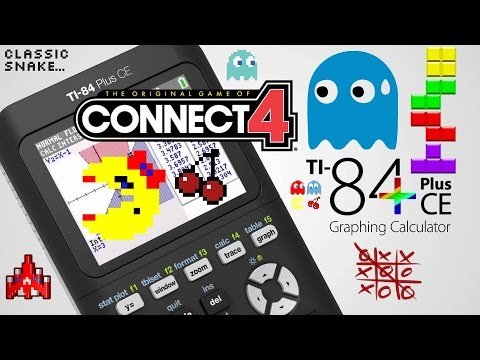
To add games to your TI-84 calculator, you typically need to connect it to a computer and transfer compatible game files using TI Connect software or a similar program.
Ever felt that your TI-84 calculator could do more than just crunch numbers? You’re not alone. Many people want to expand their calculator’s functionality beyond equations. The question on many minds is: how to add games to ti 84?
It’s a popular topic, and luckily, it’s totally possible. You can actually load quite a few games onto your TI-84. This is not as complex as it sounds.

How to Add Games to TI-84: Your Guide to Fun on Your Calculator
So, you have a TI-84 calculator, and you’re not just using it for math class anymore? That’s awesome! Many students are surprised to find out that these calculators, meant for tackling tough equations, can also be a source of entertainment with games. In this article, we’ll walk through exactly how you can get games onto your TI-84, making those long study halls a little more interesting. Let’s jump right in!
Understanding Your TI-84 Calculator
Before we get to the fun part of adding games, let’s understand what makes the TI-84 tick. The TI-84 isn’t like a smartphone or a computer. It has a specific type of memory called RAM (Random Access Memory) and Archive, which is where your programs and games will live. It has a Z80 processor that works very hard to make everything run smoothly. It has the ability to run programs that can be coded in TI-BASIC or Assembly languages, both of which are specific languages that the calculator understands. These languages are what people use to create games and other applications.
TI-84 Models: A Quick Overview
You might have one of the following TI-84 models, and it’s good to know the slight differences when dealing with games:
- TI-84 Plus: This is a very common model and works with most games available.
- TI-84 Plus Silver Edition: Similar to the TI-84 Plus, but often has more memory, this extra space can allow you to have more games.
- TI-84 Plus CE: This one has a color screen and more modern hardware. It’s generally faster and can handle more complex games. If you have this model, there will also be more games available that are specific to the color screen.
- TI-84 Plus C Silver Edition: This is another color-screen version. The main difference between this one and the CE is the processor speed.
Knowing your model helps when looking for compatible games and also when transferring them, as the steps may be slightly different.
Finding Games for Your TI-84
Okay, now the fun part: finding the games! The internet is filled with places where people share TI-84 games, but you need to be careful and only download from trusted places. Here are some tips to find suitable games:
Trusted Websites and Forums
There are several well-known websites and forums where people share their games. Look for places that are dedicated to TI calculators. Here are a couple of good places to start:
- Ticalc.org: This website is one of the most popular sources for calculator games and programs. It has a massive library of files and very good ways to find them.
- Cemetech: This is another great resource for all things TI-calculator related, offering programs, games, and lots of help from experts.
- TI-Planet: You can also find games here, and it’s particularly useful for international users.
When using these sites, make sure to read the user comments or reviews to ensure that the games are safe and work as expected. It’s also good practice to scan any downloaded files with antivirus software before transferring them to your calculator.
Types of Games Available
There’s a wide variety of games you can find for your TI-84. Here are some of the popular ones:
- Puzzle Games: These include games like Tetris, Sudoku, and logic puzzles. These are great for killing time and keeping your mind sharp.
- Arcade Games: You will find games similar to classic arcade games such as Pac-Man, space invaders, and breakout. These games are often simple but addictive.
- Adventure Games: Some games offer a basic adventure with maps, exploring, and puzzles.
- Platformers: Jump around and beat levels on games similar to Mario.
The games available on these platforms depend on the calculator type. So, always check if a game is compatible with your model.
Connecting Your TI-84 to Your Computer
To get the games from your computer to your calculator, you need a special connection. Most TI-84 models use a USB cable, but older models may use a link cable that is not as common. Here is a breakdown:
Required Hardware
- TI-84 Calculator: Obviously, you’ll need your trusty calculator.
- USB Mini-B Cable: Most modern TI-84 models use a USB Mini-B cable to connect to a computer. This is a small rectangular cable, not like the one you might use for your phone.
- Computer: You’ll need a computer to download games from the internet and then to transfer them to your calculator.
Software for File Transfer
You need a special program on your computer that will communicate with your calculator. These are often free and easy to use. Here are a few popular options:
- TI Connect CE: This is the official software from Texas Instruments. It is usually the best option for most TI-84 users. You can find it on the Texas Instruments website and it’s free to download.
- TI-Connect: If you have a model that’s not a CE, then this older version will work.
Install the appropriate software on your computer before you start trying to transfer files. Make sure you install the correct version for your operating system (Windows or macOS).
Transferring Games to Your TI-84
With everything connected, you are now ready to transfer those game files to your calculator. Let’s explore how to do this using the TI Connect CE software, as it is the most common and user-friendly option:
Step-by-Step Guide Using TI Connect CE
- Connect Your Calculator: Use the USB cable to connect your TI-84 to your computer. Make sure the calculator is on.
- Open TI Connect CE: Start the TI Connect CE program on your computer.
- Recognize your Calculator: TI Connect CE should automatically detect your calculator. If it does not, make sure the calculator is on, and the cable is properly connected. You might also need to try a different USB port on your computer.
- Locate the Game File: Go to the location on your computer where you downloaded the game file. This will most likely be in your Downloads folder. Games are typically in one of the following file formats: .8xp (for programs) or .8xg (for groups).
- Send to Calculator: In TI Connect CE, find the ‘Send to Calculator’ option. You can either drag and drop the file into the program or find the file location within TI Connect CE by selecting it.
- Start the Transfer: Once you have selected the file(s), click the ‘Send’ or ‘Transfer’ button.
- Watch the Progress: You’ll see a progress bar showing how much of the file has been transferred. Keep your calculator connected until this process is complete.
- Confirm Transfer: Once the transfer is finished, TI Connect CE will confirm. You can now disconnect the calculator from the computer.
Transferring Multiple Games
You can usually transfer multiple games at once by selecting all the desired files before clicking the “Send” button in your transfer program. This method is convenient if you are adding more than one game to your calculator at a time.
Running Games on Your TI-84
Okay, you’ve transferred your games. Now it’s time to play them! Here is how you can start them:
Navigating to the Program Menu
Here is how to locate your games within the calculator’s menus:
- Press the PRGM Button: On your calculator, find and press the “PRGM” button. It’s typically located near the top of the keypad.
- Select the Game: This will bring up a list of programs and games. You can use the up and down arrow keys to scroll through this list and select the program you want to play.
- Press ENTER: Once you have highlighted the game you want to play, press the “ENTER” button to start it.
- Using Grouped Programs: If you transferred a group (.8xg) file, then you need to access it by going into the “MEM” menu, which you can find by hitting 2nd and then the plus (+) sign. Then select the Group option, hit enter, and you should see the file there. Hit enter on that to view the programs that are inside the group and run the desired program.
Troubleshooting Issues
Sometimes, things might not go as planned. Here are a few common issues that you may encounter:
- Game Doesn’t Appear in PRGM Menu: If you can’t find your game, make sure the file was transferred correctly. Go through the transfer process again. Make sure you have also selected the correct file type (.8xp for games and .8xg for groups) on the calculator if you are looking in the group folder in the calculator’s memory.
- “ERROR” Message: If you get an error message, the game may be incompatible with your calculator model, or the file might be corrupted. Try a different game.
- Game Won’t Start: Make sure that the game you are trying to run is made for your calculator. Some games are made only for the CE models with color screens.
- Calculator Freezes: Sometimes older games can cause the calculator to freeze. If this happens, use the reset button on the back of the calculator. It’s usually a small hole, and you can use a paperclip to press the reset button. You will lose any unsaved work.
Tips for a Better Gaming Experience
Adding games is fun, but there are some tips you might find useful:
Memory Management
TI-84 calculators don’t have a ton of memory. Try these tips to keep your calculator working well:
- Delete Unused Games: If you find you don’t play a game anymore, delete it to make room for more. This helps your calculator run smoother. You can delete old files by going to “MEM” menu and selecting “2: Mem Mgmt/Del”. Then you’ll choose the type of file you want to delete. Choose program, then select the ones you would like to delete, and hit the delete button.
- Archive Programs: You can also archive programs if you don’t want to delete them but don’t want them in the main program list. Archived programs don’t take up memory when you are not using them. You can archive them by going to the “MEM” menu and selecting the program. Then, using the right arrow key, you can move the program to the archive.
Using the Reset Button
If your calculator freezes or is not working correctly, don’t worry. You can use the reset button. As we mentioned earlier, this is a small hole on the back of the calculator. Use a paperclip or similar thin object to press it. This restarts your calculator but will remove any unsaved work or game progress. It’s best to save any work often to avoid losing information.
Keeping Your Calculator Safe
While having fun with games is great, it’s important to keep your calculator safe. This applies to both physically and from malicious files.
Protecting from Viruses
Although rare, some games may have malicious code. To avoid this, try these best practices:
- Download from Trusted Sources: Only use well-known websites or forums to download games.
- Read Reviews: Before downloading, look at the reviews or comments from other users.
- Scan Files: Run a virus scan on the game files before you send them to your calculator.
Physical Care
Just like any electronic device, your TI-84 needs some care. Make sure to:
- Avoid Water: Keep your calculator away from water or other liquids.
- Protect the Screen: Don’t press too hard on the screen or drop the calculator.
- Proper Storage: Store your calculator in a case or bag to prevent scratches or damage.
With a little care, your calculator should last for years, providing a combination of math help and fun games!
Getting games onto your TI-84 calculator is a great way to use your calculator beyond schoolwork. By following these steps, you can enjoy many different games right on your calculator. Remember to use trusted sources, take good care of your calculator, and most importantly, have fun playing your new games!
How to Put Games on the TI 84 Plus CE
Final Thoughts
To add games, you must connect your TI-84 calculator to your computer using a USB cable. Then, download game files from a trusted source. Use the TI Connect software to transfer these files to your calculator’s memory.
Carefully follow instructions to install the games correctly. Now you will have a variety of fun games available. This method of how to add games to ti 84 can greatly enhance your calculator experience.

