
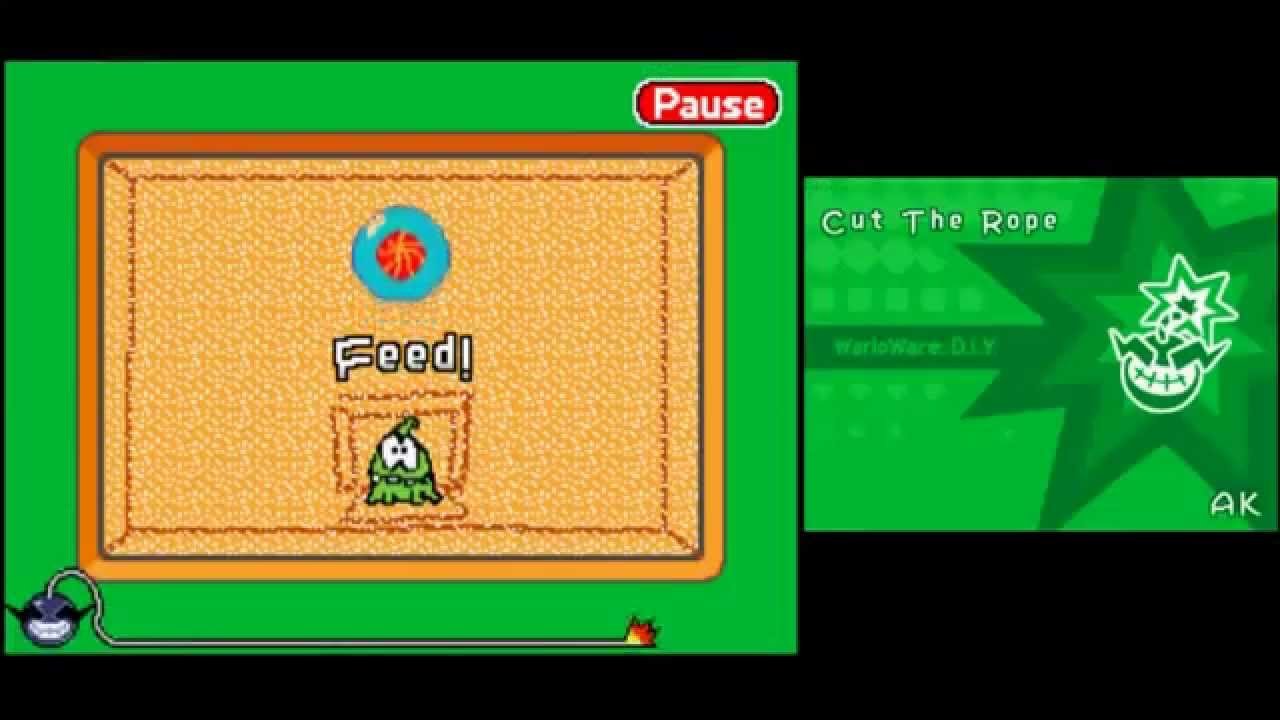
To add games to WarioWare DIY Showcase, you must first create games using the WarioWare DIY software, then save them to your DS or Wii console and finally upload to the showcase.
Ever wondered how to get more of those crazy microgames into WarioWare DIY Showcase? Many players create these little gems, but how to add games to WarioWare DIY Showcase can be tricky. It’s not as straightforward as it might seem but it is a simple process.
The initial step involves crafting your very own microgames within WarioWare DIY. Then you have to save these games to your Nintendo console, before they can be shared. Finally upload them to the showcase to share your creativity with other players.

How to Add Games to WarioWare DIY Showcase
Okay, so you’ve got WarioWare DIY and you’ve been having a blast creating your own microgames! That’s awesome! But did you know you can share these super fun creations with other people using the WarioWare DIY Showcase? It’s like having your very own microgame arcade, but it’s shared with friends! This guide will show you, step by step, how to get your custom games onto the Showcase so everyone can enjoy your brilliant work! Let’s dive in and get those microgames shared!
Understanding WarioWare DIY and the Showcase
First, let’s talk a little bit about what we’re dealing with here. WarioWare DIY, on the Nintendo DS, is a fantastic game that lets you make your own crazy microgames. You have control over almost everything, from the visuals and music to the game’s instructions. It’s a creative powerhouse! The WarioWare DIY Showcase is a separate piece of software, available as a free download on the Wii, where you can import and play microgames from the DS game. Think of it like the big screen version of your personal creations! This is where the magic of sharing happens! It’s important to understand that these are two different pieces of software working together. Your games are created on the DS, and then you move them over to the Wii Showcase. We’ll show you how.
Preparing Your Microgames on the Nintendo DS
Before you can share your microgames, they need to be in tip-top shape! Here’s what you should do to make sure they are ready for the Showcase.
Making Sure Your Microgames Are Complete
This might seem obvious, but it’s important to say! Make sure your games are fully working and ready to play. Check these things before moving to the next step:
Gameplay: Does the game work the way you intended? Are the objectives clear? Is it easy for someone new to play? Play through each microgame a few times to make sure there are no bugs or glitches.
Visuals: Are your characters and backgrounds clear and easy to understand? Do they look the way you want them to?
Sound: Does the music fit the game? Are sound effects effective? Make sure everything sounds good!
Instructions: Are the instructions easy to read and understand? The instructions should clearly tell players what they need to do.
Saving Your Microgames Properly
Once you are happy with your microgames, save them on your DS. You should save them to the game’s memory on the DS. Don’t worry, they are safe here until you move them to the Showcase. This process is usually done automatically as you work through the game, but just double check that you have saved the games to your DS cartridge. It is essential that you save them.
Naming Your Microgames
Give each of your microgames a unique and fun name. This will make them easy to find later on and it gives people an idea of what your game is about! Think of funny and descriptive names that match the game’s theme. Remember, a good name can make people more interested in trying out your creation.
Setting Up the WarioWare DIY Showcase on Your Wii
Okay, so the microgames are all ready on your Nintendo DS. Now we need to get the Wii set up so it can play them!
Downloading the WarioWare DIY Showcase
The WarioWare DIY Showcase is available for free on the Wii Shop Channel (if it’s still available – if not you might need a Wii with homebrew installed to get access to this). To get it, follow these steps:
- Turn on your Wii.
- Go to the Wii Menu and choose the Wii Shop Channel.
- You will need to connect to the internet, and then search for “WarioWare DIY Showcase.”
- Download the software, it’s free!
Once the download is complete, you should see the WarioWare DIY Showcase icon on your Wii Menu.
Connecting Your Nintendo DS to Your Wii
Now for the tricky bit – getting your DS to talk to your Wii. You’ll need to do the following:
- Make sure that both your Nintendo DS and Wii are turned on.
- Start the WarioWare DIY game on your DS.
- Start the WarioWare DIY Showcase on your Wii.
- On the Showcase menu, you’ll see an option for “DS Transfer” or something similar. Select that.
- On your DS, go to the “DS Download” option in the main menu of the DIY game.
- Follow the on-screen instructions on BOTH the Wii and the DS. Usually it involves pressing a few buttons at the right time.
If you’re having trouble, double-check that both devices are connected to the same internet network (if needed) and that you have selected the correct options on both devices. It might take a few tries but eventually, your DS and Wii should connect.
Transferring Microgames to the Showcase
With both devices connected, it’s time to transfer those awesome microgames to the Wii. Here’s the process:
Selecting Which Games to Transfer
Once your DS and Wii are connected, the DS will show a list of all the microgames on your cart. The Showcase will also display a screen that is waiting for the transfer. This is where you choose which games you want to send over to the Showcase. Look through the list of your microgames on the DS screen and select the ones you want. You might want to start with a few of your favorite or best games and then transfer the rest later.
Starting the Transfer
After you’ve selected the microgames you want to transfer, select the “Transfer” button, “OK” or similar button and watch the magic happen. The game will be transferred from the DS to the Wii. The time it takes to transfer depends on how many games you send at once.
Checking That Your Games Have Been Successfully Transferred
After transferring, check the Showcase to make sure the games have shown up. Go to the main menu of the Showcase, look for a “Play Games” section or something like that. Look through the list and you should see your games ready to play! If for some reason, any games haven’t transferred, try sending them again or check your connections.
Playing Your Transferred Microgames
Okay, the games are on the Showcase, ready to go! Now it’s time to enjoy them!
Navigating the Showcase Menu
The Showcase has a simple menu that lets you play your games, view other people’s creations (if you’ve downloaded any), and even create new ones using a basic version of the DIY tools. Most of the time you’ll want to select the “Play Games” option and you will see your creations!
Playing Your Own Microgames
Find your games in the list and start playing! This is the best part, seeing your work come to life on the big screen! If you did a good job of making your games fun and engaging, your friends will love playing them too. Play your games by yourself or with your friends – it’s great either way!
Playing With Friends
WarioWare DIY Showcase is amazing to play with friends. You can get together and take turns playing each other’s games. It’s super fun to see how everyone approaches game creation. You can have competitions to see who can get the highest score, or just enjoy the creative ideas that everyone comes up with. Gather your friends, get the snacks ready, and get playing!
Tips for Making Shareable Microgames
Now that you know how to transfer the microgames, here are some tips to make them even more enjoyable to share. These tips can make the games more interesting and more fun to play.
Clear Objectives
A great microgame has clear objectives that the player understands right away. Avoid anything too confusing or too complicated. A simple game is always the best place to start when you’re learning about game design.
Simple Controls
Keep the controls as simple as possible. Use buttons that are familiar to people who play video games. The less players have to think about the controls, the more they can focus on enjoying the game.
Creative and Unique Ideas
Try to come up with unique and different ideas. It’s the best part of WarioWare DIY! Try to make your games stand out by being clever or unexpected. Be inspired by real life but do not be afraid to experiment.
Testing and Refining
The secret to a good game is testing and refining. Play your microgames multiple times, fix any problems, and ask for opinions from others. This process helps make your games the best they can be.
Variety
Don’t make all your microgames the same! Vary the themes, gameplay, and challenges. A set of very diverse games makes it more interesting for players. Variety is the spice of game life!
Troubleshooting Common Issues
Sometimes, things don’t go as planned. Here’s what to do if you have any issues:
DS and Wii Won’t Connect
If your DS and Wii refuse to connect, follow these steps:
- Double-check that both devices are turned on and that the Wireless Communication is turned on for both devices.
- Make sure both are on the same wireless network. If not, switch to the correct wireless network and try again.
- Restart both the DS and the Wii and try again.
- Sometimes, it just takes a few tries to connect.
Games Don’t Transfer
If games fail to transfer, do the following:
- Make sure you have followed all the steps.
- Try transferring one or two microgames at a time, instead of all of them.
- Check to ensure the microgames are correctly saved to your DS cartridge.
- If you are still having issues, you may need to clean your DS cartridge and try again.
Games Not Showing Up on the Showcase
If you transferred the games successfully but cannot find them in the showcase:
- Check that you are looking in the right area of the Showcase menu.
- Restart the Showcase and then check again.
If all else fails, you can try sending the games again from the DS, or try deleting all the games on the Showcase and then resending them from the DS. Sometimes you just need to start over again.
Sharing your microgames on the WarioWare DIY Showcase is a fun and great experience. By following the steps and tips in this guide, you’ll have your games up and running and entertaining your friends in no time! Remember to get creative, have fun, and most of all, share your ideas with the world. WarioWare DIY and the Showcase are all about showing what you can do.
WarioWare D.I.Y. Showcase – My Microgames (Set 1)
Final Thoughts
To add games, first, connect your Nintendo DS to the Wii. Then, use the WarioWare: DIY game and navigate to the “Send” option. This process transfers your created games from DS to the Wii’s showcase.
To successfully share, your Wii must have the WarioWare: DIY Showcase software installed. Following those simple steps clarifies how to add games to warioware diy showcase, making game sharing easy. Remember that proper connection and software setup are must.

