
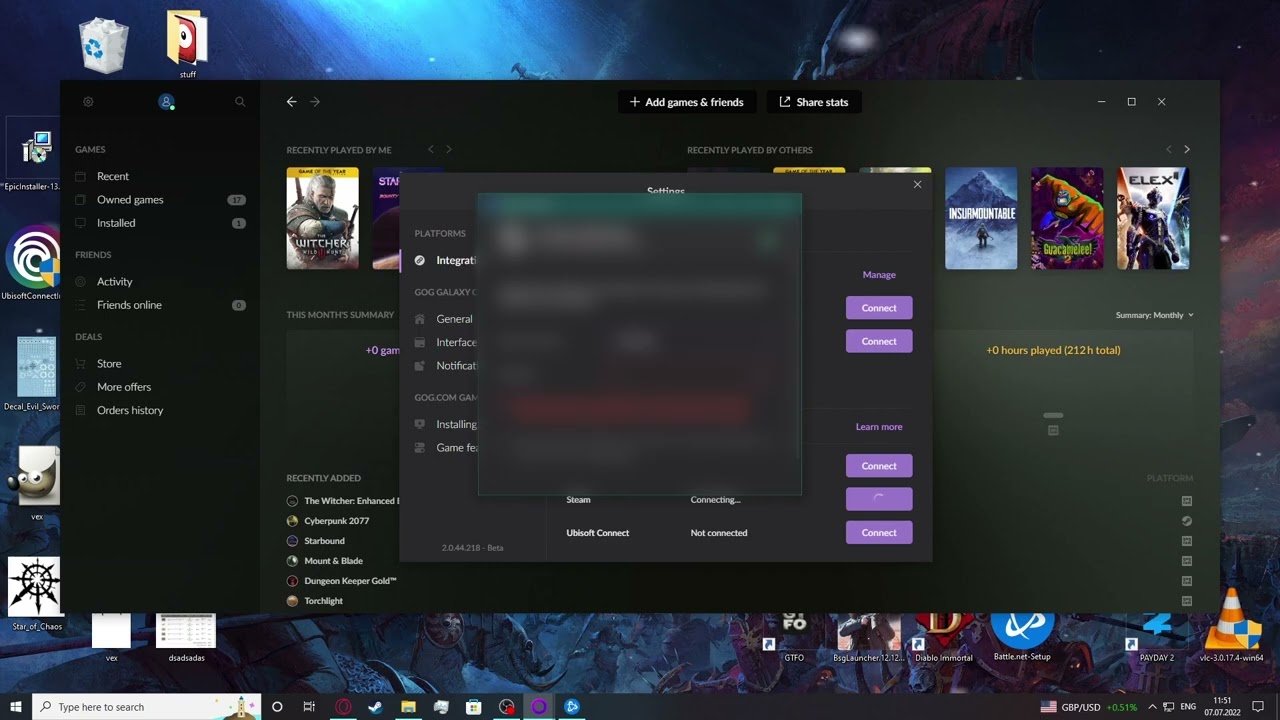
Adding GOG games to Steam requires you to use Steam’s “Add a Non-Steam Game” feature, then browse to the game’s executable file (.exe).
Ever wanted to see all your games in one place? Many gamers use Steam as their main library, and it’s pretty convenient. If you have games from GOG, you might wonder about integration. So, how to add GOG games to Steam? It is not as hard as it seems, you just need to use a certain feature.
Steam has a feature for adding games outside of its store. This lets you add those GOG titles to your collection. Now you can launch them directly from Steam, which keeps everything organized and easy to access.

How to Add GOG Games to Steam
So, you’ve got some fantastic games on GOG (Good Old Games), and you really like the comfort of having all your games in one place – Steam! It’s a common wish among gamers. While GOG and Steam are separate platforms, there are ways to bridge this gap and get your GOG games appearing in your Steam library. This doesn’t actually move the game files, it just adds a shortcut that lets you launch the game through Steam. Let’s dive into how you can do this.
Understanding the Process
Before we jump in, it’s important to know what we’re doing. We are not moving game files from GOG to Steam. This is not possible. Instead, we’re creating a shortcut. Think of it like putting a bookmark in your favorite book. You’re not copying the whole book, just making it easy to go straight to the right page. In our case, we will be creating a shortcut to the GOG game’s executable file so that Steam recognizes it as a game in its library.
Adding Non-Steam Games to Steam
Steam has a great feature that allows you to add games that aren’t officially available on Steam. This is how we’ll add our GOG games. The feature is called “Add a Non-Steam Game.” Here’s how to use it:
Step-by-Step Guide to Adding Non-Steam Games:
- Open Steam: First things first, launch your Steam application. Make sure you are logged into your account.
- Navigate to the Games Menu: Look for the “Games” menu at the top of your Steam window. Click on it.
- Select “Add a Non-Steam Game…”: In the Games menu, you’ll find an option that says “Add a Non-Steam Game…”. Click on it.
- Browse for Your GOG Game Executable: A new window will pop up showing a list of programs on your computer. Sometimes, your GOG game might appear in this list automatically. If not, click the “Browse…” button.
- Find the Game’s Executable (.exe) file: A file explorer window will now open. You need to go to the location where your GOG game is installed. This is usually under the GOG games folder. This folder can be anywhere on your computer. Now you have to find the executable (.exe) file of that game. This file is what actually starts the game. This file may have the same name as your game, or it might have a different, more technical name. The important thing is that it is of type “Application”. If you’re not sure, just look for the file ending in “.exe”. Select the executable file and then click open.
- Add the Game to Steam: After selecting the executable file, you will return to the window listing programs. Select your newly chosen game and then select “Add Selected Programs” button.
- Your Game is Added: Your GOG game will now appear in your Steam library. You will find it listed under “Games”.
Customizing Your GOG Game in Steam
Now that your GOG game appears in Steam, you might want to customize it a bit to make it look nicer. Steam allows you to change the game’s name, icon, and other visual settings.
Renaming Your GOG Game
Sometimes, the game’s name isn’t what you’d like it to be. Here is how you can rename your GOG game in Steam:
- Right-Click on the Game: Find the game you added in your Steam library. Right-click on the game’s name.
- Select “Properties”: In the menu that appears, click on “Properties”.
- Change the Name: In the “Properties” window, you’ll find a field where the game’s name is written. Just type in the name you prefer, then close the properties window.
Adding Custom Artwork and Icons
To make your GOG game look like a real Steam game, you can add custom artwork and icons. Here’s how:
Adding a Custom Icon:
- Right-Click on the Game: Find the game you want to customize in your Steam library. Right-click on the game.
- Select “Manage”: In the context menu that appears after a right click, hover your mouse over “Manage” option.
- Select “Add custom shortcut icon”: In the submenu that appears, click “Add custom shortcut icon”.
- Browse for an Icon File: A file explorer window will open. You’ll need to find an image file you want to use as the icon, like a PNG or JPG file. Find the picture you want to use as the icon and then select “Open”.
Adding Custom Artwork:
Adding custom artwork makes your Steam library more visually appealing.
- Download Artwork: Look for images related to the game online. Many websites offer Steam grid images. These images can be used as a background in your game’s entry in the library.
- Find Your Userdata Folder: In your Steam folder, navigate to:
steam\userdata\[your Steam ID]\config\grid. Your Steam ID is a unique number assigned to your Steam account, or it may be a custom URL. You can find it in the Steam profile settings page. - Place Your Artwork: Put the images you downloaded into the ‘grid’ folder. You should name them in a specific way. For example, use the same number Steam uses for this shortcut, or name them with these endings: ‘_hero’, ‘_logo’ and ‘_p’. You have to look at other entries in the ‘grid’ folder to understand the format you need for each image.
- Restart Steam: You might need to restart Steam to see the artwork applied.
Benefits of Adding GOG Games to Steam
So why go through all this trouble? Here are some good reasons to add your GOG games to Steam:
- Centralized Game Library: Have all your games in one place, whether they are on Steam, GOG or other platforms. This makes it easier to find and play the game you’re in the mood for, without having to check multiple applications.
- Steam Overlay: You can use Steam’s in-game overlay with your GOG games. This gives you access to things like the Steam chat, browser, and screenshots while you play the GOG games.
- Steam Controller Support: If you use a Steam controller, adding your GOG games can give you better control configuration. You can use Steam’s controller configuration options, that makes it easy to customize your control settings.
- Consistent Launching: Launch all your games from one place. It removes the need to open separate game launchers.
- Activity Tracking: Steam can track your play time on GOG games that you add, showing you how much time you spend playing each game.
Troubleshooting Common Issues
Sometimes things don’t go as planned. Here are some common problems and how to fix them:
Game Doesn’t Launch
If your game isn’t starting, check the following things:
- Executable File Path: Double check if you selected the correct executable (.exe) file when you added the game. If the file path is incorrect, Steam will be unable to start the game.
- To fix this, right-click on the game in Steam, select “Properties”, and then in “Target” and “Start in” fields, make sure the selected location is correct.
- Admin Privileges: Sometimes, a game needs admin privileges to run. Try right-clicking on the game shortcut in Steam, go to “Manage”, then click “Browse local files” and then right click the game’s .exe file, then select “Properties”. Finally under the “Compatibility” tab, check “Run this program as an administrator”.
- Game Updates: Make sure the game is up to date. Sometimes an outdated version can cause problems.
- To update a GOG game, you will have to open the GOG galaxy app. There you should see if there are any updates available for the game.
Overlay Issues
If the Steam overlay isn’t working, try these steps:
- Enable Steam Overlay: Make sure the Steam overlay is enabled in your Steam settings.
- Go to “Steam” -> “Settings” -> “In-Game” and make sure “Enable the Steam Overlay while in-game” is checked.
- Game Compatibility: Not all games work perfectly with the Steam overlay. Some older games might have issues.
- Restart Steam: A simple restart of Steam might solve the issue.
Incorrect Icon or Artwork
If your custom icons and artwork aren’t showing up, check these things:
- Image Format: The images have to be in a correct format, like JPG or PNG. Make sure you selected an image in the correct format.
- Image Size: You may have to use an appropriate image size to make sure they show properly in Steam.
- Image Location: Make sure that you have placed the files in the correct folder, as mentioned previously.
- Restart Steam: Sometimes, you need to restart Steam for the artwork to display correctly.
Using Third-Party Tools
There are also third-party tools that can help add GOG games to Steam. These tools try to automate this process.
Steam ROM Manager
One example is Steam ROM Manager. It’s a tool primarily used for adding ROMs for emulated games, but you can also use it to add your GOG games to Steam. It can add artwork, manage your games, and even add controller configurations for you. These features make the process a bit easier and less of a hassle. Please note that installing third-party software may carry security risks, so ensure you are using reliable tools from trustworthy sources.
Adding your GOG games to Steam can really improve your game playing experience. It brings all your games together in one place, making it simpler to play the game you want. You can use Steam’s features and customisations, like the overlay, custom images and controller support, even with your GOG games. Now, go ahead and add your GOG games to Steam!
How to Add GOG DOSBox Games to Your Steam Library Tutorial
Final Thoughts
In short, adding non-steam games, especially gog titles, is straightforward. You use the “Add a Game” feature in Steam. Locate the game’s executable file and select it.
This process effectively integrates your gog library within Steam. You can now access and manage your GOG games alongside your Steam collection. Remember the key element is to find the executable file for your game.
Remember how to add gog games to steam involves simply locating the game’s file and adding it. Enjoy your integrated game library!

