
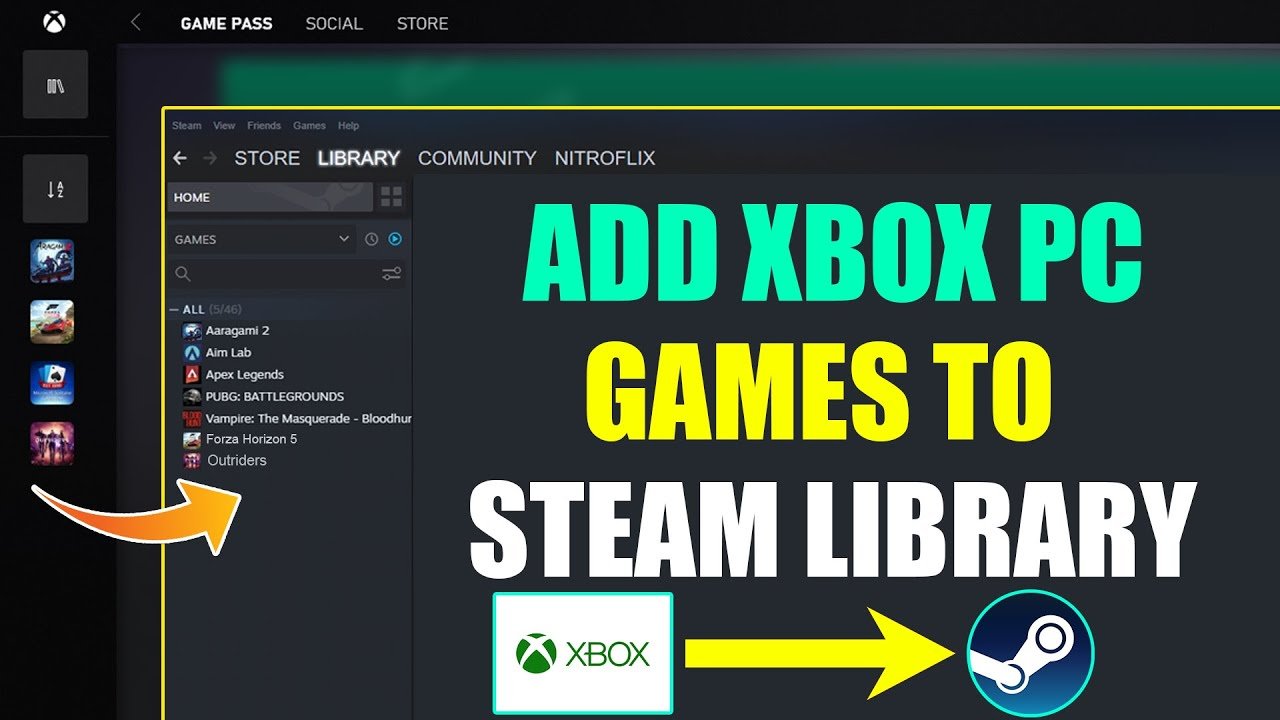
You cannot directly add an Xbox game to your Steam library. Steam only recognizes games purchased through its platform or activated with a Steam key.
Ever wished you could see your Xbox games nestled amongst your Steam collection? Many gamers wonder how to add xbox game to steam, dreaming of that unified library experience. Unfortunately, directly adding them is not possible. Steam operates as a closed ecosystem, primarily for titles bought on their store.
While you can’t integrate them directly, there are still other avenues to play games from different platforms. These alternatives might provide a workaround to play your favorite titles. Though a direct addition isn’t an option, exploring these may improve your overall gaming experience.

How to Add Xbox Game to Steam
Okay, so you’ve got this awesome Xbox game and you’re thinking, “Wouldn’t it be great if I could play this on Steam?” Maybe you love the Steam interface, or perhaps all your friends are on Steam and you want to join them. Well, the idea of adding an Xbox game to your Steam library isn’t as straightforward as adding a game you bought directly from Steam, but it is possible! Let’s explore how you can do this and look at the different scenarios you might encounter.
Understanding the Basics
First, it’s really important to know that Steam doesn’t directly support Xbox games. You can’t just copy an Xbox game file over and expect it to work. Xbox games are designed to run on the Xbox console (or on Windows if they are “Play Anywhere” titles). Steam, on the other hand, is a platform for games that are designed to run on computers.
So, instead of directly adding the game files, we’re going to look at how to add non-Steam games and, for some scenarios, how to use the “Xbox Play Anywhere” feature to our advantage. This will give you a Steam shortcut that can help make things feel a bit more integrated. We will explore this in details in further sections.
Adding Non-Steam Games to Steam: The Universal Method
This method is the most common way to get most of your games, including some Xbox titles, into your Steam library as a shortcut. It works by creating a link that launches the game from its original location on your computer. Here’s how it works step-by-step:
Step 1: Locate the Game’s Executable File
The first thing you need to do is find the actual file that starts your Xbox game. This file usually has an extension “.exe” at the end of its name and it’s normally located where the game is installed on your computer. If you are using Xbox app on PC then that means its a “Xbox Play Anywhere” title.
Here’s how to find it:
- For Xbox Play Anywhere Titles from Microsoft Store:
If you got your Xbox game through the Microsoft Store on your PC, the location is a bit more hidden. The default location is usually something like C:\Program Files\WindowsApps. But accessing this folder directly needs a specific kind of permission. It’s a little complicated. However, you don’t need to access the folder directly you can also find the path through a shortcut on desktop that was created by Windows automatically.
To easily find it, search for the game in the Windows search bar. Once you find the game shortcut, right-click on it and select ‘Open File Location’. This will take you to the location where your game shortcut is located. Right click on that game shortcut again and then again select ‘Open File Location’ and now you will be in the actual directory where the executable file is located. Note down or remember this path.
- Games installed through other methods: For games not from the microsoft store, usually installation path is easy to find and its usually inside “Program Files” or Program Files (x86) folder under a folder name of your game developer or the name of the game itself.
Remember to write down or copy this path, you will need it soon. You may also need to be able to see hidden folders to find some of this files. In that case make sure to turn them on in explorer settings.
Step 2: Add the Game to Steam as a Non-Steam Game
Now that you have found the game’s “.exe” file, let’s get it into Steam:
- Open Steam: Launch the Steam application on your computer.
- Go to ‘Add a Game’: In the bottom-left corner of the Steam window, you’ll see an option called “Add a Game”. Click on it.
- Select ‘Add a Non-Steam Game’: A little menu will appear. Choose the option “Add a Non-Steam Game…”.
- Browse for the Executable File: A window will open showing a list of programs on your PC. You might not see your game in that list right away. Click on the “Browse…” button.
- Find the “.exe” File: Navigate to the location where you found your game’s executable file in Step 1. Select the .exe file and click on “Open”.
- Add the Game: The selected game should now be added in the Non-Steam Games selection screen. Click the checkbox next to the name of the game and finally press “Add Selected Programs” button to add the game to your library.
Your Xbox game should now appear in your Steam library! It will be under the non-steam games section and probably under the name of the executable file.
Step 3: Customize the Game’s Appearance in Steam (Optional)
You’ve successfully added the game to Steam, but it might not look pretty. Let’s fix that!
- Change the Name: Right-click on the game in your Steam library and select “Properties”. You can change the name in the top box so it appears as its actual game name in your library.
- Add a Cover Image/Artwork: You can make the game look great by adding a box art image that appears in your steam library. Right-click on the game, select “Manage” then select the “Set custom artwork” option. Browse and find the image you want to use and select it. If you can not find any image on your local computer, then do an image search for your game on the internet and save it to your local computer to use it as custom artwork.
- Add a Game Logo: You can also set custom logo to be used in small preview of the game in Steam library. To set a custom logo, Right click on the game, select ‘Manage’, and select ‘Set custom logo’ and then select your logo image file.
Now, your Xbox game should look pretty awesome in your Steam library, just like any other Steam game!
Using “Xbox Play Anywhere” for Specific Games
Some Xbox games are part of the “Xbox Play Anywhere” program. This means that if you buy a digital copy of the game on Xbox, you can also play it on your Windows PC (and vice versa) without purchasing it again. These games often integrate better with the PC environment and this integration can help in adding them to Steam. It helps to provide better compatibility.
Identifying Play Anywhere Games
How do you know if a game is an Xbox Play Anywhere title?
- Look for the Xbox Play Anywhere Logo: On the Xbox store or on the game packaging you will see a logo which represents this feature.
- Check the Game’s Description: Check the product description on the Xbox store or the Microsoft store.
How Play Anywhere Games Interact with Steam
If you own the game through Microsoft Store and its a Play Anywhere title you can simply add its executable file using the previous method. Since the game is installed on your windows, steam can create the shortcut as explained above. This can give some advantage in using steam overlay in the game.
The most common way of adding a Play Anywhere game to Steam will be the same as described above in the Adding Non-Steam Games to Steam section. The only difference is that you are most probably using the Microsoft Store to buy and install the game.
Troubleshooting Common Issues
Sometimes, things don’t go as planned. Here are some issues you might encounter and how to deal with them:
Game Doesn’t Launch from Steam
If the game shortcut does not launch the game when clicked from steam library, there are few things to check.
- Check the Executable Path: Make sure the path to the game’s .exe file is still correct in the game’s Steam properties. Sometimes, updates can move the file.
- Run as Administrator: Some games need admin permissions to work properly. Right click on the shortcut of your game in steam library and select “Properties” then choose the “Compatibility” tab and then select the “Run this program as an administrator” checkbox.
- Re-Add the Game: Sometimes, it’s best to simply remove the game from Steam and add it again.
Steam Overlay Doesn’t Work
The Steam Overlay (the menu that pops up when you press Shift+Tab) might not work with some non-Steam games. This is because the way steam works with non-steam games is different from the way it works with steam games. But there are still some fixes to try.
- Make sure overlay is enabled: Open Steam setting from “Steam” menu and then choose “In-Game” option. Make sure the “Enable the Steam Overlay while in-game” option is selected.
- Run Steam as Administrator: Sometimes, running Steam as an administrator can fix overlay issues.
- Try running Steam in Beta: Sometimes the newest beta update of Steam have some fixes for compatibility issues. Go to steam settings and choose “Account” section and then under the “Beta participation” select “Change” and then select “Steam Beta Update” and click OK to enroll into beta.
Performance Issues
If your game runs poorly after adding it to Steam, you may need to adjust some things.
- Make sure your computer meets the requirements: Steam is not involved in the actual running of the game, it is just a shortcut. So the game should run fine from steam if it is working fine from its original shortcut. Make sure your computer meets the system requirements to run your game properly.
- Check for driver updates: Make sure you have the newest update for your computer graphics drivers and all other drivers.
- Lower game settings: Start by lowering the graphic setting and other settings in the game to see if it improves performance.
Important Notes About Game Saves and Achievements
One important thing to keep in mind is that adding an Xbox game to Steam doesn’t change the way game saves and achievements work. Game saves for Xbox Play Anywhere games are usually stored in the cloud through your Microsoft account. They are not controlled by Steam. Achievements also work through your Xbox/Microsoft account, not Steam. Steam achievements will not work on Xbox games added to steam.
So, don’t expect to see Xbox achievements popping up on Steam or for the game to store saves to your Steam Cloud Storage. You’ll still need to log in to your Microsoft account to access all your saved games and your achievements.
Keep in mind that this is generally true for all non-steam games. So even if your non-steam game was not from Xbox, the saves and achievements will be on its original platform not on steam.
Adding an Xbox game to Steam is mainly about the convenience of having all your games in one place. While it doesn’t provide the deep Steam integration that Steam-purchased games have, it’s still a nice way to organize your game library and launch them from a central platform. By following the steps above, you can bring your Xbox titles into the Steam ecosystem and enjoy a more unified gaming experience. Remember that this process mostly involves adding non steam game shortcuts. With a bit of tweaking, your library can feel more complete and organized. Happy gaming!
Steam Deck Windows – Adding Xbox Store Games to Steam
Final Thoughts
In short, adding your Xbox game to Steam isn’t directly possible. Steam only integrates games purchased on its platform. You cannot import Xbox titles.
To play an Xbox game on PC, you need to use the Xbox app. This app manages your library.
You might search for ‘how to add xbox game to steam,’ however, that method is not supported. Instead, enjoy games through the Microsoft ecosystem.

