
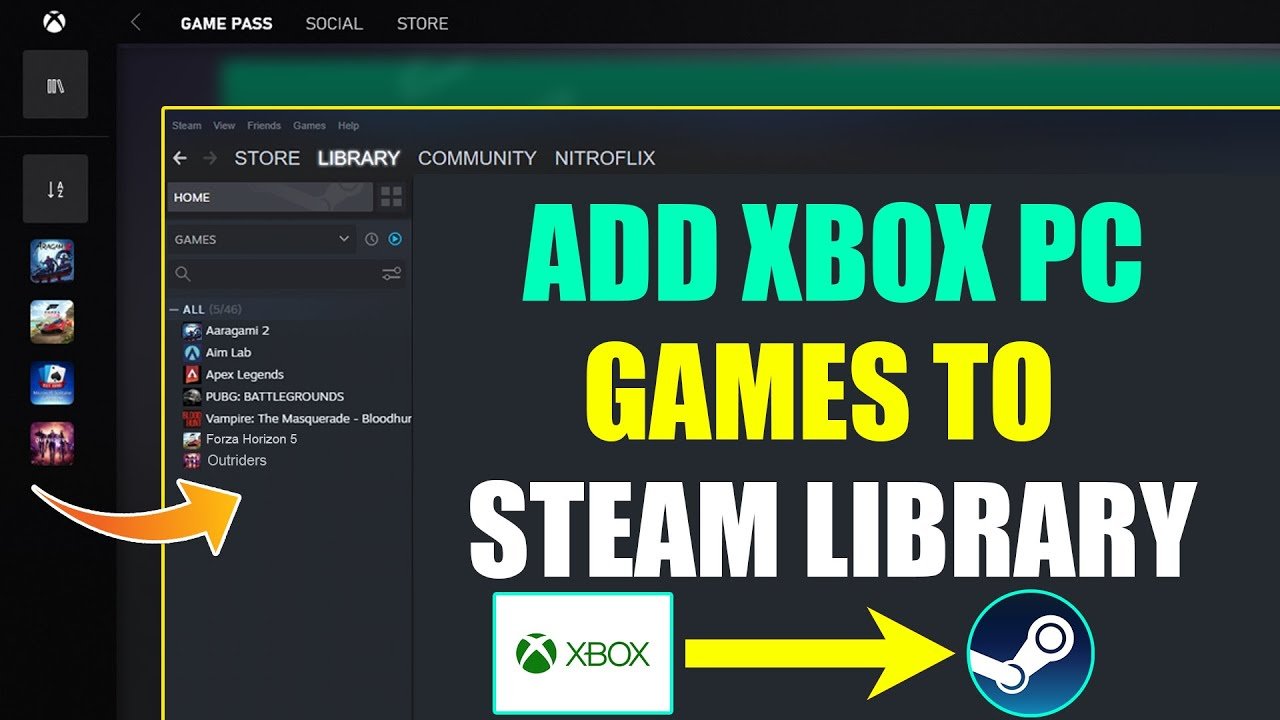
To directly add Xbox games to Steam, you cannot. Steam does not support adding games from other platforms like Xbox directly. You can add non-Steam games to your library, but this simply creates a shortcut, not a true integration.
Ever wished you could conveniently launch all your games, even Xbox titles, from one central place? Many gamers often ask about how to add Xbox games to Steam, aiming for that seamless experience. It’s a very common desire, having your whole library in one launcher.
While direct integration isn’t possible, there are ways to create shortcuts within Steam for games installed elsewhere. This gives you quick access from the Steam interface. This method provides a single place to start all your gaming sessions.

How to Add Xbox Games to Steam: A Complete Guide
So, you’ve got a fantastic collection of games on your Xbox, and you’re also a big fan of Steam. Wouldn’t it be cool if you could see all your games in one place? Maybe you’re dreaming of having your Xbox titles show up in your Steam library, or perhaps you just want to use your Steam controller with your Xbox games. It’s a common question among gamers: can you really add Xbox games to Steam? The answer is a bit complex, but we’re going to break it all down for you, step-by-step.
Understanding the Reality: Direct Integration Isn’t Quite Here
Let’s start with the important stuff: you can’t directly add Xbox games to your Steam library in the way you might add a non-Steam game. Steam is designed to work with games purchased and downloaded through its platform. Think of it like trying to put a puzzle piece from one box into another – they just don’t fit perfectly. The different platforms, Xbox and Steam, each use their own systems, and they don’t talk to each other directly for game library management. Microsoft and Valve haven’t built a bridge for that kind of direct integration… yet. But don’t lose hope! There are still ways to have your Xbox games interact with Steam in useful and fun ways.
The Game Plan: What We Can Do
While a direct import of your Xbox library to Steam isn’t possible, we can still achieve some goals. We’ll focus on the available options to make your gaming life more convenient and connected:
- Adding Xbox Games as Non-Steam Games: This is the most common approach, and it allows you to launch your Xbox games through Steam.
- Using Steam Input for Xbox Game Control: You can configure Steam Input to use your Steam controllers with your Xbox games.
- Xbox Game Pass Integration (Limited): We will explore the relationship of Xbox game pass and steam, its available integrations.
Adding Xbox Games as Non-Steam Games: Step by Step
This method is all about manually telling Steam that you have a game you want to launch using its platform, even if Steam didn’t sell the game to you directly. It’s very useful when you want to use steam overlay for other games. Here’s how it goes:
Finding the Executable File
Before adding any game to Steam, you first need to know where the actual game is on your PC. This is called finding the executable file or the “.exe file”. Typically, the “.exe” is the program that starts your game. It is like the “start” button for that game. This file usually sits in the game’s folder. Because you’re using Xbox titles which generally don’t have such exe file (most of them are Universal Windows Platform (UWP) apps), this process is a little different.
Locating UWP games can be tricky, as they are usually hidden away. But you can find it with a bit of detective work:
- Open the Start Menu: Click on the Windows button at the bottom left of your screen.
- Find your Xbox game: Scroll through your programs and find the game you want to add to steam.
- Right-click on the game: When you right click, you will see some options.
- Click on “More”, then “Open File Location” This will take you to the shortcut of the game.
- Right-click again on the game’s shortcut Select “Properties”.
- You will see the target path of the game In the target section, copy the full path of the game executable. It is generally like this format “C:\Program Files\WindowsApps\PublisherName.GameName_VersionNumber_x64__RandomCharacters\GameName.exe”
Important Note: Because UWP apps are protected by the system, you may face issue while copying this path, in this case you can search this executable file with the game name on file explorer, and try to add through that method. For some games, you might find a launching executable (.exe) file in this folder. If there’s no recognizable “.exe” file, or the path looks unusual, that’s okay; we’ll use a workaround method later in these instructions.
Adding the Game to Steam
Now that we have found our executable, we need to add the Xbox game to your Steam library:
- Open Steam: Start your Steam application.
- Click “Add a Game”: At the bottom left of the Steam window, you’ll see a “Add a Game…” button. Click it.
- Select “Add a Non-Steam Game…”: A list will appear; choose this option.
- Browse or Paste: A new window will pop up showing all installed programs. If you’ve found your game’s “.exe” file, click browse and navigate to the file, select it, and click open, then select the game, and click on the “Add Selected Programs” button. However, for some UWP games that doesn’t have an exe, you can paste the copied path, you’ll notice the name of the game will be listed on the box, and select the game, then click “Add Selected Programs”.
- The game is now added: Your Xbox game should now show up in your Steam library.
Customizing Your Game Entry
Once the game is added, you can customize the game entry in your Steam library for a better experience:
- Change the game name: You can give the game a more friendly name by right clicking the game from the list, select “Properties” from the list, and change the name from the text box.
- Add custom artwork: You can also add custom cover art and icons for your game. Right click the game, click on “Manage” option, then click on “Add custom artwork” option.
- Customize category: you can add a new category to filter the game with other steam games.
This small steps can make your non-steam games look just as good as your steam games in your library.
Using Steam Input for Xbox Game Control
So, you’ve added your Xbox games to Steam, and now you want to use your fancy Steam controller or enjoy the benefits of Steam Input’s configurability for better control. It is absolutely possible, and here’s how you do it:
Steam Input: What It Does
Steam Input is a tool that lets you use different controllers with games, even if those games don’t natively support them. Steam Input can also give you advanced ways to customize your controller layouts. This is especially helpful for Xbox games that might have confusing control schemes.
Setting Up Steam Input
- Plug in Your Controller: Connect your Steam controller to your computer.
- Start Steam: Open your Steam application.
- Go to Settings: Click on “Steam” in the top left corner, and choose “Settings.”
- Go to Controller: Select “Controller” on the settings window.
- General Controller Settings: You will see a “General Controller Settings” button, click on that.
- Tick the controller you want to use: Here you will find various option such as “Xbox Configuration Support”, “Playstation Configuration Support”, and “Generic Gamepad Configuration Support”. If you want to use your xbox controller, tick the Xbox option.
- Close the Settings Click on “OK” button to close the settings.
- Run the Xbox game: Run the game that you previously added on steam library.
- Configure Controller Layout (in game): You can customize the controller layout by clicking “SHIFT + TAB” while inside the game, select “Controller configuration”, and you can customize the controls on that interface.
You can now enjoy your Xbox games using your Steam controller, along with custom layouts and button mapping. This can be especially useful for games that have awkward control schemes or lack controller support.
Xbox Game Pass Integration and Steam
There’s no official way to link your Xbox Game Pass subscription directly with Steam. However, there are indirect approaches and aspects that are worth considering for game management:
The “Play Anywhere” Games
Some Xbox titles are part of the “Xbox Play Anywhere” program. This means that if you own the digital copy of a game on Xbox, you may also have the rights to play it on your Windows PC. If that’s the case, you will find those games available in the Microsoft Store. you can then add the game using steps shown previously.
Using the Xbox App on PC
The Xbox app on PC acts as the launcher for Xbox Game Pass games. The games that you play on this app, are also available in your library, and can be added to steam as Non-Steam games, just like the process described before.
Steam Integration of Xbox Game Pass games
While there’s no feature to show your Xbox Game Pass library inside Steam, you can use the “Add a Non-Steam Game” method to organize your games within Steam, even if you launch them from the Xbox app or Game Pass platform. This can provide a more organized and consolidated view of your game collection.
Common Issues and Troubleshooting
Sometimes, things don’t go exactly as planned. Here are some common issues you may encounter and how to tackle them:
Game Not Launching From Steam
If you have added the game as a non-steam game, but it isn’t launching when you click the play button, here are few things you can try:
- Run Steam as Administrator: Sometimes, Steam needs higher permission to launch games. Right click steam application and run it as an administrator.
- Verify the Game Path: Make sure the path to your game executable in Steam is correct. Double check the file location, and update it in game properties settings.
- Check for Updates: Ensure both Steam and your Xbox app are updated. Sometimes outdated software can cause conflict.
- Try Different Executables: If you found multiple .exe files for the game, try adding each of them to see if one works correctly.
- Run the game first from its launcher: Try running the game from Xbox app, then close the app, and then try running from steam.
Controller Not Working
If your controller isn’t working in game using the steam input, here are some things to try:
- Restart Steam and the Game: Sometimes, a simple restart can fix issues with controller input.
- Check Controller Settings: Verify your Steam controller settings are correct in Steam settings.
- Try a Different Controller Configuration: Try experimenting with different community controller layout options, or start with a default layout.
- Check game controller support: Make sure the game actually has controller support, as some games may not fully support it.
Game Overlay Not Working
If you want to use the steam overlay for games, you can try these:
- Enable Overlay: Make sure Steam overlay is enabled in Steam settings.
- Run in Full Screen: Try running the game in full screen mode. Some overlay feature works well in full screen than windowed mode.
- Close other overlay software: Sometimes other software can interfere with steam overlay, try to close other overlay application that you may be running.
By troubleshooting each issue step by step, you can typically find the solution and continue playing.
While you can’t directly add Xbox games to Steam in the traditional sense, by using these methods you can have a better control of all your games, and can manage the game collection more efficiently. By understanding how to add games as non-steam titles, using Steam input for controls, and being aware of the Game pass integration, you’ll be on your way to a smoother, more organized gaming experience. It takes a bit of tweaking, but it is worth it.
Steam Deck Windows – Adding Xbox Store Games to Steam
Final Thoughts
Adding Xbox games to Steam involves utilizing third-party tools, like GloSC, to recognize games as non-Steam shortcuts. This will allow you to launch your Xbox games through the Steam interface. Remember, these methods are workarounds; they don’t integrate Xbox games directly within Steam’s system.
This technique helps you manage all games from one place. Consider potential compatibility issues when trying to add games this way. How to add xbox games to steam is not officially supported, so results can vary.

