
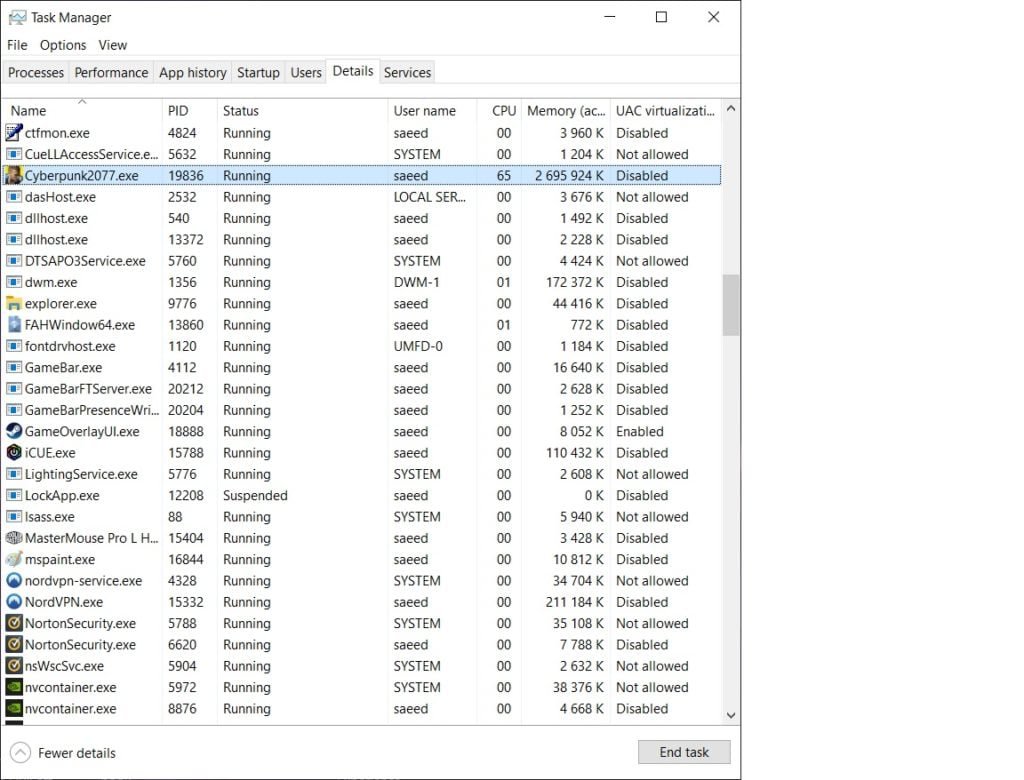
There’s no direct way to allocate more RAM to games specifically; instead, you can close unnecessary background applications to free up RAM for gaming.
Experiencing frustrating lag during your favorite game? Many gamers ask how to allocate more ram to games, hoping for a performance boost. The truth is, you can’t directly assign a specific amount of RAM to a game like you might adjust graphic settings. However, there are effective methods to prioritize your game’s access to system memory.
The operating system manages RAM allocation. It dynamically assigns memory based on demand. Closing background programs gives your game more breathing room. This simple step often improves game performance considerably.

How to Allocate More RAM to Games
Okay, so you’re ready to jump into your favorite game, but it’s acting slow and jerky? That can be super frustrating! A big reason this happens is that your computer might not be giving the game enough RAM. RAM, or Random Access Memory, is like your computer’s short-term memory. It helps games run smoothly. When a game doesn’t have enough RAM, it struggles to keep up, causing those annoying lags and stutters. Let’s explore how you can make sure your games have the RAM they need to play like a dream.
Understanding RAM and How It Affects Gaming
Before we dive into the ‘how,’ let’s quickly talk about what RAM is and why it’s so important for games. Imagine RAM as a big desk where your computer puts all the things it’s working on right now. The bigger the desk (more RAM), the more things it can handle at once without slowing down. Games need a lot of space on this desk because they have lots of stuff going on – characters, maps, sounds, and more. If your computer doesn’t have enough RAM, it starts to swap things in and out from a much slower place, like your hard drive. This process creates those lags. So, giving your games more RAM makes the desk bigger, allowing them to run faster and smoother.
How Much RAM Do Games Need?
Different games need different amounts of RAM. A simple puzzle game might not need much, but a huge action game with tons of detail will need a lot more. Here’s a general idea:
- Simple Games (like card games or 2D platformers): Usually need around 4GB of RAM.
- Medium Games (like some racing games or online strategy games): Usually need 8GB of RAM.
- Big, demanding Games (like the newest action games or very detailed simulators): Often need 16GB of RAM or even 32GB in some cases.
These are just estimates, though. The game’s system requirements will tell you exactly how much RAM it suggests and how much RAM it needs. You can usually find this on the game’s box or store page online.
Checking Your Current RAM Usage
Before we make any changes, let’s see how much RAM your computer has and how much it’s using while gaming. This helps us know if you really need to allocate more RAM. Don’t worry, it’s not hard to check.
Checking RAM Usage in Windows
Here’s how to check your RAM in Windows:
- Press Ctrl + Shift + Esc at the same time. This opens the Task Manager.
- Click on the “Performance” tab at the top.
- Look for the “Memory” section on the left side of the window.
- You’ll see how much RAM you have installed and how much is currently being used.
- Play your game for a little while and keep an eye on the RAM usage. If it’s constantly near 100%, that means you need to free up some RAM or possibly add more.
Checking RAM Usage in macOS
Here’s how to do it on a Mac:
- Click the Apple logo in the top left corner.
- Select “About This Mac.”
- Click “System Report.”
- Choose “Memory” from the left-hand menu. You’ll see details about how much RAM you have installed.
- Open “Activity Monitor” by searching for it in Spotlight (magnifying glass icon in the top right).
- Click the “Memory” tab.
- You can see how much RAM is being used.
- Play your game and watch the RAM usage. If it consistently hits the red or yellow sections of the memory pressure graph, you might need more RAM.
Methods for Increasing Available RAM for Games
Now that you understand RAM and its impact on gaming and have checked your usage, let’s explore the various ways to give your games more of it. Some of these methods are simpler than others, and some may be more effective based on your specific situation.
Closing Unnecessary Programs
This is the simplest and easiest way to free up RAM for your games. When you open many programs or browser tabs, each uses some of your RAM. Closing them frees up that space. You can do this through the Task Manager (Windows) or Activity Monitor (macOS) mentioned earlier. Look for programs that you aren’t using and close them. Games will run better when they are given the most amount of resources to play. The easiest to do, also, is closing browser tabs as they tend to use a lot of resources as well.
Adjusting Virtual Memory (Paging File)
Virtual memory is a way your computer uses your hard drive as extra RAM. When you run out of actual RAM, your computer can start using the hard drive to store data. It’s slower than real RAM, but it can still help. By adjusting the virtual memory size, you can sometimes improve performance, though it won’t be the same as having more physical RAM. This is particularly helpful if you are constantly hitting your ram limit.
Adjusting Virtual Memory in Windows
- Type “performance” in the Windows search bar and click on “Adjust the appearance and performance of Windows.”
- Go to the “Advanced” tab.
- In the “Virtual memory” section, click “Change.”
- Uncheck the “Automatically manage paging file size for all drives” box.
- Select “Custom size.”
- Enter a minimum and maximum size. A good starting point is to set the initial size to 1.5 times your installed RAM and the maximum size to 3 times your installed RAM. For example, if you have 8GB of RAM (8192MB), set the initial size to 12288 MB and the maximum size to 24576 MB. But if you have 16GB RAM, you might want to do 16384MB initial and 32768MB for maximum.
- Click “Set” and then “OK.” You’ll need to restart your computer for the changes to take effect.
Adjusting Swap File in macOS
macOS manages swap files automatically and there isn’t a direct way to manually adjust them. However, making sure your system drive has free space, and keeping your system updated can help ensure the system is using the swap file effectively. To check if you have enough free space, click on the apple logo, go to ‘About this Mac’, and click on ‘Storage’. Make sure that you have a good amount of storage.
Updating Graphics Drivers
Graphics drivers help your computer’s graphics card work properly. Outdated drivers can cause problems, including poor performance in games. Updating your drivers can help games run more smoothly and effectively use your RAM.
Updating Graphics Drivers on Windows
- Right-click on the Windows Start button and select “Device Manager.”
- Expand “Display adapters.”
- Right-click on your graphics card and select “Update driver.”
- Choose “Search automatically for drivers.” Windows will look for and install any new drivers.
- You can also go directly to your graphics card manufacturer’s website (like NVIDIA or AMD) and download the newest drivers there.
Updating Graphics Drivers on macOS
macOS handles driver updates as part of its system updates. Make sure your macOS is up-to-date by going to “System Preferences” and clicking on “Software Update”.
Disabling Startup Programs
Many programs start automatically when you turn on your computer. These programs run in the background and use RAM, even when you’re not using them. Disabling unneeded startup programs frees up RAM and helps your games run faster.
Disabling Startup Programs in Windows
- Open Task Manager (Ctrl+Shift+Esc).
- Click on the “Startup” tab.
- Look at the list of programs that start automatically. Disable any you don’t need by clicking on them and then clicking the “Disable” button.
Disabling Startup Programs in macOS
- Click on the Apple logo and go to “System Preferences.”
- Click on “Users & Groups.”
- Click on your username.
- Click on “Login Items.”
- Select programs that you don’t need to start automatically. Click the “–” button to remove them.
Using Game Boosters
Game boosters are programs designed to make your games run better. They often work by automatically closing unnecessary programs, adjusting system settings, and prioritizing resources for your game. They can be helpful, but always check reviews and make sure they’re safe before using them. Some popular options include Razer Cortex or similar apps from different hardware manufacturers.
Upgrading Your RAM
If all else fails, you may need to physically add more RAM to your computer. This is the most effective way to improve your game’s performance. The maximum amount of ram is normally dictated by the motherboard in your computer. This is not difficult to do, but you should check your system’s manual to see what type of RAM you need and how much it supports. Also, make sure to unplug your computer, ground yourself to remove static and follow instructions carefully. If you don’t feel comfortable, have an expert install the ram for you.
Choosing the Right RAM
When buying RAM, make sure you get the right type for your computer. RAM comes in different speeds and types (DDR4, DDR5). Look at your motherboard specifications to see what type is compatible and supported. In most cases, when you are buying additional RAM, you will want to make sure it is the same type/speed as you already have.
| Type of RAM | Description | Benefits | Considerations |
|---|---|---|---|
| DDR4 | Double Data Rate 4, the most common standard of RAM used today. | More affordable, very compatible with many systems. | Becoming older technology, limited by motherboards compatibility. |
| DDR5 | Double Data Rate 5, the newer more advanced standard of RAM. | Much faster, greater bandwidth and performance. | More expensive, requires modern motherboards. |
Optimizing Game Settings
Sometimes, you can improve performance simply by adjusting the graphics settings in your game. Lowering resolution, turning off special effects, and decreasing texture detail can all help reduce the amount of RAM your game needs. Try changing one setting at a time to find the best balance between visual quality and speed. This is a good starting point for any game you are playing. Some games may have built in upscaling which may help improve the performance of the game.
Giving your games more RAM can significantly improve your gaming experience. By using some of these methods you should be able to enjoy more smooth and less laggy games. Remember to start with the easiest methods first, like closing unnecessary programs and then moving to more advanced methods like adjusting virtual memory. If your computer is still slow it may be time to upgrade your RAM. By using this information you should have a solid grasp on how you can allocate more RAM to games.
How To Allocate More RAM To Specific Programs/Games On Windows! [2024]
Final Thoughts
To allocate more RAM to games, close unnecessary programs. Adjust virtual memory settings if needed for an increase in usable memory space. Further, check game specific launch options for memory allocation settings. Understanding system settings proves helpful.
These steps effectively guide how to allocate more ram to games. Consider your system limitations before making changes. Game performance will improve with sufficient RAM. Allocate wisely.

