
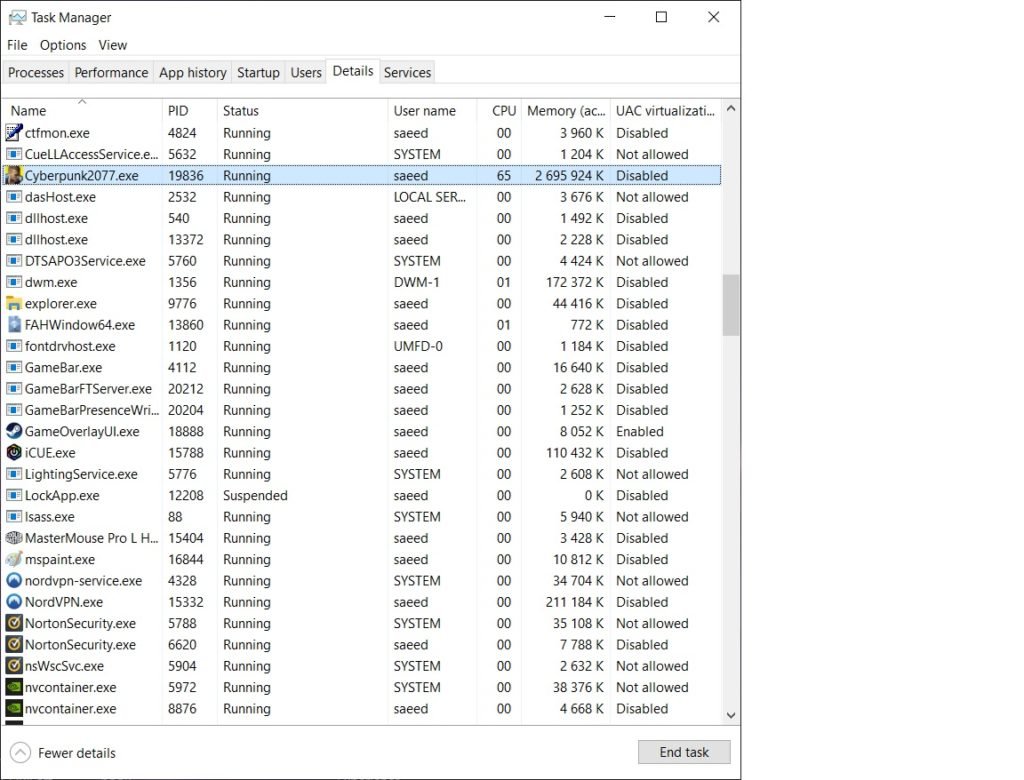
To allocate RAM to a game, you generally need to close unnecessary background applications and processes. Some games may also allow you to adjust memory usage within their settings, however this is not common.
Ever felt like your favorite game is crawling instead of cruising? It can be incredibly frustrating, especially when you know your computer should handle it. One potential bottleneck is how much RAM a game is using. Understanding how to allocate RAM to a game can make a huge difference in the smoothness of your gameplay.
We will discuss some of the basic steps you can take to improve your gaming performance. This might involve closing background applications or checking for settings within your specific game.

How to Allocate RAM to a Game
Ever notice your game lagging, stuttering, or even crashing? It might be because your computer isn’t giving it enough RAM, which is like your computer’s short-term memory. When a game needs to quickly remember lots of things – like where all the characters and objects are – it uses RAM. If there’s not enough RAM available, the game struggles. This section will guide you through understanding and managing RAM for a smoother gaming experience.
Understanding RAM and Its Importance for Gaming
Before we dive into allocating RAM, it’s important to know what it is and why it matters for games. RAM stands for Random Access Memory. Think of it as your desk space when you’re working on a project. The bigger your desk, the more papers, pens, and other stuff you can have readily available. Similarly, RAM holds the data that your computer needs to access quickly. The more RAM you have, the more data your computer can keep easily accessible, leading to better performance.
Why is RAM So Important for Games?
- Smooth Gameplay: Games need RAM to store the game world, characters, textures, and other important information. Sufficient RAM means less loading times and smoother, less choppy gameplay.
- Faster Loading Times: When a game needs to load a new area or level, it uses RAM. With enough RAM, this loading happens quickly.
- Reduced Stuttering and Lag: If a game runs out of RAM, it has to use your hard drive or solid-state drive, which is much slower. This results in stuttering, lag, and sometimes even crashes.
- Better Multitasking: If you like to run other apps, like Discord or a web browser, while gaming, having enough RAM helps your system handle all of it without slowdowns.
How Much RAM Do Games Typically Need?
The amount of RAM a game needs varies widely. Simple games like card games or older titles may only need 2GB or 4GB of RAM, while modern AAA games with high-resolution graphics and complex gameplay may need 8GB, 16GB, or even 32GB. You need to look at the minimum and recommended RAM requirements on a game’s packaging or on its Steam page. It’s also important to remember that the operating system itself (Windows, macOS, or Linux) also uses RAM, so you need some space left over, not just what a game recommends.
The Truth About “Allocating” RAM Directly to a Game
Here is where a common misunderstanding lies. You can’t directly assign RAM in a way that says, “This game gets exactly 8GB of RAM and nothing else.” Your computer’s operating system manages RAM and automatically provides it to programs that need it. It’s a dynamic process, constantly reallocating memory between running applications. Instead of direct allocation, what you actually do is manage how your system uses RAM so that games have a better opportunity to get the resources they need. Here are the primary ways we do that:
- Closing Unnecessary Applications: The easiest and most effective way is to close anything that you’re not actively using, which frees up RAM for games.
- Adjusting Virtual Memory Settings: Virtual memory acts as an overflow for RAM, using your hard drive space when RAM is full. You can adjust virtual memory settings to potentially improve performance.
- Using Performance Tweaking Software: There are some programs available that can help to manage your background processes, so that more RAM is available for games.
Steps to Optimize RAM Usage for Gaming
1. Closing Unnecessary Programs
This is the first and easiest step to improving gaming performance. Every application that’s open on your computer consumes RAM. Even seemingly small programs running in the background can add up to a significant amount of RAM usage.
How to Close Unnecessary Programs:
- Windows: Press Ctrl + Shift + Esc to open the Task Manager. Go to the “Processes” tab and look at the “Memory” column. This shows you which programs are using the most RAM. Select unnecessary programs and click “End task.”
- macOS: Press Command + Space, type “Activity Monitor”, and press Enter. Go to the “Memory” tab to see RAM usage. Select unwanted apps and click the “X” button at the top left.
- Linux: Use a tool like htop or System Monitor to identify and close unnecessary processes.
Tips for identifying unnecessary programs: Look for applications you aren’t currently using such as web browsers, office programs, image editing tools, and chat apps. Also, check for any background programs that might be running without your knowledge. You might be surprised at how many programs run silently in the background.
2. Adjusting Virtual Memory (Page File) Settings
Virtual memory, also known as a page file, is an extension of your computer’s RAM using storage space on your hard drive or SSD. When your RAM is full, Windows moves less frequently used data from the RAM to virtual memory. This can help prevent crashes but can also slow down your system since storage devices are much slower than RAM. Adjusting virtual memory can sometimes improve how efficiently your system uses RAM.
How to Adjust Virtual Memory in Windows:
- Right-click on “This PC” or “My Computer” and choose “Properties.”
- Click “Advanced system settings” on the left.
- Under the “Performance” section, click “Settings.”
- Go to the “Advanced” tab.
- In the “Virtual memory” section, click “Change.”
- Uncheck “Automatically manage paging file size for all drives.”
- Select the drive where your operating system is installed (usually C:).
- Choose “Custom size.”
- Set the “Initial size (MB)” and “Maximum size (MB).” Generally, set the initial size to the amount of RAM your computer has and the maximum size to 1.5 to 3 times your physical RAM. For example, if you have 8 GB of RAM (which is 8192 MB), you might set the initial size to 8192 MB and the maximum size to 12288 MB or 24576 MB.
- Click “Set,” then “OK” on all open windows, and restart your computer.
Considerations for Virtual Memory: Using virtual memory excessively can be detrimental to performance as it is slower than actual RAM. If your computer often relies on virtual memory, it’s a good indication that you might need to add more physical RAM. On the other hand, if you have an abundance of RAM, you might choose to have the virtual memory set very low or even turned off if you have an SSD.
3. Using Performance Tweaking Software
There are various third-party programs that claim to optimize your computer for gaming. Some of these can help manage background processes and clean your computer of clutter, which can free up RAM and improve system performance. However, be cautious when using these tools, and always download them from reputable sources.
Examples of Performance Optimization Tools:
- Razer Cortex: This program can close unnecessary applications and processes when you start a game and restores them when you are done, which frees up more RAM for gaming.
- Wise Game Booster: A tool designed to optimize games by closing background processes and cleaning RAM.
- Game Fire: A program that helps to manage Windows services and apps for enhanced gaming performance.
Cautions when using performance tools: Not all optimization software is created equal. Some programs may not be effective and might even install unwanted software on your computer. Do some research and read reviews before using any performance tools, to ensure that they are reliable and safe. Avoid programs that aggressively claim to “boost” or “accelerate” performance. Sometimes, simple tweaks can make a bigger difference.
4. Managing Startup Programs
Many applications run automatically when you start your computer. These can take up RAM even when you’re not actively using them. Disabling unnecessary startup programs can reduce the RAM being used on your system at all times.
How to Manage Startup Programs:
- Windows:
- Press Ctrl + Shift + Esc to open Task Manager.
- Go to the “Startup” tab.
- Look at the “Startup impact” column. This tells you how much each program affects your computer’s startup time.
- Select unnecessary programs and click “Disable.”
- macOS:
- Click the Apple menu and go to “System Preferences.”
- Click “Users & Groups.”
- Select your user account and click “Login Items.”
- Select apps you do not want running at startup and click the “-” button.
- Linux: You can use gnome-session-properties or other tools specific to your Linux distribution to manage startup programs.
Tips for managing startup programs: Only disable programs that you don’t need at startup. Start by disabling one or two and see how your system performs, before disabling too many at once. For example, if you never use a certain image editing application, you can disable it from starting automatically.
5. Ensuring Up-to-Date Graphics Drivers
Outdated graphics drivers can affect performance and might cause issues with how your computer allocates RAM for games. It is crucial to ensure that you always have the latest drivers installed.
How to Update Graphics Drivers:
- NVIDIA: Go to the NVIDIA website and download the latest drivers for your graphics card model. Or, use NVIDIA GeForce Experience.
- AMD: Download drivers from the AMD website for your specific graphics card. Or use the AMD Radeon Settings software.
- Intel: Download the latest graphics drivers from Intel’s support page if you have an integrated Intel graphics processor.
Why up-to-date drivers matter: Newer driver versions often come with performance improvements and bug fixes that can significantly impact how well a game runs and how it utilizes system resources, including RAM. Also, they can resolve many issues with the display and can prevent some crashes. It’s a good idea to regularly check for new drivers for your graphics card.
6. Consider Upgrading Your RAM
If, despite all of your efforts, your computer is still struggling with gaming, it might be time to consider adding more physical RAM. If your machine consistently uses a lot of virtual memory, or your games always have performance issues, adding RAM is the best solution.
How to Upgrade Your RAM:
- Check your computer’s specifications: You need to know the type of RAM your computer uses (DDR4, DDR5, etc.) and the maximum amount of RAM it supports. This information is usually available in your computer’s manual or on the manufacturer’s website.
- Purchase the correct RAM: Buy RAM sticks that match the specifications of your computer and are compatible with your motherboard.
- Install the RAM: The installation process usually involves opening up your computer case and placing the RAM sticks into the correct slots on your motherboard. There are plenty of videos on YouTube that guide you through the process.
Is it Worth it? Adding more RAM can provide a substantial performance boost, and is usually the best way to improve how a game runs. More RAM allows your system to avoid using virtual memory and keeps more data readily available, which can mean faster loading times, smoother gameplay, and improved overall responsiveness. It is particularly effective if your computer often lags or stutters when gaming. It is often one of the best upgrades you can make.
Managing RAM for optimal gaming is all about ensuring that your system is using its resources as effectively as possible. While you can’t “allocate” a specific amount of RAM directly to a game, you can use these techniques to maximize the amount of available memory for gaming and to get the best gaming experience.
By taking simple steps like closing unused applications, you can make a real difference. If those steps are not enough, consider things like virtual memory and startup programs. Finally, an upgrade can also be a very good option, especially for a system which is a few years old. Remember that a good balance between hardware and software settings is the key to improving the performance of your games.
How To Allocate More RAM To Specific Programs/Games On Windows! [2024]
Final Thoughts
Adjusting virtual memory can sometimes help when direct allocation isn’t possible. Many games automatically use RAM as needed, but you can monitor resource usage using Task Manager.
Understanding limitations of your system’s hardware is crucial. Often, ‘how to allocate ram to a game’ isn’t a direct process. System settings and game configurations sometimes allow for memory adjustments.
Optimizing system performance often provides the best gaming experience. These adjustments, combined with game settings, offer the best chance of performance improvements.

